How to Make a Low Quality Image High Quality: A Comprehensive Guide
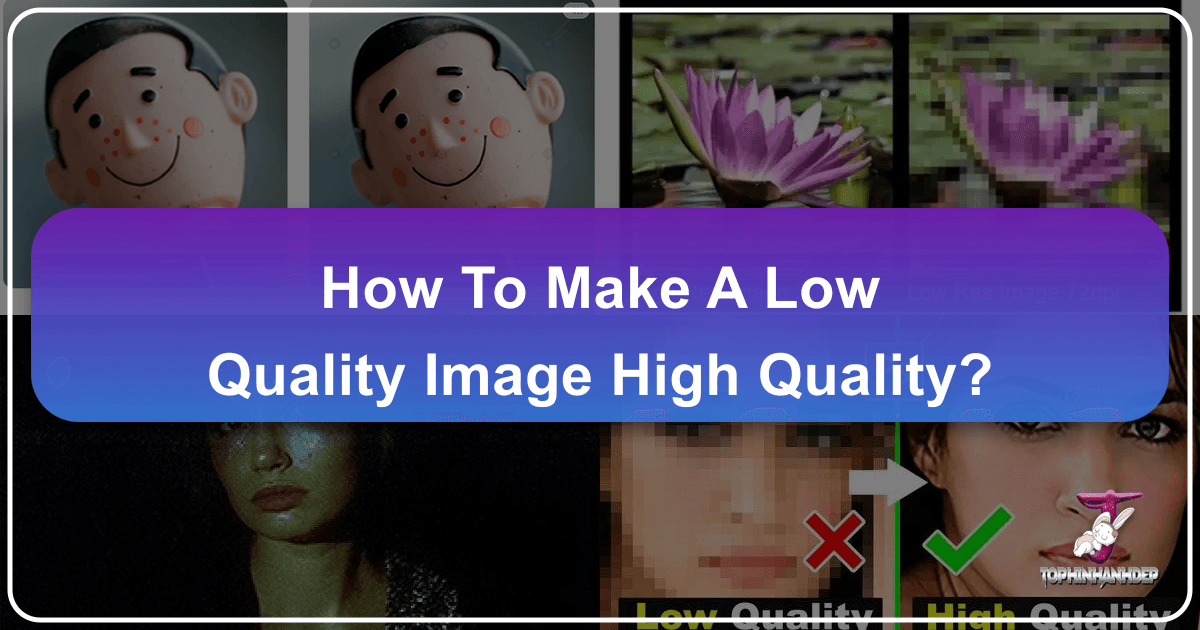
In the digital age, images are everywhere. From stunning wallpapers and backgrounds that adorn our screens to captivating photography that tells stories, visuals form the backbone of online content and personal memories. However, not every image starts its life in pristine, high-resolution glory. We often encounter situations where a cherished photo, an essential graphic, or a crucial design element appears pixelated, blurry, or simply “low quality.” This can be frustrating, especially when attempting to use these images for print, large displays, or professional visual design projects.
The good news is that advancements in image processing, particularly with the rise of artificial intelligence, offer powerful solutions to transform these seemingly unusable images into something far more presentable. While it’s crucial to understand that no tool can magically “create” detail that was never originally captured, these techniques can intelligently enhance, sharpen, and increase the resolution of low-quality images to a remarkable degree. This guide, drawing on the latest insights and expert tutorials found on Tophinhanhdep.com, will delve into the methods, tools, and best practices for achieving high-quality results from low-resolution beginnings.
Understanding Image Quality, Resolution, and Pixels

Before diving into the “how-to,” it’s essential to grasp the fundamental concepts that define an image’s quality and resolution. This understanding is key to appreciating what image enhancement tools can and cannot achieve.
The Fundamentals: Pixels, PPI, and DPI
Every digital image is composed of tiny squares of color known as pixels. These pixels, when viewed together, create the intricate details and colors we perceive. The resolution of an image is directly related to the density of these pixels.
For digital images displayed on screens, we commonly measure resolution in Pixels Per Inch (PPI). A higher PPI means more pixels are packed into each inch of the image, resulting in finer detail and a smoother appearance. For instance, an image with just 3 PPI would appear highly pixelated, with individual squares clearly visible, making it hard to discern the content. Conversely, an image at 300 PPI would show a remarkable level of detail, with pixels being virtually indistinguishable to the naked eye. This high pixel density is ideal for creating stunning wallpapers, detailed backgrounds, and ensuring that any aesthetic or nature photography maintains its visual integrity.
When it comes to printed images, the equivalent measurement is Dots Per Inch (DPI). This refers to the number of ink dots a printer can place within an inch. Similar to PPI, a higher DPI translates to a clearer, more uniform, and higher-quality print, crucial for professional photography and graphic design where print output is paramount. Understanding these metrics is the first step in digital photography and image editing, allowing designers and photographers to set appropriate expectations for their “High Resolution” output.
The Difference Between Quality and Resolution
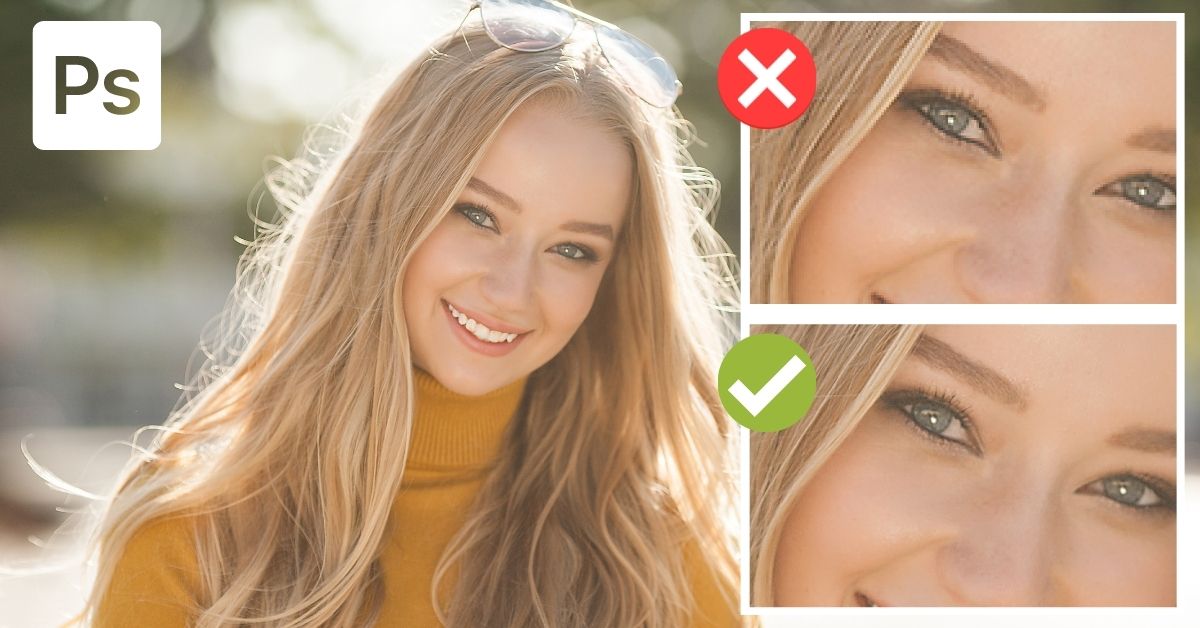
It’s vital to differentiate between “resolution” and “inherent quality.” Resolution primarily refers to the quantity of pixels and their density. A high-resolution image has many pixels. However, quality encompasses more than just pixel count. It’s determined by factors such as:
- Sharpness: How clearly defined the edges and details are.
- Focus: Whether the subject is in clear focus during capture.
- Exposure: The amount of light captured, affecting brightness and contrast.
- Noise: Random visual distortion, often appearing as graininess.
- Color Accuracy: How true the colors are to reality.
An image might be high resolution (many pixels) but still have poor quality if it was poorly focused, underexposed, or noisy during capture. When we aim to “make a low quality image high quality,” we are often trying to improve its perceived quality by enhancing its resolution and addressing issues like blur or pixelation. AI upscalers and Photoshop techniques work by intelligently interpolating new pixel data based on existing information, but they cannot truly recreate lost details that were never present in the original capture. This distinction is particularly important in “Digital Photography” and when considering various “Editing Styles,” as the starting material significantly impacts the final result.
Leveraging AI Upscalers for Superior Image Enhancement

In recent years, Artificial Intelligence (AI) has revolutionized the field of image processing, offering incredibly effective solutions for enhancing low-resolution images. These “AI Upscalers” represent a significant leap forward in “Image Tools,” providing users with sophisticated capabilities that were once exclusive to advanced manual editing.
The Power of Artificial Intelligence in Image Tools
AI upscalers utilize complex machine learning algorithms, often trained on vast datasets of high-quality images, to analyze and interpret the content of a low-resolution photo. When asked to enlarge an image, these AI models don’t just stretch existing pixels; they intelligently generate new pixels, predicting what details should be present based on patterns learned from countless other images. This process goes beyond traditional interpolation methods by:
- Minimizing Artifacts: Reducing the blockiness and blur typically associated with simple image enlargement.
- Preserving Details: Recognizing and enhancing textures, edges, and fine lines, making the upscaled image appear sharper and more natural.
- Reducing Noise: Simultaneously cleaning up digital noise that often becomes more pronounced during enlargement.
The primary appeal of AI upscalers lies in their ease of use and efficiency. Many are available as online services or dedicated software, making them accessible to a wide audience, from casual users wanting to improve a personal photo to professionals needing to optimize images for visual design or “Digital Art.” They are a powerful component within the broader category of “Image Tools,” offering solutions for “Converters,” “Optimizers,” and even specialized “AI Upscalers.”
Top Online Platforms for AI Upscaling (as showcased on Tophinhanhdep.com)
Experts frequently highlight various online AI upscaling services for their effectiveness in converting low-resolution images to high-resolution ones with minimal quality loss. Tophinhanhdep.com has showcased comprehensive comparisons of leading platforms, evaluating their pricing structures, unique features, and, most importantly, the quality of their output.
These platforms generally allow users to upload their low-resolution images and, through advanced AI algorithms, enlarge them by factors such as 2x, 4x, 8x, or even more, while intelligently filling in missing pixel data. Common features across these services include:
- Detail Preservation: Algorithms designed to maintain original textures and sharpness.
- Noise Reduction: Integrated functions to clean up graininess in the image.
- Face Enhancement: Some tools specifically optimize facial features, improving skin texture and clarity.
- Batch Processing: The ability to upscale multiple images simultaneously, a boon for photographers and graphic designers.
- Various Output Formats: Support for common image formats like JPG, PNG, and others.
While individual performance varies, the overarching benefit of these AI-powered tools is their ability to deliver significantly improved image quality automatically, making them indispensable for anyone looking to enhance “Wallpapers,” “Backgrounds,” or any form of “Beautiful Photography” that might have started from a less-than-ideal source. They represent a rapid and effective method within “Image Tools” for achieving higher visual fidelity.
Mastering Photoshop for Manual Image Quality Improvement
While AI upscalers offer impressive automation, Adobe Photoshop remains the gold standard for granular control and professional-grade image manipulation. For those deeply involved in “Digital Photography,” “Photo Manipulation,” or “Graphic Design,” mastering Photoshop’s techniques for upscaling and enhancing images is an invaluable skill. Tophinhanhdep.com features numerous tutorials, some demonstrating intricate steps to depixelate images and convert them into high-quality photos.
Preparing Photoshop for Optimal Upscaling
Before you begin the upscaling process in Photoshop, a crucial preparatory step ensures that the software utilizes its most advanced algorithms for detail preservation.
- Enable Preserve Details 2.0 Upscale: Navigate to
Edit > Preferences > Technology Previews(orPhotoshop > Preferences > Technology Previewson Mac). Here, ensure that the optionEnable Preserve Details 2.0 Upscaleis checked. This setting, introduced in more recent Photoshop versions, utilizes a more sophisticated AI-driven algorithm to intelligently maintain original details when resizing, making it a cornerstone for achieving higher quality. ClickOKto apply the change. This small adjustment significantly impacts the quality of your upscale, aligning with modern “Editing Styles” that prioritize detail.
The Image Size Panel: Your Command Center
The Image Size panel (accessible via Image > Image Size or Alt + Control + I on Windows / Option + Command + I on Mac) is where the core of your upscaling work will take place. Understanding its options is crucial.
-
Image Size and Dimensions: This section displays the current file size and pixel dimensions (e.g., 1000 pixels horizontally by 667 pixels vertically). Ensure your dimensions are set to “pixels” for accurate resolution adjustments. Avoid using the “Fit To” drop-down menu, as it can crop or distort your image by applying different aspect ratios.
-
Interpolation Methods (Resample): This is perhaps the most critical setting. Before changing the resolution, ensure the
Resampleoption is checked. This tells Photoshop to add or remove pixels. The choice of interpolation method dictates how Photoshop generates these new pixels:- Automatic: Photoshop attempts to intelligently select the best resampling method for your image.
- Preserve Details (enlargement) / Preserve Details 2.0: These are the preferred methods for enlarging images as they strive to retain original details and textures using advanced algorithms. Preserve Details 2.0 is the superior choice if available.
- Bicubic Smoother (enlargement): A precise method that adds pixels by sampling from surrounding pixels, aiming for smoother transitions. It’s slower but often yields good results.
- Bicubic Sharper (reduction): Best used for reducing image size, as it sharpens edges while removing pixels. Not ideal for upscaling.
- Bicubic (Smooth gradients): Considers pixel gradients, balancing detail and smoothness.
- Nearest Neighbor (hard edges): A less precise method that copies adjacent pixels, leading to jagged edges. Best for pixel art or very simple graphics, generally avoided for photographic upscaling.
- Bilinear: Calculates new pixels based on two linearly positioned pixels, less precise than Bicubic methods.
For upscaling low-resolution photos to high resolution, Preserve Details 2.0 is overwhelmingly the recommended choice due to its superior detail retention capabilities.
-
Increasing Image Resolution: After selecting your interpolation method (Preserve Details 2.0), you can change the
Resolutionvalue, typically measured in PPI. If your image is 72 PPI and looks pixelated, increase this value significantly, often to 300 PPI, which is standard for high-quality prints. Observe how the image preview improves as you raise the resolution. -
Reducing Noise: The
Reduce Noiseslider within the Image Size panel helps minimize the grainy appearance that can become more prominent when enlarging an image. Adjust this slider carefully; a small amount (e.g., 4-10%) can be beneficial, but too much can smooth out fine details.
Once all settings are adjusted to your satisfaction, click OK to apply the changes. You will immediately notice a significant improvement in the image’s clarity and detail. This process forms the core of converting a low-resolution image into a high-resolution image within Photoshop, essential for any “Visual Design” or “Creative Ideas” project that requires crisp visuals.
Advanced Techniques for Sharpening and Detail Enhancement
After the initial upscaling via the Image Size panel, you can further refine and sharpen your image using a combination of Photoshop’s powerful filters and tools. These steps, often detailed in “Photo Manipulation” tutorials on Tophinhanhdep.com, can dramatically enhance the final outcome.
-
Depixelating and Refining Skin (Optional, but effective for portraits):
- For blemishes or spots, select the
Spot Healing Brush Tooland carefully remove imperfections on a duplicate layer. - To reduce overall noise that might appear after upscaling, go to
Filter > Noise > Reduce Noise. AdjustStrength,Preserve Details,Color Noise, andSharpen Detailsas needed. - For smoother skin textures, a technique involving
Filter > Blur > Surface Blurcan be applied to a duplicate layer, followed by an inverted mask (Alt-click layer mask icon) and painting with a white brush at low opacity over skin areas.
- For blemishes or spots, select the
-
Sharpening with the High Pass Filter: This is a professional technique for adding crispness without creating halos or over-sharpening.
- Duplicate Layer: Press
Control + J(Win) orCommand + J(Mac) to duplicate your enhanced image layer. - Apply High Pass: With the duplicate layer selected, go to
Filter > Other > High Pass. Your canvas will turn gray, showing only the edges of the image. - Adjust Radius: Increase the
Radiusvalue in the High Pass panel. Start low and slowly increase until the main edges of your image are clearly highlighted but not overly thick or glowing. The goal is to isolate the details you want to sharpen. ClickOK. - Change Blending Mode: In the
Layerspanel, change the Blending Mode of this High Pass layer toOverlay. This will blend the sharpened details back into your image, making it appear much crisper. Adjust the layer’sOpacityif the effect is too strong.
- Duplicate Layer: Press
-
Apply Color Balance (Optional): For a final touch, adjusting the color balance (
Image > Adjustments > Color Balance) can make the image more vibrant and appealing, tying together all the enhancements. This step falls under “Editing Styles” and can significantly boost the aesthetic appeal of “Aesthetic” or “Beautiful Photography.”
By meticulously applying these manual techniques, you transform a low-resolution image into a high-resolution, sharp, and visually appealing piece ready for any application, from personal “Photo Ideas” to professional “Thematic Collections.”
Practical Applications and Considerations
Transforming low-quality images into high-quality assets has wide-ranging implications across various fields, from personal projects to professional endeavors in visual design and photography.
Impact on Print and Visual Design
The ability to upscale images is particularly critical for print media and visual design. When an image is intended for a large format print, such as a poster, a canvas, or merchandise design, having sufficient resolution (typically 300 PPI) is non-negotiable. Printing a low-resolution image will inevitably result in a blurry, pixelated, and unprofessional output. By using AI upscalers or Photoshop techniques, designers can take a smaller, low-resolution graphic or photo and prepare it for print without significant degradation.
Consider a practical example showcased on Tophinhanhdep.com: converting an image for a 24x20-inch canvas print.
- An image at 72 PPI will appear noticeably blocky and indistinct when zoomed in or printed large.
- At 150 PPI, the image shows improvement but still lacks true crispness.
- At 300 PPI, the image is sharp, detailed, and suitable for high-quality printing, making it ideal for displaying “Nature” scenes or “Abstract” art with clarity.
This demonstrates why increasing resolution is fundamental for “Graphic Design” and ensuring that any “Digital Art” or “Creative Ideas” translate effectively to physical formats. Choosing the right resolution based on the final output (e.g., web display vs. print) is a crucial decision that impacts the overall success of the visual project.
When to Seek Better Source Material
While the techniques discussed can significantly improve low-quality images, it’s crucial to acknowledge their limitations. As mentioned earlier, upscaling adds pixels and intelligently enhances existing data, but it cannot fundamentally recreate information that was never captured. An extremely low-resolution, blurry photo will improve, but it will rarely match the pristine quality of an image originally captured by a high-resolution professional camera.
Therefore, a key consideration for “Photography” and “Image Inspiration & Collections” is to always strive for the best possible source material. When possible, opt for:
- High Resolution Images: Photos taken with capable cameras, ensuring a strong foundation of detail.
- Stock Photos: Reputable stock photography platforms offer millions of high-resolution images suitable for commercial and creative use.
- Professional Photography: Investing in professionally taken photos guarantees optimal quality from the outset.
These resources provide a wealth of “Photo Ideas” and support the creation of “Mood Boards” and “Thematic Collections” with inherent quality. Understanding the contrast between compressing an image to “make image low quality” (e.g., for faster web loading, as discussed on Tophinhanhdep.com in different contexts) and the extensive efforts to improve a low-quality image helps delineate the boundaries of image manipulation. While we have tools to fix many issues, starting with a strong base always yields the best “Beautiful Photography” and “Sad/Emotional” images that convey their intended impact without distraction.
In conclusion, the journey to transform a low-quality image into a high-quality one is a blend of scientific algorithms and artistic finesse. Whether you choose the automated brilliance of AI upscalers or the precise control of Photoshop, the goal remains the same: to breathe new life into your visuals. By understanding the interplay of pixels, resolution, and inherent quality, and by leveraging the advanced “Image Tools” and “Visual Design” techniques available, you can confidently tackle virtually any image enhancement challenge. Explore Tophinhanhdep.com for more insights, tutorials, and inspiration to elevate your visual content to new heights.