How to Make an Image a Clickable Link in HTML: A Visual Guide for Tophinhanhdep.com
In the vast landscape of the internet, where visual content reigns supreme, the ability to seamlessly integrate images with navigation is a cornerstone of effective web design. For platforms like Tophinhanhdep.com, dedicated to showcasing a rich array of visual content—from stunning wallpapers and evocative backgrounds to high-resolution photography encompassing nature, abstract art, and emotional aesthetics—making images clickable is not just a feature; it’s an imperative. This guide delves into the fundamental HTML techniques required to transform static images into dynamic, interactive links, enhancing user experience and driving engagement, all while aligning with the core principles of visual excellence that Tophinhanhdep.com embodies.

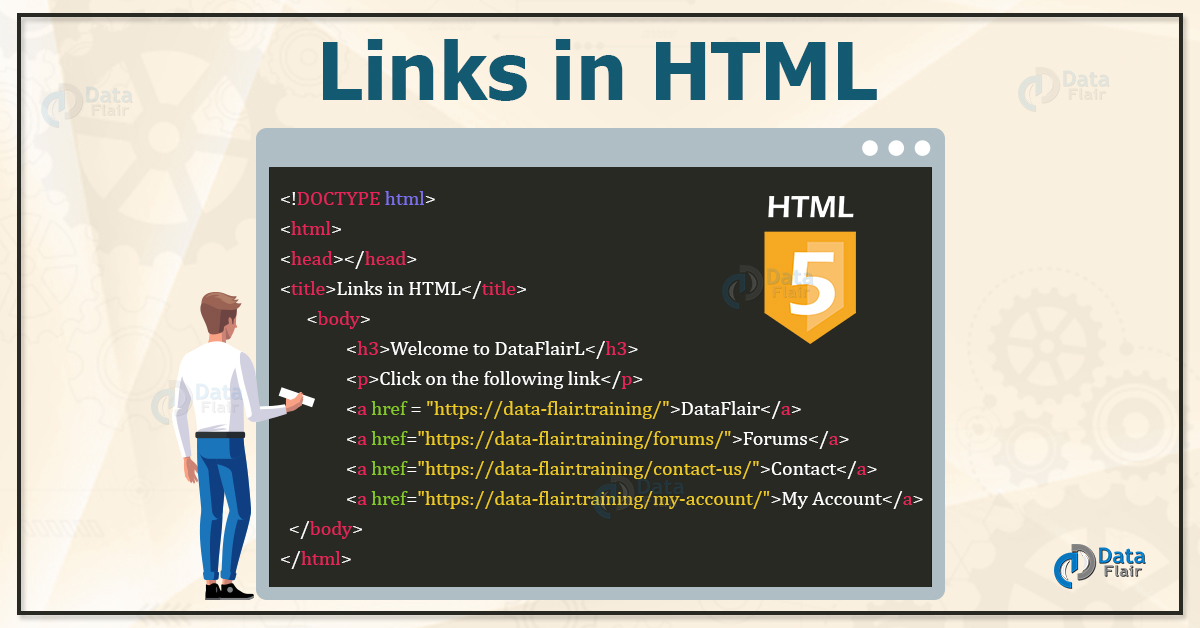
The process is remarkably straightforward, leveraging the power of two foundational HTML elements: the <a> (anchor) tag for creating hyperlinks, and the <img> (image) tag for embedding images. By nesting an <img> tag within an <a> tag, you essentially tell the browser to render the image as the clickable element of the link. This simple yet powerful combination opens up a world of possibilities for visual navigation, allowing users to explore curated collections, dive deeper into photography portfolios, or access related tools with a single click on a captivating visual. Whether you’re presenting a breathtaking landscape wallpaper, an intricate piece of digital art, or a trending aesthetic background, making that image clickable ensures a smooth and intuitive journey for your visitors.
The Core HTML Structure: Anchoring Images for Dynamic Web Presence
At its heart, making an image a link in HTML is about wrapping one element inside another. The <a> tag, or anchor element, is responsible for creating a hyperlink, while the <img> tag embeds the actual image. When combined, the image becomes the clickable interface for the link.
Basic Image Linking Syntax
The foundational code for making an image a link looks like this:
<a href="your-destination-url.html">
    <img src="your-image-source.jpg" alt="Description of image">
</a>
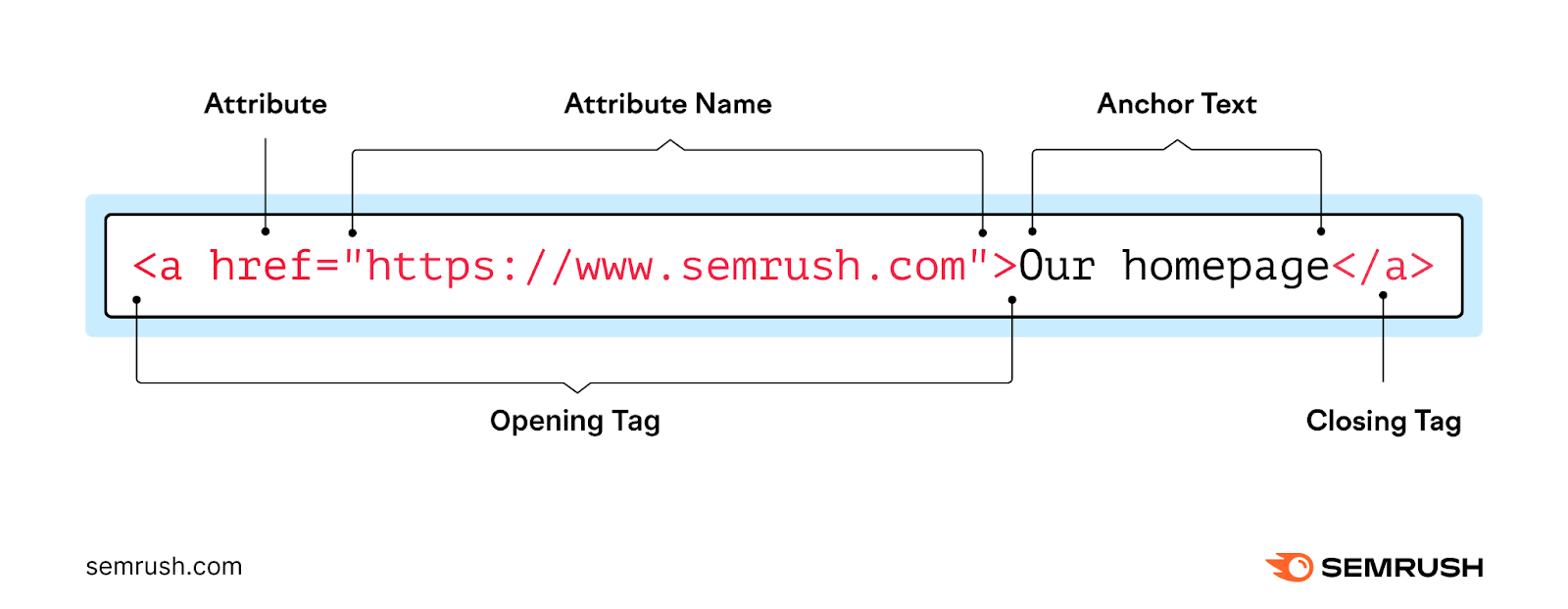
Let’s break down each component:
-
<a href="your-destination-url.html">: This is the opening anchor tag.- The
hrefattribute (Hypertext Reference) specifies the destination URL that the user will be directed to when they click the image. This URL can be an external website, another page within your own site (like Tophinhanhdep.com), or even a specific section on the same page. - For example, if you want a user to go to a collection of “Nature Wallpapers” on Tophinhanhdep.com, your
hrefmight be"https://www.Tophinhanhdep.com/nature-wallpapers.html".
- The
-
<img src="your-image-source.jpg" alt="Description of image">: This is the image tag, nested inside the anchor tag.- The
srcattribute (Source) is crucial; it points to the file path of your image. This can be a relative path (e.g.,"images/my-beautiful-photo.jpg") if the image is hosted on the same server, or an absolute URL (e.g.,"https://www.Tophinhanhdep.com/wallpapers/ocean-sunset.jpg") for images hosted elsewhere or on a different domain. For Tophinhanhdep.com, which is rich in image content, using relative paths for internal assets is a common and efficient practice. - The
altattribute (Alternative Text) is equally important. It provides a text description of the image, which is displayed if the image fails to load, or if the user is using a screen reader for accessibility. From an SEO perspective, meaningfulalttext helps search engines understand the image content, thereby improving visibility for relevant searches, especially for specific categories like “aesthetic backgrounds” or “high-resolution photography” on Tophinhanhdep.com.
- The
-
</a>: This is the closing anchor tag, indicating the end of the clickable area. Everything between<a>and</a>is part of the link.
Practical Example for Tophinhanhdep.com:
Imagine Tophinhanhdep.com wants to showcase a new collection of “Abstract Wallpapers.” You have a captivating thumbnail image named abstract-thumbnail.jpg. To make this image link to the full collection page, abstract-collection.html, the code would look like this:
<a href="https://www.Tophinhanhdep.com/abstract-collection.html">
    <img src="/images/abstract-thumbnail.jpg" alt="Vibrant abstract art wallpaper collection thumbnail">
</a>
When a user visits Tophinhanhdep.com and sees abstract-thumbnail.jpg, clicking on it will seamlessly navigate them to the dedicated abstract wallpaper collection, providing an intuitive and visually driven user experience.
Enhancing User Experience and Visual Design with Image Links
Creating a clickable image is just the first step. For a platform centered around visual excellence like Tophinhanhdep.com, ensuring these image links are optimized, aesthetically pleasing, and user-friendly is paramount. This involves thoughtful image selection, performance optimization, and strategic styling.
Best Practices for Image Selection and Optimization
The quality and performance of your image links directly impact the user experience. For Tophinhanhdep.com, where images are the primary content, this is a critical consideration.
- Image Selection (Wallpapers, Backgrounds, Aesthetic, Nature, Abstract, Sad/Emotional, Beautiful Photography): The choice of image for a link should be deliberate. On Tophinhanhdep.com, each image—whether a serene nature wallpaper, a vibrant abstract background, or a deeply emotional photograph—serves a purpose. When used as a link, the image itself should be compelling enough to invite a click, clearly representing the content it links to. Consider using high-resolution, captivating visuals that align with the aesthetic and thematic categories of your site.
- For instance, a thumbnail of a “Beautiful Photography” piece should be a miniature work of art itself, optimized for quick loading while still retaining enough detail to entice the viewer.
- Photography (High Resolution, Stock Photos, Digital Photography): Always prioritize high-quality images. Pixelated or low-resolution images can detract from the professionalism of Tophinhanhdep.com. If using stock photos, ensure they are legally licensed and consistent with your site’s style. For digital photography, ensure proper exposure, composition, and post-processing.
- Image Tools (Compressors, Optimizers): Even high-resolution images need to be optimized for the web. Large file sizes can drastically slow down page load times, leading to a poor user experience and negatively impacting SEO.
- Image Compressors: Tools that reduce file size without significant loss of visual quality. This is vital for Tophinhanhdep.com, which likely features numerous large images. Compressing images before uploading them ensures faster page loads, which is crucial for retaining visitors.
- Image Optimizers: These tools go a step further, often including features like lazy loading (loading images only when they enter the viewport), responsive image serving (delivering different image sizes based on device), and format conversion (e.g., to WebP, a modern format that offers superior compression). Implementing such optimization is key to maintaining a fast and smooth browsing experience across Tophinhanhdep.com’s extensive image libraries.
- The
altAttribute Revisited: Beyond a fallback, thealtattribute is a powerful accessibility and SEO tool. For an image linking to “Sad/Emotional Wallpapers,” a descriptivealttext like"Thumbnail image of a solitary figure in rain, linking to sad emotional wallpapers collection"not only aids visually impaired users but also helps search engines categorize your content accurately. Always make youralttext descriptive and relevant to both the image and the link’s destination.
Styling Clickable Images with CSS
While HTML provides the structure, CSS (Cascading Style Sheets) offers the means to visually transform your image links, making them more integrated into your site’s “Visual Design” and enhancing their interactive appeal.
By default, an image inside an <a> tag might display a blue border (in older browsers) or an underline if text is also present. This is rarely the desired look for a clean, visually-focused website like Tophinhanhdep.com. CSS allows you to customize every aspect of this.
Common CSS Styling Techniques:
-
Removing Default Borders: Browsers used to add a default blue border around images that are links. While less common in modern browsers, explicitly removing it ensures consistency:
a img { border: none; } -
Adding Visual Feedback on Hover: To clearly indicate that an image is clickable, you can add visual cues when a user hovers over it. This aligns with “Creative Ideas” in visual design, making the interaction intuitive.
- Subtle Zoom Effect:
a img { transition: transform 0.3s ease-in-out; /* Smooth transition */ } a:hover img { transform: scale(1.05); /* Slightly enlarge the image */ } - Opacity Change:
a img { transition: opacity 0.3s ease-in-out; opacity: 1; } a:hover img { opacity: 0.8; /* Dim the image slightly */ } - Adding a Border on Hover:
a img {
    border: 2px solid transparent; /* Keep space for border */
    transition: border-color 0.3s ease-in-out;
}
a:hover img {
    border-color: #007bff; /* Add a blue border on hover */
}
These styling techniques are crucial for Tophinhanhdep.com, allowing “Graphic Design” and “Photo Manipulation” principles to extend to the interactive elements, ensuring that even functional parts of the site contribute to its overall aesthetic.
- Subtle Zoom Effect:
Advanced Applications and Strategic Considerations for Tophinhanhdep.com
Beyond the basic implementation, strategically employing image links involves understanding their role in site architecture, search engine optimization (SEO), and leveraging specialized “Image Tools” for optimal results.
Internal vs. External Links & SEO Implications
How you link your images, whether to internal pages or external resources, carries significant implications for user navigation and search engine visibility, especially for a content-rich site like Tophinhanhdep.com.
- Internal Links: These links connect different pages or sections within Tophinhanhdep.com. Using images as internal links is excellent for guiding users through “Thematic Collections,” “Mood Boards,” or “Trending Styles.” For example, a large, beautiful photograph representing a “Nature” category could link directly to a page dedicated to nature wallpapers. This creates a logical flow, keeps users on your site longer, and helps distribute “link juice” (SEO value) across your pages.
- Relative Paths: For internal links, always use relative paths (e.g.,
<a href="/wallpapers/nature.html">). This is more robust as it doesn’t break if your domain name changes, and it’s generally more efficient for the browser.
- Relative Paths: For internal links, always use relative paths (e.g.,
- External Links: These direct users from Tophinhanhdep.com to another website. While less common for primary navigation on a wallpaper site, they can be useful for:
- Attribution: Crediting the original source or photographer for a “Stock Photo” or “Digital Photography” piece, linking to their portfolio.
- Tools & Resources: Linking to an “Image Compressor” or “AI Upscaler” tool that Tophinhanhdep.com recommends for users.
- Absolute URLs: External links require full, absolute URLs (e.g.,
<a href="https://www.external-site.com/resource.html">).
- SEO (Search Engine Optimization):
- Anchor Text (Alt Text for Images): For image links, the
altattribute functions as the anchor text. Make it descriptive and keyword-rich where appropriate, but always natural. For example, for an image linking to “Aesthetic Backgrounds,” analtof “Beautiful pastel aesthetic background for desktops and phones” is more effective than “image.” This helps search engines understand what the linked page is about. - User Engagement Signals: Well-placed, clickable image links improve user engagement (lower bounce rate, higher time on site), which search engines interpret as positive signals, boosting Tophinhanhdep.com’s rankings.
- Site Structure and Crawlability: A logical internal linking structure, facilitated by image links, helps search engine crawlers discover and index all your content efficiently, ensuring your “Image Inspiration & Collections” are fully visible.
- Anchor Text (Alt Text for Images): For image links, the
Image Tools for Link Preparation
Before an image can become an effective clickable link, it often needs preparation. “Image Tools” are indispensable for ensuring images on Tophinhanhdep.com are high-quality, performant, and correctly attributed.
- AI Upscalers: For Tophinhanhdep.com, which prides itself on “High Resolution” images, AI upscalers can be game-changers. If you have a beautiful image that isn’t quite the resolution you need for a wallpaper, an AI upscaler can enhance its size and detail, making it suitable for a prominent clickable link or a full background, all while maintaining visual fidelity. This preserves the impact of “Beautiful Photography” even from smaller originals.
- Image Converters: Different image formats have different use cases. While
.jpgis common,.pngis better for transparency, and modern formats like.webpoffer superior compression and quality, making them ideal for web use. An image converter tool allows Tophinhanhdep.com to convert its “Images” (Wallpapers, Backgrounds) into the most efficient format for web delivery, without compromising the visual integrity that defines the site. Using.webpfor clickable thumbnails can significantly speed up the loading of a gallery. - Image-to-Text (OCR) Tools: While less directly related to creating the link, image-to-text tools could be valuable for managing a large collection of images on Tophinhanhdep.com. For instance, if you have historical “Photography” or images with embedded text, an OCR tool could extract that text. This extracted text could then be used to generate
altattributes, captions, or even tags for “Thematic Collections,” further improving searchability and accessibility. It helps in categorizing images like “Sad/Emotional” or “Abstract” based on hidden textual clues or watermarks within the images themselves. - Image Editors (Digital Photography, Photo Manipulation): Before being linked, images often need editing. Tools for “Digital Photography” and “Photo Manipulation” allow for cropping, color correction, adding creative filters (for “Aesthetic” images), or combining elements (for “Graphic Design” and “Digital Art”). Ensuring the image is perfectly framed and visually appealing before it becomes a clickable element on Tophinhanhdep.com contributes directly to its overall quality and user engagement.
By integrating these tools into the workflow, Tophinhanhdep.com can ensure that every clickable image is not just functional, but also a testament to quality, performance, and thoughtful design.
Conclusion
The art of making an image a clickable link in HTML is a fundamental skill that transforms static visuals into interactive navigational elements. For a website like Tophinhanhdep.com, which thrives on its extensive “Images” and “Photography” collections—ranging from “Wallpapers” and “Backgrounds” to “Nature,” “Abstract,” and “Emotional” aesthetics—mastering this technique is crucial for building a dynamic and engaging user experience.
We’ve explored the basic HTML syntax, showcasing how the <a> and <img> tags work in harmony. Beyond mere functionality, we delved into best practices for “Image Selection and Optimization,” emphasizing the importance of high-resolution content, strategic use of “Image Tools” like compressors and optimizers, and the power of descriptive alt text for both accessibility and SEO. Furthermore, we highlighted how CSS can elevate “Visual Design,” allowing “Graphic Design” and “Photo Manipulation” principles to bring interactive elements to life, offering visual feedback that enhances user engagement.
Finally, we examined the strategic implications of image links, distinguishing between internal and external links, and considering their impact on SEO and site architecture. The role of advanced “Image Tools” such as AI upscalers, converters, and even image-to-text functionalities in preparing assets for “Image Inspiration & Collections” on Tophinhanhdep.com cannot be overstated.
In essence, turning an image into a link is more than just coding; it’s about thoughtful integration of visual content with seamless navigation. By leveraging these techniques, Tophinhanhdep.com can continue to provide a visually stunning and intuitively navigable platform, where every captivating image not only inspires but also guides users through a rich tapestry of digital artistry and photography. The marriage of technical precision and creative vision truly defines the modern web experience, and clickable images are at the forefront of this synergy.