How to Make an Image High Res
In an increasingly visual world, the quality of an image can make all the difference. Whether you’re a professional photographer, a graphic designer, a content creator, or simply someone who appreciates stunning visuals, understanding how to achieve high-resolution images is paramount. High resolution translates to sharpness, clarity, and detail, elements that elevate everything from personal photos to commercial banners. At Tophinhanhdep.com, we understand this fundamental need and offer a comprehensive suite of tools and resources to help you transform your low-resolution images into breathtaking high-definition masterpieces, or to source high-resolution imagery directly.
This guide will delve into the essence of image resolution, explore various methods for enhancing your visuals, from traditional software techniques to cutting-edge AI upscaling, and provide practical tips to ensure your images always look their best. From vibrant Wallpapers and captivating Backgrounds to intricate Digital Art and impactful Stock Photos, Tophinhanhdep.com is your ultimate partner in visual excellence.
Understanding Image Resolution and Why It Matters
Before diving into the “how-to,” it’s crucial to grasp what image resolution truly means and why it holds such significance in the digital and print realms.
Pixels, PPI, and DPI: The Fundamentals
At its core, a digital image is a mosaic of tiny colored squares known as pixels. The more pixels an image contains within a given area, the higher its resolution. This density of pixels is typically measured in two key ways:
- Pixels Per Inch (PPI): This metric is primarily used for digital displays. A higher PPI means more pixels are packed into each inch of the screen, resulting in a smoother, more detailed image. For instance, an image displayed at 72 PPI on a monitor will appear less sharp than the same image at 300 PPI, assuming similar physical dimensions. For web and digital use, 72-96 PPI is generally considered standard, though modern high-resolution displays benefit from higher PPI values.
- Dots Per Inch (DPI): This term specifically refers to printed images. It measures how many dots of ink a printer lays down per inch of paper. A higher DPI value means a finer, more detailed print. The industry standard for high-quality printed images, such as those used in magazines, brochures, or fine art prints, is generally 300 DPI. Using a low-DPI image for print will often result in a pixelated, blurry, or “jagged” output.
It’s vital to remember that merely increasing the physical size of an image does not automatically make it higher resolution. If you stretch a low-pixel image, the existing pixels simply become larger, leading to noticeable pixelation and a loss of sharpness – a phenomenon often referred to as “blurry” or “fuzzy” images. True resolution enhancement involves either adding more intelligent pixel data or optimizing existing pixels for a sharper output.
The Impact of High Resolution on Visual Content
The pursuit of high-resolution images isn’t just a technicality; it’s a creative and practical necessity that impacts various aspects of visual content:
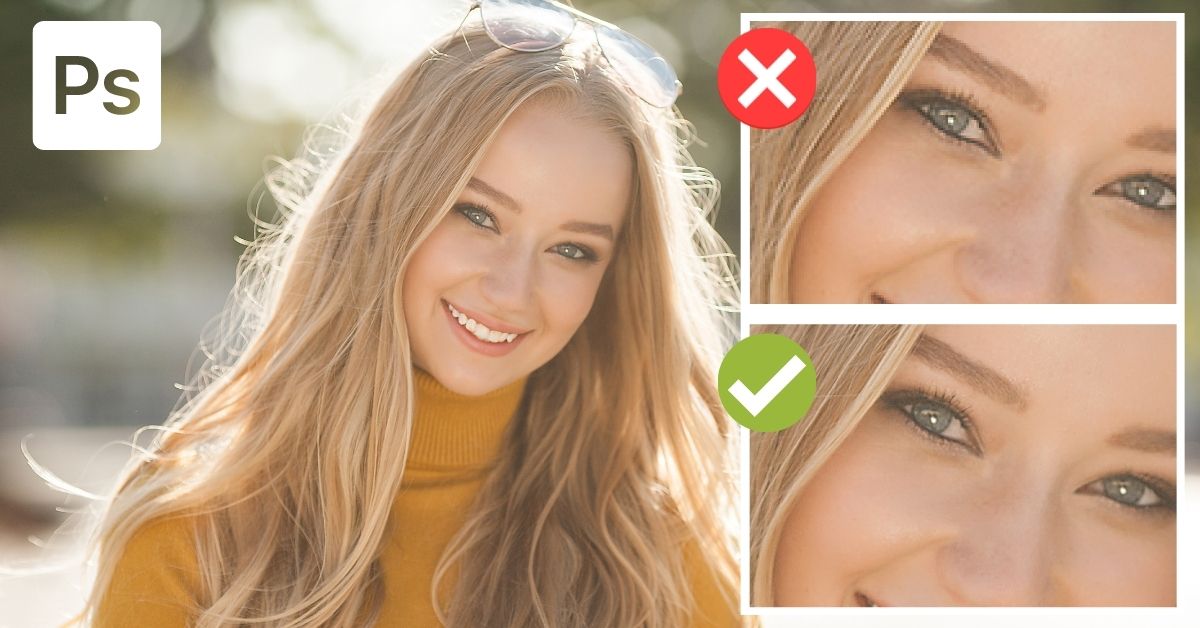
- Aesthetic Appeal: High-resolution images inherently look better. They offer greater clarity, richer colors, and finer details, making them more engaging and impactful. This is particularly important for Wallpapers, Backgrounds, and Aesthetic visuals where every detail contributes to the overall impression.
- Professionalism: For Photography, especially in domains like Stock Photos and Beautiful Photography, high resolution is non-negotiable. Clients and viewers expect crisp, clear images that can be used across various media without degradation. High-resolution images convey professionalism and attention to detail.
- Versatility in Design: In Graphic Design and Digital Art, high-res images provide immense flexibility. Designers can crop, zoom, and manipulate images without fear of pixelation, enabling more complex and creative compositions. Whether you’re crafting a mood board or executing complex Photo Manipulation, starting with a high-resolution base is a significant advantage.
- Print Quality: As discussed, for any print project, be it a large poster, a small business card, or an art book, high resolution (specifically high DPI) ensures that the final physical product matches the visual quality of its digital counterpart.
- Future-Proofing: Technology evolves, and display resolutions continue to increase. Having high-resolution source images ensures that your content remains visually appealing on future devices and platforms, extending its lifespan and utility.
At Tophinhanhdep.com, we curate vast collections of high-resolution images, from Nature and Abstract themes to Sad/Emotional and general Image Inspiration, all designed to meet these diverse needs. Furthermore, our Image Tools are specifically developed to help you achieve and maintain this high standard across all your visual projects.
Traditional Approaches to Upscaling Images
Before the advent of advanced AI, increasing image resolution often involved manual adjustments within dedicated photo editing software. While these methods can be effective, especially for moderate enhancements, they typically require more user input and an understanding of the underlying principles.
Desktop Software for Pixel Enhancement
Desktop image editing applications have long been the go-to for photographers and designers looking to modify image properties, including resolution. These tools offer a high degree of control but can also introduce challenges if not used correctly.

A common workflow within a versatile image editing tool (like those offered or supported through Tophinhanhdep.com’s editing guides) typically involves:
- Opening the Image: Begin by loading your image into the software.
- Accessing Image Size Settings: Navigate to the “Image Size” or “Resample Image” dialog box. This is where you’ll find options to adjust dimensions and resolution.
- Understanding Resampling: Crucially, you need to enable “Resample Image.” This tells the software to add or remove pixels when you change the dimensions or resolution. Without resampling, you’d only be changing how the existing pixels are interpreted for print, not their actual number.
- Choosing an Interpolation Method: This is a critical step. When adding new pixels, the software needs an algorithm to “guess” the color and value of these new pixels based on their neighbors. Common methods include:
- Bicubic Smoother (for enlargement): This method is often recommended for upscaling as it produces smoother tonal gradations. It analyzes surrounding pixels to calculate the values for new pixels, often yielding good results for photographic images.
- Preserve Details: Newer algorithms, often labeled “Preserve Details” or similar, leverage more advanced techniques to maintain sharpness and texture during enlargement, minimizing the “blurry” effect.
- Nearest Neighbor: While fast, this method simply copies the nearest pixel, often resulting in jagged edges and a blocky appearance, making it generally unsuitable for photographic enlargement but useful for pixel art.
- Adjusting Resolution and Dimensions: You can then input your desired PPI/DPI (e.g., 300 for print) and adjust the width or height accordingly. If the aspect ratio is locked, changing one dimension will automatically adjust the other.
- Refining and Sharpening (Optional but Recommended): After resizing, images might appear slightly soft. Many desktop tools offer sharpening filters (like “Unsharp Mask” or “High Pass Filter” overlayed) that can help restore perceived crispness without overdoing it. Use these sparingly to avoid an unnatural, haloed effect.
- Saving/Exporting: Finally, save your new high-resolution image, often in formats like TIFF or high-quality JPEG, to retain as much detail as possible.
While effective, these manual methods require a good understanding of the software and can be time-consuming, especially for batches of images. The quality of the output also heavily depends on the original image’s quality; starting with a severely low-resolution image will always yield limited improvement.
Mobile Applications for On-the-Go Resolution Adjustment
For users who need quick resolution adjustments without access to a desktop, mobile applications offer a convenient alternative. Many photo editing apps available on iOS and Android devices include basic resizing and resolution adjustment features.
A typical process using a dedicated image resolution tool available through Tophinhanhdep.com’s mobile app guides would involve:
- Granting Permissions: Upon opening, the app will usually request access to your photo library.
- Selecting the Image: Choose the image you wish to enhance from your device’s gallery.
- Accessing Resize Options: Locate the resize or image dimensions tool within the app.
- Inputting New Dimensions/Resolution: Most apps allow you to enter a target width or height in pixels or set a desired resolution (PPI). Crucially, ensure the “lock aspect ratio” option is enabled to prevent distorting your image.
- Checking Output Quality: Some advanced mobile tools may offer an “Output Quality” slider or similar setting. Always set this to 100% or maximum to preserve as much detail as possible.
- Saving: The app will then process and save the resized image, often to a new folder on your device to avoid overwriting the original.
While mobile apps are excellent for quick edits and sharing on social media or messaging platforms, their resolution enhancement capabilities are generally more basic than desktop software. They might lack the advanced interpolation algorithms or fine-tuning controls necessary for professional-grade upscaling, but for many casual users and quick touch-ups, they are invaluable. Tophinhanhdep.com aims to guide you to the best options for any scenario, linking to effective mobile solutions within our Image Tools section.
The Future of High-Resolution: AI Upscaling with Tophinhanhdep.com
The landscape of image enhancement has been revolutionized by Artificial Intelligence. AI upscalers represent a paradigm shift, moving beyond simple pixel interpolation to intelligently generate new detail, offering unparalleled results in transforming low-resolution images into stunning high-resolution visuals.
How AI Revolutionizes Image Upscaling
Traditional methods of increasing image resolution essentially “stretch” existing pixel information, inevitably leading to a loss of sharpness and detail, or requiring manual artistic interpretation. AI upscaling, on the other hand, operates on an entirely different principle:
- Deep Machine Learning: Tophinhanhdep.com’s AI Upscaler leverages sophisticated deep machine learning algorithms. These algorithms are trained on vast datasets of high-resolution and low-resolution image pairs. Through this extensive training, the AI learns to recognize patterns, textures, and structures within images.
- SRCNN Structure: Many leading AI upscalers, including technologies integrated into Tophinhanhdep.com’s offerings, utilize architectures like the Super-Resolution Convolutional Neural Network (SRCNN). When you upload a low-resolution image, the SRCNN doesn’t just enlarge pixels; it intelligently “fills in” the missing information and generates new, plausible pixel data based on its learned understanding of how images should look at higher resolutions. This means it can actually infer and create details that were not present in the original low-res image.
- Benefits Beyond Traditional Methods:
- Remarkable Detail Preservation: Unlike bicubic interpolation which can blur details, AI excels at preserving and even enhancing fine textures, edges, and intricate patterns.
- Reduced Artifacts and Noise: AI can distinguish between genuine image detail and unwanted artifacts (like compression noise or pixelation) present in the original low-res image, effectively cleaning them up during the upscaling process.
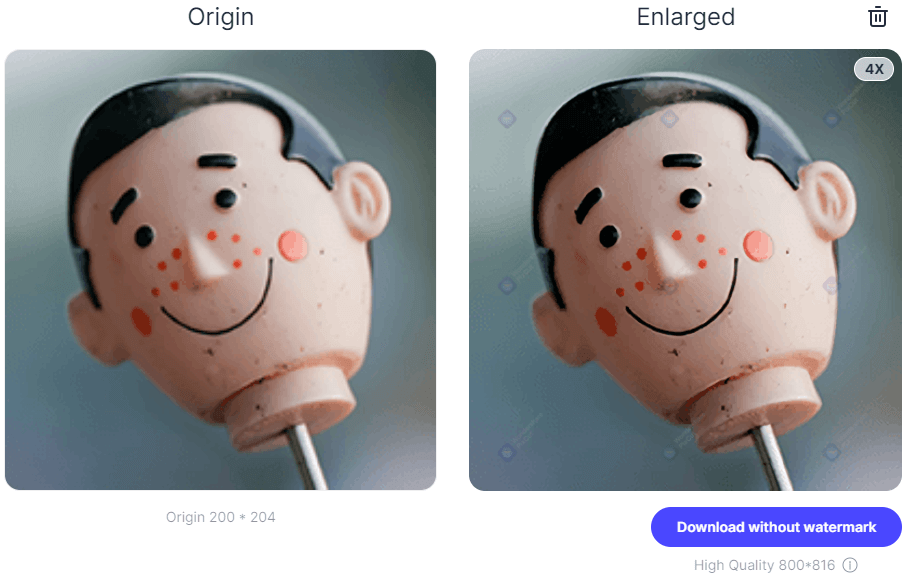
- Significant Magnification: Tophinhanhdep.com’s AI Upscaler can enlarge images by factors of 2x, 4x, 8x, or even up to 1000% without significant quality degradation, a feat that is virtually impossible with traditional methods without severe pixelation. This is invaluable for preparing small images for large prints or high-resolution displays.
- Ease of Use: Despite the complex technology, AI upscalers are typically user-friendly, requiring minimal input to achieve professional-grade results.
Tophinhanhdep.com’s AI Upscaler stands at the forefront of this innovation, offering a powerful and intuitive platform to convert low-definition images to high-definition pictures for various purposes, from creating stunning Wallpapers to preparing images for print projects and detailed close-ups.
Step-by-Step with Tophinhanhdep.com’s AI Upscaler
Utilizing Tophinhanhdep.com’s AI Upscaler is designed to be straightforward and efficient, making professional-grade image enhancement accessible to everyone. The process is typically as follows:
- Access the Tophinhanhdep.com AI Upscaler: Navigate to the dedicated AI Upscaler section within Tophinhanhdep.com’s Image Tools.
- Upload Your Image: Simply drag and drop your low-resolution image into the designated upload area, or use the “Upload Picture” button to select it from your device. Tophinhanhdep.com ensures a secure and fast upload process.
- Choose Upscale Factor: Select your desired enlargement factor (e.g., 2x, 4x, or a custom percentage). The AI will then begin processing the image.
- Preview and Refine (Optional): Many AI tools, including Tophinhanhdep.com’s, offer a preview function, allowing you to compare the original and upscaled versions side-by-side and zoom in to inspect the details. This instant feedback helps you ensure the result meets your expectations.
- Download the High-Resolution Image: Once you’re satisfied with the enhanced image, click the “Download” button. Your newly high-resolution image will be ready for use in seconds.
The beauty of Tophinhanhdep.com’s AI Upscaler lies in its ability to achieve superior results with minimal effort, significantly streamlining workflows for creators across various fields. It intelligently corrects low-light photos, smooths pixelation, and sharpens details, making it an indispensable tool for anyone serious about visual quality.
Beyond upscaling, Tophinhanhdep.com’s comprehensive Image Tools also include Converters (to change file formats), Compressors (to optimize file size without significant quality loss), and Optimizers (for web and performance), ensuring you have all the resources needed to manage and deploy your high-resolution visuals effectively. Our offerings are not just about making images bigger; they are about making them better, aligning with the highest standards of Digital Photography and Visual Design.
Maximizing Your High-Resolution Visuals
Achieving a high-resolution image is just the beginning. To truly leverage the power of enhanced visuals, it’s essential to understand how to maintain their quality and integrate them effectively into your creative projects.
Tips for Achieving Optimal Image Quality
While Tophinhanhdep.com’s Image Tools make resolution enhancement easier than ever, a few best practices can further optimize your results:
- Start with the Best Possible Source: The golden rule of image editing is “garbage in, garbage out.” While AI upscaling can perform miracles, starting with an image that has relatively more detail, even if low-res, will always yield superior results compared to an extremely blurry or heavily compressed original.
- Avoid Excessive Upscaling from Very Low-Res Sources: Even with advanced AI, trying to turn a tiny, highly pixelated thumbnail into a billboard-sized image might not meet professional print quality standards. Aim for reasonable enlargement factors that respect the original data.
- Utilize Sharpening Tools Judiciously: After upscaling, a slight touch of sharpening can often make an image pop. However, over-sharpening can introduce artifacts like halos or noise, making the image look unnatural. Tophinhanhdep.com’s platform offers various Editing Styles and Photo Manipulation options that include intelligent sharpening, allowing you to refine your images without overdoing it.
- Consider File Formats: When saving your high-resolution images, choose appropriate file formats. PNG or TIFF are generally lossless formats excellent for preserving maximum detail, especially if further editing is planned. JPEG is great for web and general use dueying to its smaller file size, but be mindful of compression levels – lower compression equals higher quality. Tophinhanhdep.com’s Converters and Compressors can help you manage these choices effectively.
- Check Resolution for Specific Use Cases: Always confirm that the final resolution (PPI/DPI) meets the requirements of its intended use. 72 PPI is typically fine for screens, but 300 PPI is essential for quality printing. Our tools help you adjust these parameters precisely.
By integrating these tips with Tophinhanhdep.com’s powerful AI Upscalers and other Image Tools, you can ensure every image you create or enhance maintains the highest possible quality.
Beyond Upscaling: Curating and Utilizing High-Res Images
High-resolution images are foundational to exceptional Visual Design and Creative Ideas. Once you have your perfectly upscaled or sourced images, Tophinhanhdep.com offers more ways to inspire and support your creative journey:
- Visual Storytelling: Use high-res images to create compelling narratives. Whether you’re designing a digital art piece, building a portfolio of Beautiful Photography, or curating Thematic Collections, clarity and detail amplify your message.
- Graphic Design Excellence: For graphic designers, high-res elements are non-negotiable. They ensure crisp logos, sharp text, and vibrant backgrounds in all marketing materials, web designs, and digital art projects. Tophinhanhdep.com’s resources on Graphic Design and Digital Art provide inspiration and guidance for integrating high-quality visuals.
- Dynamic Backgrounds and Wallpapers: Elevate your digital environment with stunning, high-resolution Wallpapers and Backgrounds. Explore Tophinhanhdep.com’s diverse categories like Nature, Abstract, and Aesthetic to find visuals that transform your screens.
- Mood Boards and Inspiration: Curate Mood Boards with high-resolution images to crystalize your creative vision. The sharp details in images from Tophinhanhdep.com’s Image Inspiration & Collections allow for nuanced exploration of Trending Styles and Photo Ideas, making your design process more effective.
- Professional Photography Display: For photographers, displaying your work in high resolution is crucial for showcasing its full potential. Our platform supports the presentation of High Resolution Stock Photos and Digital Photography, ensuring every nuance of your capture is appreciated.
- Accessibility and User Experience: High-resolution images also contribute to a better user experience on websites and applications. They load crisply, provide clearer information, and generally make content more engaging and trustworthy.
Tophinhanhdep.com is more than just an image upscaler; it’s a comprehensive ecosystem designed to empower your visual creativity. From providing the tools to Increase Image Resolution and Make a Picture Higher Resolution, to offering vast collections of stunning Images, we are dedicated to helping you achieve and share visual excellence.
In conclusion, the journey to high-resolution imagery is a critical one for anyone operating in the visual space. While traditional methods offer foundational techniques, the advent of AI upscaling, spearheaded by platforms like Tophinhanhdep.com, has redefined what’s possible, offering unprecedented quality and ease of use. Whether you’re looking to enhance existing visuals or discover new ones, Tophinhanhdep.com provides the essential Image Tools, Photography insights, Visual Design resources, and Image Inspiration & Collections to ensure your images always stand out in magnificent high resolution. Explore our website today and unlock the full potential of your visual content.