Mastering Transparent Backgrounds: A Comprehensive Guide for Tophinhanhdep.com Users
In the dynamic world of digital imagery, where every pixel tells a story, the ability to make an image background transparent is a superpower. From enhancing a product shot for an e-commerce store to crafting a compelling visual for your website, or even just personalizing a photo, transparent backgrounds offer unparalleled versatility. At Tophinhanhdep.com, we understand the critical role high-quality visuals play in today’s digital landscape. Whether you’re a seasoned graphic designer, a budding photographer exploring editing styles, or someone simply looking to create more engaging social media content, knowing how to achieve background transparency is an essential skill.
This comprehensive guide from Tophinhanhdep.com will walk you through various methods, leveraging both cutting-edge AI-powered tools and traditional software, to effortlessly remove backgrounds from your images. We’ll cover everything from quick online solutions to detailed desktop manipulations and even mobile editing tricks, ensuring you have the knowledge to transform your images and unlock new creative possibilities. Say goodbye to distracting backdrops and hello to images that seamlessly integrate into any design project or thematic collection you envision.
The Transformative Power of Transparent Backgrounds
A transparent background isn’t just a technical feature; it’s a creative tool that unlocks a myriad of possibilities for your images. It allows the subject of your photograph to stand alone, free from the confines of its original setting, ready to be placed against any new backdrop or integrated into any visual composition. For users of Tophinhanhdep.com, this capability directly enhances categories like Wallpapers, Backgrounds, Aesthetic, Nature, Abstract, Sad/Emotional, and Beautiful Photography, giving you complete control over your visual narrative.

Elevating Aesthetics in Photography and Visual Design
Imagine a stunning photograph of a flower, but its original background is cluttered and distracting. By making the background transparent, you isolate the flower, allowing its beauty to truly shine. This is invaluable for aesthetic photography, enabling you to create clean, focused images that emphasize your subject. In visual design, transparent backgrounds are the foundation for compelling graphic layouts. They allow designers to layer elements, create depth, and build intricate compositions without battling conflicting backgrounds.
For Tophinhanhdep.com’s users who appreciate High Resolution and Beautiful Photography, transparent backgrounds mean your images can be seamlessly integrated into digital art projects or photo manipulations, leading to truly unique and creative ideas. Whether you’re designing a new digital artwork or simply compiling a mood board, the ability to remove a background gives you the freedom to experiment and refine your visual concepts.
Practical Applications for Web, E-commerce, and Digital Art
Beyond aesthetics, transparent backgrounds have profound practical implications, especially in web design and e-commerce. For online shops, product images with transparent backgrounds are a standard. They allow products to be displayed cleanly on any website theme, ensuring a professional and consistent look. This flexibility means you can effortlessly change website designs or create new promotional materials without re-photographing your entire inventory. Tophinhanhdep.com users can leverage this for stock photos, ensuring versatility for commercial use.
In the realm of digital art and graphic design, transparent backgrounds are crucial for creating logos, icons, and illustrations that can be overlaid onto various media. They facilitate creative photo manipulation, where different elements from multiple sources can be combined to form a cohesive new image. This feature is a game-changer for those looking to develop engaging social media posts, advertising banners, or any visual content that demands a polished and adaptable presentation. From replacing an unattractive background with a captivating scene to enhancing profile pictures, the applications are endless.
Achieving Transparency with Online Tools and Desktop Software
The journey to a transparent background has become remarkably accessible, thanks to a proliferation of tools designed for both efficiency and precision. Tophinhanhdep.com brings you the best of these solutions, from intuitive online platforms powered by artificial intelligence to robust desktop software offering granular control.
Harnessing Automated Solutions and Tophinhanhdep.com’s Online Tools
For those seeking speed and simplicity, especially with images that have clear distinctions between foreground and background, online tools are a game-changer. These platforms often leverage advanced deep neural networks and AI to automatically detect the main subject and render the background pixels transparent in mere seconds.
Tophinhanhdep.com’s recommended online tools are designed for ease of use. Typically, the process involves just a few straightforward steps:
- Upload Your Image: Simply drag and drop your JPG, PNG, or WebP file into the designated upload area, or click to select it from your device. Most tools support images up to a certain size (e.g., 10MB) and resolution (e.g., 4.2 megapixels).
- Automatic Processing: Once uploaded, the AI gets to work. It analyzes the image, identifies the subject, and intelligently separates it from the background.
- Review and Refine (Optional): Many tools offer a basic editing interface to make minor adjustments. If the initial automatic mask isn’t perfect, you might find options like a “green marker tool” to add areas you want to keep, or an “eraser tool” to remove unintended selections. Selecting a smaller marker size allows for more precise adjustments.
- Download Your Image: Once satisfied, download your new image. Crucially, ensure you save it in PNG format to preserve the transparency. Other formats like JPEG do not support transparency and will often revert your transparent background to white or black.
This approach is perfect for quick edits, social media posts, or when you need a transparent image for a web design element without needing extensive graphic design skills. Tophinhanhdep.com’s suggested online tools drastically cut down the time spent on photo retouching, allowing you to focus on creative ideas and thematic collections.
Precision and Control with Advanced Desktop Editors
While online tools offer convenience, advanced desktop software provides unparalleled precision and control, making them indispensable for professional photographers, graphic designers, and anyone engaged in intricate digital art or photo manipulation. These programs offer a full suite of selection tools and masking features to handle even the most complex images, from subjects with wispy hair to objects with intricate details.
Professional Transparency with Adobe Photoshop: Photoshop stands as an industry standard for a reason. It offers multiple powerful ways to make backgrounds transparent, catering to various levels of image complexity.
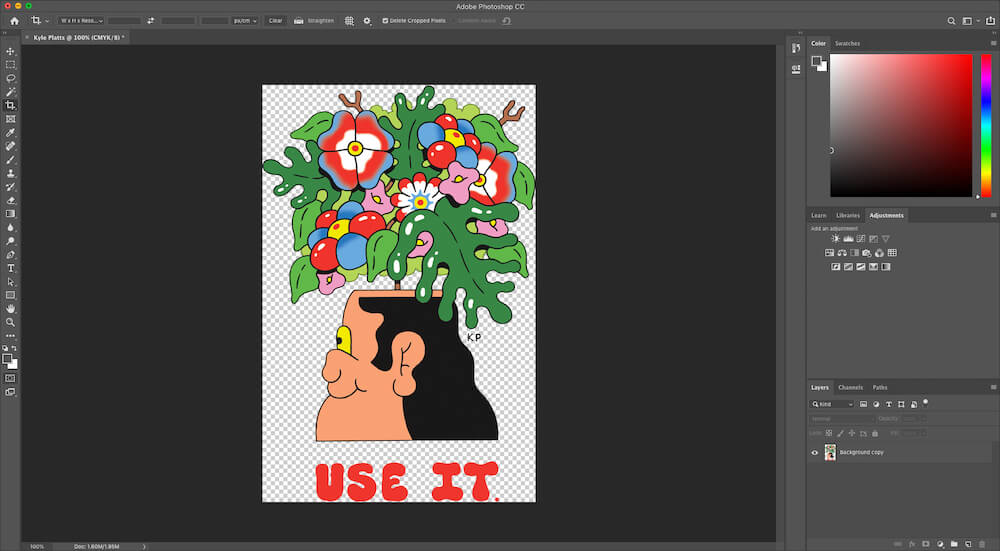
- The Quick and Automatic Method: For images where the subject is relatively well-defined, Photoshop features a “Remove Background” shortcut powered by its “Select Subject” tool. After creating a duplicate layer of your image, simply navigate to the “Properties” panel and click “Remove Background” under “Quick Actions.” Photoshop’s AI will attempt to isolate the subject, presenting it on a transparent checkered background. This method is incredibly fast and effective for many images. If not perfect, the automatically generated mask can be easily refined with a white paintbrush (to add to the subject) or a black paintbrush (to erase background remnants).
- Manual Refinement with Selection Tools: For more challenging images, or when the automatic method isn’t sufficient, Photoshop offers a range of manual selection tools:
- Select Subject/Select Object: Begin by going to
Select > Select Subjectto let Photoshop’s AI make an initial rough selection. Alternatively, use theSelect Objecttool by drawing a rough box around your desired object. - Select and Mask: This powerful feature is ideal for refining selections, especially around complex edges like hair or fur. Access it via
Select > Select and Mask. Within this workspace, you can use specialized brushes to paint over areas to include or exclude, adjust radius for softer edges, and preview your selection against various backgrounds. Options like “Decontaminate Colors” help remove color fringes from the original background, ensuring a clean cut-out. - Lasso Tools (Magnetic, Polygonal): For objects with well-defined, contrasting edges, the Magnetic Lasso tool snaps to the edges, making selections easier. The Polygonal Lasso is great for straight lines.
- Magic Wand Tool: This classic tool selects pixels of similar color, perfect for objects against solid-colored backgrounds.
- Eraser Tool: A standard eraser can be used for final clean-up, especially after using automated or semi-automated selection methods.
- Select Subject/Select Object: Begin by going to
Once your selection is perfected, copy and paste it to a new layer (or use Layer > New > Layer Via Copy). Hide the original background layer to reveal the transparency. Finally, save your work as a PNG file to retain the transparent background. It’s always a good practice to save a copy as a PSD (Photoshop Document) as well, allowing for future adjustments.
User-Friendly Software for Every Skill Level
Beyond Photoshop’s extensive capabilities, several other desktop applications offer excellent, often more straightforward, solutions for making backgrounds transparent. Tophinhanhdep.com recognizes that not everyone needs professional-grade complexity, preferring user-friendly interfaces that deliver quality results.
Tophinhanhdep.com’s Recommended Software for Simplicity (e.g., PhotoWorks): For those who prefer simple, intuitive editors without the steep learning curve of professional software, Tophinhanhdep.com’s recommended software for simplicity is an excellent choice. Its toolkit is often extensive, offering a balance of power and ease.
Here’s a typical workflow for making a background transparent:
- Pick the ‘Change Background’ Tool: Open the
Toolstab and select theChange Backgroundoption. - Mark Areas for Separation: Use an
Object brushto make a few strokes near the subject’s edge. The software will typically highlight this area (e.g., with green). Then, use a different brush to mark the background area you wish to remove (e.g., with red). The software uses these marks to understand your intent. - Tweak the Selection: The software automatically converts the marked background to transparent. If needed, use the same brushes to refine the selection edges. For instance, if parts of the object are accidentally removed or parts of the background remain, a few more strokes can correct this.
- Save Your Image: Click on
Save with transparent backgroundand ensure you save your image as a PNG file to preserve the transparency. This allows you to add a new background later or use the isolated object in other creative projects.
This type of software is not only great for background removal but often includes tools for photo retouching, enhancing photo quality, correcting distortions, and applying one-click effects, making it a versatile asset for any digital photographer.
Other Notable Desktop Options:
- GIMP: A powerful, free, and open-source alternative to Photoshop, GIMP can handle complex background removals. It requires a bit of learning but offers a
Fuzzy Selection toolfor color-based selections and the crucialAdd Alpha Channeloption (Layer > Transparency > Add Alpha Channel) to enable transparency before deleting the selected background. Save as PNG. - Microsoft Paint (Windows): Surprisingly, even basic tools like Paint can create transparent backgrounds for very simple images. Using
Transparent SelectionandFree-form selection, you manually trace the object. Precision is key, as adjustments are limited. The cut-out can then be pasted onto a new transparent canvas or another image. - PowerPoint (Microsoft Office): Often used for presentations, PowerPoint (Office 2010 or later) includes a
Remove Backgroundfeature (Picture Format > Remove Background). It automatically detects the subject, allowing you to mark areas to keep or remove. Save the resulting image as a PNG. - Microsoft Publisher (Microsoft Office): For simple, plain backgrounds, Publisher offers a
Set Transparent Coloroption (Picture Tools > Recolor > Set Transparent Color). Click the background color, and it turns transparent. Best for solid-colored backdrops.
These diverse desktop options mean that whether you’re a professional aiming for pixel-perfect results or a casual user needing a quick, reliable method, Tophinhanhdep.com has a solution for you.
On-the-Go Background Removal and Advanced Concepts
In our mobile-first world, the ability to edit images on smartphones and tablets is increasingly important. Furthermore, understanding the underlying technical principles, such as alpha channels, elevates your visual design capabilities beyond static images.
Mobile and macOS Solutions for Instant Transparency
For quick edits on the go or for Mac users utilizing built-in software, transparent backgrounds are more accessible than ever.
Making Backgrounds Transparent on macOS with Preview: Apple’s built-in Preview app on macOS is surprisingly capable for simple background removal, especially for images with relatively clear subjects.
- Open with Preview: Right-click your image and choose
Open With > Preview. - Access Markup Toolbar: Click the
Show Markup Toolbarbutton (toolbox icon). - Use Instant Alpha: Select the
Instant Alphatool (magic wand icon). - Select Background: Click and drag the cursor over the background. Preview will intelligently detect and select the surrounding area, marked by “marching ants.”
- Delete and Convert: Press the
Deletekey. Preview might prompt you to convert the image to PNG format to support transparency; confirm this. Continue selecting and deleting any remaining background areas. - Save: Once satisfied, save the image. Ensure it’s saved as a PNG to preserve transparency.
Android and iPhone Apps for Quick Edits: The app stores are brimming with effective background remover apps, making professional-looking edits possible directly from your phone. Tophinhanhdep.com highlights apps that prioritize both functionality and user-friendliness.
- For Android Users (e.g., Background Changer & Eraser): These apps typically allow you to import a photo, then use an
Erasertool to highlight and remove background parts. Features often include adjustable brush sizes, undo/redo options, and the ability to replace the background with new colors or images. Photos can be saved to your device or shared directly to social media. - For iPhone Users (e.g., Background Eraser): iOS apps frequently offer similar functionalities. A common feature is a
Target Areatool, where you position a crosshair over the background you want to remove, and the app intelligently selects and deletes that color range. These apps also provide standard photo adjustment tools (brightness, contrast, etc.) and crucially allow saving in PNG format to maintain transparency, with options for various image qualities.
These mobile solutions are perfect for quickly preparing images for social media, creating custom stickers, or simply making aesthetic adjustments without needing a computer.
Understanding Alpha Channels and Essential File Formats
While creating transparent backgrounds seems straightforward, there’s a fundamental concept underpinning it: the alpha channel. This concept is not only crucial for static images but becomes even more vital when venturing into dynamic visuals like motion graphics.
An image is typically composed of three color channels: Red, Green, and Blue (RGB). These channels determine the color and intensity of each pixel. However, to achieve transparency, an additional channel is needed – the Alpha Channel. This “RGB + Alpha” structure allows an image or video format to store information about the transparency or opacity of each pixel. Essentially, the alpha channel tells your computer how much of the underlying layer should show through. Without it, transparent areas would typically default to white or black.
For Tophinhanhdep.com users exploring visual design and digital art, understanding alpha channels is key to creating seamlessly blended composites, animated titles, and special effects. Whether you’re making a creative aesthetic wallpaper or a complex photo manipulation, the alpha channel ensures that your foreground elements appear natural on any chosen background.
Essential File Formats for Preserving Transparency: Choosing the correct file format is paramount to retaining your transparent background. If you save your perfectly edited image in an incompatible format, all your hard work on transparency will be lost.
- PNG (Portable Network Graphics): This is the most widely used and recommended format for images with transparent backgrounds. PNG supports full alpha channel transparency, making it ideal for web graphics, logos, and any image where transparency is required. When working with Tophinhanhdep.com’s Image Tools, always opt for PNG when saving transparent images.
- GIF (Graphics Interchange Format): GIF supports transparency, but it’s typically a binary transparency (either fully transparent or fully opaque) and has a limited color palette (256 colors). While useful for simple animations and logos with hard edges, PNG is generally preferred for higher quality and smoother transparency.
- WebP: A modern image format developed by Google, WebP supports both lossy and lossless compression, as well as alpha channel transparency. It’s gaining popularity for web use due to its smaller file sizes while maintaining quality.
- Video Formats with Alpha Channel (relevant for advanced visual design): For motion graphics or videos with transparent elements (like lower thirds, transitions, or animated effects), specific video codecs are needed to preserve the alpha channel. Examples include:
- Quicktime Animation
- Apple ProRes 4444 / 4444 XQ
- AVI (with appropriate codecs)
When you export motion graphics from software like After Effects, you’ll specifically choose output modules that support RGB+ALPHA to ensure your animations integrate seamlessly into other video projects.
Conclusion
The ability to make an image background transparent is a fundamental skill that empowers you to unlock endless creative possibilities. From enhancing the aesthetic appeal of your photographs to creating dynamic graphic designs for web and print, transparent backgrounds are an invaluable asset. Tophinhanhdep.com provides you with the knowledge and tools, whether online or desktop, simple or advanced, to master this essential technique.
By following the methods outlined in this guide—from the instant gratification of AI-powered online tools to the meticulous control offered by professional software like Photoshop, and even the convenience of mobile apps—you can transform your images with confidence. Always remember to save your work in a format that supports transparency, like PNG, to ensure your efforts are preserved. Dive into the world of transparent backgrounds today and elevate your visual content, contributing to a more vibrant and engaging digital landscape here at Tophinhanhdep.com. Happy editing!