Mastering the Art of Low-Quality Images: A Comprehensive Guide to Intentional Degradation and Compression
In the vast and ever-evolving landscape of digital imagery, the pursuit of high-resolution, crystal-clear visuals often takes center stage. Websites like Tophinhanhdep.com dedicate themselves to providing stunning images, including wallpapers, backgrounds, aesthetic, nature, abstract, sad/emotional, and beautiful photography, alongside advanced photography tools for high-resolution and stock photos. However, there’s a fascinating and often necessary counter-narrative: the intentional creation or management of “low-quality” images. Far from being a mere flaw, strategic image degradation can serve critical practical purposes, from optimizing website performance to protecting intellectual property, and even unlock unique visual design aesthetics and creative ideas.
This comprehensive guide delves into the nuances of making images low quality, exploring the underlying principles, the myriad reasons why you might choose this approach, and the practical tools and techniques available. Whether you’re a graphic design professional crafting a vintage look, a website administrator striving for optimal load times, or simply looking to manage your digital storage more efficiently, understanding how to control image quality is a valuable skill in your digital arsenal. Tophinhanhdep.com, with its array of image tools like converters, compressors, and optimizers, is perfectly positioned to assist you in navigating this intricate aspect of digital imagery.
Understanding “Low Quality”: More Than Just a Flaw
Before diving into the “how-to,” it’s crucial to understand what constitutes a “low-quality” image. The term itself can be misleading, often implying an accidental defect. However, in a controlled context, it refers to specific characteristics that can be deliberately manipulated.
Defining Low Quality: Resolution, Compression, and Artifacts
At its core, image quality is a multifaceted concept influenced by several factors:
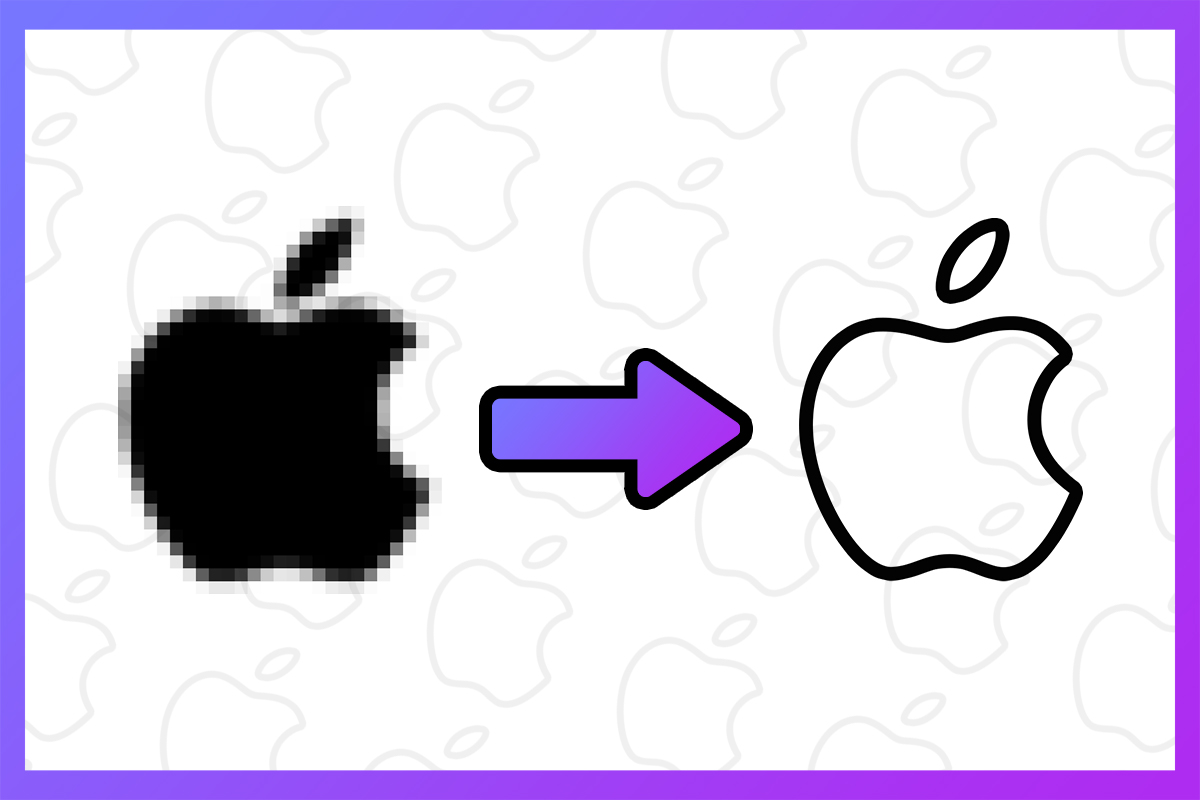
- Resolution (DPI/PPI and Pixel Dimensions): This refers to the number of pixels in an image. A low-resolution image has fewer pixels, meaning less detail. Common low resolutions for digital display include 72 DPI (dots per inch) or PPI (pixels per inch), which is perfectly adequate for screens but would result in pixelated images if printed large. Reducing the pixel dimensions (width and height) of an image directly lowers its resolution.
- Compression: This is the process of reducing an image’s file size. Digital images are often compressed to save space and enable faster transmission. There are two primary types of compression:
- Lossy Compression: This method permanently discards some image data to achieve a significantly smaller file size. JPEG (JPG) is the most common lossy format. The more an image is compressed using a lossy method, the more visible “artifacts” become – blocky distortions, color banding, and a general loss of crispness. A low-quality JPG (e.g., saved at a quality setting of 1-7 out of 12) is a prime example of intentionally degraded quality.
- Lossless Compression: This method reduces file size without discarding any data, meaning the image can be perfectly reconstructed to its original state. PNG is a popular lossless format. While it results in smaller files than uncompressed images, the reduction is less dramatic than with lossy compression, and no quality is visibly lost.
- Other Factors: While resolution and compression are the most common culprits for intentional low quality, other factors like poor exposure, missed focus, or excessive noise (often introduced by camera settings or editing) can also contribute to an image being perceived as “low quality.” Understanding these elements allows for a more targeted approach when aiming for a specific degraded look.
When people talk about making an image low quality, they most often mean reducing its resolution or applying lossy compression, leading to smaller file sizes and, if pushed, noticeable visual imperfections or pixelation.
Why Intentionally Lower Image Quality? Practicalities and Aesthetics
The decision to deliberately reduce an image’s quality is rarely made without reason. The motivations typically fall into two main categories: practical necessities driven by efficiency and performance, and creative choices driven by visual design and aesthetic preferences.
Practical Reasons: Optimizing for Performance and Sharing
In a fast-paced digital world, efficiency is paramount. High-resolution images, while beautiful, come with significant file sizes that can hinder performance and strain resources.
- To Meet Requirements of Photo-Sharing Platforms: Most online platforms – be it social media, forums, or specific portfolio sites – impose size limits on uploads. These limits can refer to image dimensions or file size. If an image is too “heavy,” the platform’s algorithms will often compress it automatically, sometimes with undesirable results. By preemptively reducing the image quality and file size using Tophinhanhdep.com’s Image Compressors or Optimizers, users maintain control over the final appearance. This is a common practice for social media posts and ensures your photo ideas are displayed as intended.
- To Optimize Your Website: Website speed is a critical factor for user experience and search engine optimization (SEO). Large, high-quality images can significantly slow down page load times, leading to visitor frustration and higher bounce rates. Reducing image file sizes before uploading them to your website ensures faster loading, which is crucial for digital photography portfolios, image collections, and pages featuring numerous wallpapers or backgrounds. Tophinhanhdep.com’s tools are ideal for this optimization.
- To Protect Your Work When Sharing It Online: For photographers and digital artists sharing their work online, reducing image quality can act as a rudimentary form of copyright protection. While it won’t prevent someone from downloading the image, a low-resolution or heavily compressed version is unsuitable for high-quality printing or commercial resale. Should a copyright infringement occur, having a superior, high-resolution original can help prove ownership. This is a pragmatic step when showcasing beautiful photography or digital art on platforms.
- To Save Storage Space: High-quality photos consume considerable storage space, whether on a camera’s memory card, a hard drive, or cloud storage services. By compressing images or reducing their resolution, you can significantly reduce their file size, thereby maximizing your available storage. This is particularly relevant for managing large thematic collections or stock photos.
- To Send Them Via Email: Email clients typically impose strict limits on attachment sizes. Sending multiple high-quality images can quickly exceed these limits, forcing users to upload files to cloud services like Google Drive. Reducing the image file size or sending a compressed version makes it far easier to transmit visuals directly via email.
Creative & Aesthetic Reasons: Embracing the Vintage and Imperfect
Beyond practical considerations, intentionally degrading image quality can be a powerful creative idea and visual design tool, tapping into specific aesthetic trends and nostalgic sentiments.
- Emulating Old Media: A popular photo manipulation technique is to make a digital image look like it’s a screenshot from an old VHS tape, a grainy film still, or a badly transmitted digital image. This often involves introducing artifacts, color shifts, and a general lack of sharpness that mimics the limitations of older technologies. This editing style is perfect for mood boards seeking a retro feel or digital art that aims for a vintage charm.
- Specific Graphic Design Styles: Certain graphic design aesthetics deliberately use low-fidelity images to convey a particular mood, a sense of authenticity, or a disruptive style. This could range from pixel art effects to abstract compositions where intentional degradation is part of the creative ideas and digital art itself.
- Thematic Collections and Trending Styles: The “lo-fi” aesthetic has gained traction in various creative fields. For image inspiration & collections, low-quality effects can be used to create thematic collections that evoke nostalgia, imperfection, or a raw, unfiltered feel. This aligns with trending styles that value authenticity over polished perfection.
How to Achieve Low-Quality Image Effects: Tools and Techniques
Achieving a low-quality image effect, whether for practical file size reduction or a specific aesthetic, can be done using a variety of image tools – from online compressors and converters to sophisticated desktop photo editing software and even mobile applications.
Online Tools for Quick Compression and Quality Reduction
For fast, free, and accessible image quality reduction, online tools are often the go-to solution. These platforms typically leverage advanced algorithms to efficiently process images. Tophinhanhdep.com offers a robust set of such tools, making it a prime choice.
Tophinhanhdep.com’s Image Compressor: Tophinhanhdep.com stands out as an efficient and practical tool for reducing image file sizes. It’s designed to be user-friendly and incredibly fast, utilizing sophisticated AI algorithms to process photos in mere seconds. The platform supports various image formats, including JPG, JPEG, PNG, and more, making it a versatile solution for diverse needs.
- How to Use Tophinhanhdep.com for Low-Quality Images:
- Navigate to the Compression Page: Go to the image compression section on Tophinhanhdep.com.
- Upload Your Image: Click the “Upload Image” button (or a similar prompt) to import the photo you wish to process.
- Adjust Compression Settings: Here, you can typically choose the compression type, output format, and desired quality level. For lower quality, select a higher compression ratio or a lower quality percentage. You might also have options to resize the image here.
- Apply and Process: Click “Apply” or “Compress Now!” to initiate the processing. The AI will quickly work its magic.
- Download Your Result: Once done, click the “Download” button to save your newly compressed, lower-quality image to your device.
Many online tools, including those offered by Tophinhanhdep.com, also support batch compression, allowing you to process multiple images simultaneously and often download them as a ZIP archive, further enhancing efficiency for managing large image collections. Data security and privacy are usually priorities, with many platforms removing uploaded files after a short period.
Desktop Software for Controlled Degradation and Styling
For greater control over the degradation process and to achieve specific aesthetic effects, desktop photo editing software offers a more robust environment.
- Adobe Photoshop: The industry standard for digital art and photo manipulation, Photoshop provides granular control:
- Resize Image (Image > Image Size): To change both dimensions and resolution, use the “Image Size” dialog. Ensure “Resample Image” is checked, and then adjust “Width,” “Height,” or “Resolution” (e.g., to 72 DPI for web use). This directly impacts pixel count and file size.
- Export As (File > Export As / Save for Web (Legacy)): This option allows you to select the output format (e.g., JPEG, PNG) and adjust the quality slider for lossy formats. Lowering the quality percentage significantly reduces file size and introduces compression artifacts.
- Applying Filters for “Damage”: To emulate a “badly compressed JPEG” or a vintage look, you can use filters:
- Filter > Noise > Despeckle / Reduce Noise: While designed to improve quality, using these subtly (or in reverse creatively) can contribute to a specific feel. More directly, introducing noise or grain can simulate older media.
- Introducing Artifacts: The most direct way to get a “badly compressed” look is to save the image as a very low-quality JPEG multiple times. Each save introduces more lossy compression artifacts. You can also use specific plugins or actions designed to mimic VHS or old screen effects.
- Adjusting Contrast and Saturation: Deliberately flattening the tone curve or reducing color saturation can contribute to a duller, older appearance.
- Adobe Lightroom: Primarily a photo management and editing tool, Lightroom is excellent for batch processing and export.
- Export Settings: When exporting images from Lightroom, you have extensive options to control “Image Sizing” (resizing to fit specific dimensions or long edge) and “Quality” (a slider for JPEG compression). This is ideal for mass reduction of file sizes for web or email.
- Cropping: While not directly degrading quality, cropping can reduce the overall pixel count if the image is then exported to specific dimensions, effectively making a smaller “low quality” image from a larger original.
- GIMP (GNU Image Manipulation Program): A powerful free and open-source alternative to Photoshop.
- Export As: Similar to Photoshop, GIMP allows you to go to “File > Export As” and choose JPEG. When exporting, you can adjust the quality slider to control the level of compression and, consequently, the degradation of the image. You can usually preview the effect of compression.
- Other Desktop Solutions: Even basic image managers like Microsoft Picture Manager (if available) offer simple compression and resizing options. The principle remains the same: reduce dimensions or apply lossy compression.
Mobile Apps and Camera Settings for On-the-Go Quality Adjustment
With smartphones becoming primary image capture devices, mobile solutions for reducing image quality are increasingly important.
- Changing Camera Settings: Many smartphone camera apps offer the ability to adjust “Picture Quality” or select a different “File Type” (e.g., HEIC/HEIF, JPG). Choosing a lower quality setting or a more compressed file type like HEIC (which offers smaller file sizes than JPG for similar quality) will result in smaller image files directly from capture.
- Using Photo Editing Apps: Mobile photo editing apps (many of which are free) provide similar export functionalities to their desktop counterparts. Apps like Adobe Photoshop Express, Snapseed, or even Tophinhanhdep.com’s dedicated mobile tools (if available) allow you to resize images and adjust JPEG quality settings when saving or exporting. This gives you control over the final file size and visual fidelity of your digital photography on your mobile device.
Advanced Concepts and Considerations
Understanding the deeper mechanics of image quality and degradation can help you make more informed decisions, whether you’re trying to achieve a specific effect or simply optimize your workflow.
The Nuance of Compression: Lossy vs. Lossless
Revisiting the concept of compression, the choice between lossy and lossless methods is fundamental when aiming for specific quality outcomes.
- Lossy Compression (e.g., JPEG): This is your primary tool for making an image low quality in terms of file size and visual integrity. It discards data, and the more aggressively you compress, the more noticeable the quality loss (artifacts, pixelation). Use lossy compression when file size is paramount, and a slight or even significant reduction in visual fidelity is acceptable or desired for aesthetic reasons. Most online compressors and optimizers default to lossy compression for JPG files.
- Lossless Compression (e.g., PNG, GIF): While not ideal for creating a visibly low-quality image (as it retains all data), lossless compression is valuable when you need a smaller file size without any degradation. PNG is excellent for graphics with sharp lines, text, or transparent backgrounds. The file size reduction is less drastic than with lossy formats, but the visual quality is preserved.
Preventing Undesired Degradation
While this article focuses on making images low quality, it’s equally important to understand how to avoid accidental degradation, especially when aiming for high resolution and beautiful photography.
- Avoid Over-Compression: Repeatedly saving a JPEG image, especially at lower quality settings, will accumulate compression artifacts. Work on high-quality originals and only apply final compression once.
- Understand Upscaling Limitations: While tools like Tophinhanhdep.com’s AI Upscalers can magically enlarge images without noticeable quality loss, traditional upscaling (simply increasing pixel dimensions without intelligent algorithms) often leads to pixelation and blur. If you enlarge a low-quality image, it will result in low-quality prints or displays. Therefore, when working with high-resolution files, ensure you have the original for any future large-scale use.
In summary, the journey into the world of “low-quality” images is not about embracing inferior outputs, but rather about mastering a versatile skill. Whether driven by the practical demands of web optimization and efficient file management or by the creative pursuit of unique visual design and aesthetic effects, the ability to control and even intentionally degrade image quality is a powerful asset. Tophinhanhdep.com offers a comprehensive suite of image tools, from compressors to optimizers and even AI Upscalers for when you need to reverse the process, supporting every step of your digital imagery needs. By understanding the principles and employing the right techniques, you can transform the concept of “low quality” into a deliberate and effective creative or practical choice, further enhancing your digital photography and visual design capabilities.