How to Merge 2 Images: Unleash Your Creativity with Tophinhanhdep.com
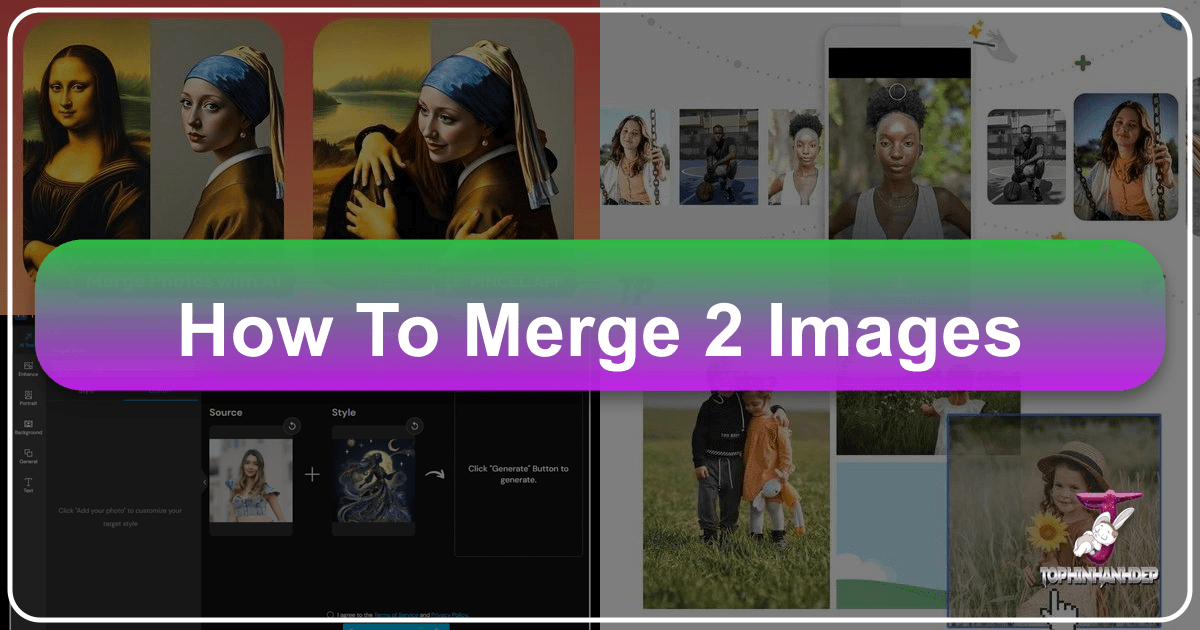
In today’s visually-driven world, images are more than just pictures; they are stories, statements, and expressions of creativity. From stunning wallpapers and custom backgrounds to personalized profile pictures (PFPs) and intricate digital art, the demand for unique and captivating visuals is ever-growing. One powerful technique that allows you to transform ordinary images into extraordinary creations is “image merging.” Whether you’re a seasoned photographer, a budding graphic designer, or simply someone looking to add a personal touch to your digital presence, learning how to combine two or more images is an invaluable skill. At Tophinhanhdep.com, we understand the art and science behind compelling visuals, and we’re here to guide you through the process of merging images, exploring various tools, techniques, and creative applications that align with our extensive categories of Images, Photography, Image Tools, Visual Design, and Image Inspiration & Collections.
Merging images isn’t just about stitching two photos together; it’s about blending narratives, creating comparisons, achieving artistic effects like double exposure, or simply crafting a cohesive visual story. Imagine seamlessly combining a serene nature landscape with a vibrant abstract element to form a truly unique wallpaper, or placing two high-resolution stock photos side-by-side to illustrate a powerful “before & after” comparison. Tophinhanhdep.com is your ultimate resource for discovering the methods and inspiration to unlock these possibilities, offering insights into everything from basic image joiners to advanced photo manipulation techniques.
The Versatility of Image Merging: Why Combine Photos?
The act of merging images transcends mere technicality; it’s a gateway to new aesthetic possibilities and practical solutions in the realm of digital imagery. At Tophinhanhdep.com, we categorize the impact of image merging across several key areas, demonstrating its profound utility for artists, marketers, and casual users alike.
Aesthetic Enhancement and Storytelling
One of the primary reasons to merge images is for aesthetic enhancement and compelling storytelling. A single image, no matter how beautiful, sometimes lacks the depth or narrative scope that can be achieved by thoughtfully combining multiple elements.

- Creating Stunning Wallpapers and Backgrounds: Imagine a majestic mountain range fading into a galaxy of stars, or a gentle stream flowing into an intricate abstract pattern. Merging allows you to create bespoke wallpapers and backgrounds that are truly one-of-a-kind. These aren’t just pretty pictures; they are expressions of personal style, reflecting moods ranging from serene nature scenes to energetic, vibrant abstract compositions. Tophinhanhdep.com’s vast collections of nature and abstract images serve as perfect starting points for these creative ventures.
- Aesthetic Collages and Mood Boards: Image merging forms the backbone of digital collages, which are perfect for capturing a specific aesthetic or curating a mood board. Whether you’re designing for a special event like a birthday or curating content for social media platforms like Instagram stories, combining multiple photos into a single, cohesive layout helps tell a richer story. Tophinhanhdep.com provides ample inspiration for thematic collections and trending styles that can inform your collage designs.
- Double Exposure and Overlay Effects: For those looking to delve into more artistic photo manipulation, techniques like double exposure allow for a seamless blend of two images, creating ethereal and thought-provoking visuals. Overlapping images can convey a sense of depth, mystery, or symbolic connection, transforming ordinary photography into digital art. This aligns perfectly with Tophinhanhdep.com’s focus on creative ideas and innovative editing styles.
- Before & After Comparisons: For showcasing transformations, product evolution, or visual comparisons, merging images side-by-side is indispensable. This simple yet effective technique is widely used in everything from interior design showcases to fitness journeys, making the impact clear and immediate.
Practical Applications for Digital Creators
Beyond aesthetics, image merging offers significant practical advantages for various digital creation tasks, fitting seamlessly into the broader categories of Photography, Visual Design, and Image Tools supported by Tophinhanhdep.com.
- Photo Montages and PFP Creation: For social media, gaming, or personal branding, creating a unique Profile Picture (PFP) often involves combining different elements. A photo montage, which can be easily created by merging multiple images, offers a dynamic and personalized PFP that stands out.
- Graphic Design and Digital Art: Graphic designers and digital artists frequently merge images to create complex compositions, integrate elements from different sources, or build intricate visual narratives. This process is fundamental to creating advertising banners, book covers, website headers, and other visual assets. High-resolution stock photos from Tophinhanhdep.com can be excellent resources for these projects.
- Simplified Image Background Changes: Instead of complicated masking, sometimes merging an object from one image onto a new background is the quickest way to change a scene, particularly when the foreground subject is clearly defined.
- Enhancing Digital Photography: Photographers often use merging techniques to create panoramic shots (stitching images), extend dynamic range (HDR composites), or even combine elements from different shots to achieve a perfect composition that wasn’t possible in a single frame. This represents an advanced editing style that elevates digital photography.
In essence, merging images is a fundamental skill that unlocks a spectrum of creative and practical possibilities, from crafting beautiful photography to developing innovative visual designs. Tophinhanhdep.com aims to empower you with the knowledge and tools to harness this potential.
Effortless Image Merging with Online Tools
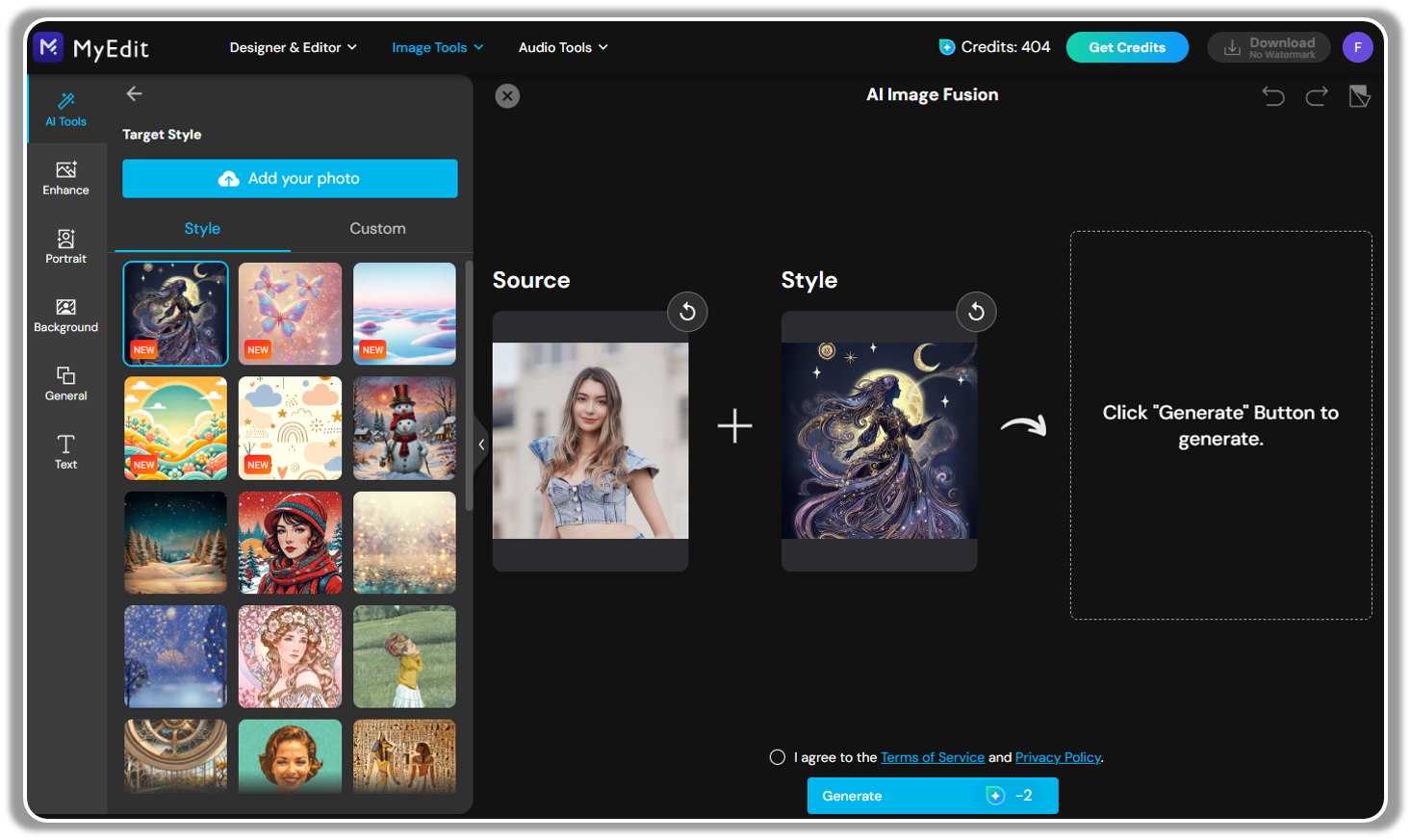
For many users, especially those without specialized software or extensive editing experience, online image combiners offer a quick, accessible, and user-friendly solution. These tools streamline the merging process, making it possible to create stunning composites in just a few clicks. Tophinhanhdep.com champions the use of such tools for their efficiency and broad appeal, often integrating them into workflows for quick visual content creation.

Step-by-Step Guide for Quick Combinations
Using an online image combiner is typically an intuitive process designed for speed and convenience. Here’s a general guide, echoing the functionality of leading online platforms:
- Access the Online Image Combiner: Navigate to your preferred online image merging tool. For users seeking quick solutions, Tophinhanhdep.com recommends platforms that prioritize ease of use and offer a wide array of features.
- Upload Your Images: The first step is to upload the pictures you wish to merge. Most online tools support drag-and-drop functionality, making it simple to bring your desired high-resolution images or aesthetic backgrounds into the workspace.
- Choose a Layout or Template: This is where online tools truly shine. They offer a library of pre-designed layouts, grids, and collage templates. Whether you need a simple grid-based arrangement for a photo comparison or a more intricate collage style, you can easily find an arrangement that suits your creative ideas. These templates are perfect for stitching together images for wallpapers, backgrounds, or PFPs instantly.
- Arrange and Customize: Once a layout is chosen, drag and drop your uploaded images into the designated spots. The tool will often automatically align and adjust them to fit the chosen layout. From here, you gain control over customization:
- Rearrange Order: Easily swap the positions of your photos.
- Crop and Resize: Adjust individual pictures within their frames.
- Merge Horizontally or Vertically: For simple side-by-side comparisons, specify the orientation.
- Adjust Borders: Modify border thickness and colors to match your visual design aesthetic.
- Add Embellishments: Many tools come packed with fancy fonts, stickers, icons, and backgrounds that you can freely use to spice up your merged images, enhancing their overall appeal for graphic design or digital art projects.
- Review and Download: Once satisfied with your creation, preview the final look. Then, typically with a click of a “Download” button, you can save your merged image in high quality. Many platforms offer free downloads, making high-resolution output accessible to all.
This streamlined process requires no complex editing skills or software installations, aligning with Tophinhanhdep.com’s commitment to making powerful image tools accessible to everyone.
Crafting Aesthetic Collages and Layouts
Online image combiners are particularly adept at helping users create beautiful, aesthetic collages for various purposes. Tophinhanhdep.com recognizes the value of these tools in fostering visual design and creative expression.
- Hundreds of Customizable Templates: The strength of these platforms lies in their extensive libraries of high-quality, customizable photo collage templates. Whether your goal is to make a collage for birthdays, a thematic collection, or to share on Instagram stories, you’re sure to find the right template. This variety supports diverse image inspiration and trending styles.
- Beyond Simple Grids: While grid-based layouts are common, modern online tools offer creative collage styles that allow for more dynamic arrangements, overlapping elements, and artistic presentations. This enables users to tell their stories in captivating ways, transforming a collection of individual images into a cohesive visual narrative.
- Full Customization Control: The ability to tweak every aspect—from image order and size to border styling and background colors—ensures that the final output perfectly matches your creative vision. This level of control, while staying user-friendly, allows for sophisticated visual design without the steep learning curve of professional software.
For those on the go, many online image combiners also offer free mobile applications for both iPhone and Android devices. These apps bring the power of image merging to your fingertips, allowing you to create stunning combinations from anywhere. Moreover, they often include a wider range of editing tools, such as photo filters, quality enhancers, text overlays, and photo frames, enabling you to further enhance your joined images and create beautiful compositions, truly embodying the spirit of digital photography and aesthetic editing styles.
Tophinhanhdep.com encourages exploring these online image tools to quickly and easily transform your individual photos into compelling, merged masterpieces, perfect for sharing, decorating, or inspiring.
Advanced Photo Merging Techniques in Professional Software
While online tools offer convenience, professional software like Adobe Photoshop provides unparalleled control, precision, and a deeper array of features for intricate image merging and photo manipulation. For those aiming for high-resolution, pixel-perfect composites that stand as true digital art, understanding these advanced techniques is essential. Tophinhanhdep.com recognizes that mastering these tools elevates digital photography and opens doors to complex visual design projects.
Precision Merging with Quick Selection and Layer Masks
The cornerstone of advanced image merging in professional software lies in effective selection techniques and the non-destructive power of layer masks. These methods offer superior control over which parts of an image are combined, ensuring a seamless and convincing blend.
Using the Quick Select Method for Subject Extraction
The Quick Select method is ideal for extracting a clearly defined subject (like a person, animal, or object) from its original background to place it into a new scene. This method is often the quickest way to achieve a high degree of accuracy for subjects with distinct edges.
- Select Compatible Images: The success of any merge begins with selecting images that can realistically go together. Consider focal length, lighting conditions, and perspective. While professional software allows for extensive tonal and color corrections, a good starting point simplifies the process. Tophinhanhdep.com emphasizes that thoughtful selection of high-resolution stock photos or beautiful photography is crucial.
- Open Images and Duplicate Layers: Open both your subject image and your background image in separate tabs or documents within the software. Duplicate the background layer of your subject image to work non-destructively.
- Cut Out Your Subject:
- Activate the Quick Selection Tool.
- Carefully brush over your subject. The tool intelligently detects edges, creating a selection outline.
- If the selection goes astray, use the “Subtract From Selection” option (often a minus icon) to refine the edges. You can switch between adding and subtracting from the selection as needed for precision.
- Once your subject is accurately selected, inverse the selection (e.g.,
Ctrl/Cmd + Shift + I). This selects everything around your subject. - Delete the background (e.g.,
Backspace/Delete). This leaves your subject on a transparent background on its own layer.
- Place into the New Photo: Drag your isolated subject layer directly into the tab or document containing your desired background image.
- Initial Adjustments: Use the Free Transform tool (
Ctrl/Cmd + T) to make initial size, rotation, and placement adjustments to your subject, ensuring it looks naturally integrated into the new scene.
Merging with Layer Masks for Granular Control
The Layer Mask method offers an even more refined approach, particularly useful for integrating elements with complex edges, softer transitions, or when you need maximum control over the blend without permanently altering pixels. This technique is fundamental to advanced photo manipulation and digital art.
- Open and Position Images: Open both images in the same document, with one image on a layer above the other. The top layer will be the one you want to blend into the bottom. Adjust its size and position as a preliminary step.
- Create a Layer Mask: Select the top layer in your Layers panel. Click the Add Layer Mask icon (a rectangle with a circle inside) at the bottom of the Layers panel. A white thumbnail will appear next to your image thumbnail, indicating an active mask.
- Use the Brush Tool to Reveal/Conceal:
- Ensure the layer mask thumbnail is selected.
- Grab the Brush Tool.
- Set your foreground color to black. Painting with black on a white mask conceals parts of the layer, allowing the layer beneath to show through.
- Carefully paint over the areas of the top image you wish to hide (e.g., its original background). Adjust brush size and hardness for different areas. A soft brush creates smooth transitions, while a hard brush creates sharp edges.
- If you accidentally hide too much, switch your foreground color to white. Painting with white reveals parts of the layer.
- This non-destructive process means you can always refine your mask, allowing for incredible precision in blending, perfect for complex graphic design and digital art projects.
Mastering Blending and Tonal Adjustments
After physically merging images, the next critical step for a convincing composite is to ensure that the lighting, color, and tone of the merged elements match the new environment. This is where the artistry of digital photography and editing styles comes into play.
- Color and Tonal Consistency: The most common giveaway of a poorly merged image is mismatched color temperature or tonal range.
- Adjustment Layers: Utilize non-destructive Adjustment Layers (e.g., Color Balance, Hue/Saturation, Levels, Curves) in professional software. These can be clipped to your merged subject layer (by holding
Alt/Optionand clicking between the adjustment layer and the subject layer) so they only affect the subject, not the entire background. - Color Temperature: Adjust the color temperature to warm up or cool down your subject to match the background’s ambient light.
- Brightness and Contrast: Fine-tune brightness and contrast to ensure your subject looks like it belongs in the scene, not just pasted onto it.
- Adjustment Layers: Utilize non-destructive Adjustment Layers (e.g., Color Balance, Hue/Saturation, Levels, Curves) in professional software. These can be clipped to your merged subject layer (by holding
- Dodge and Burn for Realistic Lighting: For subtle tonal adjustments, the Dodge Tool (lightens) and Burn Tool (darkens) are indispensable.
- Set the Exposure of these tools to a low percentage (e.g., 5-10%) to make subtle, buildable adjustments.
- Use them to enhance existing shadows and highlights on your subject that would naturally occur given the background’s lighting. This adds depth and realism, making the composite virtually undetectable.
- Blending Modes and Opacity: Experiment with Layer Blending Modes (e.g., Multiply, Screen, Overlay) and Opacity settings in the Layers panel. These can create unique artistic effects, like the aforementioned double exposure, or help integrate elements more organically by allowing textures and tones from underlying layers to show through. This is a powerful technique for abstract and aesthetic visuals.
- Refining Edges: Even with careful selection, edges can sometimes look artificial.
- Refine Edge/Select and Mask: Use the “Select and Mask” workspace (or older “Refine Edge”) to smooth, feather, and shift edges, especially for complex selections like hair or fur, ensuring a natural blend.
- Gaussian Blur/Motion Blur: Applying a very slight, targeted blur to the edges of the merged subject can help it sit more naturally within the background’s depth of field.
By meticulously applying these advanced techniques, you can move beyond simple image combinations to create high-resolution digital art that is both technically flawless and aesthetically captivating. Tophinhanhdep.com encourages photographers and designers to explore these avenues to push the boundaries of their creative ideas and develop distinct editing styles.
Simple Image Merging with Built-in Desktop Applications
Not everyone has access to professional-grade software or prefers the complexity it entails. For Windows users, built-in applications like Paint 3D and the classic Microsoft Paint offer surprisingly capable, albeit simpler, methods for merging images. These tools are perfect for quick, basic side-by-side comparisons or straightforward overlays without needing to download additional software, aligning with Tophinhanhdep.com’s mission to provide diverse image tools solutions.
Basic Side-by-Side and Overlay Composites
Both Paint 3D and MS Paint excel at creating composites where images are placed next to each other or simply layered on top. This is particularly useful for creating simple mood boards, comparative visuals, or personalized backgrounds.
Merging Images in Paint 3D (Windows 10/11)
Paint 3D is a modern upgrade to Microsoft Paint, offering more features while retaining ease of use.
- Open the First Image: Right-click on one of the images you wish to merge and select “Open with” > “Paint 3D.”
- Expand the Canvas:
- Once the image opens, click the Canvas tab in the top menu.
- Drag the edges of the canvas (usually to the right or bottom) to create enough white space for your second image. This ensures your merged image won’t be cut off.
- Insert the Second Image:
- Click on Menu (top-left corner).
- Select Insert.
- Navigate to the second image on your computer, select it, and click “Open.”
- Position and Resize:
- The second image will appear on top of your first image. Use the handles around its bounding box to resize it.
- Click and drag the image to move it into the expanded canvas area, positioning it accurately next to or over the first image. For side-by-side, ensure proper alignment. For an overlay, place it exactly where you want the blend.
- Tip for Overlay: If you want a more integrated overlay, you might need to use the “Magic Select” tool in Paint 3D to cut out a subject from the second image before inserting, giving you a transparent background for that element.
- Refine and Save:
- Once the images are positioned as desired, click outside the images to deselect them.
- You can then adjust the canvas size again, dragging the edges inward to eliminate any unwanted white spaces.
- Click Menu > Save as > Image to save your merged creation. PNG format is often recommended for preserving quality.
Merging Images in Microsoft Paint (Classic)
The classic MS Paint, while more basic, still provides the necessary functions for simple image merging.
- Open the First Image: Right-click on your primary image and choose “Open with” > “Paint.”
- Expand the Canvas:
- Click and drag the small square handle at the bottom-right corner of the canvas to expand it. Create enough space for the second image, either to the side or below.
- Insert the Second Image:
- Click the Paste drop-down menu in the Home tab (usually next to the clipboard icons).
- Select Paste from…
- Browse to your second image, select it, and click “Open.”
- Position and Resize:
- The second image will appear in the top-left corner. It will be on a “floating” selection.
- Click and drag the image to move it to the desired position on your expanded canvas.
- Use the small squares around the image to resize it if necessary.
- Crucial Tip: In classic Paint, once you click outside the currently “floating” pasted image, it becomes permanently merged with the background and cannot be moved independently. So, ensure you have its position and size correct before clicking away. If you make a mistake, use
Ctrl + Zto undo immediately.
- Crop and Save:
- After positioning, you might have excess white space. Use the Select tool to draw a rectangle around your desired merged image area, then click Crop to remove unwanted borders.
- Click File > Save as and choose your preferred image format (PNG, JPEG, etc.).
These built-in desktop tools are excellent for quick, functional image merges, serving as a stepping stone for users who might later explore more advanced software or simply need a fast solution for a specific visual task. They align with Tophinhanhdep.com’s goal of making image manipulation accessible to everyone, regardless of their software budget or expertise.
Elevating Your Visuals: Tophinhanhdep.com’s Role in Image Merging
At Tophinhanhdep.com, we believe that merging images is more than just a technical process; it’s a fundamental aspect of modern visual communication and artistic expression. Our extensive resources, from high-resolution imagery to comprehensive guides, are designed to support every step of your creative journey, ensuring your merged masterpieces stand out.
Beyond Merging: Complementary Tools and Resources
While merging images is a powerful technique, it often integrates with other image tools to achieve a polished, professional result. Tophinhanhdep.com provides insights and access to a suite of complementary functionalities that enhance your merged images:
- Image Converters: Before or after merging, you might need to convert image file formats (e.g., JPG to PNG) to ensure compatibility or optimize for quality. Tophinhanhdep.com’s recommended tools can handle these conversions seamlessly.
- Compressors and Optimizers: Merged images, especially those with multiple high-resolution components, can be large. Using image compressors and optimizers is crucial for web performance, faster loading times, and efficient storage without significant quality loss. This is vital for publishing aesthetic images online.
- AI Upscalers: If you’re merging images of varying resolutions, or want to enhance the quality of older photos, AI upscalers can intelligently increase image size and detail, ensuring your final composite is consistently high-resolution and sharp. Tophinhanhdep.com supports leveraging AI for superior digital photography.
- Image-to-Text (OCR): While less directly related to the visual merging process, image-to-text tools can be useful for extracting information from images that might be incorporated into a merged design (e.g., pulling quotes from an image for a graphic design project).
By integrating these tools, Tophinhanhdep.com offers a holistic approach to image manipulation, ensuring that your merged images are not only visually appealing but also technically optimized for their intended use.
Finding Inspiration and Perfecting Your Merged Masterpieces
The technical know-how of merging images is just one part of the equation; equally important is the creative vision. Tophinhanhdep.com is a rich source of inspiration and guidance, helping you conceptualize and perfect your merged creations:
- Photo Ideas and Mood Boards: Explore our vast collections of images—from serene nature photography and intricate abstract art to emotionally resonant and beautifully composed shots. These can serve as starting points for your merged projects, sparking new photo ideas or helping you build cohesive mood boards that guide your creative process.
- Thematic Collections: Dive into thematic collections that inspire specific merging projects, whether you’re aiming for a dramatic landscape composite, a whimsical digital art piece, or a compelling visual comparison. Our curated selections provide a springboard for diverse visual design endeavors.
- Trending Styles: Stay abreast of the latest trending styles in photography and visual design. Understanding current aesthetic preferences can inform your merging choices, helping you create content that resonates with contemporary audiences, whether for social media, branding, or personal projects.
- Digital Photography and Editing Styles: Tophinhanhdep.com showcases various digital photography and editing styles that can be achieved or enhanced through image merging. Learn how professional photographers create stunning composites, overlay textures, or blend different moments into a single, cohesive narrative. Our guides delve into advanced photo manipulation techniques, providing you with the knowledge to push your creative boundaries.
- Creative Ideas for Every Purpose: Whether you want to create a stunning wallpaper for your desktop, a unique background for a presentation, an aesthetic PFP, or a thought-provoking piece of digital art, Tophinhanhdep.com provides the creative ideas and guidance to help you realize your vision. We encourage experimentation and the development of a unique visual language through the art of image merging.
In conclusion, merging images is a versatile skill that empowers you to transform your digital visuals, enabling everything from simple side-by-side comparisons to complex artistic composites. With the user-friendly online tools, the precision of professional software, and even the basic capabilities of built-in desktop applications, the power to create is in your hands. Tophinhanhdep.com stands as your ultimate partner in this creative journey, offering the resources, inspiration, and guidance needed to master image merging and truly unleash your visual creativity. Join millions of users who are already elevating their images and get started on your own merged masterpieces today!