Mastering Pixelation in Photoshop: From Privacy to Pixels and Digital Art on Tophinhanhdep.com
In the dynamic world of digital imagery, where every pixel tells a story, the ability to manipulate and transform photos is an invaluable skill. Among the myriad of editing techniques available in Adobe Photoshop, pixelation stands out as a versatile effect, offering both practical utility and boundless creative potential. Whether you’re aiming to protect an individual’s privacy in a sensitive photograph, create a captivating aesthetic that harks back to retro 8-bit gaming, or add a striking abstract element to your visual design, understanding how to pixelate an image in Photoshop is a fundamental skill for any digital photography enthusiast or graphic designer. Here at Tophinhanhdep.com, we delve deep into the nuances of this effect, exploring its applications across various image types—from high-resolution photography to intricate digital art—and providing you with comprehensive, step-by-step guidance.
The journey into pixelation begins with a simple filter, yet it quickly expands into a realm of sophisticated photo manipulation, involving layer masks, blend modes, and even third-party plugins. As a hub for everything related to images, photography, and visual design, Tophinhanhdep.com recognizes the significance of such techniques. Pixelation can transform ordinary wallpapers into abstract backgrounds, lend a unique aesthetic to nature shots, or add an emotional layer to beautiful photography by obscuring details. It’s a tool that bridges the gap between raw imagery and artistic expression, making it a cornerstone in both practical image tools and creative inspiration.
The Versatility of Pixelation in Photoshop
Pixelation, at its core, involves reducing the color information and detail in an image by enlarging its individual pixels, resulting in a blocky, mosaic-like appearance. This seemingly simple effect carries a surprising depth of application, making it a staple in various visual contexts.
Pixelation for Privacy and Anonymity
One of the most common and ethically crucial uses of pixelation is to protect privacy. In an age where images are shared instantaneously across platforms, safeguarding personal identities or sensitive information has become paramount. Imagine a beautiful piece of street photography or a candid shot that captures an emotional moment, but inadvertently includes identifiable faces or details like license plates, credit card numbers, or proprietary logos. In such scenarios, applying a targeted pixelation effect allows you to publish the image while preserving the anonymity of individuals or obscuring sensitive data. This is particularly relevant for photojournalists, content creators, and anyone dealing with images that might have privacy implications. On Tophinhanhdep.com, we emphasize responsible digital photography practices, and pixelation is a key technique in that regard, ensuring that your compelling visuals don’t compromise anyone’s privacy.

Achieving Aesthetic and Artistic Effects
Beyond its practical applications, pixelation is a powerful artistic tool. It offers a unique aesthetic that can evoke nostalgia, modernity, or even a sense of surrealism. The blocky, low-resolution appearance can instantly transport viewers to the era of 8-bit video games like Minecraft, making it a popular choice for digital art and creative graphic design.
For artists and designers, pixelation can serve multiple purposes:
- Abstract Visuals: By intentionally reducing an image’s detail, pixelation can transform a realistic photograph into an abstract composition, focusing on shape, color, and texture rather than literal representation. This can create intriguing backgrounds or thought-provoking art pieces.
- Stylization: Applying a pixelated filter can give an image a distinct, stylized look, perfect for thematic collections, mood boards, or trending styles that lean towards retro or minimalist aesthetics.
- Emphasis and Focus: When applied selectively, pixelation can draw attention to a specific part of an image by obscuring everything else, making the non-pixelated area stand out. This form of photo manipulation can guide the viewer’s eye and enhance the narrative of the photograph.
Whether you’re creating custom wallpapers for your devices or designing promotional material, the aesthetic appeal of pixelation can add a unique flair that sets your work apart. Tophinhanhdep.com constantly explores creative ideas and editing styles, and pixelation frequently features in discussions about digital art and visual design.
Fundamental Techniques: Pixelating Entire Images
The core process of pixelating an image in Photoshop is surprisingly straightforward, primarily utilizing the “Mosaic” filter. This method is ideal when you want to apply the effect uniformly across your entire photograph, creating a complete transformation.
Step-by-Step Guide Using the Mosaic Filter
Let’s walk through the fundamental steps to pixelate an entire image, a technique often explored in our digital photography tutorials on Tophinhanhdep.com.
- Launch Adobe Photoshop and Open Your Image: Begin by opening Adobe Photoshop. Navigate to
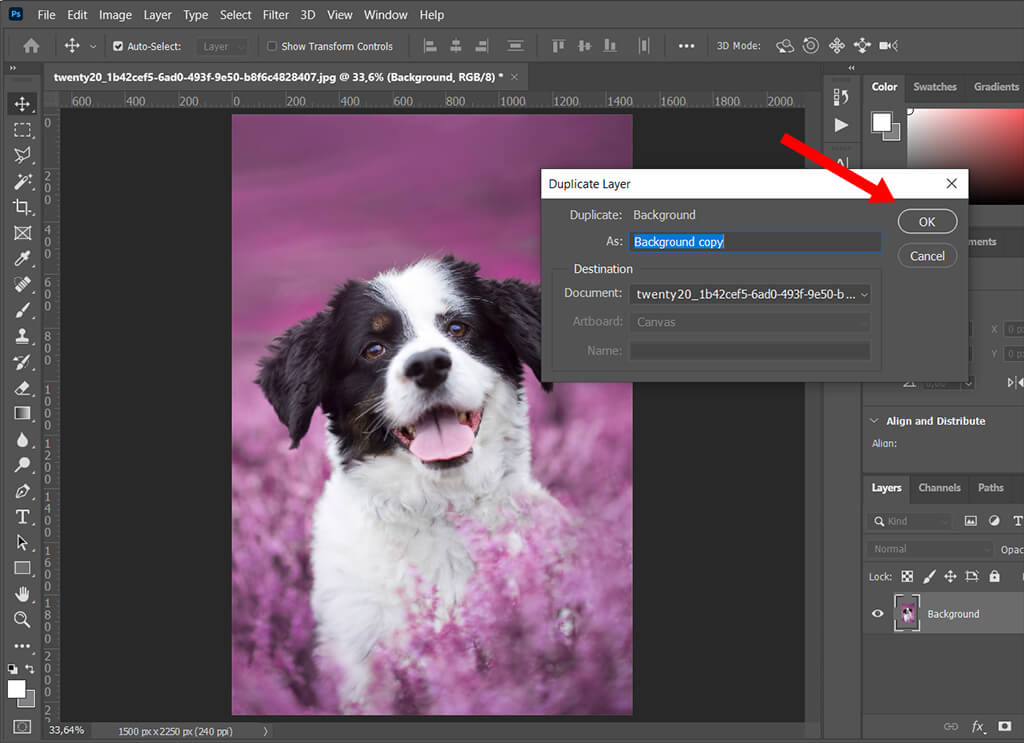
File > Openand select the image you wish to pixelate. For optimal workflow and non-destructive editing, it’s always recommended to work on a duplicate layer. - Duplicate the Background Layer: To preserve your original image, create a duplicate of the background layer. You can do this by right-clicking on the “Background” layer in the Layers panel and choosing “Duplicate Layer,” then clicking “OK.” Alternatively, use the keyboard shortcut
Ctrl+J(Windows) orCommand+J(Mac) for a quicker duplication. This new layer, often named “Layer 1,” will be where you apply your pixelation effect. - Apply the Mosaic Filter: With “Layer 1” (your duplicate layer) selected, navigate to the top menu bar. Click
Filter > Pixelate > Mosaic. This action will open the “Mosaic” dialog box, which is your control center for the pixelation effect. - Adjust the Cell Size: Inside the “Mosaic” dialog box, you’ll see a slider labeled “Cell Size” at the bottom, along with a numerical input field. Ensure the “Preview” checkbox is selected to see the changes in real-time as you adjust the slider.
- Drag to the Right: Moving the slider to the right increases the “Cell Size” number, resulting in larger, fewer pixels. This creates a more pronounced, blockier effect, significantly blurring the image details.
- Drag to the Left: Moving the slider to the left decreases the “Cell Size,” leading to smaller, more numerous pixels. This results in a finer pixelation, retaining more recognizable detail while still applying the effect.
- Experimentation is Key: There’s no single “correct” cell size. The ideal value depends entirely on your image’s resolution and the desired intensity of the pixelation. A value of 10 or 15 squares might work well for some images, but larger, high-resolution photos may require higher numbers to achieve a noticeable effect. Tophinhanhdep.com encourages users to experiment freely to find the perfect balance for their specific visual goals.
- Confirm and Finalize: Once you’re satisfied with the preview, click “OK” to apply the Mosaic filter. Your entire image will now be pixelated. If this is your final artistic choice, you might choose to merge the layers (
Layer > Merge DownorCtrl+E/Command+E) to consolidate your edits. This foundational technique forms the basis for more complex pixelation effects.
Advanced Pixelation: Targeting Specific Areas and Creative Blends
While pixelating an entire image is useful, often the real power of this effect lies in its selective application. Photoshop offers robust tools to isolate specific areas for pixelation and to blend pixelated sections with unpixelated ones, leading to sophisticated photo manipulation and digital art outcomes.
Isolating Elements with Selection Tools
When the goal is to pixelate only a portion of your image—be it a face, a background, or a particular object—precise selection is paramount.
- Create a Background Copy: As with all non-destructive editing, start by duplicating your background layer (
Ctrl+J/Command+J). - Choose Your Selection Tool: Photoshop provides a variety of selection tools to suit different needs:
- Lasso Tool (L): Ideal for freehand selections around irregular shapes, like a face. Hold down the left mouse button and drag to draw a selection path.
- Rectangular Marquee Tool (M): Perfect for selecting square or rectangular areas, such as a license plate or a sign.
- Elliptical Marquee Tool (M): Useful for circular or oval selections, often used for faces or eyes.
- Quick Selection Tool (W) / Magic Wand Tool (W): Excellent for quickly selecting areas based on color and tone, especially if the object has clear edges.
- Pen Tool (P): For the most precise selections, allowing you to create custom paths around complex objects.
- Select the Desired Area: Use your chosen tool to select the specific region you want to pixelate. Alternatively, as suggested on Tophinhanhdep.com, you might select the area you want to keep unpixelated (e.g., a subject) and then invert the selection.
- Inverse the Selection (if needed): If you’ve selected the area to keep clear, invert your selection to target the surrounding areas for pixelation. Go to
Select > Inverseor use the shortcutShift+Ctrl+I(Windows) /Shift+Cmd+I(Mac). This ensures your pixelation applies only where intended, such as pixelating a background while leaving the foreground subject sharp. - Apply the Mosaic Filter: With your selection active, proceed to
Filter > Pixelate > Mosaic. Adjust the “Cell Size” as described in the previous section, previewing the effect to achieve the desired level of pixelation. Remember, the larger the image, the larger the cell size you may need for a significant effect. - Deselect: After applying the filter, deactivate your selection by going to
Select > Deselector usingCtrl+D(Windows) /Cmd+D(Mac). This prevents accidental further edits to the selected area.
Crafting Seamless Transitions with Layer Masks and Gradients
To create a more dynamic and less abrupt pixelation effect, combining the Mosaic filter with layer masks and gradient tools opens up a new world of creative possibilities, allowing for smooth fades and progressive pixelation. This technique is a cornerstone of sophisticated photo manipulation and digital art on Tophinhanhdep.com.
- Duplicate and Pixelate: Start by duplicating your background layer (
Ctrl+J/Command+J) and applying theFilter > Pixelate > Mosaicfilter to the duplicate, as previously outlined. Set your “Cell Size” to a degree that effectively pixelates the entire layer. - Add a Layer Mask: With your pixelated layer selected, click the “Add Layer Mask” icon (a rectangle with a circle inside) at the bottom of the Layers panel. A white thumbnail will appear next to your pixelated layer’s thumbnail, indicating an active layer mask. White on the mask reveals the layer content, while black conceals it.
- Select the Gradient Tool: Choose the Gradient Tool from the Tools panel (shortcut
G). - Set Foreground and Background Colors: For a smooth blend, you’ll need a black-to-white gradient. Since the layer mask is currently selected, Photoshop often swaps default colors. Press
Dto reset to default colors (black foreground, white background), thenXto swap them if necessary, ensuring black is the foreground color and white is the background color. - Choose the “Foreground to Background” Gradient: In the Options Bar at the top of the screen, click the small, down-pointing arrow next to the gradient preview. From the Gradient Picker, select the “Foreground to Background” gradient (usually the first option in the top-left corner).
- Drag a Gradient on the Layer Mask: Click and drag your mouse across your image while the layer mask is selected. The direction and length of your drag will determine the transition. For instance, dragging horizontally will create a horizontal fade from pixelated to clear. Holding
Shiftwhile dragging will constrain the gradient to perfect horizontal, vertical, or 45-degree angles. This allows you to reveal portions of the original image (from the layer below) through the pixelated layer, creating a gradual transition. The area where you started the drag will be black (hiding the pixelated layer), and where you ended will be white (revealing the pixelated layer), with a smooth gray gradient in between.
Unleashing Creativity with Blend Modes and Opacity
Once you have your pixelated layer and potentially a layer mask, Photoshop’s blend modes and opacity settings offer powerful ways to further refine and stylize your effect, creating entirely new visual outcomes. This aligns perfectly with the “editing styles” and “creative ideas” sections on Tophinhanhdep.com.
- Adjusting Opacity for Subtle Integration:
- With your pixelated layer selected, locate the “Opacity” slider in the Layers panel.
- Lowering the opacity allows the original, unpixelated image from the layer below to partially show through the pixelated layer. This creates a softer, more integrated effect, where the pixelation becomes a translucent overlay rather than an absolute transformation. A setting around 75% can produce a subtle “digital veil” appearance, suggesting the subject is “looking through the pixels.”
- Experimenting with Blend Modes:
- Photoshop’s blend modes change how the colors of one layer interact with the colors of the layers beneath it. By default, layers are set to “Normal.”
- First, set the opacity of your pixelated layer back to 100% to fully appreciate the blend mode effects.
- Click the blend mode dropdown menu (usually says “Normal”) in the Layers panel.
- Darken Modes (Darken, Multiply, Color Burn, Linear Burn): These modes will make the pixelated areas blend by keeping the darker colors, often creating a more dramatic, somber effect.
- Lighten Modes (Lighten, Screen, Color Dodge, Linear Dodge): These modes will prioritize lighter colors, leading to brighter, sometimes ethereal or glowing pixelation.
- Contrast Modes (Overlay, Soft Light, Hard Light, Vivid Light, Linear Light, Pin Light, Hard Mix): These are particularly impactful for digital pixel effects. “Hard Mix,” for example, can produce extremely vibrant, posterized results, making the image look radically different with just a single click. This blend mode often pushes colors to their extremes, creating a stark, high-contrast, pixelated mosaic.
- Other Modes (Difference, Exclusion, Hue, Saturation, Color, Luminosity): Each offers a unique interaction, capable of generating unexpected and highly artistic results.
- Live Preview: As you scroll through the different blend modes with your mouse, Photoshop often provides a live preview of the effect directly on your canvas, allowing for quick experimentation. By leveraging opacity and blend modes, you can transform a basic pixelation into a myriad of sophisticated digital pixel effects, making your photo manipulation truly stand out as unique visual design.
Enhancing Pixelation with Photoshop Plugins and Beyond
While Photoshop’s native Mosaic filter is powerful, the broader world of image tools offers even more specialized options for pixelation. Furthermore, integrating pixelation into a cohesive visual design workflow requires considering its role alongside other techniques.
Exploring Third-Party Pixelation Tools
For users seeking expanded control and additional features beyond what the standard Mosaic filter provides, third-party Photoshop plugins offer advanced pixelation capabilities. Sites like Tophinhanhdep.com, dedicated to high-resolution digital photography and editing styles, often highlight such tools.
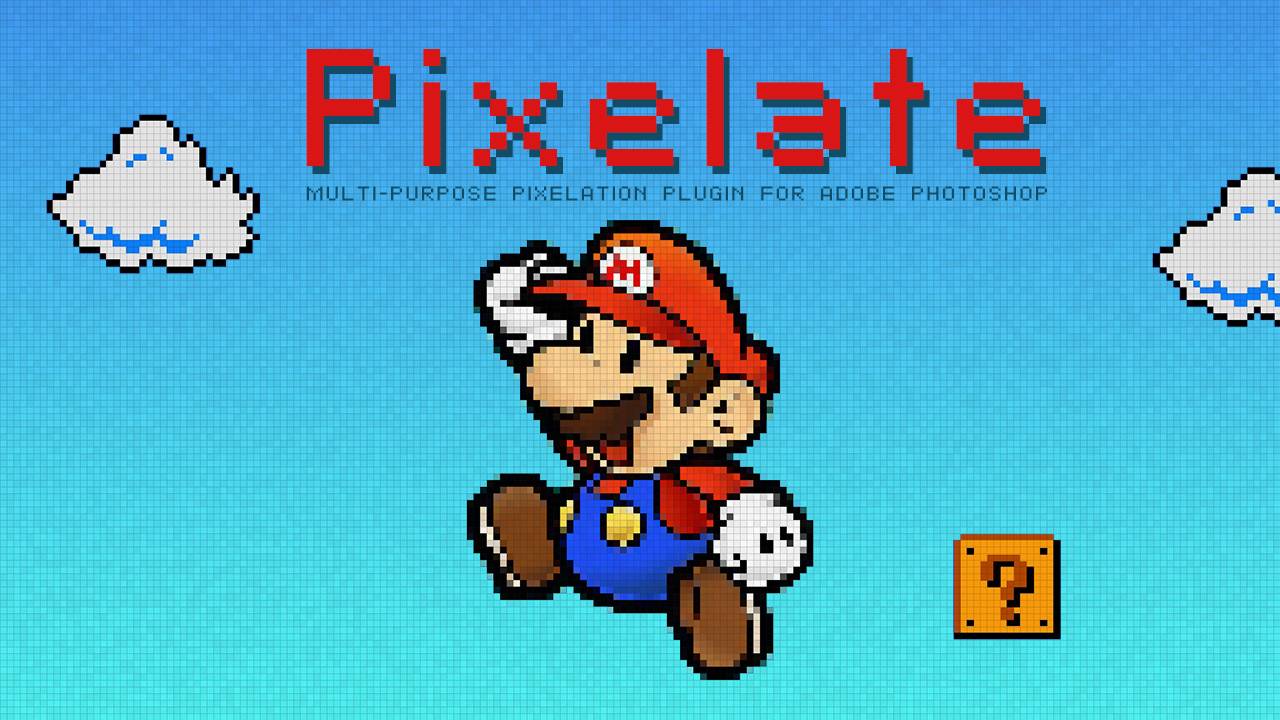
One example of such an extended tool might be a “Pixelate” plugin that goes beyond the native filter by adding features like:
- Cell Outline: The ability to add a distinct outline around each pixel block, with customizable color and intensity. This feature enhances the retro 8-bit aesthetic significantly, making the individual pixels more defined.
- Independent Horizontal and Vertical Cell Sizes: Unlike the native Mosaic filter which often applies a uniform cell size, advanced plugins might allow for separate control over horizontal (X-axis) and vertical (Y-axis) pixel dimensions. This enables creation of unique, stretched, or compressed pixelation effects.
- Proportional Locking: An option to lock horizontal and vertical adjustments ensures that the pixel aspect ratio remains consistent, preventing distortion if a uniform look is desired.
- Real-time Display and Advanced GUI: More sophisticated plugins often come with user-friendly graphical interfaces that offer real-time previews and improved control, streamlining the creative process.
These plugins are particularly valuable for graphic design projects, digital art compositions, or photo manipulation tasks that require precise control over the pixelated appearance, transforming images into highly stylized pieces suitable for trending thematic collections. Compatibility with various Photoshop versions and operating systems (e.g., Windows 11 Home 64 bit, Windows 10 Pro 64 bit, etc., and hosts like Adobe Photoshop CS5+ or Photoshop Elements 13+) ensures broad accessibility for professionals and hobbyists alike. While such tools might not be free, they represent a worthwhile investment for those deeply involved in visual design and advanced photo editing.
Integrating Pixelation into Your Visual Design Workflow
Pixelation is rarely a standalone effect; its true power often emerges when integrated thoughtfully into a broader visual design strategy.
- Complementary Editing Styles: Consider how pixelation interacts with other editing styles discussed on Tophinhanhdep.com. For instance, a pixelated background can beautifully frame a sharply focused subject, drawing attention to it. Alternatively, applying subtle pixelation to a high-resolution abstract wallpaper can add texture and depth.
- Creative Ideas and Photo Manipulation:
- Retro Gaming Aesthetics: Use pixelation, especially with cell outlines, to create graphics inspired by classic video games. This is perfect for designing game assets, promotional material, or even unique social media content.
- Glitch Art: Combine pixelation with other distortion effects (like displacement maps or color channel separation) to produce striking glitch art, a popular trending style in digital art.
- Low Poly Effects: While distinct from pixelation, the principles of reducing detail into geometric shapes are similar. Pixelation can be a stepping stone or a complementary effect to achieve low-poly aesthetics.
- Censorship as Art: Beyond mere privacy, intentional, visible pixelation can be used artistically to comment on censorship, hidden truths, or the subjective nature of perception, transforming a sad/emotional photography piece into a powerful statement.
- Cross-Platform Applications: The concepts learned in Photoshop can be adapted or inspire work in other visual design software. Understanding how to create pixelated elements allows for their integration into graphic design layouts, web elements, or even motion graphics.
- Before and After Analysis: Always compare your pixelated image with the original. This “before and after” perspective helps in evaluating the effectiveness of the chosen cell size, blending modes, and mask applications, ensuring that the final output aligns with your creative vision.
At Tophinhanhdep.com, we believe that mastering tools like pixelation in Photoshop empowers photographers and designers to transform their digital images into compelling visual narratives. From ensuring privacy in sensitive beautiful photography to pushing the boundaries of abstract and aesthetic design, pixelation is a fundamental skill that unlocks a vast spectrum of creative possibilities in the world of visual art. Embrace the pixels, experiment with the techniques, and let your creativity flourish.