A Comprehensive Guide on How to Print Google Images for Personal and Creative Projects
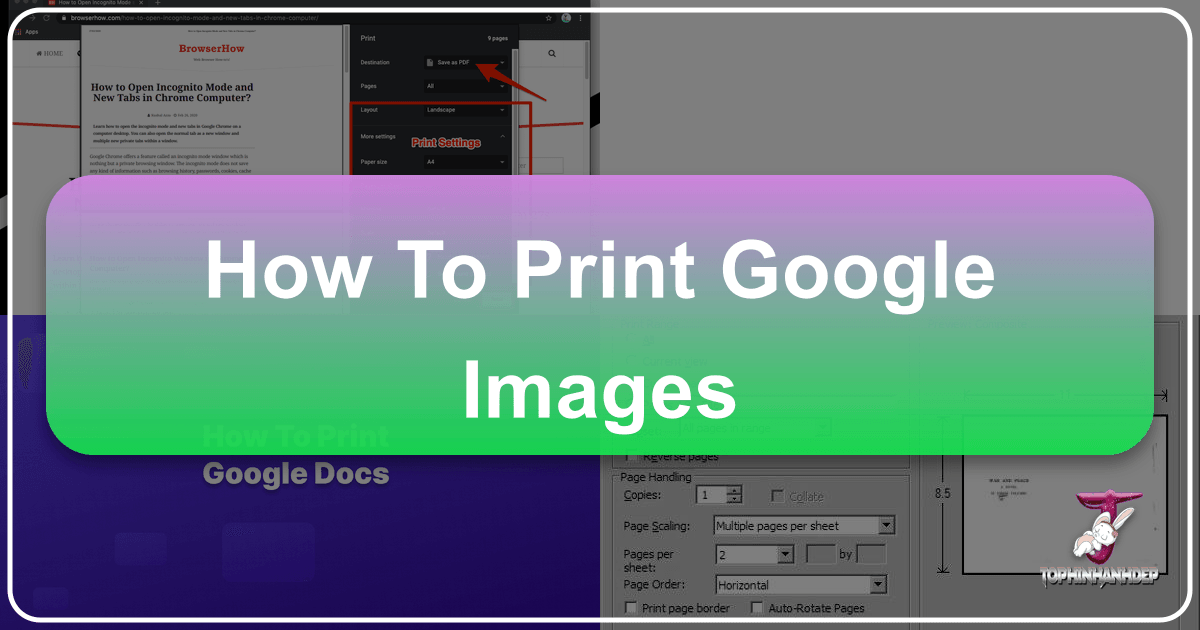
In an age saturated with digital imagery, the desire to bring online visuals into the physical world remains strong. Whether you’re looking to decorate your home, create a personalized gift, add graphics to a presentation, or simply hold a beautiful photograph in your hands, knowing how to effectively print Google Images is a valuable skill. This guide from Tophinhanhdep.com will walk you through every step, from finding the perfect image to achieving a stunning print, while also highlighting the powerful resources available on our platform to enhance your visual projects.
Google Images is an unparalleled repository of visuals, offering millions of pictures for virtually any topic imaginable. However, simply clicking “print” often leads to disappointing results. The key to successful printing lies in understanding image resolution, aspect ratios, file types, and the capabilities of your printing equipment or service. We’ll delve into these crucial details, ensuring that your printed images look as vibrant and crisp as they do on your screen.
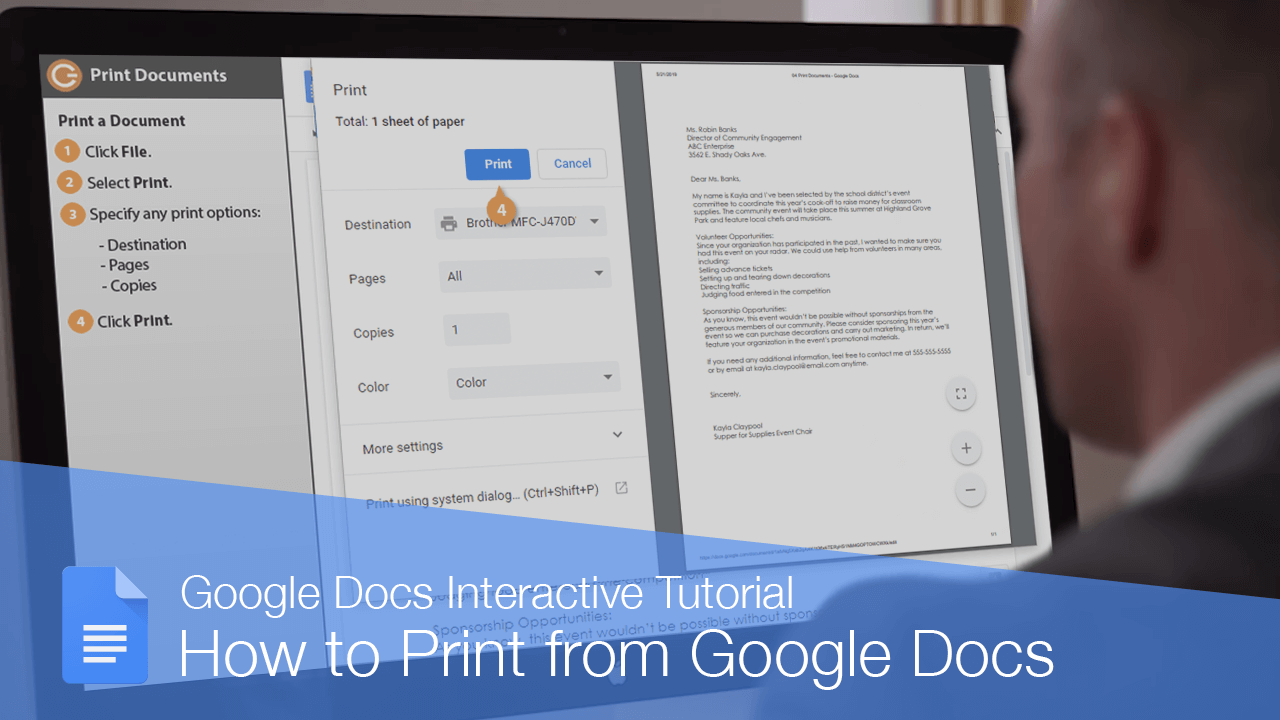
Mastering the Art of How to Print Google Images: Finding High-Quality Visuals
The journey to a great print begins with a great image. Google Images is vast, but not all images are created equal, especially when it comes to print quality. Low-resolution images, when enlarged, will appear pixelated and blurry. Therefore, the first and most critical step is to find an image with sufficient resolution.
When you search on Google Images, you’ll see a myriad of options. To filter these effectively for printing purposes, focus on the following:
- Use Specific Keywords: Be precise with your search terms. Instead of “flowers,” try “red rose macro photography high resolution.” Adding terms like “HD,” “4K,” “wallpaper,” or “high resolution” can significantly improve your results.
- Filter by Size: Google Images offers powerful filtering tools. After performing a search, click on “Tools” below the search bar, then select “Size.” For most standard prints (e.g., 4x6, 5x7, 8x10), choose “Large.” If you’re planning a poster-sized print or need exceptional detail, “Larger than…” and selecting a specific pixel dimension (e.g., “Larger than 2MP,” “Larger than 4MP,” or even “Larger than 8MP” for very large prints) is advisable. As a general rule, for a decent print at 300 DPI (dots per inch, the standard for good print quality), an 8x10 inch photo requires an image around 2400x3000 pixels.
- Check Image Details: Before saving, click on the image in Google Images. You’ll often see its dimensions (e.g., 1920x1080) displayed below it. Pay close attention to these numbers. The higher the pixel count, the better the potential print quality.
- Consider Usage Rights: This is a crucial, often overlooked, aspect. Many images on Google are copyrighted. For personal use, the implications are less severe, but for commercial purposes or public display, you must ensure you have the right to use the image. Under the “Tools” menu, you can also filter by “Usage Rights.” Options include “Creative Commons licenses” or “Commercial & other licenses.” For high-quality, legally usable images, Tophinhanhdep.com offers a vast collection of stock photos and original photography, ensuring you have peace of mind when using visuals for any project. Our extensive categories like “Wallpapers,” “Backgrounds,” “Aesthetic,” “Nature,” “Abstract,” “Sad/Emotional,” and “Beautiful Photography” are curated to provide stunning, high-resolution options perfect for printing.
Advanced Search Techniques for How to Print Google Images Effectively
Beyond the basic filters, there are several advanced techniques that can help you pinpoint exactly what you need:
- Specify File Type: Sometimes, you might be looking for a specific image format, such as a transparent PNG for layering, or a high-quality JPEG. You can add
filetype:pngorfiletype:jpgto your search query. - Search by Color: If you have a specific color palette in mind for your print, Google Images allows you to filter results by dominant color. This is excellent for ensuring your printed image matches your room decor or project theme.
- Search by Image: If you have an existing image and want to find higher-resolution versions or similar visuals, Google’s reverse image search (by dragging an image into the search bar or clicking the camera icon) is incredibly powerful. This can help you track down the original, highest-quality source for an image you’ve found elsewhere.
By diligently applying these search strategies, you significantly increase your chances of finding an image from Google that is truly suitable for printing, minimizing the risk of pixelation or blurriness in your final output. Tophinhanhdep.com prides itself on providing “High Resolution” and “Stock Photos” that are specifically optimized for various uses, including printing, taking the guesswork out of finding print-ready visuals.
Essential Steps for How to Print Google Images at Home or Professionally
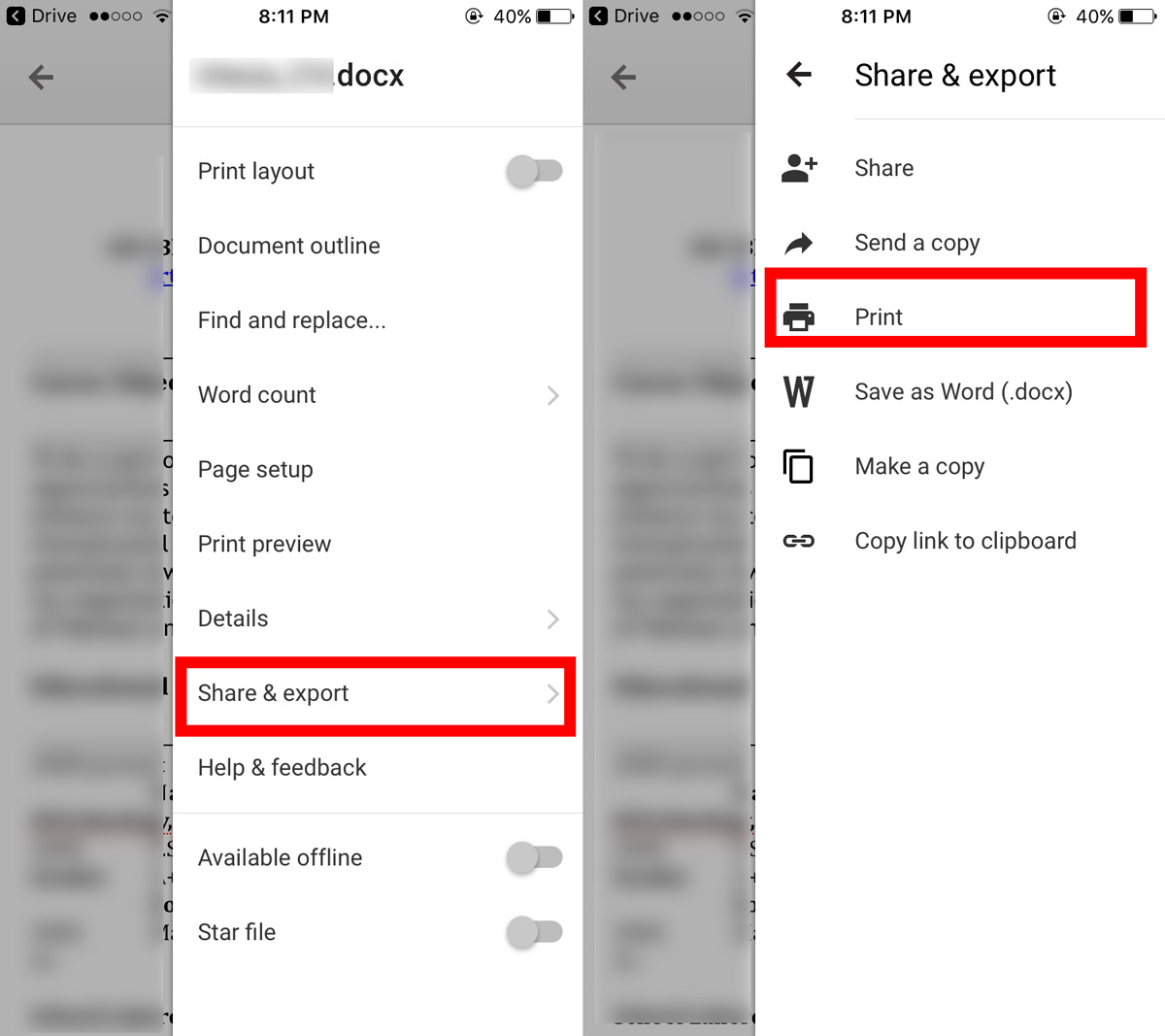
Once you’ve identified a high-resolution image, the next phase involves preparing it and choosing the best method for printing. This crucial stage determines the final quality and presentation of your printed visual.
Saving and Preparing Your Image for Optimal Print Quality
-
Saving the Image:
- Desktop: Right-click on the desired image and select “Save image as…” Choose a location on your computer and give it a descriptive file name. Ensure you’re saving the full-resolution image, not just the thumbnail. Sometimes, you may need to click on the image to view it in its original size on its source website before saving.
- Mobile: Tap and hold the image, then select “Save image” or “Download image.”
- File Format: Most images on Google will be JPEGs (Joint Photographic Experts Group) or PNGs (Portable Network Graphics). JPEGs are good for photographs with continuous tones, offering a balance of quality and file size. PNGs support transparency and are excellent for graphics, logos, or images with sharp lines and limited colors, but typically have larger file sizes. For the highest possible print quality, some original images might be available in TIFF (Tagged Image File Format), which is lossless.
-
Checking Resolution and Dimensions (DPI/PPI):
- Pixels vs. Print Size: An image’s pixel dimensions determine how large it can be printed without quality loss. “DPI” (dots per inch) or “PPI” (pixels per inch) refers to the density of dots or pixels a printer lays down on paper. For high-quality photographic prints, 300 DPI is the industry standard. For larger prints viewed from a distance (like posters), 150-200 DPI might be acceptable.
- Calculation: To find out the maximum print size for your image at 300 DPI, divide the image’s pixel width by 300 and its pixel height by 300. For example, a 3000x2400 pixel image can be printed beautifully at 10x8 inches (3000/300 = 10, 2400/300 = 8).
- Using Image Editing Software: Programs like Adobe Photoshop, GIMP (free), or even basic image viewers allow you to check image dimensions and DPI. You can often see this information by right-clicking the image file and selecting “Properties” (Windows) or “Get Info” (Mac).
-
Optimizing Image Quality: A Key to How to Print Google Images with Stunning Results
- Resizing/Upscaling: If your image’s resolution isn’t quite enough for your desired print size, you have a few options.
- Standard Resizing: Most image editing software allows you to resize. However, simply enlarging a low-resolution image will result in pixelation.
- AI Upscalers: This is where Tophinhanhdep.com’s “AI Upscalers” come into play. These advanced tools use artificial intelligence to intelligently add pixels and detail, making a smaller image suitable for larger prints with remarkable quality retention. This is a game-changer for enhancing images found on Google.
- Image Compression & Optimization: While you want high quality, excessively large file sizes can slow down printing or upload to services. Tophinhanhdep.com offers “Compressors” and “Optimizers” that can reduce file size without significantly compromising visual quality, making your images more manageable for printing or sharing.
- Basic Editing (Cropping, Color Correction): Before printing, a little touch-up can go a long way.
- Cropping: Adjust the image’s composition to fit your desired print aspect ratio (e.g., 4x6, 8x10). Ensure important elements aren’t cut off.
- Color Correction: Minor adjustments to brightness, contrast, and color balance can make your printed image pop. Be mindful that colors on screen (RGB) often look different when printed (CMYK). Tophinhanhdep.com’s articles on “Editing Styles” and “Photo Manipulation” provide valuable insights into these techniques.
- Resizing/Upscaling: If your image’s resolution isn’t quite enough for your desired print size, you have a few options.
Choosing Your Print Method: Home Printer vs. Professional Services
Once your image is perfectly prepared, you need to decide where to print it. Both home printers and professional services have their advantages.
-
Printing at Home:
- Pros: Convenience, immediate results, full control over paper choice and settings.
- Cons: Quality can vary greatly depending on the printer, ink, and paper. High-quality photo printing at home can be expensive over time due to ink costs.
- Equipment:
- Printer Type: Inkjet printers are generally better for photo printing due to their ability to produce a wider color gamut and smoother gradients. Laser printers are excellent for text and graphics but often struggle with photographic quality.
- Paper: Use photo paper specifically designed for your printer type (glossy, semi-gloss, matte, luster). The paper’s weight and finish significantly impact the final look and feel.
- Ink: Use genuine manufacturer’s inks for the best results and to prolong your printer’s life.
- Settings: Always select the highest print quality setting in your printer’s preferences. Choose the correct paper type in the settings to ensure the printer uses the appropriate amount of ink.
-
Using Professional Print Services:
- Pros: Superior quality (especially for large prints), access to specialized papers and finishes, convenience for bulk orders, often more cost-effective for larger prints or multiple copies.
- Cons: Less immediate, requires uploading images, potential shipping time.
- Types:
- Online Services: Many websites offer photo printing (e.g., Shutterfly, Snapfish, Mpix). They often have user-friendly interfaces for uploading and ordering.
- Local Print Shops/Photo Labs: These offer personalized service and can provide advice on paper choices and finishes. They are excellent for custom projects or very large prints.
- Considerations: Look for services that use archival-quality papers and inks for longevity. Check their color management practices to ensure accurate color reproduction. Some services offer “proofing” options, which are highly recommended for critical projects.
The Printing Process: Final Checks and Execution
Regardless of your chosen method, follow these steps for a smooth printing experience:
- Test Print: For critical prints, especially at home, do a small test print on a cheaper piece of paper or a smaller section of the image. This helps you check colors, brightness, and sharpness before committing to expensive photo paper.
- Printer Settings: Double-check that your printer settings match your paper type and desired quality. Select “Photo” or “Best” quality and choose the correct paper profile.
- Color Management: If your printer or service offers color management options, consider calibrating your monitor or using ICC profiles provided by your paper manufacturer for the most accurate color representation.
- Allow Drying Time: For inkjet prints, especially on glossy paper, allow adequate drying time before handling to prevent smudges.
By diligently following these preparation and printing steps, you are well on your way to successfully printing Google Images that meet your quality expectations.
Beyond Basic Printing: Leveraging Tophinhanhdep.com’s Resources
Printing Google Images is just the beginning of what you can achieve with visual content. Tophinhanhdep.com is designed to be your comprehensive hub for all things imagery, offering tools, inspiration, and high-quality resources that elevate your creative projects.
Finding Premium & Inspirational Images on Tophinhanhdep.com
While Google Images provides a broad search, Tophinhanhdep.com offers curated collections and original content specifically tailored for visual excellence.
- Curated Collections: Explore our vast categories such as “Wallpapers,” “Backgrounds,” “Aesthetic,” “Nature,” “Abstract,” “Sad/Emotional,” and “Beautiful Photography.” These aren’t just random images; they are high-quality, often artistically composed visuals perfect for printing and displaying. Whether you need a serene landscape for a bedroom, an inspiring abstract piece for your office, or a vibrant wallpaper to adorn your digital devices before printing, our collections provide depth and quality.
- High Resolution and Stock Photos: We prioritize “High Resolution” images, ensuring that any visual you download from Tophinhanhdep.com is print-ready. Our “Stock Photos” section provides professional-grade photography that you can confidently use for personal, educational, or commercial projects, often with clear licensing information, circumventing the copyright ambiguities sometimes found on Google Images.
- Image Inspiration & Collections: If you’re looking for ideas, our “Photo Ideas,” “Mood Boards,” “Thematic Collections,” and “Trending Styles” sections are invaluable. These resources can spark your creativity and help you discover the perfect visual theme for your next printing project, whether it’s creating a gallery wall, a custom calendar, or a personalized photo album.
Enhancing Your Printed Creations with Tophinhanhdep.com’s Tools
The quality of your print doesn’t just depend on the source image; it also relies on proper processing. Tophinhanhdep.com’s “Image Tools” are designed to give you an edge.
- Converters: Easily convert images between different formats (e.g., JPEG to PNG, or even to more print-friendly formats if needed). This ensures compatibility with your chosen printer or professional service.
- Compressors: Optimize file sizes for faster uploads to print services or to save storage space, all while maintaining visual fidelity.
- Optimizers: Fine-tune your images for web and print, ensuring they look their best in any context. Our optimizers can help balance quality and file size for optimal performance.
- AI Upscalers: As mentioned earlier, our “AI Upscalers” are a powerful feature, allowing you to enlarge images without losing sharpness. This is particularly useful if you find a beautiful image on Google that isn’t quite large enough for your desired print size. Instead of a blurry, pixelated mess, our AI can intelligently reconstruct detail, giving you a print-worthy image.
- Image-to-Text: While not directly for printing images, our “Image-to-Text” tool can be incredibly useful for extracting information from images you might want to print, or for creating textual overlays for your visual designs.
- Visual Design Integration: Our platform also delves into “Visual Design” topics like “Graphic Design,” “Digital Art,” and “Photo Manipulation.” These resources guide you on how to integrate your printed images into larger creative projects. Imagine printing a stunning nature photo from Tophinhanhdep.com, then using it as a background for a custom poster you design, adding text or other graphic elements. Our content on “Creative Ideas” will continuously inspire you to push the boundaries of what’s possible with printed visuals.
Legal and Ethical Considerations When Learning How to Print Google Images
Navigating the world of online images also means understanding copyright and fair use. When you learn how to print Google Images, it’s essential to be aware of these considerations.
- Copyright: Most images on Google are protected by copyright. This means the creator has exclusive rights to reproduce, distribute, and display their work. Using an image without permission, especially for commercial purposes, can lead to legal issues.
- Usage Rights: Always check the “Usage Rights” filter on Google Images when searching. “Creative Commons licenses” offer various levels of permission, from free use with attribution to non-commercial use only. “Commercial & other licenses” typically means you need to purchase a license.
- Fair Use: In some jurisdictions, “fair use” (or “fair dealing”) allows limited use of copyrighted material without permission for purposes like criticism, comment, news reporting, teaching, scholarship, or research. However, this is a complex legal doctrine and generally does not cover simply printing an image for decoration or commercial gain.
- Personal Use: Printing an image for strictly personal, non-commercial use (e.g., hanging it on your wall at home) is generally considered less risky than public or commercial use, but it still technically falls under copyright infringement if done without permission.
- Tophinhanhdep.com’s Advantage: When you source images from Tophinhanhdep.com’s “Stock Photos” or “Photography” sections, we strive to provide clear licensing information, making it easier for you to use images legally and ethically for your projects. Always review the specific license associated with an image before using it.
By being mindful of these legal and ethical guidelines, you ensure that your enjoyment of printed images doesn’t come at the expense of creators’ rights.
Conclusion
Learning how to print Google Images effectively opens up a world of creative possibilities, allowing you to transform fleeting digital visuals into tangible pieces of art or practical tools. From meticulously searching for high-resolution sources and preparing them with precision, to choosing the right print method and understanding legal considerations, each step contributes to a successful outcome.
Tophinhanhdep.com stands as your invaluable partner in this journey. Our extensive library of “Images (Wallpapers, Backgrounds, Aesthetic, Nature, Abstract, Sad/Emotional, Beautiful Photography),” “Photography (High Resolution, Stock Photos, Digital Photography, Editing Styles),” and powerful “Image Tools (Converters, Compressors, Optimizers, AI Upscalers, Image-to-Text)” ensures you always have access to the best resources. Furthermore, our insights into “Visual Design (Graphic Design, Digital Art, Photo Manipulation, Creative Ideas)” and “Image Inspiration & Collections (Photo Ideas, Mood Boards, Thematic Collections, Trending Styles)” continuously fuel your creativity.
So, go forth and explore, create, and print! With the knowledge gained from this guide and the comprehensive support of Tophinhanhdep.com, your printed Google Images will no longer be an afterthought but stunning additions to your world.