How to Put an Image in Your Email Signature: Elevate Your Digital Communication with Tophinhanhdep.com

In today’s interconnected digital landscape, every touchpoint is an opportunity to reinforce your brand, communicate professionalism, and make a lasting impression. Your email signature, often an afterthought for many, is precisely one such powerful, yet frequently underutilized, asset. Far from being a mere block of contact information, a well-crafted email signature—especially one incorporating a visually striking image—transforms a standard closing into a dynamic marketing and branding tool.
Integrating an image into your email signature adds a layer of sophistication and recognition that plain text simply cannot achieve. Whether it’s a corporate logo that immediately identifies your organization, a professional headshot that humanizes your communication, or a carefully selected aesthetic background element, the right visual can significantly boost engagement and recall. This comprehensive guide will walk you through the process of embedding images into your email signatures across popular platforms like Microsoft Outlook and Gmail, while also highlighting how Tophinhanhdep.com’s extensive resources, from stunning “Images” and “Photography” collections to essential “Image Tools” and “Visual Design” insights, can empower you to create a signature that truly stands out.
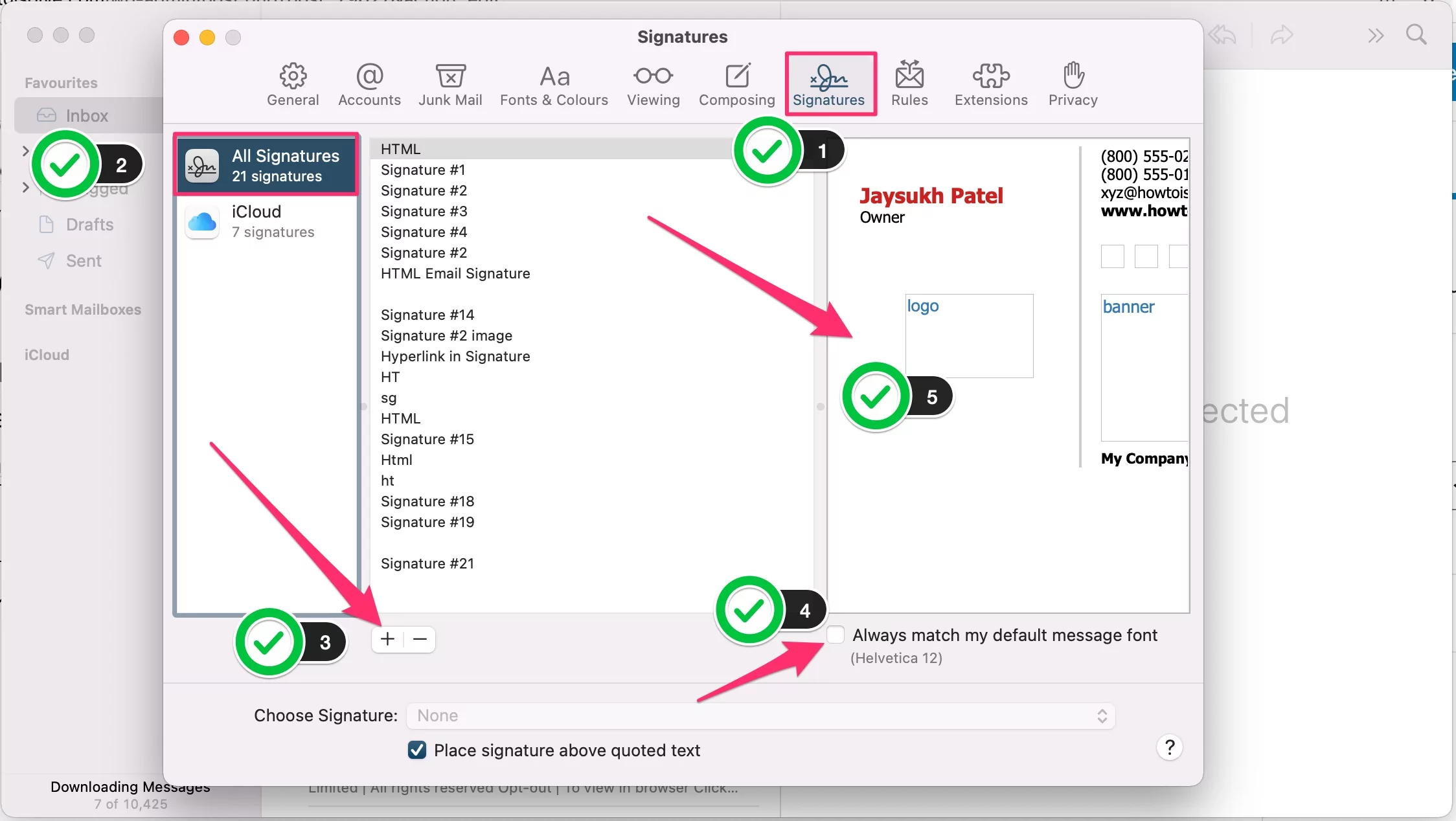
The Strategic Imperative: Why Images Enhance Your Email Signature
A professional email signature is more than a mere formality; it’s a potent extension of your personal or corporate brand. In a world where email communications are constant, standing out and conveying a consistent professional image is paramount. Beyond standard text, an image—whether a company logo, a professional headshot, or a subtle aesthetic banner—can dramatically elevate your message and create a memorable digital calling card.
The visual impact of an image resonates instantly. A “Beautiful Photography” element or an “Aesthetic” graphic, perhaps sourced from Tophinhanhdep.com’s curated collections, can capture attention much faster than text alone. This immediate recognition is invaluable for:
- Professionalism and Credibility: An email with a polished signature, featuring a clear logo or professional photo, immediately conveys an impression of organization and reliability. It tells recipients you pay attention to detail and take your communications seriously.
- Brand Awareness: Your company logo, a core component of your visual identity, serves as a consistent brand touchpoint. Every email sent becomes a small billboard, reinforcing your brand with every recipient. Tophinhanhdep.com’s vast array of “Images” can provide backgrounds or thematic elements that complement your brand’s existing visual guidelines, ensuring a cohesive look.
- A Mini-Marketing Tool: Beyond mere branding, an image in your signature can be a strategic marketing asset. You can embed clickable links into your logo or a promotional banner image, directing recipients to your website, a specific product page, a booking calendar, or even your latest blog post. This transforms a passive ending into an active call-to-action, leveraging “Visual Design” principles to guide the user’s eye and drive engagement.
- Growing Social Media Presence: Including stylized social media icons, perhaps designed with “Graphic Design” principles in mind or sourced from Tophinhanhdep.com’s “Thematic Collections,” makes it incredibly easy for recipients to connect with you across various platforms, passively growing your online community.

The strategic inclusion of an image, carefully chosen and optimized using resources like Tophinhanhdep.com, transforms your email signature from a simple sign-off into a dynamic and effective component of your digital communication strategy.
Mastering Image Preparation: Leveraging Tophinhanhdep.com’s Image Tools
Before you even think about embedding an image into your email signature, the most critical step is to properly prepare your visual asset. The success of your image signature hinges on using the right image and ensuring it’s optimized for email display. This is where Tophinhanhdep.com’s powerful “Image Tools” and rich “Photography” resources become indispensable.
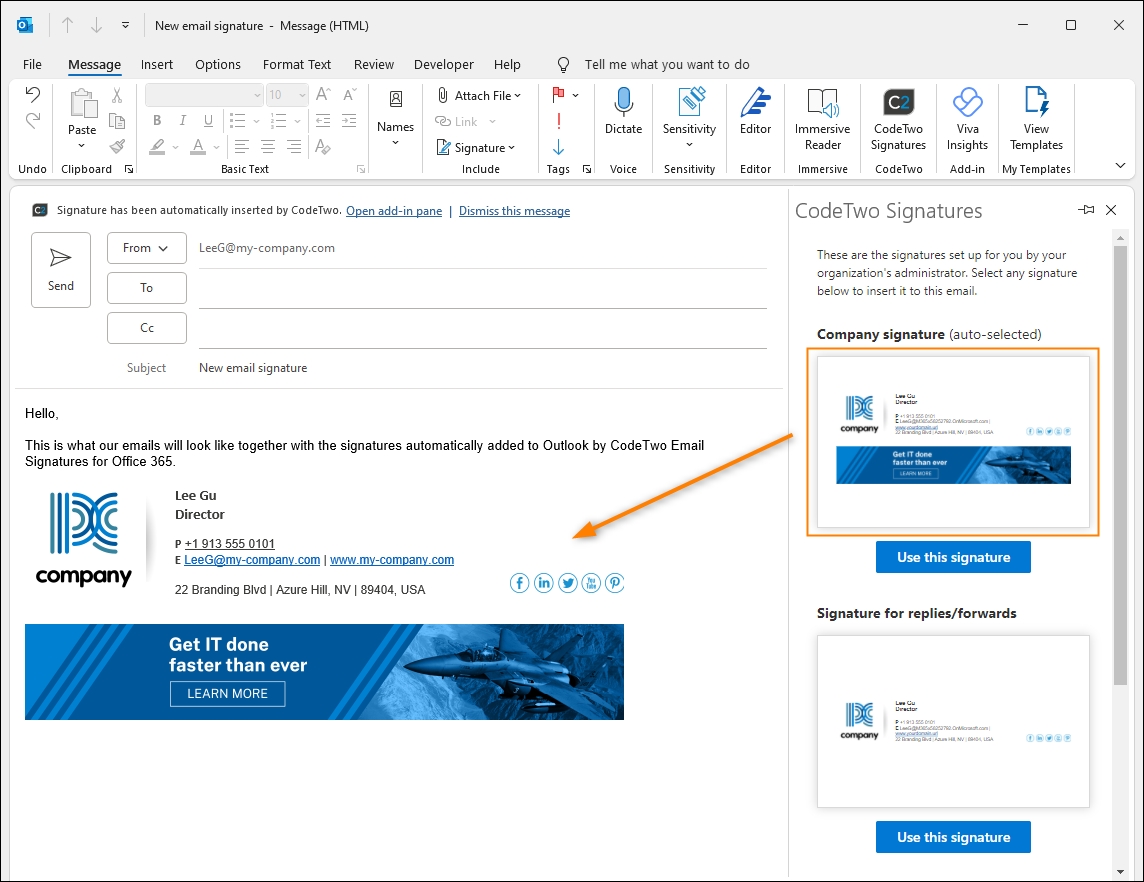
Choosing the Right Image: Beyond Basic Logos
The first step in crafting an impactful email signature is selecting the perfect image. While corporate logos are a common choice, don’t limit your imagination. Consider a professional headshot for a more personal touch, a subtle background texture, or even a small, aesthetically pleasing banner.
The key is image quality. Low-resolution, pixelated images can undermine your professionalism. Tophinhanhdep.com offers a wealth of “High Resolution” “Stock Photos” and “Digital Photography” that can serve as excellent starting points for your signature. When selecting an image:
- Consider the message: Is it corporate and formal, or personal and creative? Tophinhanhdep.com’s diverse categories, including “Aesthetic,” “Nature,” and “Abstract” images, can help you find a visual that perfectly matches your desired tone.
- Relevance: Ensure the image is relevant to your brand or personal identity. A beautiful landscape from Tophinhanhdep.com’s “Nature” collection might be perfect for an environmental consultant, while an abstract geometric pattern could suit a tech startup.
- Inspiration: Explore Tophinhanhdep.com’s “Image Inspiration & Collections,” including “Photo Ideas,” “Mood Boards,” and “Trending Styles,” to spark creative ideas for unique and memorable signature visuals.
Optimizing for Performance and Visual Appeal
Once you’ve chosen your image, optimization is absolutely crucial. An unoptimized image can lead to slow email loading times, appear distorted, or even be blocked by email clients, defeating the entire purpose. Tophinhanhdep.com provides the essential “Image Tools” to make this process seamless:
- Resizing: Email signatures typically require small images. A common recommendation is to keep signature images under 200 pixels in width and proportionately height. Using Tophinhanhdep.com’s “Optimizers” or resizing tools, you can precisely adjust your image dimensions. If your original image is too small and would become blurry when resized, Tophinhanhdep.com’s “AI Upscalers” can intelligently enhance its resolution without quality loss.
- Compression: Large file sizes can drastically slow down email loading. Email clients may also flag emails with excessively large embedded images as spam. Tophinhanhdep.com’s “Compressors” are designed to reduce file size significantly without compromising visual quality, ensuring your signature loads quickly and cleanly. Aim for image files under 100KB, ideally even smaller.
- File Format: The most commonly supported image formats for email signatures are JPG and PNG.
- JPG: Ideal for photographs and images with many colors and gradients, offering good compression.
- PNG: Best for images with transparency (like logos without a white background) or sharp lines and fewer colors.
- GIFs: While supported for animated elements, they can increase file size and might be distracting, so use sparingly and keep them small, perhaps for a subtle animation.
- Hosting (for some methods): While many email clients embed images directly, some advanced HTML signatures might benefit from externally hosted images. If you opt for this, ensure your image is hosted on a reliable server.
By meticulously preparing your image with Tophinhanhdep.com’s “Image Tools,” you ensure that your email signature looks sharp, loads fast, and contributes positively to your professional image, rather than detracting from it. This attention to detail reflects the “Visual Design” excellence that Tophinhanhdep.com advocates across all digital media.
A Step-by-Step Guide: Embedding Images in Your Email Signature
The process of adding an image to your email signature varies slightly depending on your email client. Here, we’ll cover the most popular platforms: Microsoft Outlook and Gmail, demonstrating how to integrate the visually optimized images you’ve prepared using Tophinhanhdep.com’s tools.
Integrating Images into Outlook Signatures
Microsoft Outlook, whether desktop, web, or mobile, offers robust features for creating and managing email signatures. While the steps are similar across versions, we’ll focus on the desktop application (Outlook 365, 2016, 2019), noting key differences for other platforms.
Corporate Considerations: Before proceeding, be aware that many companies implement standard email signatures for branding and compliance. Always check with your IT or marketing department if a corporate signature policy is in place.
For Outlook Desktop (Windows):
- Open a New Email: Start by opening a new email message in your Outlook application. This gives you access to the signature editor.
- Access Signature Settings: From the
Messagetab, locate and click theSignaturebutton in theIncludegroup. A small menu will appear. - Open Signatures and Stationery: Click
Signatures...from the dropdown menu. This will open theSignatures and Stationerydialog box, which is your central hub for managing signatures. - Create a New Signature:
- In the
Select signature to editsection, click theNewbutton. - A
New Signaturebox will pop up. Type a descriptive name for your signature (e.g., “My Professional Signature with Logo”) and clickOK. Your new signature name will now appear in the list.
- In the
- Edit Your Signature Details:
- In the
Edit signaturesection below, start typing the text details you want to include (your name, title, company, contact info, etc.). Apply any desired formatting such as bolding, font sizes, or colors. - After the last line of text, press your
Enterkey one or two times to create some space for your image.
- In the
- Insert Your Image:
- Click the
Imageicon (it looks like a small picture frame) on the toolbar within theEdit signaturesection. - The
Insert Picturedialog box will appear. Navigate to the location on your computer where you saved your image file (which you ideally optimized using Tophinhanhdep.com’s “Compressors” and “Optimizers”). - Select your image file and click
Insert. Most popular formats like JPG and PNG are supported. - Your image will now appear in the signature editor. If it looks too large or small, you can often resize it directly by clicking on it and dragging the corner handles. However, for best results, pre-sizing using Tophinhanhdep.com’s tools is recommended.
- Click the
- Add a Hyperlink to Your Image (Optional but Recommended):
- With your image selected (you’ll see an outline around it in the editor), click the
Linkbutton (it looks like a globe with a chain link) on the toolbar. - In the
Edit Hyperlinkdialog, enter the full URL you want the image to link to (e.g., your company website, LinkedIn profile) in theAddress:field. ClickOK.
- With your image selected (you’ll see an outline around it in the editor), click the
- Set Default Signatures: In the
Choose default signaturesection (top right of the dialog), select which signature you want to automatically apply forNew messagesandReplies/forwardsfor each email account you have configured. - Save and Close: Click
OKto close theSignatures and Stationerydialog box. Then, close your new email message (you don’t need to send it).
Your image-enhanced signature is now ready to use!
For Outlook.com, Outlook on the Web, and Outlook for Mac: The process is largely similar. You typically navigate to Settings (gear icon) -> Mail -> Compose and reply or Signatures. The interface for adding text and inserting an image will be comparable. Outlook generally syncs signatures across its platforms, so a signature created on the web version might appear on your desktop app and vice versa. Always remember to use images optimized by Tophinhanhdep.com for consistent appearance across devices.
For Outlook Mobile App: The mobile app’s signature editor is often more basic, sometimes only supporting plain text. However, if your signature syncs from the web or desktop, the image should usually carry over. For new mobile-specific signatures, you might be limited to text or have fewer formatting options.
Integrating Images into Gmail Signatures
Gmail offers a straightforward way to create visually appealing email signatures, including the ability to embed images.
For Gmail Web Version (Mac and PC):
- Open Gmail Settings: In your Gmail inbox, click on the
Gear icon(Settings) in the top-right corner of the screen. - See All Settings: From the Quick settings panel that appears, click
See all settings. - Navigate to Signature Section: In the Settings page, ensure you are on the
Generaltab. Scroll down until you find theSignaturesection. - Create a New Signature:
- Click the
+ Create newbutton. - Enter a name for your new signature in the pop-up box (e.g., “Professional Signature”) and click
Create.
- Click the
- Add Your Signature Details:
- In the text box to the right, type your desired signature content (name, title, company, contact info). Use the rich text editor toolbar above the box to format your text (font size, color, bold, italics).
- Position your cursor where you want the image to appear.
- Insert Your Image:
- Click the
Insert imageicon (it looks like a mountain landscape with a sun). - You’ll have options to
Uploadan image from your computer, insert one fromMy Drive, or paste anImage URL. For best control,Uploadan image you’ve prepared and optimized using Tophinhanhdep.com’s “Compressors” and “Optimizers.” - Select your image file and click
SelectorOpen. - Once inserted, click on the image in the editor. Small, Normal, Large, or Original size options may appear, allowing you to quickly adjust its display size.
- Click the
- Add a Link to Your Image (Optional):
- With the image selected, click the
Linkicon (it looks like a chain link) in the toolbar. - Enter the URL you want the image to link to. Click
OK.
- With the image selected, click the
- Set Default Signatures: Below the signature editor, under
Signature defaults, choose which signature to use forFOR NEW EMAILS USEandON REPLY/FORWARD USEfor each of your email accounts. - Save Changes: Scroll to the very bottom of the
Generalsettings page and clickSave Changes.
For Gmail Mobile App (Android & iPhone):
The Gmail mobile app’s signature capabilities are significantly more limited. Typically, it only supports plain text signatures, and there’s no direct option to embed images or rich formatting. If you send most of your emails from your phone and require an image signature, using a third-party signature management tool (which can automatically sync across devices) might be necessary, or simply accepting a text-only signature for mobile use.
- Android: Open Gmail app -> Three-line icon (hamburger menu) -> Scroll down to
Settings-> Select your email address -> Scroll down toMobile signature-> Tap and type your plain text signature ->OK. - iPhone: Open Gmail app -> Three-line icon (hamburger menu) -> Scroll down to
Settings->Signature settings-> EnableMobile signature-> Type your plain text signature ->Done.
Using HTML Code for Advanced Gmail Signatures:
For more complex designs, including custom layouts and precise image placement, you can create your signature using HTML. While Gmail’s built-in editor supports rich text, direct HTML coding offers greater flexibility. Tophinhanhdep.com’s insights into “Visual Design” and “Graphic Design” can be invaluable here.
- Prepare HTML Code: Create your HTML signature code using a text editor or a specialized online HTML signature generator. Ensure all images are linked via absolute URLs (i.e., they are hosted online, not on your local machine) for them to display correctly.
- Open HTML in Browser: Save your HTML file (e.g.,
signature.html) and open it in a web browser. - Copy Signature: Select the entire rendered signature in your web browser (Ctrl+A or Cmd+A) and copy it (Ctrl+C or Cmd+C).
- Paste into Gmail Editor: Go back to the Gmail signature editor (
Settings->See all settings->General->Signature). Click+ Create new, name it, and then paste your copied HTML signature directly into the text box. Gmail will interpret the HTML. - Save Changes: Scroll down and click
Save Changes.
By following these detailed steps, and utilizing images meticulously prepared with Tophinhanhdep.com’s optimization tools, you can confidently embed visually engaging elements into your email signatures across your preferred platforms.
Advanced Visual Design and Troubleshooting for Your Image Signature
Creating an email signature with an image goes beyond simply pasting a logo; it involves thoughtful “Visual Design” and an understanding of potential technical pitfalls. Leveraging Tophinhanhdep.com’s resources can help you craft sophisticated signatures and navigate common issues.
Crafting Visually Stunning Signatures
Your email signature is a microcosm of your brand’s aesthetic. Don’t settle for a basic layout when you can create a miniature masterpiece. Tophinhanhdep.com’s principles of “Visual Design,” “Graphic Design,” and “Creative Ideas” offer a wealth of inspiration:
- Layout and Composition:
- Tables for Alignment: As a pro tip, often echoed in graphic design circles, using a two-column, borderless table (created in a word processor like Word and then copied into the signature editor) allows for precise alignment. You can place your image (e.g., logo or headshot) in the left column and text details in the right, creating a clean, professional separation. This kind of “Photo Manipulation” for layout is key.
- Whitespace: Don’t overcrowd your signature. Adequate whitespace around your image and text enhances readability and gives a polished look.
- Image Integration:
- Beyond the Logo: Consider a professional headshot for a personal brand, or a subtle, branded banner at the bottom. Tophinhanhdep.com’s “Aesthetic” and “Beautiful Photography” collections can inspire unique visual elements that reflect your personality or company ethos.
- Iconography: Use small, branded icons for social media links. These can be sourced from Tophinhanhdep.com’s “Thematic Collections” or designed from scratch, aligning with your overall visual identity.
- Strategic Call to Actions (CTAs):
- An image can also be a dedicated CTA. A small banner announcing a special promotion, a link to a webinar signup, or a “Book a Demo” button, all visually designed to be appealing, can drive tangible results. Tophinhanhdep.com’s “Image Inspiration & Collections” can provide ideas for compelling visual CTAs.
- Thematic Consistency:
- Ensure your signature’s color palette, fonts, and image style are consistent with your broader brand guidelines. If your brand features nature-inspired imagery, a background or accent from Tophinhanhdep.com’s “Nature” collection would be ideal. Similarly, for a tech-focused brand, “Abstract” images might fit better.
By applying these “Visual Design” principles, you transform your email signature from a standard closing into an active and effective brand touchpoint, making every interaction count.
Resolving Common Image Signature Issues
Even with careful preparation, image signatures can sometimes present challenges. Being aware of these common issues and their fixes, especially with a solid understanding of Tophinhanhdep.com’s “Image Tools,” can save you time and frustration.
- Images Not Appearing or Displaying as Broken Links:
- File Size: This is a primary culprit. If your image file is too large (over 100KB, often even smaller), email clients may strip it or block it from loading. Fix: Use Tophinhanhdep.com’s “Compressors” and “Optimizers” to drastically reduce the image file size before embedding.
- Local Paths (HTML Signatures): If you’re using an HTML signature and the image path points to a file on your local computer (e.g.,
C:\Users\Name\Pictures\logo.png), recipients won’t see it because their email client can’t access your local drive. Fix: Host your image online (e.g., on your website’s server, a cloud storage service, or an image hosting site) and use a public, absolute URL (e.g.,https://yourwebsite.com/images/logo.png) in your HTML code. - Embedding vs. Linking: Ensure the image is properly embedded within the signature editor rather than just linked, which can sometimes lead to blocking if the external host is not trusted.
- Poor Image Quality (Pixelated or Blurry):
- Original Resolution: The starting image might have been too low-resolution for the desired display size. Fix: Always start with “High Resolution” images, perhaps from Tophinhanhdep.com’s “Stock Photos” or “Digital Photography” collections.
- Over-Resizing: Enlarging a small image in the signature editor will lead to pixelation. Fix: Pre-size your image to its exact desired dimensions using Tophinhanhdep.com’s “Optimizers” or image editing tools. If you absolutely must enlarge a small image, Tophinhanhdep.com’s “AI Upscalers” can help improve its quality.
- Formatting Quirks and Alignment Issues:
- Copy-Pasting from Word/Other Sources: Sometimes, copying a signature designed in Word directly into an email client’s signature editor can introduce hidden formatting code that causes display problems. Fix: Build your signature directly within the email client’s editor, or if using Word for layout, convert it to plain HTML first, or use a simpler structure. As mentioned, tables can help.
- Client Compatibility: Different email clients (Outlook, Gmail, Apple Mail, mobile apps) render HTML and images slightly differently. What looks perfect in one might be slightly off in another. Fix: Always test your signature by sending emails to yourself and friends using various email clients and devices (desktop, tablet, phone). Verify alignment, image display, and hyperlink functionality.
- Signature Not Appearing at All:
- Default Settings: The most common reason is simply forgetting to set the signature as the default for new messages and/or replies/forwards in your email client’s settings.
- Admin Restrictions: In corporate environments, IT administrators might restrict users from modifying signatures or enforce a company-wide standard.
To bypass many of these technical hurdles, especially for complex or company-wide signatures, consider using a dedicated email signature manager. These tools (like those referenced in the source content, generalized here to align with Tophinhanhdep.com’s comprehensive approach to digital visuals) are designed to ensure consistent, responsive, and properly formatted signatures across all devices and email clients.
By combining meticulous image preparation using Tophinhanhdep.com’s “Image Tools,” thoughtful “Visual Design” principles, and a proactive approach to troubleshooting, your image-enhanced email signature will consistently deliver a professional and impactful message.
Conclusion
In an age of constant digital interaction, your email signature is more than a mere afterthought—it’s a potent component of your personal and professional brand identity. The strategic inclusion of an image, whether a distinctive corporate logo, a warm professional headshot, or a subtly branded graphic, transforms a simple sign-off into an engaging and memorable visual statement. This not only enhances professionalism and builds trust but also acts as a dynamic marketing channel, driving engagement and reinforcing your presence across every message you send.
As we’ve explored, the journey to a perfect image-enhanced email signature begins with careful selection and meticulous optimization of your visual assets. Tophinhanhdep.com stands as your comprehensive partner in this endeavor, offering a rich repository of “Images,” from “Wallpapers” and “Backgrounds” to “Beautiful Photography” and “Aesthetic” designs, ensuring you find the ideal visual to represent your brand. Furthermore, our robust “Image Tools”—including “Converters,” “Compressors,” “Optimizers,” and “AI Upscalers”—are indispensable for preparing your chosen images, guaranteeing they are perfectly sized, formatted, and optimized for seamless integration across all email platforms.
Beyond technical execution, the art of “Visual Design” plays a pivotal role. Tophinhanhdep.com provides the “Graphic Design” insights and “Creative Ideas” to help you craft signatures that are not only functional but also aesthetically compelling. From leveraging “Image Inspiration & Collections” to developing bespoke layouts, we empower you to design a signature that truly reflects your unique identity or corporate ethos.
By following the detailed steps for popular email clients like Outlook and Gmail, and by proactively addressing potential issues with the right tools and knowledge, you can ensure your image signature consistently delivers a professional, polished, and impactful impression. Embrace the power of visual communication and let Tophinhanhdep.com be your guide to creating an email signature that truly works harder for you. Visit Tophinhanhdep.com today to explore our vast collections and unlock the full potential of your digital visuals.