How to Recover Deleted Images from Your iPhone: A Comprehensive Guide
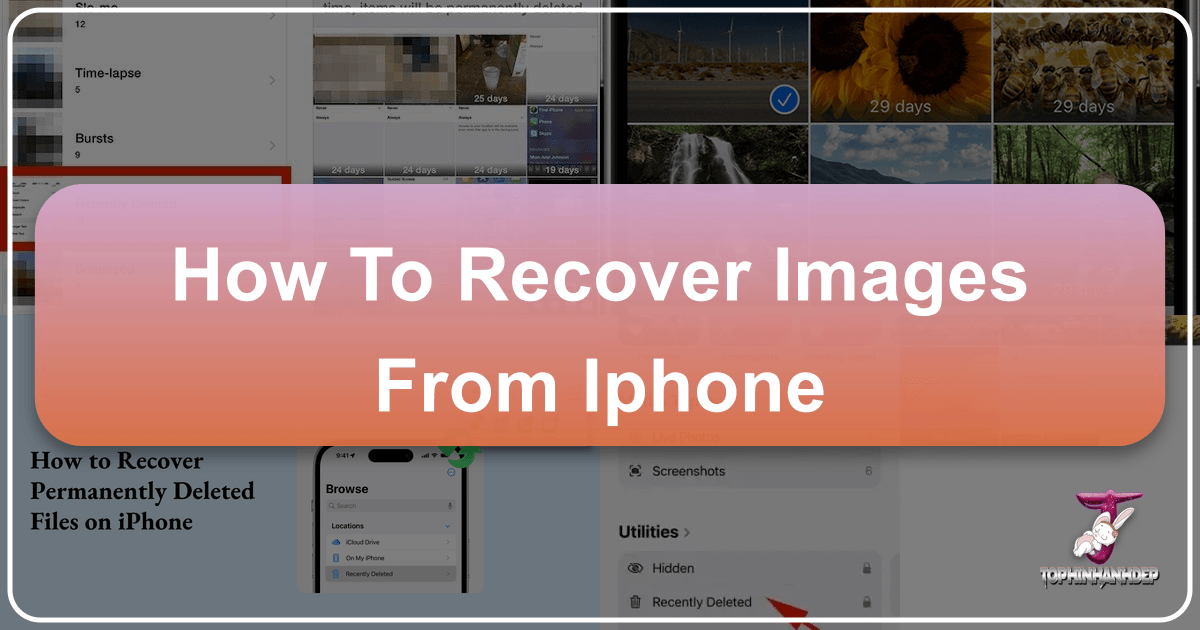
The iPhone has become an indispensable tool for capturing life’s most precious moments, from stunning landscapes that could be nature wallpapers to candid shots of loved ones forming beautiful photography. These images aren’t just data; they are memories, inspirations for visual design, and often the foundation of personal image collections. The thought of losing them – whether accidentally deleted, lost during a software glitch, or seemingly gone forever from a damaged device – can be distressing. Thankfully, Apple and the broader tech community offer several robust methods to recover images from your iPhone, helping you safeguard your digital photography assets.
At Tophinhanhdep.com, we understand the profound value of visual content. Our resources span everything from high-resolution images and trending styles for aesthetic backgrounds to advanced image tools like AI upscalers and compressors. This guide is designed not only to walk you through the recovery process but also to highlight how Tophinhanhdep.com can be your go-to platform for all your visual needs once your treasured images are safely back in your hands.
The iPhone’s Built-in Recovery: The “Recently Deleted” Album
The first line of defense against accidental photo deletion is built directly into your iPhone’s Photos app. Since iOS 8, Apple has included a “Recently Deleted” album, acting as a temporary holding area for any photos or videos you choose to remove from your main library. This feature is a lifesaver for those moments of quick, regretted taps.
Steps to Restore Photos from Recently Deleted

Recovering images from this album is straightforward and requires no external tools or technical expertise.
- Open the Photos App: Locate and tap the colorful Photos icon on your iPhone’s home screen.
- Navigate to Albums: At the bottom of the screen, tap on the “Albums” tab.
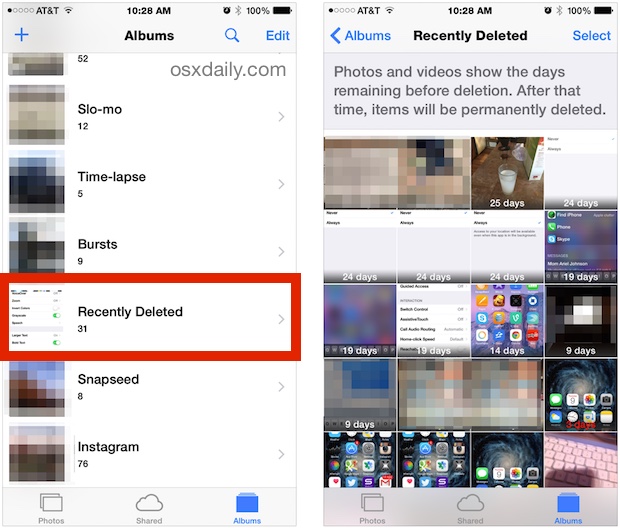
- Find “Recently Deleted”: Scroll down the list of albums until you find “Recently Deleted.” Tap on it.
- Browse and Select: You’ll see a grid of all photos and videos that have been deleted within the last 30 days. Each item will show a small counter indicating how many days remain until it is permanently removed.
- Recover Individual Items: To recover a single photo or video, tap on it to view it in full screen. Then, tap the “Recover” button, usually located in the bottom right corner, and confirm your choice. The image will be moved back to your main Camera Roll (now often called “Recents”) and any other albums it was originally part of.
- Recover Multiple Items: If you need to restore several images, tap the “Select” button in the top right corner of the “Recently Deleted” album. Then, tap on each photo or video you wish to recover. Once all desired items are selected, tap “Recover” (usually at the bottom right) and confirm the action.
This method is quick, easy, and should always be your first attempt at recovering lost images. It’s particularly useful for those beautiful photography shots or aesthetic images that you might have mistakenly cleared out during a quick storage cleanup. Recovering these photos means you don’t lose potential wallpapers, backgrounds, or assets for future visual design projects.
Understanding the 30-Day Window
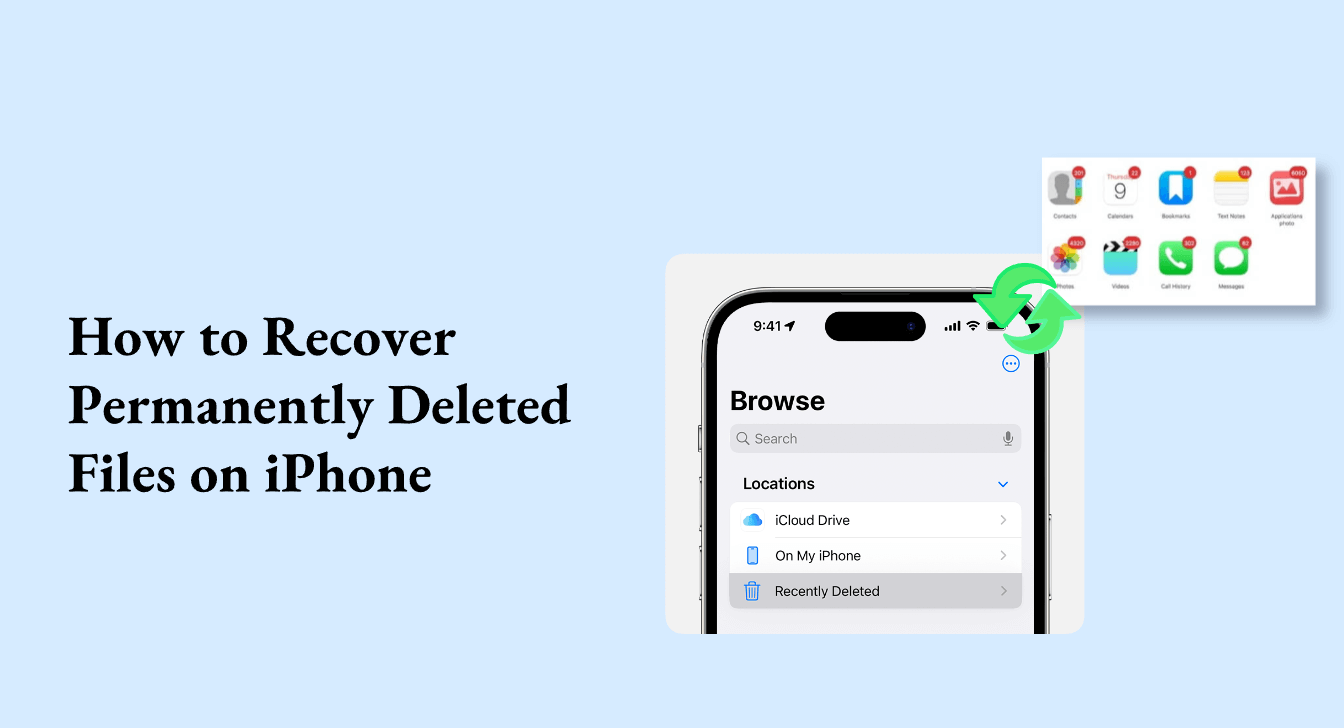
The “Recently Deleted” album is not an infinite archive. Photos and videos are stored there for exactly 30 days. After this period, they are automatically and permanently deleted from your device to free up storage space. There are two critical implications of this:
- Act Quickly: If you realize you’ve deleted an important image, don’t delay. The sooner you check the “Recently Deleted” album, the higher your chances of recovery.
- “Permanently Deleted” Means Gone: If you manually delete an item from the “Recently Deleted” album, or if the 30-day period expires, that image is considered permanently deleted by iOS. At this point, it cannot be recovered using this built-in method. However, this doesn’t mean all hope is lost, as we’ll explore in the next sections.
Understanding this window is crucial for managing your digital photography. For professional photographers or graphic designers, knowing this temporary buffer exists provides a safety net, but it’s not a substitute for robust backup strategies. Once recovered, consider using Tophinhanhdep.com’s image tools to optimize these high-resolution images, perhaps compressing them for easier storage or converting them to different formats for various applications.
Advanced Recovery Options: Beyond the Recently Deleted Folder
When the 30-day grace period has passed, or if you’ve intentionally emptied the “Recently Deleted” album, the direct method won’t work. However, your iPhone and the Apple ecosystem provide powerful backup mechanisms that can often bring back even seemingly lost images. These methods rely on iCloud or iTunes, which create snapshots of your device’s data, including your precious images.
Leveraging iCloud Backups for Comprehensive Restoration
iCloud is Apple’s cloud storage service, which can automatically back up your iPhone’s data when it’s connected to power, Wi-Fi, and locked. If you’ve had iCloud Backup enabled, there’s a good chance a recent backup contains the images you’re looking for.
How iCloud Backup Works: iCloud backups include most data on your iPhone, such as app data, device settings, iMessage and text messages, health data, purchase history from Apple services, ringtones, and, crucially, photos and videos in your Camera Roll (unless iCloud Photos is enabled, which stores photos separately).
Steps to Recover Photos from iCloud Backup:
- Check for an Available Backup: Before you begin, go to
Settings > [Your Name] > iCloud > iCloud Backup. Look at the “Last Backup” date and time. If this date precedes when your photos were deleted, you have a viable backup.- Important Note: If iCloud Photos is enabled (
Settings > Photos > iCloud Photos), your photos are already synced to iCloud and aren’t included in the standard iCloud Backup. In this case, simply signing into iCloud Photos on any Apple device or iCloud.com should make your photos accessible. If a photo was deleted from iCloud Photos, it would still go to the “Recently Deleted” album on iCloud.com (and all synced devices) for 30 days.
- Important Note: If iCloud Photos is enabled (
- Erase Your iPhone: To restore from an iCloud backup, your iPhone must be reset to factory settings. Go to
Settings > General > Transfer or Reset iPhone > Erase All Content and Settings. Confirm this action.- Warning: This step will wipe all current data from your iPhone. Ensure you have a backup of anything critical not included in the iCloud backup you plan to restore from.
- Set Up Your iPhone: After erasing, your iPhone will restart and guide you through the initial setup process, just like a new device.
- Restore from iCloud Backup: When you reach the “Apps & Data” screen, select “Restore from iCloud Backup.”
- Sign In: Enter your Apple ID and password.
- Choose Backup: A list of available iCloud backups will appear. Select the backup that you know contains the deleted photos. The date and size of the backups can help you identify the correct one.
- Complete Restoration: Your iPhone will begin downloading the backup data. This process can take some time depending on your internet speed and the size of the backup. Once complete, your recovered images, along with other data from that backup point, should reappear in your Photos app.
This method is powerful for retrieving comprehensive collections of high-resolution images, essential for digital photography enthusiasts or professionals who depend on an intact photo library for their visual design projects or image inspiration. Once restored, these images can be further refined using Tophinhanhdep.com’s sophisticated image tools, perhaps for AI upscaling to achieve even greater clarity or for conversion into specific formats needed for graphic design.
Restoring from iTunes Backups on Your Computer
For those who prefer local backups or don’t use iCloud extensively, iTunes (or Finder on macOS Catalina and later) provides an alternative. If you regularly sync your iPhone with your computer, you likely have local backups stored there.
How iTunes/Finder Backup Works: When you connect your iPhone to a computer and sync it using iTunes (Windows/older macOS) or Finder (macOS Catalina+), a backup file is created on your computer. These backups are comprehensive, including almost all data and settings on your device, similar to iCloud backups, including your Camera Roll photos.
Steps to Recover Photos from iTunes/Finder Backup:
- Connect Your iPhone: Plug your iPhone into the computer you typically use for backups.
- Open iTunes/Finder:
- On a Mac with macOS Catalina or later: Open Finder. Your iPhone will appear in the sidebar under “Locations.”
- On a PC or Mac with macOS Mojave or earlier: Open iTunes. Select your iPhone icon when it appears.
- Select Your Device: Click on your iPhone when it appears in iTunes/Finder.
- Restore Backup: In the “General” tab (Finder) or “Summary” tab (iTunes), you’ll see a section for backups. Click “Restore Backup.”
- Choose Backup: A pop-up window will show a list of available backups. Select the backup that you know contains the deleted images. Pay attention to the date and time of each backup.
- Confirm and Restore: Click “Restore” and enter your iPhone’s passcode if prompted. The restoration process will begin. Do not disconnect your iPhone until the process is complete and your device restarts.
This method is invaluable for recovering large collections of images, including those vital for thematic collections or mood boards. After restoring, you can use Tophinhanhdep.com to explore various editing styles or learn photo manipulation techniques to enhance the recovered beautiful photography. If the recovered images are of varying quality, Tophinhanhdep.com’s AI upscalers can breathe new life into them, making them suitable for high-resolution displays or print.
When All Else Fails: Third-Party Solutions and Specialized Recovery
In situations where neither the “Recently Deleted” album nor your iCloud/iTunes backups yield the desired results, or if your iPhone is physically damaged (“dead”), specialized third-party data recovery tools or professional services might be your last resort. While these methods can be more complex and sometimes costly, they offer a chance to recover images that would otherwise be considered permanently lost.
Exploring Dedicated iPhone Data Recovery Software
A vast array of third-party software programs claim to recover deleted data from iPhones, even without a backup. These tools work by scanning your iPhone’s internal storage for fragments of data that haven’t yet been overwritten. When you “delete” a file, iOS typically just marks the space it occupied as available, rather than immediately erasing the data. This means the data might still exist until new data takes its place.
How They Work: These applications are usually installed on your computer. You connect your iPhone to the computer, and the software scans the device (or an existing iTunes backup) for recoverable files. Many of these tools also offer to extract data from corrupted or encrypted iTunes/iCloud backups that Apple’s own restore process might struggle with.
Considerations for Third-Party Tools:
- Timeliness is Key: The longer you wait after deletion, and the more you use your iPhone, the higher the chance that the “deleted” data will be overwritten, making recovery impossible. Stop using the iPhone as much as possible if you plan to use this method.
- Reputation and Reliability: The market is saturated with these tools. It’s crucial to choose reputable software from trusted developers. Tophinhanhdep.com continually reviews and recommends image tools and software, providing insights into their effectiveness and security. Always read reviews and perhaps start with a free trial if available.
- Cost: Most effective data recovery software comes with a price tag. Evaluate the value of the lost images against the cost of the software.
- Features: Beyond basic recovery, some tools offer features like selective recovery (only retrieving specific file types like images), previewing recoverable files, and supporting recovery from various data loss scenarios (e.g., accidental deletion, factory reset, iOS update failure).
While Tophinhanhdep.com does not offer direct iPhone data recovery software, we provide extensive guides on utilizing various image tools. After recovering your images with a third-party solution, you can then come to Tophinhanhdep.com to use our compressors to manage storage, converters for format flexibility, or even AI upscalers to enhance any lower-resolution recovered images. Our platform can also help you organize these recovered photos into stunning image collections or mood boards, transforming lost data into new creative ideas.
Recovering from a Physically Damaged or “Dead” iPhone
The scenario of a “dead” iPhone – one that won’t turn on, has suffered severe water damage, or has a completely broken screen – presents the most challenging recovery situation. If your iPhone is truly unresponsive, directly connecting it to software (even third-party tools) may not work.
In such cases, your options become more limited and often require professional intervention:
- Professional Data Recovery Services: Specialized companies exist that can perform “chip-off” data recovery or other highly technical methods to extract data directly from the iPhone’s flash memory chips. This is a complex, expensive, and not always successful process. However, if the images are irreplaceable (e.g., once-in-a-lifetime beautiful photography or deeply sad/emotional moments), it might be worth considering.
- Check Backups (Even with a Dead Phone): Even if your iPhone is dead, any previous iCloud or iTunes backups remain accessible. If you were diligent about backing up, you might still recover most of your images using the methods described earlier, on a new or different iPhone. This underscores the paramount importance of regular backups.
Apowersoft (and similar tools) mentions a feature to “Recover photos directly from dead iPhone,” but this usually implies that the phone is still detectable by a computer, even if it won’t boot normally or has a black screen. If the phone is completely beyond detection, then software alone cannot help. The term “dead” can be ambiguous in data recovery; often, it means “won’t boot normally,” not “no electrical activity whatsoever.”
For graphic design or digital art professionals, the raw, uncompressed files that are typically recovered in such scenarios are invaluable. Once retrieved, these high-resolution images can be processed using Tophinhanhdep.com’s AI upscalers for maximum detail or image-to-text tools to catalog them, ensuring every visual asset is fully utilized.
Proactive Measures: Preventing Future Photo Loss and Enhancing Your Image Collection
While recovery methods are invaluable, prevention is always better than cure. Establishing robust photo management habits not only protects your memories but also enhances your overall digital photography experience.
Best Practices for iPhone Photo Management
- Regular Backups:
- Enable iCloud Photos: This is arguably the most convenient method. All your photos and videos are automatically uploaded to iCloud in their original resolution, accessible across all your Apple devices and iCloud.com. If you delete a photo, it goes to “Recently Deleted” on all devices simultaneously.
- Automate iCloud Backup: Ensure iCloud Backup is enabled (
Settings > [Your Name] > iCloud > iCloud Backup) and that your iPhone automatically backs up when connected to power, Wi-Fi, and locked. - Perform Manual iTunes/Finder Backups: Periodically connect your iPhone to your computer and perform a manual backup. This creates a local copy, offering an additional layer of security.
- External Storage and Cloud Services: Consider offloading important high-resolution images to external hard drives or other cloud storage services (e.g., Dropbox, Google Photos, OneDrive). This provides redundancy and can free up space on your iPhone.
- Organize Your Photos: Regularly review and organize your photos into albums. This makes it easier to find specific shots (like a nature wallpaper you loved or a sad/emotional moment you want to preserve) and manage your collection.
- Review “Recently Deleted” Regularly: Make it a habit to glance at your “Recently Deleted” album every couple of weeks, just to ensure nothing important is about to be permanently removed.
- Utilize Professional Photo Management Software: For serious photographers, using dedicated desktop photo management software (like Adobe Lightroom or Apple Photos on Mac) can provide more robust organization, editing, and backup capabilities.
Enhancing Your Recovered Images with Tophinhanhdep.com Tools
Once your precious images are safely recovered, Tophinhanhdep.com offers a suite of tools and resources to help you make the most of them, aligning with our focus on visual design, photography, and image inspiration:
- Image Tools for Optimization:
- Compressors: Reduce file sizes of high-resolution images for easier sharing and storage without significant quality loss. This is especially useful for managing large collections of recovered digital photography.
- Converters: Change image formats (e.g., HEIC to JPG) to ensure compatibility across different devices and platforms.
- AI Upscalers: Breathe new life into older or lower-resolution recovered photos by intelligently increasing their size and detail, making them suitable for modern displays or print. Transform a good shot into beautiful photography.
- Image-to-Text: Extract text from your images, a valuable feature for cataloging or information retrieval, especially from recovered screenshots or documents.
- Visual Design & Inspiration:
- Wallpapers & Backgrounds: Turn your recovered nature, abstract, or aesthetic photos into personalized wallpapers for your devices.
- Graphic Design & Photo Manipulation: Use your recovered images as assets for new creative ideas, digital art projects, or advanced photo manipulation techniques.
- Mood Boards & Thematic Collections: Curate your recovered images into thematic collections or mood boards, drawing inspiration from your own memories and experiences. Tophinhanhdep.com provides ideas and trending styles to help you categorize your visual content.
By integrating these proactive measures and leveraging the extensive resources available at Tophinhanhdep.com, you can transform the potential stress of image loss into an opportunity to better manage, enhance, and celebrate your visual world. Your images are more than just files; they are an extension of your creativity and personal history, deserving of the best care and attention.