How to Remove Background of Image

In the dynamic world of digital imagery, the ability to precisely manipulate photographs is not merely a technical skill but an art form that unlocks boundless creative potential. One of the most fundamental yet transformative techniques in this realm is background removal. Whether for professional applications like e-commerce product listings, captivating social media content, or personal artistic endeavors, stripping an image of its original backdrop allows for unparalleled versatility and control over the visual narrative. This comprehensive guide will delve into the various methods, tools, and creative possibilities associated with removing image backgrounds, connecting these techniques to the broader themes of high-quality image creation, visual design, and photography best practices.
The Transformative Power of Background Removal in Digital Imagery
The background of an image, while sometimes an intentional part of the composition, can often be a distracting element that detracts from the main subject. Removing it isn’t just about isolating an object; it’s about refining focus, creating visual consistency, and opening doors to innovative design. For anyone working with digital visuals – from casual photographers to seasoned graphic designers – mastering this skill is indispensable.

At its core, background removal serves to highlight the primary subject, making it pop and command attention. This is particularly crucial in fields where clarity and impact are paramount. The ability to switch out a mundane or busy background for something more appropriate, professional, or aesthetically pleasing can drastically elevate an image’s quality and its message.
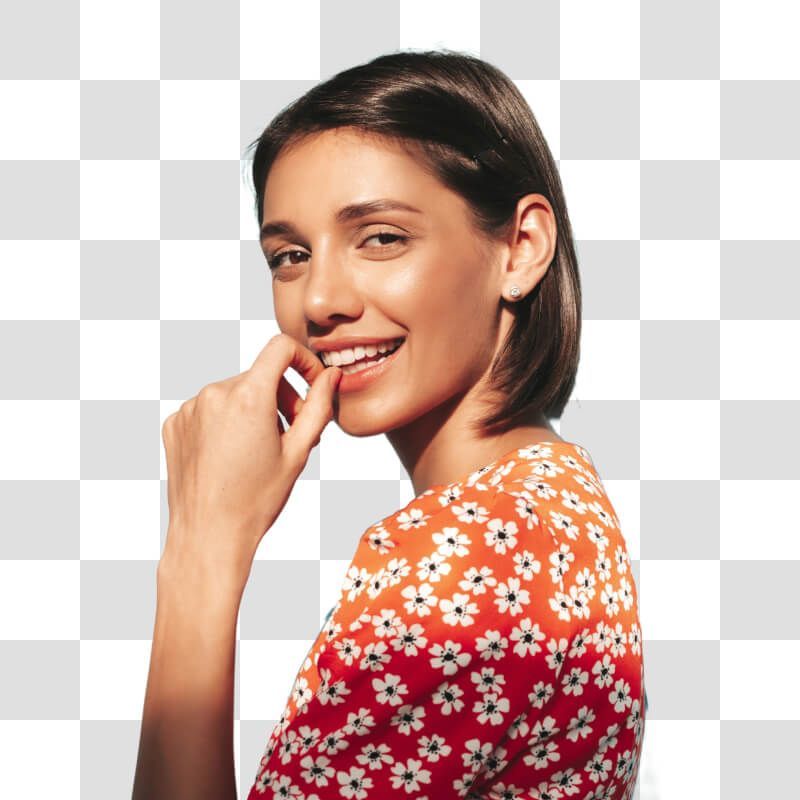
Elevating Product Photography and E-commerce
For businesses, especially those operating online, high-quality product photography is the bedrock of successful marketing and sales. An image with a clean, consistent, and often transparent background is not just a preference; it’s a standard. Platforms like Amazon, eBay, and Shopify frequently require product images to have a pure white or transparent background to ensure uniformity and professionalism across their listings.
When you remove the background from a product image, you gain several key advantages:
- Professionalism: A transparent or solid-color background instantly makes a product look more polished and trustworthy. It minimizes distractions, allowing the product to speak for itself.
- Consistency: For an e-commerce store with numerous products, consistent backgrounds across all listings create a cohesive brand identity and a more pleasant browsing experience for customers.
- Versatility: With a transparent background, the product image can be seamlessly integrated into various marketing materials—website banners, social media ads, promotional posters, and email campaigns—without needing to be re-shot or tediously edited for each application. It becomes a flexible asset for visual design.
- Focus: By eliminating clutter, the customer’s eye is drawn directly to the product, enabling them to evaluate its features and details more effectively.
- Customization: As seen with tools that allow users to “Customize Designs” or add “3D Shadows,” a removed background facilitates post-processing enhancements that make products look more dynamic and appealing.
This direct application ties into the website’s focus on “Photography” (specifically “High Resolution” and “Stock Photos”) and “Visual Design” (for “Graphic Design” and “Creative Ideas”). Businesses can create their own “thematic collections” of product images tailored to specific campaigns or “trending styles” by easily swapping backgrounds.
Enhancing Personal & Aesthetic Photography
Beyond commercial applications, background removal holds immense value for personal and aesthetic photography. Imagine transforming a stunning portrait taken in a crowded street into a serene, minimalist composition by isolating the subject. Or, taking a cherished memory from an imperfect setting and placing it into a dreamlike “abstract” or “nature” background.
Here’s how background removal enriches personal and aesthetic imagery:
- Creative Composites: It allows photographers and digital artists to combine elements from different photos to create entirely new scenes. This is the essence of “Photo Manipulation” and “Digital Art,” enabling the creation of “Mood Boards” and unique “Photo Ideas.”
- Focus on Emotion: For “Sad/Emotional” or “Beautiful Photography,” a distracting background can dilute the intended feeling. Removing it or replacing it with a complementary one can amplify the emotional impact, letting the viewer connect more deeply with the subject.
- Aesthetic Transformations: Want to create a minimalist look? Remove the background. Want to place a subject onto a vibrant “Abstract” background or a calming “Nature” scene? A transparent cutout is your starting point. This plays directly into creating “Aesthetic” images and “Wallpapers.”
- Digital Art and Graphic Design: Artists can use extracted elements from photographs as components in their digital paintings, collages, or graphic design projects. It allows for greater freedom in arranging elements and building complex visual narratives, aligning with “Visual Design” principles.
- Social Media and Profile Pictures: A clean, professional-looking profile picture often has a removed or simplified background. It helps the individual stand out and projects a polished image across social media platforms.
The journey of an image, from capture to final presentation, often involves various “Editing Styles.” Background removal is a powerful style that gives creators immense flexibility, transforming ordinary shots into extraordinary visuals that resonate with viewers and achieve specific design goals.
Effortless Background Removal with AI Tools and Online Platforms
The technological advancements in artificial intelligence have revolutionized background removal, making it accessible to virtually anyone, regardless of their technical prowess. Gone are the days when only seasoned Photoshop users could achieve a perfect cutout. Today, numerous AI-powered tools and online platforms can automate this complex process, often delivering high-quality results in mere seconds. These “Image Tools” leverage sophisticated algorithms to detect foreground subjects and intelligently separate them from the background, simplifying the workflow for a wide range of users.
Websites like Designify, Fotor, Remove.bg, Pixelcut, Photo Scissors, Clipping Magic, Auto Clipping, and PicMonkey exemplify this shift, offering intuitive interfaces for quick and efficient background removal.
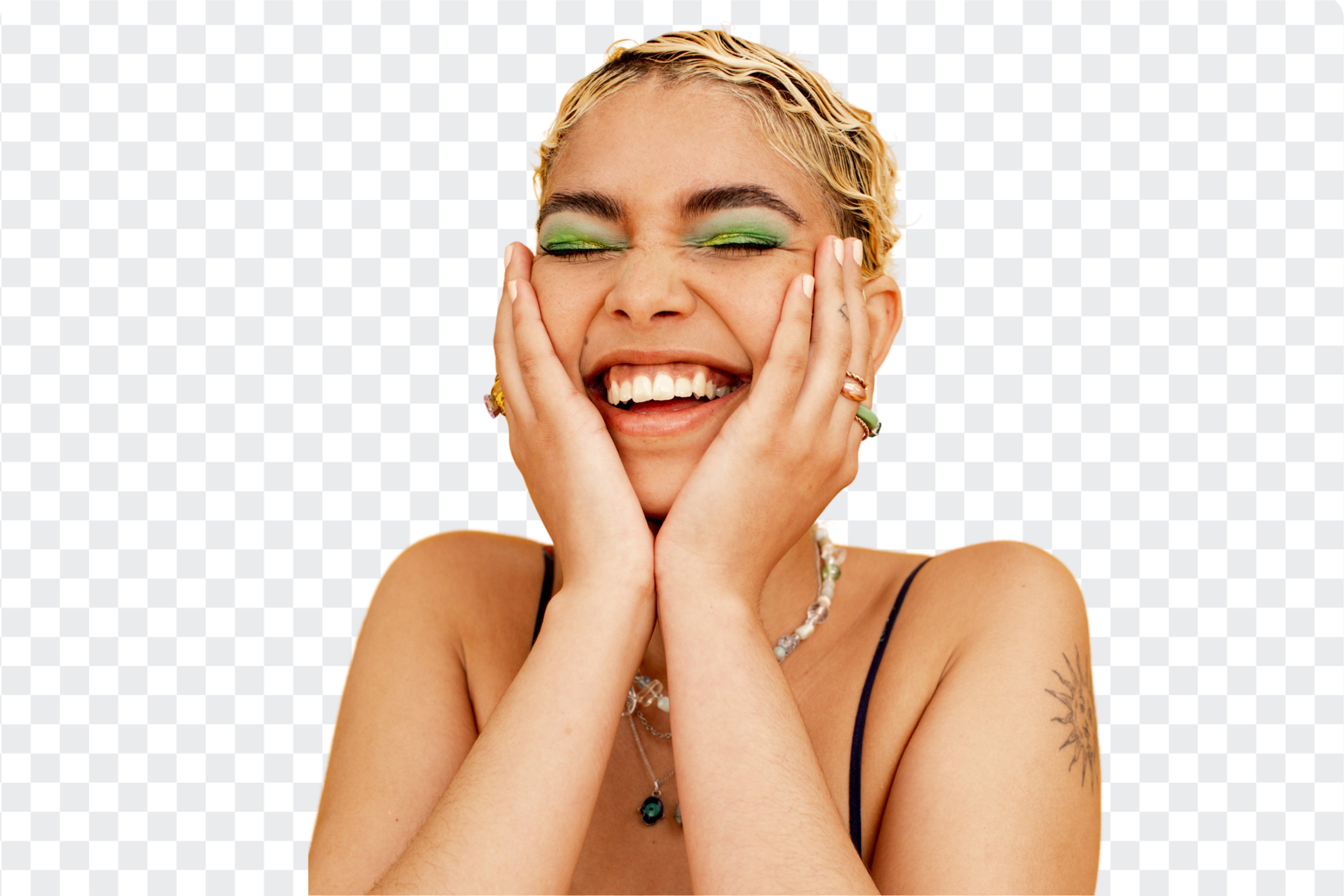
A Step-by-Step Guide to Automatic Background Removal
While each platform might have slight variations, the general workflow for automatic background removal using AI tools is remarkably consistent and straightforward. Let’s outline the typical process, drawing from the provided Designify and Fotor examples:
- Access the Tool: Navigate to the homepage of your chosen online background remover tool (e.g., Designify.com, Fotor.com, Remove.bg). These platforms are designed for ease of use, often prominently featuring an “Upload Image” or “Drag and drop your image here” section.
- Upload Your Photo:
- Drag and Drop: The simplest method is often to drag your image file directly from your computer’s folder onto the designated upload area on the website.
- Click to Upload: Alternatively, click the “Upload Image” button, which will open a file browser window, allowing you to select the image from your local storage.
- Paste Image/URL: Some tools, like Fotor, offer the convenience of pasting an image directly (Ctrl+V) if it’s copied to your clipboard, or even providing a URL if the image is hosted online.
- Supported Formats: Most tools support common image formats such as JPG, JPEG, PNG, and WebP, ensuring broad compatibility for various “Photography” and “Images.”
- Automatic Processing: This is where the magic of AI takes over. Once your image is uploaded, the tool’s advanced algorithms will automatically detect the main subject (whether it’s a person, product, car, animal, or graphic) and intelligently distinguish it from the background. This process is typically instant, completed “in just a couple of seconds” or “instantly.” The technology, often powered by state-of-the-art AI like remove.bg’s, works to deliver “precise and accurate photo cutting,” even “preserving intricate details and edges, even in challenging areas like hair and animal fur.”
- Review and Refine (if applicable): While many AI tools aim for perfection on the first try, some platforms offer limited refinement options. For instance, Designify initially removes the background, then allows you to either “replace it with a new design or you can download your photo without any background at all.” More advanced tools might offer a “Magic Brush” to “refine your background to perfection” by easily removing or restoring components, or even “AI Background Editing” to modify existing elements.
- Download Your Result: Once satisfied with the transparent background, locate the “Download” button. You’ll typically have the option to download the image in PNG format, which supports transparency. Many tools ensure “high-quality, clean photo cutting” and allow you to “Export transparent images in HD quality.”
This streamlined process highlights how these “Image Tools” simplify complex tasks, making “Digital Photography” and “Image Editing Styles” accessible to everyone.
Exploring Popular AI-Powered Background Removers
Let’s delve deeper into some of the prominent AI background removal tools mentioned, understanding their specific strengths and target users:
- Designify (designify.com): Described as an “automatic and high-quality tool,” Designify is lauded for its “state-of-the-art AI background removal technology powered by remove.bg.” Its workflow is simple: upload, AI removes, choose transparent or new design, then download. A key feature is its support for “Batch Editing” and “API Integration,” making it ideal for e-commerce and car dealerships needing to process many images efficiently. It also offers additional features like “3D Shadows,” “Auto Enhance,” and “Fix Pixelation,” integrating background removal into a broader suite of “Visual Design” and “Image Tools.”
- Fotor (fotor.com): Fotor positions itself as a versatile “Free Background Remover” capable of creating “transparent backgrounds instantly for free!” It emphasizes “High Quality and Accuracy,” even with complex subjects like hair and fur, supporting “Portraits, Products, Cars, Animals, Graphics.” Beyond simple removal, Fotor offers extensive “Photo Background Editing” capabilities, allowing users to “change background color,” use “pre-designed backgrounds with different scenes,” or even “generate custom, realistic AI backgrounds” via text prompts. Its “Magic Brush” for refining and “AI Background Editing” showcase its advanced features, making it suitable for “E-commerce,” “Social Media,” and “Marketing” applications. It also has desktop and mobile apps for “Speed Up Your Workflow” through “batch background removal.”
- Remove.bg (remove.bg): Although not directly in the prompt, Designify states it’s “powered by remove.bg,” and Oberlo explicitly features it as “The Best Free Background Remover Tool.” Remove.bg is celebrated for its simplicity and speed, using AI to do “all of the hard work for you.” While excellent for photos with distinct foreground-background separation, older versions sometimes struggled with objects or animals (though this has largely been updated). Its strength lies in being “simple, fast, and the results are pretty darn good,” making it perfect for “quick and simple background removal on the fly.”
- Pixelcut (pixelcut.ai): Users praise Pixelcut for being “amazingly easy” and delivering “perfect results,” especially for product photography (e.g., bags and accessories), making images “look like it was done by a professional photographer.” This indicates a strong focus on high-quality, professional-looking cutouts, aligning with the “High Resolution” aspect of “Photography” and clean aesthetics for “Images.”
- Photo Scissors: Described as similar to Remove.bg but offering “more control,” Photo Scissors allows users to “highlight areas to keep in green and areas to remove in red.” This semi-automatic approach provides a good balance for users who need a bit more say in the AI’s selection process without resorting to complex manual tools. It’s “Best for: When you need more control than Remove.bg allows.”
- Clipping Magic: This tool offers “even more features and tools” than simpler options, enabling users to “refine the edges of your image,” “adjust the colors,” and “add shadows and reflections.” This suggests a more comprehensive editing suite built around background removal, catering to users who need additional “Editing Styles” and “Photo Manipulation” capabilities.
- PicMonkey: An “entry-level photo editor” that includes background removal. It provides “basic edits, such as a text tool and color adjustments,” along with “design templates and graphics.” This makes it suitable for users who need to perform basic “Visual Design” tasks alongside background removal, like creating “Social Media” posts or simple “Marketing” materials.
- Auto Clipping: Its standout feature is the ability to “remove backgrounds from images in bulk,” making it “especially useful for those editing product photos for an ecommerce store.” This is a critical workflow tool, particularly for “Photography” professionals or businesses managing large inventories of “Stock Photos.”
These diverse tools, ranging from simple one-click solutions to more feature-rich editors, demonstrate how AI has democratized background removal, making it a foundational element in modern “Image Tools” and “Digital Photography” workflows.
Mastering Manual Background Removal in Professional Software
While AI tools offer unparalleled speed and convenience, there are instances where manual control is indispensable. For highly intricate subjects, complex compositions, or when striving for absolute perfection, professional photo editing software like Adobe Photoshop remains the gold standard. Photoshop provides a granular level of control that allows experienced users to achieve results that even the most advanced AI might struggle with, particularly when dealing with fine details like individual hair strands or translucent objects. This manual approach is a cornerstone of “Digital Photography,” “Photo Manipulation,” and advanced “Visual Design.”
Navigating Photoshop’s Advanced Selection Tools
Photoshop offers a powerful array of tools specifically designed for selecting and isolating subjects. The process often involves combining several of these tools to achieve the best results. The core workflow typically revolves around the “Select and Mask” workspace, which centralizes many essential background removal features.
-
Preparation and Setup:
- Open Image: Start by opening your image in Photoshop (File > Open).
- Duplicate Layer: Always duplicate your original image layer (Ctrl+J or Cmd+J) to work on a copy. This preserves your original image, providing a backup in case mistakes are made—a crucial practice in “Editing Styles.”
- Enter Select and Mask: Go to
Select > Select and Mask.... This dedicated workspace streamlines the selection process by hiding unnecessary tools and providing a focused environment.
-
Initial Selection with Quick Selection Tool:
- Purpose: The Quick Selection Tool (within Select and Mask) is excellent for making a broad, initial selection of your subject. It intelligently detects edges as you paint over the areas you want to keep.
- Technique: Use a brush of appropriate size and simply paint over your subject. Photoshop’s algorithm will try to “snap” to the edges.
- View Mode: In the “Properties” panel on the right, utilize view modes like “Onion Skin” (with Transparency around 50%) or “On Black” (at 100% transparency) to clearly see your selection and identify missed areas or unwanted selections. “Onion Skin” helps in visually distinguishing the subject from the background while making your initial selection.
-
Refining Edges with the Refine Edge Brush Tool:
- Purpose: This is arguably the most crucial tool for handling complex edges, especially hair, fur, or other soft, feathered details. It analyzes the pixels along the selection boundary and automatically improves the edge quality by distinguishing between foreground and background elements.
- Technique: With the Refine Edge Brush Tool active, paint along the problematic edges of your subject (e.g., around hair, fuzzy textures, or complex clothing). The tool will intelligently analyze the pixels and produce a much cleaner, more natural-looking cutout. This saves immense time compared to manual pixel-by-pixel selection.
- Edge Detection: This tool is significantly more advanced than a standard brush, capable of differentiating subtle variations that define complex outlines.
-
Fine-Tuning with the Brush Tool:
- Purpose: The standard Brush Tool within “Select and Mask” allows for manual additions or subtractions to your selection where the automated tools might have missed or over-selected.
- Technique: Use the brush to paint over areas that need to be added to the selection (ensuring the mode is set to add, usually indicated by a plus sign) or hold Alt/Option and paint over areas that need to be removed from the selection (indicated by a minus sign). This is particularly useful for sharp, distinct edges that the Refine Edge tool might overly soften, or for complex interior cutouts.
-
Outputting the Result:
- Output To: In the “Output Settings” section, select “New Layer with Layer Mask.” This is the recommended method as it creates a new layer with your subject on a transparent background, and the removal is non-destructive, meaning you can always go back and adjust the mask without altering the original image data. This flexibility is key for advanced “Photo Manipulation” and “Digital Art.”
- Saving: To save your image with a transparent background, you must save it as a PNG file (File > Save As > PNG). JPG does not support transparency.
This methodical approach, while more time-consuming than AI, provides absolute precision, making it suitable for “High Resolution” images and professional “Visual Design” projects where every pixel counts.
Refining Edges and Recreating Intricate Details
One of the biggest challenges in background removal is dealing with intricate details, particularly hair. The source content highlights this, even providing steps on “How to Recreate Hair Using Custom Hair Brushes” in Photoshop. This level of detail elevates background removal from a simple cutout to a sophisticated “Editing Style” that seamlessly blends the subject with a new environment.
- The Hair Challenge: Hair, with its numerous fine strands, varying opacity, and often busy backgrounds, is notoriously difficult for any background remover, even AI. While the “Refine Edge Brush Tool” can do a remarkable job, often some flyaway hairs are lost, or edges appear too sharp.
- Recreating Hair with Custom Brushes:
- Brush Tool and Hair Brushes: After the initial background removal (ideally using “New Layer with Layer Mask”), you can create a new empty layer. Then, using specialized “custom hair brushes” (which can be downloaded or created), you can literally paint back realistic hair strands.
- Sampling Colors: Crucially, “sample a color from model hair” to ensure the painted strands match the existing hair color. Varying the sampled colors (from dark shadows to bright highlights) adds realism.
- Varying Brush Size and Opacity: Use different brush sizes and adjust the opacity to create natural-looking variations in thickness and density of hair strands.
- Layer Placement: You might paint new hair strands on a layer below the main subject (to fill in gaps) or above it (for flyaway hairs that should overlap the new background).
- Masking for Blending: If painting on top of the subject, use a layer mask on the new hair layer to blend it seamlessly, erasing parts that look unnatural.
- Considering the New Background: The tutorial advises to “Add A New & Relevant Background” early in the process. This is a brilliant tip for “Visual Design” and “Photo Manipulation” because:
- Hiding Imperfections: A carefully chosen new background can naturally conceal minor imperfections or areas where the initial cutout wasn’t perfect.
- Targeted Editing: Knowing the final background helps you focus your refinement efforts. You won’t waste time perfecting areas that will be completely covered by the new background.
- Lighting and Color Matching: With the new background in place, it becomes easier to adjust the subject’s lighting and color to match the new environment, making the composite look more realistic. This is a critical aspect of “Editing Styles” and creating convincing “Digital Photography.”
By embracing these advanced manual techniques, especially for intricate details like hair, photographers and designers can achieve truly professional-grade “Photo Manipulation” that results in seamless “Image Inspiration & Collections” for “Mood Boards” or “Thematic Collections,” making it impossible to tell that the background was ever changed.
Beyond Removal: Creative Applications and Design Integration
Removing an image background is rarely the final step; rather, it’s often the crucial first step in a broader creative process. A transparent image is a versatile building block, ready to be incorporated into a myriad of “Visual Design” projects, from simple aesthetic enhancements to complex “Digital Art” compositions. This section explores what comes after background removal, connecting it directly to the website’s themes of “Images,” “Photography,” “Visual Design,” and “Image Inspiration & Collections.”
Changing Backgrounds: From Solid Colors to Thematic Scenes
Once the original background is gone, a world of possibilities opens up for replacing it. This is where background removal truly fuels “Creative Ideas” and allows for extensive “Photo Manipulation.”
- Solid Color Backdrops:
- Purpose: The simplest and most common replacement is a solid color, most notably white, black, or a brand-specific hue.
- Applications: Essential for “E-commerce” product photography to create a clean, consistent, and professional look. It can also be used for minimalist “Aesthetic” portraits or to comply with specific photo requirements (e.g., passport photos).
- Tools: Most online background removers and editing software offer easy options to change to a solid color. Fotor, for example, allows you to “change background color, make background white, black, or any other color to your liking.”
- Pre-designed Backgrounds and Templates:
- Purpose: Many tools offer libraries of pre-designed backgrounds, from textures and patterns to stylized scenes.
- Applications: Ideal for creating quick “Social Media” posts, “Marketing” materials, or “Trending Styles.” Tools like Canva (as mentioned in Oberlo), Fotor, and PicMonkey provide a wealth of “Templates” and elements to easily integrate the transparent subject into appealing visual contexts. This simplifies “Graphic Design” for those without extensive design experience.
- Thematic or Realistic Scenes:
- Purpose: To place the subject into an entirely new environment, making it appear as if it was originally photographed there. This requires careful consideration of lighting, perspective, and scale.
- Applications: Creating fantastical “Digital Art,” compelling “Photo Manipulation,” or professional composites for “Photography.” For example, placing a product on a luxurious table setting, or a person in a serene “Nature” landscape.
- AI-Generated Backgrounds: Fotor’s innovative “enter text prompts to generate custom, realistic AI backgrounds” showcases a cutting-edge approach, allowing users to describe their desired scene and have AI create it, further blurring the lines between “Photography” and “Digital Art.”
- Manual Blending: For realistic composites, manual tools in Photoshop are critical. Adjusting lighting, shadows (“3D Shadows” as offered by Designify), color grading, and even adding blur to the new background (e.g., “Gaussian Blur” mentioned in the Photoshop tutorial) are essential steps to make the subject appear naturally integrated. This exemplifies advanced “Editing Styles.”
Leveraging Transparent Images in Graphic Design and Digital Art
The true power of a transparent image lies in its reusability and flexibility within larger design projects. It transforms a fixed photograph into a movable, scalable, and adaptable design element, central to “Visual Design” and “Image Inspiration.”
- Layered Compositions: In graphic design software, transparent images become layers that can be stacked, rearranged, and blended with other elements. This is fundamental for creating posters, flyers, brochures, website layouts, and complex “Digital Art” pieces.
- Iconography and Logos: Removing the background from a logo or an icon allows it to be placed over any color or image without an unsightly white box, maintaining brand integrity across various “Marketing” materials. Fotor explicitly mentions, “Remove background from logo and save it in a transparent PNG for seamless integration into marketing materials.”
- Creative Marketing Materials: Whether it’s a “YouTube Thumbnail Maker,” an “Instagram Post Maker,” or designing “Business Cards,” a transparent subject can be easily positioned, resized, and integrated into pre-designed templates or custom layouts. This fuels “Creative Ideas” for “Social Media” and “Marketing.”
- Mood Boards and Thematic Collections: Designers often use mood boards to brainstorm “Photo Ideas” and define visual directions. Transparent cutouts of subjects, textures, or objects can be easily arranged and rearranged on a mood board, helping to visualize “Thematic Collections” and explore “Trending Styles” without being restricted by original backgrounds.
- Website Design and UI/UX: Transparent images are indispensable for web design, allowing product images, user avatars, or graphical elements to float seamlessly over varied website backgrounds, improving the overall aesthetic and user experience.
- Digital Collages and Mixed Media: Artists combine transparent photographic elements with illustrations, textures, and typography to create rich, layered “Digital Art” and “Photo Manipulation” pieces.
By understanding how to effectively utilize transparent images, creators move beyond simple photo editing into sophisticated “Visual Design,” transforming static “Images” into dynamic and impactful visual communications. This integration of background removal into broader design principles highlights its essential role in the entire creative workflow.
Choosing the Right Background Removal Method for Your Needs
With a plethora of tools and techniques available, deciding on the best method for background removal depends largely on your specific requirements, skill level, and the nature of the image. From lightning-fast AI solutions to meticulous manual editing, each approach has its strengths, catering to different aspects of “Photography,” “Image Tools,” and “Visual Design.”
Factors to Consider When Selecting a Tool:
- Complexity of the Image:
- Simple Backgrounds (Solid Color, High Contrast): AI-powered tools (Designify, Remove.bg, Fotor, Pixelcut) will typically yield excellent results quickly.
- Complex Backgrounds (Busy, Similar Colors to Subject, Fine Details like Hair/Fur): Advanced AI tools (Fotor’s “Object Aware” mode, Designify’s underlying tech) are good, but for absolute perfection, professional software like Photoshop with its “Refine Edge Brush Tool” and manual hair recreation is often necessary.
- Desired Quality and Precision:
- Quick & Good Enough: For social media posts or quick mock-ups, AI tools are more than sufficient.
- Professional Grade (High Resolution, Print-Ready): Photoshop offers the highest precision. Tools like Clipping Magic also provide more refinement options than basic AI. This directly impacts the “High Resolution” aspect of “Photography.”
- Volume of Images:
- Single Image: Any tool works.
- Batch Processing (Multiple Images): Tools with “Batch Editing” features (Designify, Auto Clipping, Fotor’s desktop/mobile apps) or “API Integration” (Designify) are indispensable for efficiency, especially for “E-commerce” product listings or preparing “Stock Photos.”
- Skill Level and Time Investment:
- Beginner/Casual User, Limited Time: AI online tools and apps (Pixelcut, Fotor, Remove.bg, Background Eraser app) offer ease of use and speed.
- Experienced User, Time for Detail: Photoshop provides maximum control and professional results, aligning with advanced “Editing Styles” and “Photo Manipulation.”
- Budget:
- Free Options: Many AI tools offer free tiers (e.g., Remove.bg, Fotor’s basic features, Designify’s free version) or free mobile apps.
- Paid Subscriptions: For higher volume, advanced features, or professional software, a subscription (e.g., Designify Pro, Fotor Pro, Photoshop Creative Cloud) will be required.
Workflow Integration and Best Practices:
- Shoot Smart: Even before editing, try to photograph your subject against a clean, contrasting background to make background removal easier, regardless of the tool. This is a fundamental “Photography” tip.
- Non-Destructive Editing: Always work on duplicated layers or use layer masks (as in Photoshop) so you can revert changes if needed. This preserves your “Digital Photography” assets.
- Experiment: Don’t be afraid to try different tools for different images. What works perfectly for a portrait might not be ideal for a complex product shot.
- Post-Removal Enhancements: Remember that background removal is often a step, not the end. Consider adding “3D Shadows,” using “Auto Enhance,” or adjusting colors to seamlessly integrate your subject into its new environment, leveraging advanced “Visual Design” techniques.
- Format for Purpose: Save transparent images as PNGs. For web use, ensure they are optimized (e.g., with “Compressors” and “Optimizers” from “Image Tools”) to maintain quality while minimizing file size.
In conclusion, the ability to remove backgrounds from images is a cornerstone skill in the modern digital age, empowering creators across all spectrums. From rapidly automating the process with intelligent AI “Image Tools” for “E-commerce” and “Social Media” to meticulously crafting flawless cutouts with professional software like Photoshop for intricate “Digital Art” and “Photo Manipulation,” the options are vast. By understanding the capabilities of each method and tool, and connecting them to overarching “Visual Design” goals and “Photography” principles, anyone can transform their “Images” into captivating visual assets, ready for any creative endeavor or “Thematic Collections.”