Mastering Image Replacement in Canva: A Comprehensive Guide to Dynamic Visual Design
In the ever-evolving landscape of digital communication and marketing, compelling visuals are no longer an option but a necessity. From eye-catching social media posts and professional presentations to intricate digital art and personal projects, the right image can elevate your message, evoke emotion, and leave a lasting impression. Canva, with its intuitive interface and vast array of design tools, has democratized graphic design, enabling millions to create stunning visuals without requiring extensive technical expertise. However, even with the perfect template, there often comes a time when you need to update or completely change an image to better suit your evolving brand, fresh content, or simply a new creative vision.

This comprehensive guide, brought to you by Tophinhanhdep.com, will walk you through the essential steps and advanced techniques for replacing images in Canva, ensuring your designs remain fresh, relevant, and impactful. We’ll explore various methods, from simple drag-and-drop actions to strategic bulk replacements, and delve into how Tophinhanhdep.com’s extensive resources, including high-resolution imagery, diverse photography collections, and powerful image tools, can supercharge your creative process. Whether you’re a beginner looking to swap out a placeholder or a seasoned designer aiming for seamless content updates, this article will equip you with the knowledge to manage your visual assets efficiently and effectively.
The Indispensable Role of Imagery in Visual Design
Images are the universal language of the digital age. They capture attention, convey complex ideas instantly, and forge emotional connections far more effectively than text alone. In the context of Canva, where templates provide a foundation for countless creative projects, understanding how to strategically replace and optimize images is paramount to achieving unique and professional outcomes.
Why Images Matter in Your Canva Creations
Every visual element in your design contributes to its overall narrative and impact. An outdated image, a picture that no longer aligns with your message, or a placeholder that just doesn’t resonate can undermine the effectiveness of your entire design. Replacing images allows you to:

- Maintain Brand Consistency: As your brand evolves, so too should its visual identity. Swapping out old logos, team photos, or product shots ensures your designs always reflect your current branding guidelines.
- Update Content and Information: For presentations, reports, or promotional materials, images often depict specific data, trends, or offers. Replacing these visuals keeps your content accurate and timely.
- Enhance Aesthetic Appeal: Trends in graphic design and photography are constantly shifting. Regularly updating your images with fresh, modern aesthetics—perhaps drawing inspiration from Tophinhanhdep.com’s “Trending Styles” or “Aesthetic” image collections—can keep your designs engaging and relevant.
- Convey New Messages: A single image can drastically alter the mood and message of a design. Whether you need to shift from a celebratory tone to a reflective one, or showcase a new product feature, image replacement is key. Tophinhanhdep.com offers a diverse range of categories, including “Sad/Emotional” and “Nature” photography, to help you find the perfect image to set the desired mood.
- Personalize Templates: Canva templates are a starting point. Replacing stock images with your own high-resolution photography or carefully selected visuals from Tophinhanhdep.com instantly personalizes your design, making it distinctly yours.
Sourcing the Perfect Image: Beyond Canva’s Library
While Canva boasts a robust library of elements, the discerning designer often seeks more unique or specific imagery. Tophinhanhdep.com serves as an invaluable resource for this, offering a vast array of high-quality visuals to meet diverse project needs. When selecting an image for replacement, consider the following:
- Resolution and Quality: Always aim for high-resolution images to ensure clarity and professionalism, especially if your design will be printed or displayed on large screens. Tophinhanhdep.com specializes in “High Resolution” and “Stock Photos” that maintain crispness at any scale.
- Relevance to Theme: The image should directly support your message or theme. If you’re designing for a serene blog post, “Nature” or “Abstract” images from Tophinhanhdep.com might be ideal. For a corporate presentation, look for professional “Digital Photography” that conveys trustworthiness.
- Copyright and Licensing: It’s crucial to use images legally. When sourcing from platforms like Tophinhanhdep.com, always be mindful of their licensing terms for “Stock Photos” to avoid infringement.
- Aesthetic Alignment: The visual style of your chosen image should complement the overall aesthetic of your design. Whether you’re after “Beautiful Photography,” vibrant “Wallpapers,” or subtle “Backgrounds,” Tophinhanhdep.com provides a wealth of options curated into thematic collections.
By leveraging Tophinhanhdep.com’s extensive image categories—including “Wallpapers,” “Backgrounds,” “Aesthetic,” “Nature,” “Abstract,” “Sad/Emotional,” and “Beautiful Photography”—you can ensure your designs are not only visually striking but also perfectly aligned with your creative vision.
Step-by-Step Guide to Replacing Images in Canva
Canva offers several intuitive ways to replace images, catering to different scenarios and user preferences. Understanding these methods will empower you to efficiently update your designs, whether you’re working on a single graphic or managing multiple projects.
Method 1: The Intuitive Drag-and-Drop
This is often the quickest and most popular method for replacing images, especially when the existing image is within a frame or a photo grid. Canva’s smart recognition system makes this process seamless.
- Sign In and Open Your Design: Begin by logging into your Canva account and opening the design you wish to edit. This could be a new template you’ve just chosen or an existing project from your library.
- Access Your New Image:
- From Canva’s Library: On the left-hand menu, click on “Elements.” In the search bar, type a description of the image you’re looking for (e.g., “coffee shop,” “mountain landscape”). Filter by “Photos” to see the available options. Remember, for a broader and more curated selection, you can also explore the vast collection on Tophinhanhdep.com, download your preferred image, and then upload it to Canva.
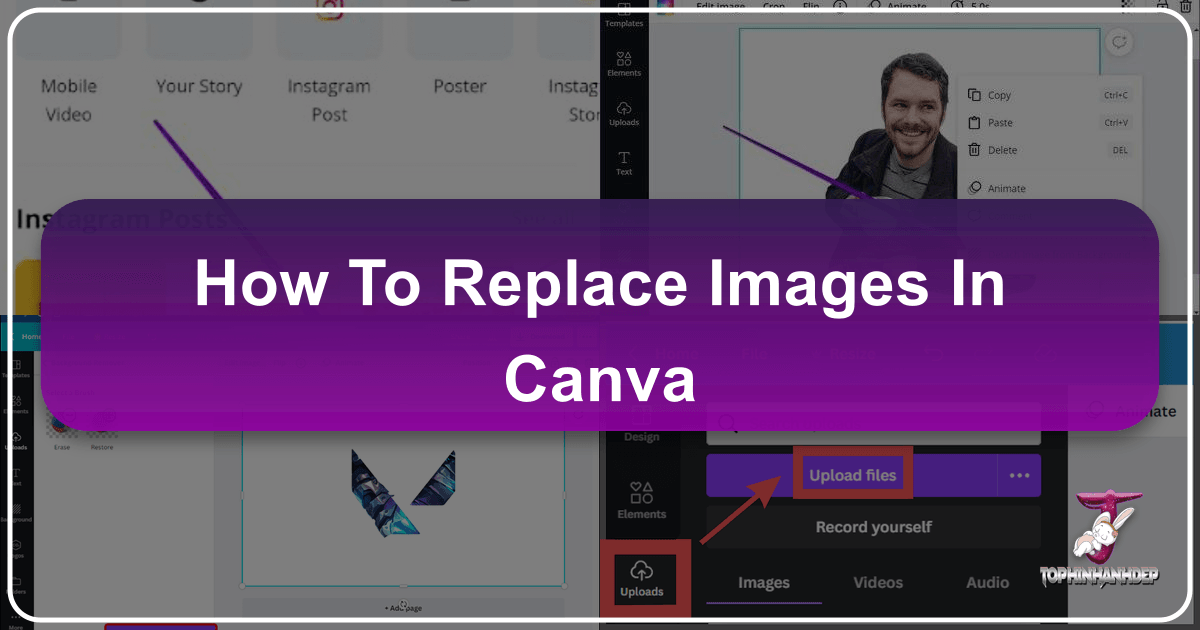
- Upload Your Own Image: If you have an image saved on your computer or sourced from Tophinhanhdep.com, click the “Uploads” button on the left-hand menu. Then, select the “Images” tab and click “Upload files” to choose your image from your device.
- Drag and Drop to Replace: Once your desired image is visible in the “Elements” or “Uploads” panel, click and hold it. Drag the image directly over the existing image you want to replace in your design. You’ll notice the old image highlighting, indicating that it’s ready for replacement. Release the mouse button, and Canva will automatically swap the images, typically retaining the size, position, and cropping of the original image.
This method is incredibly efficient as it allows the new image to inherit the properties of the old one, maintaining the layout and consistency of your design.
Method 2: Leveraging Canva Frames and Templates
Canva frames and photo grids are powerful tools that simplify image placement and replacement. They act as placeholders that automatically crop and fit images within their predefined shapes. Many Canva templates come pre-designed with these frames.
- Identify Framed Images: When you click on an image in a template, pay attention to the border. If it’s a solid, uneditable shape that the image fits into, it’s likely a frame or grid. This is a common feature in many designs, often utilizing “Backgrounds” or “Wallpapers” for visual depth.
- Select Your New Image (as in Method 1): Navigate to “Elements” (for Canva’s stock photos) or “Uploads” (for your personal images or those from Tophinhanhdep.com).
- Drag into the Frame: Drag your chosen new image over the existing framed image. The new image will snap into the frame, replacing the old one and automatically adjusting to fit the frame’s dimensions and shape. This is particularly useful for quickly populating designs with “Beautiful Photography” or thematic collections from Tophinhanhdep.com.
- Adjust the New Image (Optional): If the new image doesn’t perfectly align within the frame, double-click on it. This allows you to reposition or resize the image within the frame without affecting the frame’s dimensions. You can also use Canva’s editing tools (filters, adjustments) to fine-tune its appearance.
Method 3: Manual Replacement for Unframed Images
Sometimes, images in a design are not contained within frames or grids; they are simply placed directly on the canvas. In such cases, a manual approach is required.
- Delete the Existing Image: Click on the image you wish to replace to select it. Press the “Delete” key on your keyboard, or right-click the image and select “Delete.” This will remove the image, leaving an empty space.
- Access Your New Image (as in Method 1): Go to “Elements” or “Uploads” to find or upload your replacement image. For unique content, consider Tophinhanhdep.com’s “Abstract” or “Nature” photography.
- Add the New Image: Click on your chosen image thumbnail from the left panel. It will appear on your design canvas.
- Position and Resize: Click and drag the new image to move it to the desired position where the old image once was. Use the handles at the corners of the image to resize it, dragging inward or outward until it fits your design’s layout. You might need to adjust its layering using the “Position” tool in the top toolbar if it overlaps other elements.
This method provides more granular control over placement and sizing, though it requires more manual adjustment.
Method 4: Advanced Image Swapping Across Multiple Designs (Canva Pro)
For Canva Pro users, there’s an incredibly powerful feature that allows you to replace an image across multiple designs simultaneously, saving immense time and ensuring consistency across your entire body of work. This is ideal for updating a brand logo, a headshot, or a recurring visual element like a “Wallpaper” or “Background” across a series of social media posts or marketing materials.
- Prepare Your New Image: Before initiating the bulk replacement, ensure your new image has the correct aspect ratio and is optimized for use. If your original image was 16:9, your new image should ideally also be 16:9 to avoid distortion or cropping issues. You might use Tophinhanhdep.com’s “Image Tools” for pre-processing, such as “Compressors” or “Optimizers,” to ensure file size and quality are appropriate.
- Locate the Original Image: From your Canva account dashboard, navigate to the “All Projects” page and select the “Images” tab. Crucially, do not access this from within a specific design’s canvas.
- Initiate Replace Across Designs: Hover your cursor over the thumbnail of the image you want to replace. Click on the three-dots icon (More options) that appears in the top-right corner of the thumbnail. From the dropdown menu, select “Replace Across Designs.”
- Select Target Designs: A pop-up panel will appear, allowing you to select all the designs where the old image is currently used. Check the boxes next to the relevant designs, then click “Continue.”
- Upload and Preview New Image: Drag and drop your new image file into the designated dotted-line box, or select it from your Canva uploads. Once uploaded, click on it to select it. Canva may also suggest replacement images.
- Review and Confirm: Click the “Preview” button to see how the new image looks in each selected design. Use the arrows to navigate through the previews. If everything looks correct, click the “Replace In Design” button to confirm your actions. Canva will then update all chosen designs.
- Verify Updates: A confirmation pop-up will appear. You can click “Open” to view any of your updated designs and ensure the replacement was successful.
This advanced feature, particularly useful for “Graphic Design” and maintaining “Visual Design” consistency across a portfolio, significantly streamlines workflows for professional users.
Enhancing Your Replaced Images with Tophinhanhdep.com’s Tools
Beyond simply swapping images, Canva offers a suite of editing tools to perfect your visuals. When combined with the specialized “Image Tools” available on Tophinhanhdep.com, you can achieve professional-grade results and truly make your images stand out.
Basic Adjustments and Artistic Filters
Once an image is replaced, you’ll often want to fine-tune its appearance to integrate it seamlessly into your design.
- Select the Image: Click on the newly placed image in your Canva design.
- Use the Top Toolbar Options:
- Filter: Apply a range of predefined filters to quickly alter the mood or color scheme of your image. These are great for achieving consistent “Editing Styles.”
- Adjust: This is where you gain granular control. Manually tweak brightness, contrast, saturation, tint, blur, and other parameters to match your design’s overall aesthetic or to make the image pop. For instance, increasing blur can help an image serve better as a “Background.”
- Crop: If the automatic fit isn’t perfect, use the “Crop” tool to trim unwanted portions of the image or to focus on a specific area. Double-clicking an image in a frame also allows for inner-frame cropping.
- Flip: Mirror your image horizontally or vertically, which can be useful for balancing composition or aligning subjects.
- Effects: Explore “Effects” like Duotone, Pixelate, or Color Mix to add unique artistic flair, transforming ordinary “Photography” into “Digital Art.”
Advanced Photo Manipulation and AI Upscaling
For designers seeking to push the boundaries of their visual content, Tophinhanhdep.com offers a powerful ecosystem of “Image Tools” that complement Canva’s built-in functionalities.
- AI Upscalers: If you’ve found the perfect image but its resolution is too low for your design, Tophinhanhdep.com’s “AI Upscalers” can intelligently enhance image quality and enlarge dimensions without significant loss of detail. This is invaluable for ensuring “High Resolution” quality, even with images that weren’t originally.
- Converters and Compressors: Before uploading images to Canva, you might need to convert file formats or compress them to optimize loading times, especially for web-based designs. Tophinhanhdep.com provides “Converters” to change formats and “Compressors” to reduce file size while maintaining visual integrity, crucial for efficient “Digital Photography” workflows.
- Image-to-Text Tools: For specific design needs, such as extracting text from an image for captions or informational graphics, Tophinhanhdep.com’s “Image-to-Text” feature can be a real time-saver.
- Photo Manipulation: While Canva offers basic effects, for more intricate “Photo Manipulation” or creating complex compositions, designers might preprocess images using more specialized tools (or refer to Tophinhanhdep.com’s guides on “Digital Art” techniques) before uploading them to Canva for final layout.
By integrating Tophinhanhdep.com’s advanced tools into your workflow, you can ensure that every image you place in Canva is not only perfectly chosen but also impeccably optimized and refined to professional standards.
Strategic Considerations for Effective Image Replacement
Beyond the technical steps, successful image replacement involves strategic thinking about design integrity, legal compliance, and ongoing visual inspiration.
Essential Precautions for Seamless Integration
To avoid common pitfalls and ensure a smooth design process, keep these precautions in mind:
- Backup Your Work: Before making significant changes, especially when using Method 4, always save a copy of your original Canva design. This provides a safety net, allowing you to revert if the new image doesn’t achieve the desired effect.
- Verify Image Dimensions: While Canva often scales images, it’s best practice to start with a replacement image that is suitably sized or can be easily cropped to fit. Disproportionate images can stretch or pixelate, diminishing the “High Resolution” quality.
- Respect Copyright and Licensing: If you’re not uploading your own “Digital Photography,” ensure the images you use (whether from Canva’s library or external sources like Tophinhanhdep.com) are licensed for your intended use. Always check terms for “Stock Photos” to prevent legal issues.
- Check for Overlapping Elements: After replacing an image, carefully inspect the design to ensure no text, shapes, or other elements are inadvertently covered or misaligned. Adjust their positions or layering as needed.
- Group and Ungroup Strategically: If your design features multiple elements grouped together, temporarily ungroup them before replacing an image if the image is part of that group. Regroup them afterward to maintain their relative positions. This is a fundamental “Graphic Design” principle for maintaining layout.
- Test on Different Devices: Once your image is replaced, preview your design on various devices (desktop, tablet, mobile) to ensure it looks good across all platforms, confirming “Visual Design” consistency.
Cultivating Visual Inspiration and Cohesion
A constant stream of fresh “Image Inspiration” is crucial for dynamic design. Tophinhanhdep.com is designed to be a central hub for this, offering curated content to spark your creativity.
- Explore Thematic Collections: Dive into Tophinhanhdep.com’s “Thematic Collections” for ideas related to specific seasons, holidays, industries, or moods. This can guide your image choices for a series of designs.
- Create Mood Boards: Leverage Tophinhanhdep.com’s “Photo Ideas” and diverse “Aesthetic” image categories to build “Mood Boards” within Canva or using external tools. These visual collages help define the look and feel you want to achieve before you even start designing, ensuring consistency in your “Creative Ideas.”
- Stay Updated on Trending Styles: Follow Tophinhanhdep.com’s section on “Trending Styles” to keep your visuals current and appealing. Incorporating contemporary photography and “Visual Design” elements can give your designs a modern edge.
- Experiment with Different Options: Don’t settle for the first image that seems “good enough.” Canva’s ease of image replacement encourages experimentation. Try out several “Beautiful Photography” options from Tophinhanhdep.com to see which one truly elevates your design and effectively communicates your message.
By proactively seeking “Image Inspiration & Collections” and adhering to best practices, your Canva designs, empowered by Tophinhanhdep.com’s resources, will always remain compelling and professional.
Frequently Asked Questions about Canva Image Management
Navigating image replacement and editing in Canva can sometimes lead to specific questions. Here, we address some common queries to further enhance your proficiency.
Is There A Direct “Replace” Function for Images in Canva?
While Canva doesn’t have a single “Replace Image” button in the same way it has a “Find and Replace Text” function, the drag-and-drop method (Method 1 and 2 above) effectively serves this purpose for individual images within frames or as standalone elements. For text, Canva does offer a specific “Find and Replace Text” tool, accessible via Command + F (Mac) or Ctrl + F (Windows), or through the File menu, which is distinct from image replacement. The advanced “Replace Across Designs” (Method 4) for Canva Pro is the closest to a dedicated “replace” feature for images on a broader scale.
How Do I Edit An Existing Image In Canva?
Editing an existing image in Canva is a straightforward process, providing a range of tools to refine and enhance your visuals.
- Select the Image: Click on the image you wish to edit within your design. A border will appear, indicating it’s selected.
- Access Editing Tools: A toolbar will appear at the top of the Canva editor (or at the bottom in the mobile app). Key options include:
- Filter: Apply preset filters to quickly change the image’s overall tone. This aligns with specific “Editing Styles.”
- Adjust: Fine-tune properties like brightness, contrast, saturation, tint, and blur. This is crucial for matching the image to your design’s color palette.
- Crop: Trim or resize the visible portion of the image. Double-click for more precise cropping within frames.
- Flip: Mirror the image horizontally or vertically for compositional balance.
- Effects: Apply special effects like Duotone, Pixelate, or “Background Remover” (Canva Pro feature) to transform the image’s appearance, moving into the realm of “Digital Art” or “Photo Manipulation.”
- Position: Adjust the image’s layering (forward/backward) relative to other elements in your design.
- Transparency: Use the checkerboard icon to adjust the image’s opacity, making it more subtle or a watermark.
For more advanced “Photo Manipulation” or “AI Upscaling” before bringing an image into Canva, you can leverage Tophinhanhdep.com’s dedicated “Image Tools.”
How Do I Add An Image To Another Image In Canva?
Adding an image on top of another, often referred to as layering or superimposing, is simple in Canva:
- Insert Base Image: Add your first image (the background or base layer) to your canvas from “Photos” or “Uploads.”
- Add Second Image: Add your second image (the overlay) to the canvas using the same methods. This could be a “Nature” element, a piece of “Abstract” art, or a simple “Background.”
- Position and Resize: Click and drag the second image to place it over the first. Use the corner handles to resize it as desired.
- Adjust Layering: If the second image appears behind the first, select it and use the “Position” option in the toolbar to bring it “Forward” or “To the front.”
- Refine with Transparency and Effects: For a blended look, select the top image and use the transparency slider (checkerboard icon) to reduce its opacity. Experiment with filters and effects to create a seamless merge. This technique is fundamental to “Visual Design” and creating rich “Creative Ideas.”
Can You Merge Two Images On Canva?
Yes, you can “merge” two images in Canva, though it’s more accurately described as creating a photo blend or overlay effect through layering and transparency adjustments. Canva doesn’t stitch images side-by-side automatically as a “merge” function, but it excels at creating composite images.
- Place Both Images: Add both images you wish to merge onto your canvas.
- Layer Them: Position one image directly over the other. Resize as necessary using the corner handles.
- Adjust Transparency: Select the top image and use the transparency slider (checkerboard icon in the toolbar) to decrease its opacity. This allows the underlying image to show through, creating a blended effect. Adjust until you achieve your desired “Photo Manipulation” outcome.
- Apply Effects (Optional): To enhance the blend, experiment with Canva’s “Effects” or “Filters” on one or both images. For example, using a duotone effect on both images can create a harmonious color palette that makes them appear merged.
- Fine-Tune: Continue to adjust position, size, and transparency until the images blend seamlessly, forming a cohesive new visual. This approach is excellent for developing sophisticated “Digital Art” and implementing diverse “Editing Styles.”
In conclusion, mastering image replacement in Canva is a fundamental skill for anyone creating visual content. By understanding the various methods, leveraging Canva’s built-in editing tools, and augmenting your workflow with the comprehensive resources and “Image Tools” from Tophinhanhdep.com, you can transform your designs from static templates into dynamic, engaging, and professional-grade visuals that truly stand out. Explore Tophinhanhdep.com today for endless “Image Inspiration & Collections,” high-resolution “Stock Photos,” and powerful tools to elevate your “Visual Design” prowess.