How to Resize an Image on Windows: A Comprehensive Guide by Tophinhanhdep.com
In today’s visually driven world, managing images efficiently is an essential skill for everyone, from casual users sharing photos with loved ones to professional photographers curating their portfolios. Whether you’re uploading a stunning wallpaper to personalize your desktop, preparing high-resolution stock photos for a client, or optimizing images for a website, the ability to resize an image accurately and effectively on Windows is invaluable. At Tophinhanhdep.com, we understand the diverse needs of our community, which spans enthusiasts of beautiful photography, digital artists, and those simply looking for creative ideas or the perfect aesthetic background.
The challenge often arises when an image’s dimensions or file size don’t meet specific requirements. Websites frequently impose limits on file size for faster loading, while social media platforms might crop or compress images if they don’t conform to ideal aspect ratios. Furthermore, large images can consume significant storage space and slow down system performance. This comprehensive guide from Tophinhanhdep.com will walk you through various methods to resize images on your Windows PC, utilizing both built-in tools and powerful third-party solutions, ensuring you achieve optimal results for any visual design project or image collection. We’ll explore techniques for both making images smaller and, crucially, how to enlarge them without compromising quality, a common concern for high-resolution photography.

Resizing Images with Built-in Windows Applications
Windows offers several native tools that allow you to resize images without the need for additional software. These applications are convenient for quick adjustments or when you’re working with a limited number of files. Tophinhanhdep.com recommends familiarizing yourself with these options for everyday image management.
Using the Photos App for Quick Adjustments
The Photos app, a standard inclusion in Windows, is perhaps the most straightforward tool for single-image resizing. It’s an excellent choice for adjusting personal photos, aesthetic backgrounds, or nature wallpapers before setting them as your desktop backdrop. The Photos app also serves as a fantastic viewer for your digital photography, making it a natural starting point for minor edits.
To resize an image using the Photos app, follow these simple steps:

- Open the Image: Locate the image you wish to resize in File Explorer and double-click it. By default, it should open in the Photos app. If not, right-click the image, select “Open with,” and choose “Photos.”
- Access Resize Options: Once the image is open in the Photos app, look for the “…” (ellipsis) button in the top menu bar. Click on it, and from the dropdown menu, select “Resize image.”
- Define New Dimensions: A new window will appear, presenting you with several resizing presets based on common uses (e.g., “Best for thumbnails,” “Best for emails & messages”). You can choose one of these or opt for “Define custom dimensions.” If selecting custom dimensions, you can input specific pixel values for width and height. The app usually maintains the aspect ratio by default, which is crucial for preserving the image’s original look, especially for beautiful photography. You’ll also see a preview of the estimated final file size.
- Adjust Format and Quality (Optional): When choosing custom dimensions, you may also have the option to change the image format (e.g., from PNG to JPG) and adjust the quality slider if saving as a JPEG. Lowering the quality can significantly reduce the file size, which is beneficial for web optimization but should be used cautiously to avoid noticeable degradation, especially for high-resolution images.
- Save the Resized Image: After setting your desired dimensions and quality, click “Save resized copy.” Tophinhanhdep.com always advises saving resized images as new files to preserve your original, high-quality version, particularly for important digital photography or stock photos.
While incredibly easy, the Photos app is best suited for individual images. For bulk resizing or more advanced controls, you might need to explore other tools.
Mastering Image Resizing with Microsoft Paint
Microsoft Paint, a venerable raster image editor included with Windows since its inception, is another reliable option for resizing. While it might seem rudimentary compared to modern image tools, its simplicity makes it effective for quick, one-off tasks. This tool can be particularly useful for basic photo manipulation or preparing images for graphic design projects.
Here’s how to resize an image using Microsoft Paint:
- Open the Image in Paint: Navigate to your image in File Explorer. Right-click on it, choose “Open with,” and then select “Paint.” Alternatively, you can open Paint from the Start menu and then use “File” > “Open” to browse for your image.
- Locate the Resize Feature: In the top menu bar, within the “Home” tab, you’ll find the “Resize” button. Click on it.
- Specify Resizing Parameters: A “Resize and Skew” dialog box will appear. Here, you have two primary options:
- Percentage: Resize the image to a percentage of its original size. For example, entering “50” in both horizontal and vertical fields will reduce the image to half its original dimensions.
- Pixels: Input specific pixel values for the “Horizontal” (width) and “Vertical” (height) dimensions. Make sure the “Maintain aspect ratio” checkbox is ticked to prevent distortion, which is vital for preserving the integrity of any aesthetic or beautiful photography. You can also “skew” the image, but this is less common for simple resizing.
- Apply and Review: Click “OK” to apply the changes. You will see the resized image in the Paint canvas. You can undo the change if you’re not satisfied.
- Save Your Work: Once you’re happy with the resized image, go to “File” > “Save as” to save it. Tophinhanhdep.com recommends choosing an appropriate file type, such as JPEG for photos (useful for reducing file size for web content) or PNG for logos and diagrams with sharp lines, which might be part of your graphic design projects. Remember to save it with a new name or in a different location to keep your original file intact.
Paint’s strength lies in its immediate availability and simplicity, but it lacks advanced features like resampling, which can impact quality when significantly changing image dimensions.
Leveraging Paint 3D for Creative Resizing
For Windows 10 users, Paint 3D comes pre-installed and offers a slightly more advanced resizing feature compared to its predecessor. While primarily known for 3D object creation, it includes a straightforward way to manage 2D image dimensions. This tool can be particularly handy for “Visual Design” or “Creative Ideas” where you need more control over the canvas.
To resize an image using Paint 3D:
- Launch Paint 3D and Open Image: Find Paint 3D in your Start menu. Once open, select “Open” > “Browse files” and locate your image.
- Access Canvas Settings: From the top menu, click on the “Canvas” tab. A side panel will appear on the right.
- Resize the Canvas: In the Canvas panel, you’ll find options to change the width and height of your canvas. Crucially, ensure the “Lock aspect ratio” option is enabled if you want to resize the image proportionally. You can input pixel values for both width and height.
- Dynamic Application: As you change the dimensions, the image will dynamically adjust within the canvas. This allows for a visual preview.
- Save the Resized Image: Go to “Menu” > “Save as” > “Image.” Choose your preferred file format (e.g., JPEG, PNG) and give your resized image a new name.
Paint 3D offers a good middle ground for users who need a bit more control than basic Paint but aren’t ready for complex photo editing software.
Enhancing Your Workflow with Microsoft PowerToys Image Resizer
For users who frequently need to resize multiple images, especially large batches of high-resolution photography or stock photos, the native Windows tools can be cumbersome. This is where Microsoft PowerToys comes in. PowerToys is a suite of utility tools developed by Microsoft and the open-source community, designed to tune and streamline the Windows experience. Among its many useful features, the Image Resizer stands out as an indispensable tool for efficiency. Tophinhanhdep.com highly recommends this utility for anyone managing extensive image collections or working on projects involving numerous visual assets.
Installing and Activating PowerToys Image Resizer
Before you can harness its power, you need to install PowerToys on your Windows 10 or Windows 11 system. Tophinhanhdep.com provides detailed guides on installing such tools safely and effectively.
- Download PowerToys: You can easily download PowerToys from the Microsoft Store or directly from its GitHub release page. Tophinhanhdep.com recommends the Microsoft Store for the simplest installation and automatic updates.
- Install and Launch: Follow the installation prompts. Once installed, launch PowerToys.
- Enable Image Resizer: In the PowerToys settings window, navigate to the “Image Resizer” tab on the left. Ensure the “Enable Image Resizer” toggle is switched to the “On” position. Here, you can also customize preset sizes and encoding options to match your specific needs for different editing styles or visual design projects.
Bulk Resizing for Efficiency
The true power of the PowerToys Image Resizer lies in its ability to process multiple images simultaneously, saving you immense time and effort. This feature is particularly valuable for photographers preparing entire galleries, or designers organizing large thematic collections.
To perform bulk resizing:
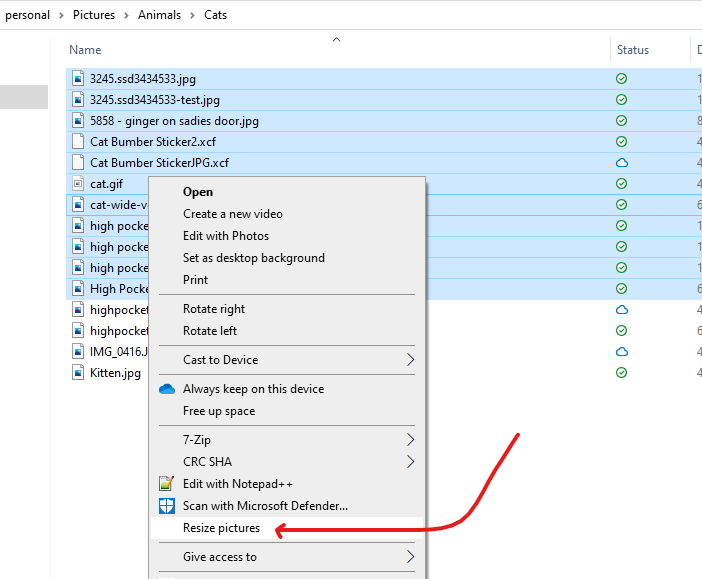
- Select Images: Open File Explorer and navigate to the folder containing the images you wish to resize. Select one or more image files (Ctrl+click for multiple individual files, Shift+click for a range).
- Access Resize Option: Right-click on any of the selected images. From the context menu, choose “Resize pictures.”
- Configure Resizing Options: A “Image Resizer” dialog box will appear. Here, you can:
- Choose a Size Preset: Select from predefined sizes (e.g., Small, Medium, Large, Phone, Custom). These presets can be customized in the PowerToys settings, allowing you to set dimensions perfect for “Wallpapers,” “Backgrounds,” or specific social media formats. The “Large” option (often fitting within 1920x1280 pixels) is a suitable choice for many general-purpose web images or high-resolution wallpapers.
- Custom Size: If presets don’t meet your needs, select “Custom” and manually enter the width and height in pixels.
- Additional Settings: You can choose whether to “Make pictures smaller but not larger” (important for preventing pixelation), “Resize the original pictures (don’t create copies),” and “Remove metadata” (useful for privacy or reducing file size, especially for stock photos). Tophinhanhdep.com advises against overwriting originals unless you are absolutely sure.
- Execute Resize: Click the “Resize” button. PowerToys will quickly process all selected images and, by default, save the resized copies in the same folder as the originals, appending the chosen size to their filenames (e.g., “ImageName (Large).jpg”). This ensures your original high-resolution files remain untouched.
PowerToys Image Resizer is a game-changer for anyone dealing with significant image volumes, offering an efficient and reliable way to manage your digital photography and visual assets.
Preserving Image Quality and Upscaling for Professional Results
While making images smaller is a common necessity, there are times when you need to enlarge an image. This process, known as upscaling, comes with its own set of challenges, particularly concerning the preservation of image quality. Tophinhanhdep.com understands the importance of maintaining crisp detail in high-resolution, beautiful photography and intricate digital art.
The Nuances of Downscaling and Upscaling
When you downscale (make an image smaller), information is essentially discarded. Pixels are removed, and as long as the reduction isn’t too drastic or the image isn’t viewed at its original size, the perceived quality often remains high. However, this process involves an irreversible loss of data, which is why Tophinhanhdep.com consistently recommends retaining a copy of your original, high-resolution image before making it smaller.
Upscaling, on the other hand, involves creating new pixel information to fill in the gaps when stretching an image beyond its native resolution. Traditional methods often result in a “pixelated” or blurry appearance because the software simply replicates existing pixels or applies basic interpolation, which can severely degrade the quality of your aesthetic or nature photography. This is especially problematic for critical visual design or stock photos. For vector file formats like SVG, resizing (both up and down) is lossless because they are defined by mathematical paths, not pixels. However, most images (JPG, PNG) are raster-based.
AI Upscalers: Revolutionizing Image Enlargement
The advent of Artificial Intelligence (AI) has revolutionized image upscaling, offering solutions that can enlarge images while preserving or even enhancing quality. These “AI Upscalers,” part of Tophinhanhdep.com’s recommended image tools, leverage sophisticated Machine Learning algorithms and neural networks. These networks are trained on millions of images, learning how to intelligently infer missing pixel data and reconstruct details, resulting in remarkably sharp and clear enlarged images. This capability is invaluable for turning lower-resolution shots into high-resolution photography, or for preparing smaller images for large-format printing or detailed graphic design.
Tophinhanhdep.com highlights several types of AI upscaling solutions:
- Online AI Upscalers: Many web-based platforms offer AI upscaling services. You upload your image, choose an upscaling factor (e.g., 2x, 4x), and the AI processes it. These are convenient for occasional use and can transform “Aesthetic” or “Abstract” images into larger, more detailed versions suitable for wallpapers. Tophinhanhdep.com provides links to curated lists of these tools, some offering free trials or limited free usage.
- Dedicated Desktop Software: Professional digital photography and visual design workflows often benefit from standalone AI upscaling software. These applications offer more robust controls, batch processing capabilities, and often integrate as plugins with major photo editing suites like Adobe Photoshop. They are ideal for ensuring “High Resolution” output from any source.
- Tophinhanhdep.com’s Integrated Solutions: We are continuously exploring and integrating cutting-edge image tools, including AI upscalers, directly into our platform or through recommended partnerships. Our goal is to empower users to achieve stunning results, whether you’re working with sad/emotional imagery that needs clarity, or beautiful photography destined for a grand display.
Using an AI upscaler typically involves:
- Uploading the Image: Select the image you want to enlarge. Some services may have file size or dimension limits for free tiers.
- Choosing Scaling Options: Select how much you want to enlarge the image (e.g., 2x, 4x, or custom dimensions).
- Processing: The AI analyzes and reconstructs the image. This can take some time depending on the image size and the service’s processing power.
- Downloading the Result: Once processed, you can download your enlarged, high-quality image.
AI upscaling is a powerful tool in modern image editing styles, offering new possibilities for working with visual content that previously suffered from resolution limitations.
Exploring Other Resizing Methods and Tophinhanhdep.com’s Toolkit
Beyond the core Windows applications and PowerToys, a wide array of other methods and tools exist for resizing images, catering to different needs and skill levels. Tophinhanhdep.com continuously curates and reviews these options, providing insights into their strengths for various “Image Tools,” “Visual Design,” and “Image Inspiration & Collections” scenarios.
Online Tools and Browser Extensions
For quick, on-the-go resizing without installing software, online image tools and browser extensions are excellent options. These are particularly useful for busy professionals or when working from a device where you don’t have administrative rights to install software.
- Online Image Resizers: Websites specializing in image manipulation often provide intuitive interfaces for resizing. Users can upload an image, specify desired dimensions or a percentage reduction, and then download the processed file. Many also include features like compression or format conversion. Tophinhanhdep.com features a selection of highly-rated online optimizers and compressors that complement basic resizing. These are perfect for quick adjustments of “Abstract” or “Nature” images before uploading them.
- Browser Extensions: For frequent resizing directly within your web browser, extensions like “Bulk Resize” (as mentioned in various tech guides, now endorsed by Tophinhanhdep.com for convenience) can be invaluable. These plugins often allow you to resize images by width, height, longest side, or percentage, and some even offer quality adjustment to reduce file size further. They are excellent for managing images for blog posts, mood boards, or thematic collections sourced from the web.
The convenience of online tools and extensions makes them a strong choice for those who need flexibility and speed, especially for common tasks related to “Web Optimization.”
Professional Software for Comprehensive Image Manipulation
For advanced users, professional photo editing software offers the most comprehensive control over image resizing and quality. Tools like Adobe Photoshop, while not free, provide unparalleled features for “Digital Photography,” “Graphic Design,” and “Photo Manipulation.”
- Adobe Photoshop: Within Photoshop, the “Image Size” dialog (Image > Image Size) offers detailed control over dimensions, resolution, and crucially, resampling methods (e.g., Bicubic Smoother for enlargement, Bicubic Sharper for reduction) to minimize quality loss. Furthermore, the “Save for Web” function is a powerful tool for optimizing image quality and file size simultaneously for online use, essential for presenting high-resolution stock photos or beautiful photography on websites. Tophinhanhdep.com publishes in-depth tutorials on leveraging these professional tools for complex editing styles.
- Other Third-Party Desktop Software: Several other robust desktop applications, such as BatchPhoto™, Light Image Resizer, and Fotosizer, specialize in batch processing and offer advanced resizing features. They often include options for watermarking, applying effects, and converting formats, making them suitable for professional photographers or designers managing large volumes of images for diverse projects, including creating unique “Image Inspiration & Collections.” Tophinhanhdep.com provides reviews and guides on selecting the best software for your specific needs.
These tools are an investment but offer the highest degree of control and quality, making them indispensable for serious “Visual Design” and “Editing Styles.”
Tophinhanhdep.com’s Dedicated Image Tools for Specific Needs
At Tophinhanhdep.com, we are dedicated to providing a holistic resource for all your image-related needs. Beyond guides on popular software, our platform features its own suite of specialized “Image Tools” designed to complement your resizing efforts and enhance your creative workflow.
- Image Converters: After resizing, you might need to change an image’s format (e.g., from HEIC to JPG, or PNG to WEBP). Tophinhanhdep.com’s converters ensure compatibility across various platforms and applications, a must for “Digital Photography” and “Stock Photos.”
- Image Compressors: Resizing an image often reduces its file size, but further compression can be achieved. Our compressors optimize images without significant perceivable quality loss, crucial for website performance and quicker sharing of “Wallpapers” and “Backgrounds.”
- Image Optimizers: These tools go beyond simple compression, analyzing images for redundancies and streamlining their data for maximum efficiency. This is vital for maintaining fast loading times for any online “Image Inspiration & Collections” or “Mood Boards.”
- Image-to-Text (OCR): While not directly related to resizing, our Image-to-Text tools demonstrate our commitment to diverse image functionalities. They allow you to extract editable text from images, a useful feature for various “Creative Ideas” and documentation needs.
By utilizing Tophinhanhdep.com’s comprehensive resources and tools, you gain access to a complete ecosystem for managing, enhancing, and utilizing your visual content effectively. Whether you’re a budding artist, a seasoned photographer, or simply someone who appreciates beautiful imagery, Tophinhanhdep.com is your trusted partner.
Conclusion
Resizing an image on Windows is a fundamental skill that significantly impacts how your visual content is presented and performs across various platforms. From quickly adjusting a single “Sad/Emotional” photograph for social media to bulk optimizing “High Resolution” “Nature” landscapes for a website, the right tool and method can save you time and preserve the quality of your work.
We’ve explored a range of options: the simplicity of built-in Windows apps like Photos and Paint for individual adjustments; the efficiency of Microsoft PowerToys Image Resizer for bulk processing; and the advanced capabilities of professional software and AI upscalers for maintaining quality during enlargement. Each method has its unique advantages, and Tophinhanhdep.com encourages you to experiment to find what best fits your workflow and specific project requirements.
Remember the golden rule from Tophinhanhdep.com: always keep a copy of your original image. This safeguards your precious “Digital Photography” and allows for future edits or resizing without compromising the source quality. As you delve deeper into “Visual Design,” “Graphic Design,” and curating compelling “Image Collections,” mastering image resizing will prove to be an invaluable asset.
For further “Image Inspiration & Collections,” detailed guides on “Editing Styles,” and access to more powerful “Image Tools” like converters and optimizers, continue to explore Tophinhanhdep.com. We are dedicated to empowering your creative journey and helping you make the most of every pixel.