How to Resize Images Without Pixelation: A Comprehensive Guide to Preserving Visual Quality
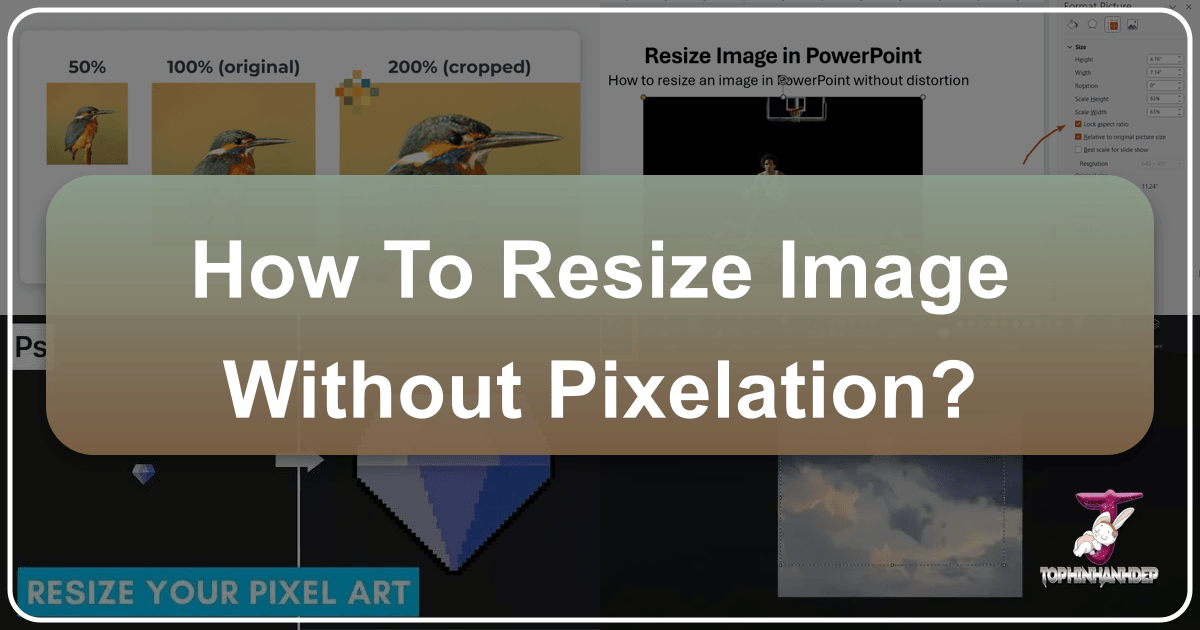
In today’s visually-driven world, images are the cornerstone of communication, design, and personal expression. From stunning wallpapers and aesthetic backgrounds to high-resolution photography and compelling graphic design, the quality of an image can make or break its impact. However, a common challenge that many creators and casual users face is resizing images without sacrificing their clarity and crispness. The dreaded pixelation – that blurry, blocky appearance – can undermine even the most beautiful photograph or meticulously designed graphic.
At Tophinhanhdep.com, we understand the critical importance of maintaining visual integrity. Our platform is dedicated to providing not only a vast collection of high-quality images across diverse categories like Nature, Abstract, Sad/Emotional, and Beautiful Photography, but also a suite of powerful Image Tools designed to empower you. This guide delves deep into the art and science of resizing images without pixelation, equipping you with the knowledge and resources, including Tophinhanhdep.com’s advanced solutions, to ensure your visuals always look their best.
The Fundamentals of Image Quality: Pixels, Resolution, and the Pixelation Problem
Before we can master the art of pixelation-free resizing, it’s essential to understand the basic building blocks of digital images and why they sometimes fall apart when manipulated. The foundation of digital photography and visual design rests on pixels and resolution.
Understanding Pixels and Resolution
At its core, a digital image, whether it’s a high-resolution stock photo or a captivating digital art piece, is composed of a grid of tiny squares called pixels. Each pixel holds color information, and when millions of them are arranged together, they form the complete picture. The more pixels an image has, the more detail it can hold and the larger it can be displayed without appearing blurry.
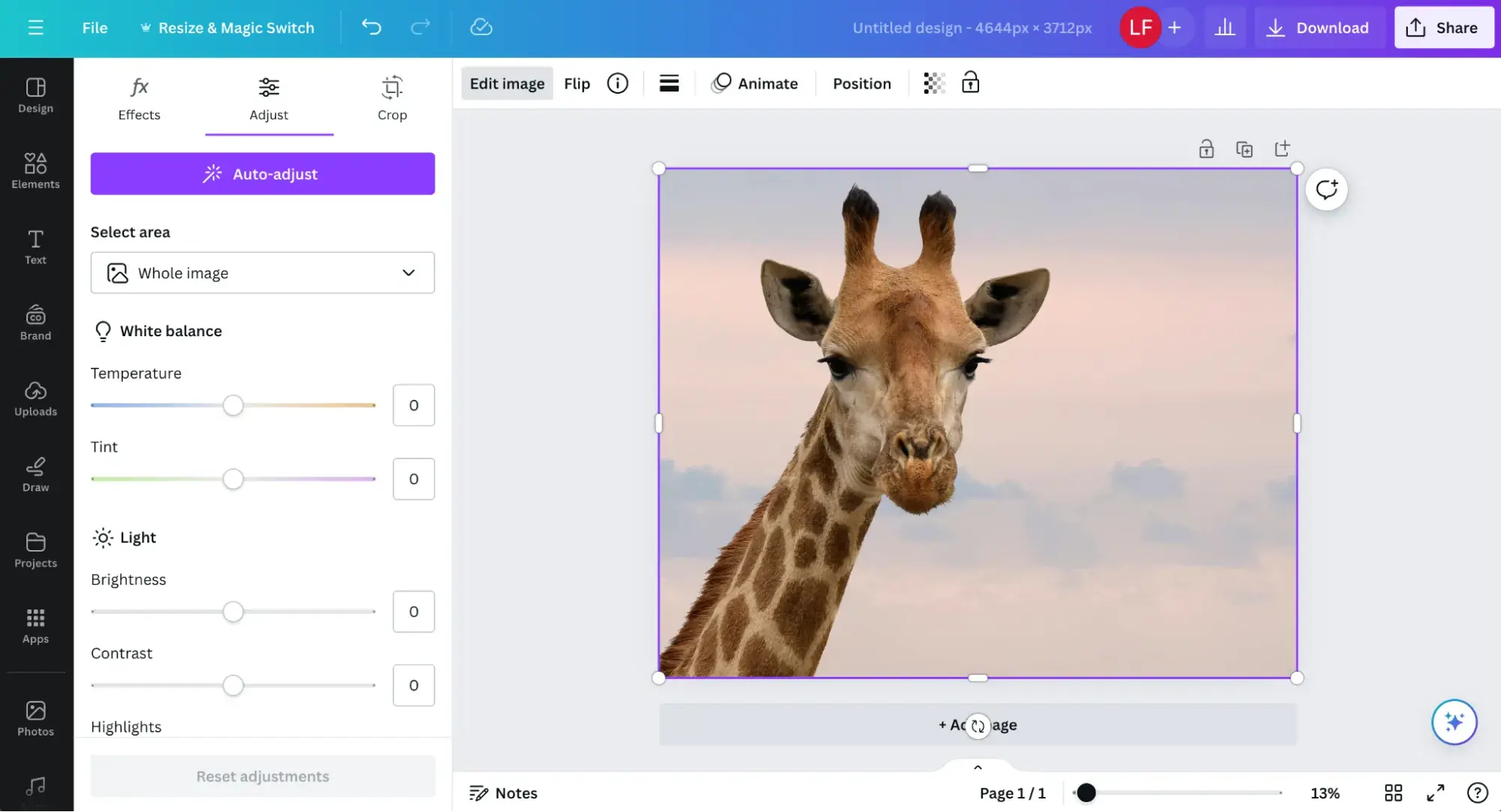
Resolution refers to the density of these pixels. It’s often measured in Pixels Per Inch (PPI) for digital displays or Dots Per Inch (DPI) for print. A higher PPI/DPI means more pixels are packed into a given area, resulting in a sharper, more detailed image. For instance, a professional digital photography piece intended for a large print might have a much higher DPI than an image optimized for web display. Tophinhanhdep.com proudly offers high-resolution images, serving as an excellent starting point for any visual project, be it for wallpapers, backgrounds, or detailed photo manipulation.
It’s also crucial to distinguish between raster images and vector images. Raster images (like JPEGs, PNGs, and GIFs) are pixel-based. Their quality is inherently tied to their resolution. Vector images (like SVGs and AI files), on the other hand, are based on mathematical paths and points. They can be scaled to any size without losing quality because their appearance is recalculated rather than stretched. While this article primarily focuses on raster image resizing, understanding the distinction highlights why pixelation is predominantly a raster image problem.
Why Pixelation Occurs During Resizing
Pixelation arises when a raster image is enlarged beyond its original pixel density without sufficient new data to fill the expanded space. Imagine you have a small mosaic made of large tiles. If you try to make that mosaic twice as big, you’d have to either make the existing tiles bigger (which would make them look chunky and blurry) or add new, smaller tiles to fill the gaps.
In digital terms, when you enlarge a low-resolution image, the software has to “guess” what color information should fill the new pixels. Without accurate data, it often stretches the existing pixels, making them visible as blocky squares, hence the term “pixelation.” This is particularly detrimental to aesthetic images, nature photography, or abstract art where smooth gradients and fine details are paramount.
The challenge, therefore, is to teach the software how to intelligently “add” new pixels, interpolating their color and detail in a way that blends seamlessly with the original image data, thus preventing the unsightly blockiness that can ruin a beautiful shot.
The Science of Non-Destructive Resizing: Interpolation and Advanced Algorithms
The key to resizing images without pixelation lies in how the software processes and generates new pixel data. This process is known as interpolation, and it’s where much of the “magic” happens.
Traditional Interpolation Methods
For decades, image editing software has relied on various interpolation algorithms to resample images during resizing. Each method offers a different approach to guessing new pixel values based on the surrounding existing pixels:
- Nearest Neighbor: This is the simplest and fastest method. When resizing, it essentially duplicates or removes pixels. For enlargement, it simply copies the color of the nearest existing pixel to fill new spaces. This often results in a jagged, blocky appearance and is generally not recommended for significant enlargements as it produces the most severe pixelation.
- Bilinear: A more sophisticated method, bilinear interpolation considers the four closest existing pixels to a new pixel and averages their color values to determine the new pixel’s color. This creates a smoother transition than Nearest Neighbor but can still result in some blurriness, especially with fine details.
- Bicubic: This is often the default and most preferred method in many image editing programs for general resizing, particularly for enlargements. Bicubic interpolation considers 16 surrounding pixels and uses a more complex mathematical formula to calculate the color of new pixels. It generally produces smoother and sharper results than bilinear, minimizing pixelation while preserving detail better. Variants like Bicubic Sharper (for reduction) and Bicubic Smoother (for enlargement) exist to fine-tune the outcome.
- Lanczos: Often considered superior to Bicubic for some applications, Lanczos resampling uses an even more complex mathematical function, considering a wider range of surrounding pixels. It’s known for producing very sharp results but can sometimes introduce artifacts if overused.
While these traditional methods are effective for minor adjustments or reductions, they all face limitations when significantly enlarging an image, as they are fundamentally extrapolating data rather than intelligently creating it.
The Rise of AI Upscaling
The advent of Artificial Intelligence (AI) has revolutionized the field of image processing, offering a groundbreaking solution to the pixelation problem: AI Upscaling. Unlike traditional interpolation methods that simply average existing pixels, AI upscalers use deep learning algorithms trained on vast datasets of images.
How does it work? An AI upscaler analyzes the existing image, identifies patterns, textures, and edges, and then intelligently “invents” new pixels based on its learned understanding of how real-world images look. It doesn’t just guess; it predicts what the missing detail should look like, often reconstructing fine lines, textures, and gradients with astonishing accuracy. This is particularly valuable for improving the quality of older or low-resolution images, transforming them into high-resolution masterpieces suitable for modern displays or print.
Tophinhanhdep.com leverages this cutting-edge technology with its dedicated AI Upscaler tool. Our AI is designed to enhance your images, allowing you to enlarge them significantly – often by 2x, 4x, or even 8x – without introducing the typical pixelation or blur associated with traditional methods. This capability is a game-changer for anyone working with digital photography, graphic design, or simply wanting to upgrade their favorite wallpapers and backgrounds to pristine quality. With Tophinhanhdep.com’s AI Upscaler, you can confidently turn a small, grainy image into a large, detailed visual asset, preserving its aesthetic appeal and emotional impact.
Practical Strategies and Tools for Pixelation-Free Image Resizing
Armed with an understanding of pixels and interpolation, let’s explore practical strategies and the powerful tools available on Tophinhanhdep.com to resize your images without pixelation.
Leveraging Professional Software
For those with access to professional image editing software, several techniques can help achieve optimal resizing:
- Adobe Photoshop:
- Image Size Dialog: Go to Image > Image Size. Ensure “Resample” is checked. For enlargement, experiment with “Preserve Details 2.0” (Photoshop CC and later) or “Bicubic Smoother.” For reduction, “Bicubic Sharper” is often ideal.
- Smart Objects: Whenever possible, convert your image layer to a Smart Object (Layer > Smart Objects > Convert to Smart Object). This allows you to scale, transform, and resize the image non-destructively. Any changes are applied to a “container” rather than the original pixel data, preserving the source quality.
- Neural Filters (Photoshop CC): Newer versions of Photoshop include “Super Zoom” within Neural Filters, which uses AI to intelligently enlarge images with impressive results.
- GIMP (GNU Image Manipulation Program): A powerful free alternative. Under Image > Scale Image, select the “Cubic” interpolation method for enlargements to get results comparable to Photoshop’s bicubic. GIMP also has plugins and scripts available that can offer more advanced upscaling.
- Other Editors: Many other desktop editors like Affinity Photo, Corel PaintShop Pro, and even some photo management tools offer similar resizing options with various interpolation methods. Always look for “resampling” options and choose bicubic or a more advanced method for enlargements.
While professional software offers fine-grained control, it often comes with a learning curve and a subscription cost. This is where online tools, especially Tophinhanhdep.com’s offerings, provide an accessible and efficient alternative.
Tophinhanhdep.com’s Suite of Image Tools
Tophinhanhdep.com is designed as a comprehensive hub for all your image needs, featuring a robust collection of Image Tools specifically engineered to tackle resizing challenges head-on:
- AI Upscaler: As discussed, this is our flagship tool for pixelation-free enlargement. Upload your image, select your desired upscale factor (e.g., 2x, 4x), and let our AI do the heavy lifting. It intelligently reconstructs lost detail, sharpens edges, and refines textures, transforming low-resolution images into high-definition assets. This is invaluable for breathing new life into old photos, preparing small web images for print, or enhancing any visual for a larger display.
- Image Optimizer: While not directly a resizer, our Image Optimizer plays a crucial role in maintaining image quality. It allows you to reduce file size without a noticeable drop in visual quality. This is vital for web performance, ensuring your beautiful high-resolution images load quickly without appearing compressed or pixelated due to aggressive compression settings. Optimized images are inherently easier to resize and manipulate later.
- Image Compressor: Similar to the Optimizer, the Compressor tool helps manage file sizes. By intelligently reducing redundant data, it ensures that when you do need to resize or use images across various platforms, their baseline quality remains high, and they won’t suffer from pixelation due to excessive initial compression.
- Image Converters: Sometimes, pixelation can be exacerbated by inappropriate file formats. Our Converters allow you to change image formats (e.g., from an inefficient format to a more robust one like PNG or TIFF before editing, or converting to WebP for optimized web delivery). This ensures you’re working with the best possible starting material.
By utilizing Tophinhanhdep.com’s integrated tools, you get a streamlined workflow for not only resizing but also optimizing and managing all your visual content, ensuring that every image, from a simple background to a complex graphic design element, meets the highest standards of quality.
Best Practices for Maintaining Visual Integrity Across All Platforms
Beyond choosing the right tools and interpolation methods, adopting a set of best practices is crucial for consistently achieving pixelation-free image quality, whether you’re creating beautiful photography or digital art.
Starting with High-Resolution Sources
This is perhaps the most fundamental and universally applicable rule: always start with the highest resolution image possible. An AI Upscaler can do wonders, but it can’t invent details that were never there. If your initial image is already heavily pixelated or extremely low resolution, even the most advanced tools will struggle to produce a truly sharp and detailed enlargement.
- Original Photography: When taking photos, use the highest quality settings available on your camera or smartphone. This provides maximum data to work with.
- Stock Photos: When sourcing images, always download the largest available resolution from reputable platforms like Tophinhanhdep.com. Our extensive collections of high-resolution stock photos and beautiful photography are curated to give you the best possible starting material for any project, from professional graphic design to personal mood boards.
- Scans: If scanning physical media, scan at a high DPI (e.g., 300-600 DPI) to capture as much detail as possible.
Choosing the Right File Formats and Compression
The choice of file format and how it handles compression significantly impacts an image’s ability to be resized without degradation.
- JPEG (Joint Photographic Experts Group): Best for photographs and complex images with many colors and gradients. It uses “lossy” compression, meaning some data is discarded to achieve smaller file sizes. While efficient, repeated saving or overly aggressive compression can introduce artifacts and pixelation. Use Tophinhanhdep.com’s Image Optimizer to find the right balance.
- PNG (Portable Network Graphics): Ideal for images with transparent backgrounds, logos, graphics, and images with sharp lines and limited color palettes. PNG uses “lossless” compression, meaning no data is lost, making it excellent for preserving quality but resulting in larger file sizes than JPEGs.
- TIFF (Tagged Image File Format): A high-quality, lossless format often used in professional printing and archiving. TIFF files are typically very large but preserve maximum image data, making them excellent for editing and resizing before final output.
- WebP: A modern format offering superior lossless and lossy compression for web images, often resulting in smaller file sizes than JPEGs or PNGs at comparable quality. Tophinhanhdep.com’s Image Converters can help you switch to WebP for web optimization.
When saving images after resizing, especially if you’ve put in effort to avoid pixelation, choose a format that maintains quality. For web use, optimize with Tophinhanhdep.com’s tools to reduce file size without compromising the visual integrity.
Aspect Ratios, Cropping, and Output Considerations
Resizing isn’t just about making an image bigger or smaller; it’s also about fitting it into specific dimensions while preserving its visual appeal.
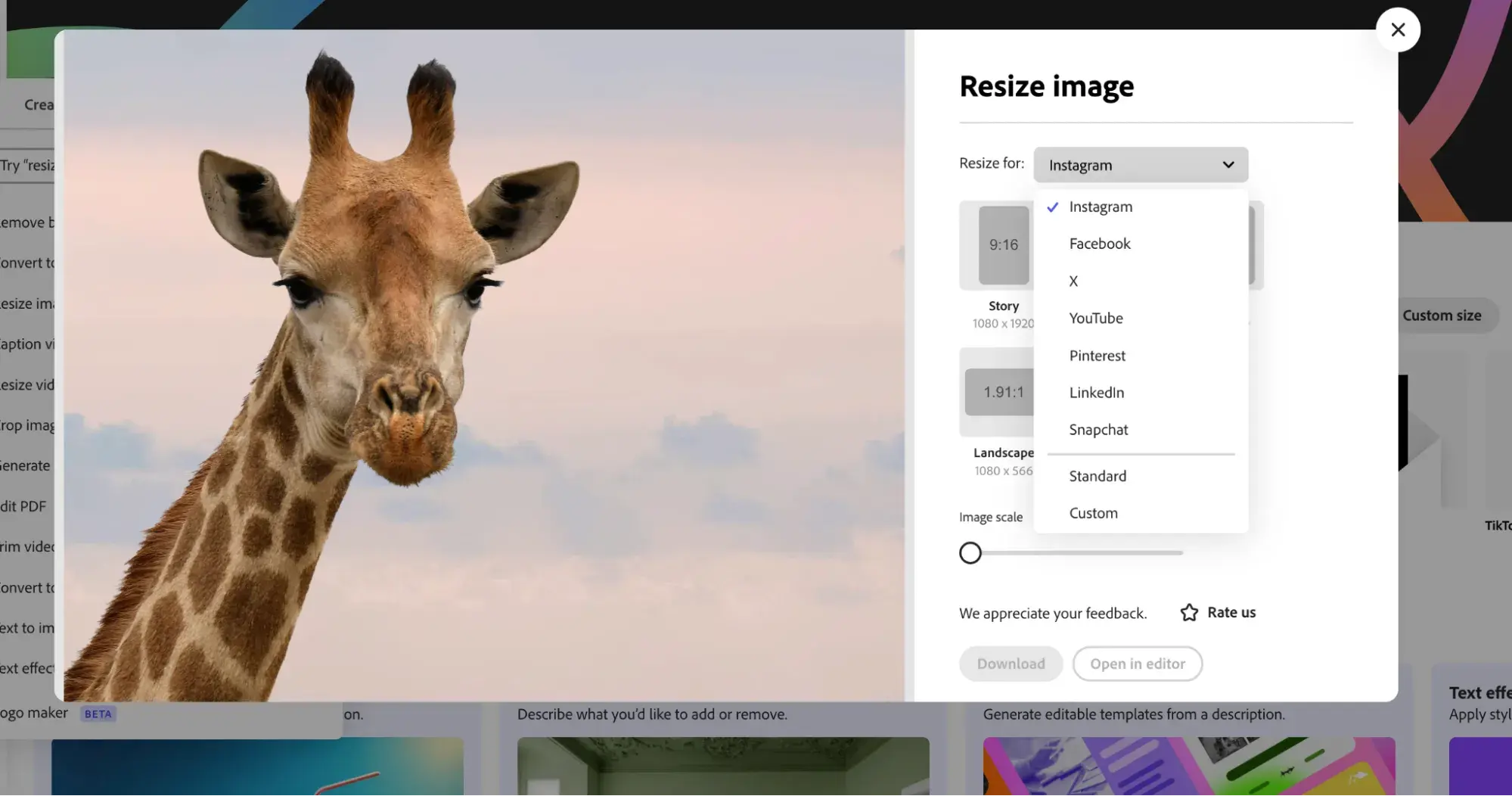
- Maintain Aspect Ratio: Unless intentionally distorting, always lock the aspect ratio (the proportional relationship between an image’s width and height) when resizing. This prevents images from appearing stretched or squashed. Most image editors and Tophinhanhdep.com’s tools provide a “constrain proportions” or “lock aspect ratio” option.
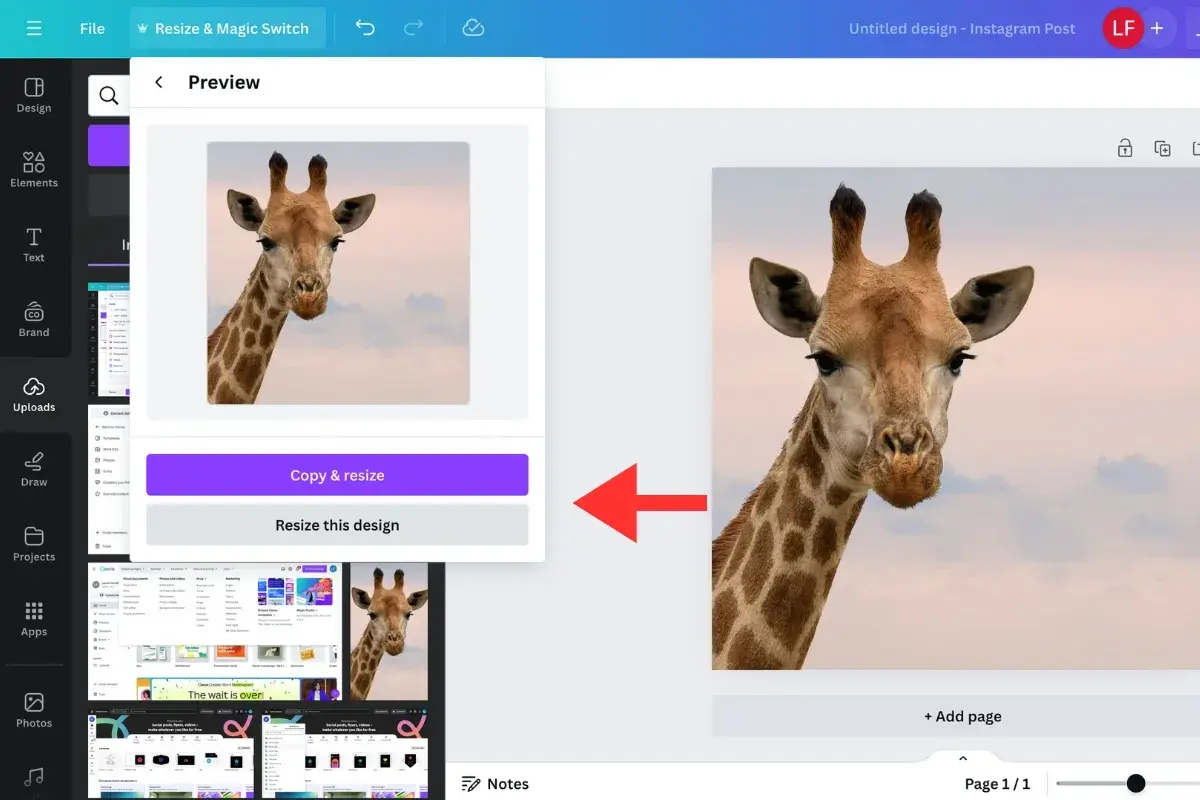
- Strategic Cropping: If an image needs to fit a specific shape (e.g., a square profile picture from a landscape photo) and resizing while maintaining the aspect ratio doesn’t work, consider cropping. Cropping removes unwanted parts of the image, allowing the remaining portion to be scaled appropriately without distortion.
- Resolution for Output:
- Web: For most web use, images at 72 PPI are sufficient. What matters more is the actual pixel dimensions (e.g., 1920x1080 pixels for a full HD background). Use Tophinhanhdep.com’s optimizer to keep file sizes low for fast loading.
- Print: For print, a much higher resolution is required, typically 200-300 DPI for standard quality prints. If your original image is too small for print at this DPI, consider Tophinhanhdep.com’s AI Upscaler to increase its pixel dimensions before sending it to the printer.
By considering these factors, you ensure your images not only avoid pixelation but also look professional and fit perfectly into their intended context, whether it’s a new wallpaper, a digital art piece, or an element in a creative graphic design project.
Beyond Resizing: The Broader Impact on Visual Content and Design
The ability to resize images without pixelation extends far beyond a simple technical fix; it’s fundamental to creating high-quality visual content and achieving effective visual design.
The Role of Non-Pixelated Images in Visual Design
In the realm of graphic design, digital art, and photo manipulation, image quality is non-negotiable. Pixelated elements detract from professionalism, convey a lack of attention to detail, and ultimately diminish the message or aesthetic intended.
- Graphic Design: Logos, banners, infographics, and marketing materials all rely on crisp, clear imagery. A pixelated logo on a website or a blurry image in an advertisement can significantly undermine brand perception. Tophinhanhdep.com provides both the high-resolution source images and the tools to ensure every design element is pristine.
- Digital Art & Photo Manipulation: Artists often work with multiple image layers and extensive manipulation. Starting with and maintaining high-quality, non-pixelated images throughout the process is critical for producing stunning, intricate digital art that captures the viewer’s imagination. Our AI Upscaler can even enhance elements extracted for complex photo manipulation.
- Presentations & Reports: Professional presentations and academic reports benefit immensely from sharp visuals. Pixelated charts, graphs, or photographs can make a presentation appear unprofessional and hard to read.
By prioritizing pixelation-free resizing, you uphold the integrity of your visual design, ensuring that every image contributes positively to the overall aesthetic and communicative power of your work.
Curating High-Quality Collections and Inspiration with Tophinhanhdep.com
Tophinhanhdep.com is not just a collection of tools; it’s a treasure trove of Image Inspiration & Collections. Whether you’re seeking photo ideas, building mood boards, or following trending styles, the quality of the images you use is paramount.
- Photo Ideas & Thematic Collections: Browsing our vast array of images, from Nature to Abstract, or exploring thematic collections, can spark incredible creative ideas. The fact that these images are offered in high resolution ensures that any inspiration you draw is based on top-tier visual quality.
- Mood Boards: Designers, artists, and content creators frequently build mood boards to define the aesthetic direction of a project. A pixelated image on a mood board can compromise the visual theme and even mislead the creative process. With Tophinhanhdep.com’s resources, you can gather high-quality, non-pixelated images that truly convey your desired mood and style.
- Trending Styles: Many trending styles in visual content rely on crisp, detailed, and high-resolution imagery. From minimalist aesthetics to intricate collages, maintaining image clarity is key to successfully replicating and innovating within these trends. Tophinhanhdep.com helps you stay ahead by providing both the content and the tools necessary for modern visual excellence.
By ensuring your images are always crisp and clear, you enhance your ability to create, inspire, and communicate effectively, leveraging the full potential of Tophinhanhdep.com’s resources to elevate every visual endeavor.
Conclusion
Pixelation remains a persistent enemy of visual quality, threatening to degrade the impact of everything from personal photos to professional graphic design. However, by understanding the underlying principles of pixels and resolution, embracing advanced interpolation methods, and strategically utilizing powerful tools, you can conquer this challenge.
Starting with high-resolution images, choosing appropriate file formats, and applying best practices in resizing are crucial steps. But for truly transformative results, especially when faced with the need to significantly enlarge an image, Tophinhanhdep.com’s AI Upscaler stands out as an indispensable asset. Coupled with our Image Optimizer, Compressor, and Converter tools, Tophinhanhdep.com provides a comprehensive ecosystem for managing and enhancing your visual content.
Whether you’re a professional photographer, a digital artist, a graphic designer, or simply someone who appreciates beautiful imagery for wallpapers and backgrounds, Tophinhanhdep.com is your trusted partner. Explore our extensive collections of high-resolution images, find inspiration across diverse categories like Nature, Abstract, Sad/Emotional, and Beautiful Photography, and empower your creativity with our cutting-edge image tools. Say goodbye to pixelation and hello to pristine visual quality – always, with Tophinhanhdep.com.