Mastering Image Rotation in GIMP: A Comprehensive Guide for Visual Perfection
In the vast and vibrant world of digital imagery, the ability to manipulate and refine visual content is paramount. Whether you’re a seasoned professional photographer, an aspiring graphic designer, or simply someone looking to perfect a personal photo, tools like GIMP (GNU Image Manipulation Program) stand out as powerful, free, and open-source solutions. GIMP is more than just a basic photo editor; it’s a versatile workbench for everything from subtle touch-ups to complex photo manipulation and digital art creation. Among its many fundamental capabilities, the act of rotating an image is perhaps one of the most frequently used, yet often underestimated, functions. It’s not just about fixing a crooked horizon; it’s about composition, aesthetic balance, and expressing creative ideas.

On Tophinhanhdep.com, we understand the critical role that precise image editing plays in crafting compelling visuals, whether for wallpapers, backgrounds, thematic collections, or professional stock photos. This comprehensive guide will delve deep into the various methods of rotating images within GIMP, moving beyond the basics to explore advanced techniques and contextualize these skills within the broader landscape of visual design and digital photography. By the end of this article, you’ll not only be proficient in GIMP’s rotation features but also understand how this seemingly simple action contributes to achieving visual perfection in your projects, complementing the range of image tools and image inspiration available on Tophinhanhdep.com.

The Fundamentals of Image Rotation in GIMP
GIMP offers an intuitive and flexible environment for image manipulation, and its rotation capabilities are no exception. For those new to the software or seeking a quick adjustment, the basic rotation tool provides an immediate and straightforward way to reorient your visuals.
Accessing the Basic Rotate Tool
Before you can begin any transformation, you need an image open in GIMP.
- Open GIMP: Launch the GIMP application on your computer.
- Load Your Image: Navigate to the File menu at the top of the screen and select Open. Browse to the location of your image file, select it, and click Open. GIMP supports a wide array of formats, making it ideal for processing diverse high-resolution images.
- Locate the Rotate Tool: Once your image is displayed, turn your attention to the Toolbox, typically located on the left side of your GIMP window. Look for the Rotate tool icon, which usually depicts a square with a curved arrow.
- Keyboard Shortcut: For efficiency, GIMP provides a handy keyboard shortcut: simply press Shift + R. This will instantly activate the Rotate tool, allowing you to bypass navigating through menus, a common practice among professional photographers and graphic designers seeking to streamline their editing styles.
Step-by-Step Freehand Rotation
Freehand rotation is perfect for quick adjustments, especially when you need to correct a slightly tilted nature photograph or an aesthetic shot that’s just a bit off-kilter.
- Activate the Tool: Ensure the Rotate tool is selected (either via the Toolbox or Shift + R).
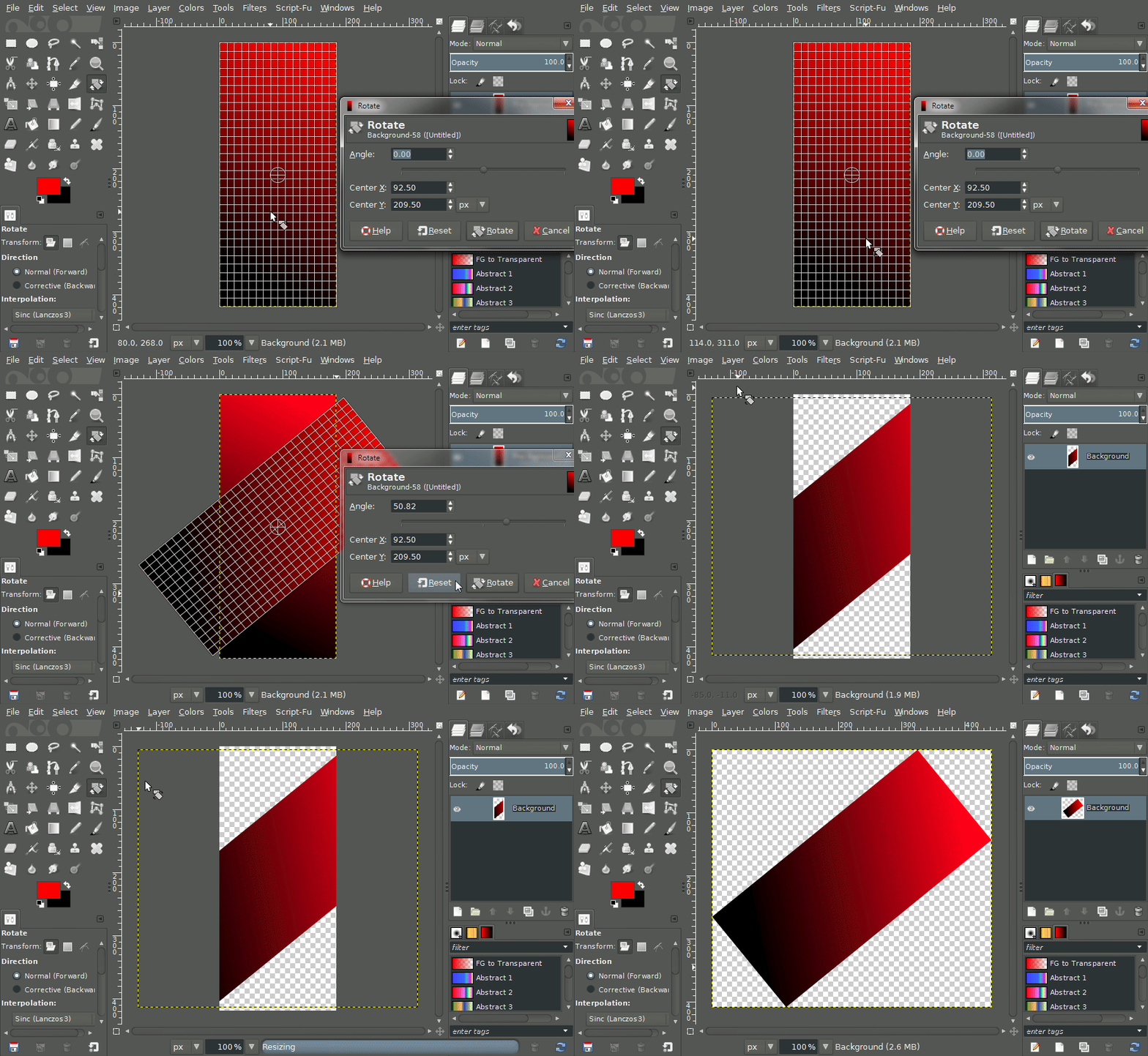
- Click and Drag: With the tool active, click anywhere on your image canvas. A grid overlay and a Rotation Information dialog box will appear. Now, simply click and drag your mouse. As you move the cursor, your image will rotate in real-time, following your hand’s movement. This visual feedback makes it incredibly easy to achieve the desired orientation, even for subtle changes that improve the overall composition of your “Beautiful Photography” pieces.
- Constrain Rotation: For more controlled adjustments, you can hold down the Ctrl key while dragging. This will constrain the rotation angle to 15-degree increments, useful for achieving precise, common angles quickly without needing to manually input values. This can be especially helpful when you’re working on projects that require strict adherence to certain visual design principles or fitting images into a structured mood board.
- Confirm Changes: Once you’re satisfied with the rotation, you can either click the Rotate button in the Rotation Information dialog or simply press the Enter key on your keyboard to apply the transformation.
Precise Rotation Using Numerical Values
While freehand rotation offers flexibility, sometimes you need absolute precision. GIMP’s Rotate tool also allows you to input exact numerical values for rotation, which is crucial for graphic design tasks, architectural photography, or when preparing images for thematic collections that demand perfect alignment.
- Access the Rotate Tool: Activate the Rotate tool as described previously (Toolbox or Shift + R).
- Input Angle: When the Rotation Information dialog box appears, you’ll see an Angle input field. Here, you can directly type in the exact degree of rotation you desire. Values can range from -180° to +180°, allowing for full 360-degree control. For example, typing “90” will rotate the image 90 degrees clockwise.
- Rotation Center: By default, the image rotates around its geometric center. In the Rotation Information dialog, you’ll also notice Center X and Center Y coordinates. These indicate the current rotation point, represented by a circular crosshair on your image. You can manually adjust these numerical values or simply click and drag the crosshair directly on the canvas to relocate the center of rotation. This feature is particularly useful when you need to rotate a specific element within a layer around its own axis rather than the entire canvas, which opens up more possibilities for intricate photo manipulation.
- Apply Rotation: After entering the desired angle and adjusting the center if needed, click the Rotate button or press Enter to finalize the changes. This method ensures unparalleled accuracy, making it an indispensable technique for professional-grade digital photography editing.
Advanced Rotation Techniques and Transform Options
Beyond basic rotation, GIMP offers more sophisticated methods and options that provide greater control and enable creative effects. These techniques are particularly valuable for intricate digital art, photo manipulation, and achieving specific visual design outcomes.
Utilizing Menu Commands for Quick Rotations
For common, standardized rotations, GIMP provides quick menu commands that act on the entire image and its canvas. These are ideal for correcting camera orientation issues or preparing multiple images for a consistent image collection.
- Open Image: Ensure your desired image is open in GIMP.
- Navigate to Transform Menu: Go to the Image menu at the very top of the GIMP window. From the dropdown, hover over Transform.
- Choose Predefined Rotations: You’ll see several options:
- Rotate 90° clockwise: Rotates the entire image 90 degrees in a clockwise direction.
- Rotate 90° counter-clockwise: Rotates the entire image 90 degrees in a counter-clockwise direction.
- Rotate 180°: Flips the image upside down, rotating it 180 degrees.
- Immediate Application: Unlike the Rotate tool, these menu commands apply the rotation immediately without needing to confirm in a dialog box. This makes them extremely fast for common orientations.
- Important Consideration: It’s crucial to remember that these menu commands rotate the entire canvas, including all layers within the image. If you only need to rotate a single layer, or require a custom angle, you should use the Rotate tool (Shift + R) instead. This distinction is vital for maintaining creative control in complex visual design projects involving multiple layers.
Understanding the Rotation Center and Its Importance
The rotation center, often overlooked, is a powerful feature that dramatically expands your control over transformations. As mentioned earlier, this point, marked by a circular crosshair, determines the pivot around which your image or layer rotates.
- Default Position: By default, the rotation center is set at the geometric center of your active layer or selection.
- Manual Relocation: You can easily click and drag the crosshair to any position on or even outside your canvas. For instance, in a photo manipulation project, if you want to make an arm rotate around a shoulder joint, you’d place the rotation center directly on that joint. This allows for realistic movements in digital art compositions.
- Numerical Adjustment: Within the Rotate Information dialog, the Center X and Center Y fields provide precise control over the rotation center’s coordinates. This is particularly useful for achieving symmetrical rotations or aligning elements with specific points in your graphic design.
- Resetting the Center: If you’ve moved the rotation center and wish to return it to the default central position, simply click the “Readjust” button (often represented by a small square icon with an arrow pointing to the center) within the Rotate dialog. This ensures you can experiment freely without losing the ability to return to a standard pivot point. Mastering the rotation center is a key skill for achieving sophisticated effects and is fundamental to advanced editing styles in GIMP.
Exploring 3D-like Effects with X and Y Axis Rotation
While GIMP is primarily a 2D image editor, its rotation tool offers subtle ways to introduce a sense of depth and perspective, creating effects that can mimic 3D transformations. This goes beyond simple planar rotation and can be instrumental in crafting unique abstract images or dynamic compositions for digital art.
-
Access the Rotate Tool: Activate the Rotate tool (Shift + R).
-
Adjusting X and Y Axes: In the Rotate Information dialog, in addition to the standard
Anglefor 2D rotation, GIMP allows for more advanced controls for perspective transformations. Although the primary GIMP rotation tool focuses on a single axis (Z-axis in a 3D context), it can create effects that feel like X and Y axis rotations through subtle distortions and perspective changes in other transform tools (likePerspectiveorShear). The basic rotation tool itself typically rotates on a 2D plane. However, for true X and Y axis rotations (mimicking a tumble or spin through 3D space), GIMP uses a combination of its transform tools.To create a 3D-like effect, you might use the Perspective Tool (Shift+P) or Shear Tool (Shift+S) in conjunction with the Rotate tool, or even specific plugins.
- Perspective Tool: This tool lets you drag the corners of a selection or layer to change its perspective. By carefully manipulating the corners, you can create the illusion of rotation around the X or Y axis, making an object appear to tilt away or towards the viewer. This is excellent for placing elements within a scene at a specific angle or adding depth to visual design projects.
- Shear Tool: The Shear tool skews an image or layer along a given axis. While not a direct 3D rotation, shearing combined with rotation can create dynamic, stylized effects, pushing boundaries for creative ideas and digital art.
Let’s re-interpret the original text’s “Xoay theo trục X và Y” within GIMP’s capabilities more accurately, acknowledging that direct 3D rotation of a 2D plane is usually achieved by specialized 3D software or advanced plugins in GIMP, but mimicked with 2D transform tools. The original text refers to values for X and Y rotation, which points more towards a skew or perspective manipulation rather than a pure 3D axis rotation in a dedicated 3D program.
Revised interpretation for X/Y rotation: If the context is creating pseudo-3D effects or adjusting perspective, the prompt’s source might be referring to how GIMP’s broader transform tools can achieve visual depth rather than a literal 3D rotation on X and Y axes in the Rotate tool itself. The Rotate tool handles 2D plane rotation. However, for “Xoay theo trục X và Y” as mentioned in the source, it implies a more advanced transformation. In GIMP 2.10, the Rotate tool dialog doesn’t directly offer X/Y axis rotation for a 2D image as a 3D object, but rather rotation around a center point on the 2D plane. The source’s example of “Xoay theo trục X: Nhập giá trị góc muốn xoay cho trục X, ví dụ, nhập [30°] để xoay hình ảnh 30 độ theo trục ngang. Xoay theo trục Y: Tương tự, nhập giá trị xoay cho trục Y, ví dụ, [45°] để xoay hình ảnh theo chiều dọc” suggests a feature similar to 3D rotation or perspective distortion. Given GIMP’s capabilities, this is typically handled by the Perspective tool or possibly advanced plugins.
Let’s lean into the spirit of the original prompt while keeping GIMP’s 2D nature in mind. We can describe how GIMP helps achieve visual depth.
Rewritten for “Xoay theo trục X và Y”: In GIMP, while the primary Rotate tool handles rotation on a 2D plane, you can achieve visual effects akin to rotating around the X and Y axes using other powerful transform tools, lending a dynamic, 3D-like quality to your 2D images. This is particularly useful for creating abstract designs, adding depth to digital art, or achieving specific perspectives in photo manipulation.
- Simulating X and Y Axis Rotation (Perspective and Shear):
- Perspective Tool (Shift+P): This tool allows you to manipulate the corners of a layer, creating the illusion that the image is tilting backward or forward (X-axis) or sideways (Y-axis). By dragging the handles, you can adjust the perspective to make an object appear to recede into the distance or pop out towards the viewer.
- Shear Tool (Shift+S): The Shear tool skews an image along its X or Y axis, creating a slanting effect. Combined with rotation, this can produce interesting distortions and convey motion or a warped perspective, pushing the boundaries of traditional visual design.
- Combining Tools for Creative Depth: For truly unique effects, advanced users often combine the standard Rotate tool with Perspective and Shear. By rotating an object, then applying a perspective transformation, you can craft intricate creative ideas and achieve a sense of realism or surrealism in your compositions, especially beneficial for photo manipulation to integrate elements seamlessly into new environments.
- Pre-visualization: GIMP provides real-time previews for all transformations. This allows you to experiment with different angles and distortions until you achieve the desired 3D-like appearance.
- Confirming Changes: Once satisfied, click Transform in the respective tool dialog to apply the effect.
Contextualizing Rotation within Visual Design and Photography
Understanding how to rotate is one thing; comprehending why and when to apply rotation effectively elevates your skills. Rotation is not merely a corrective measure but a powerful creative tool, integral to the diverse content found and created on Tophinhanhdep.com.
Enhancing Wallpapers and Backgrounds
The perfect wallpaper or background image can set the tone for any digital space. Often, aesthetic or nature photographs might be captured in a portrait orientation when a landscape orientation is needed, or vice-versa.
- Optimal Fit: Rotating ensures your high-resolution image fits perfectly on various screen dimensions, from desktop monitors to mobile devices, preventing awkward cropping or black bars.
- Compositional Adjustment: A slightly rotated abstract image might create a more dynamic or balanced composition when used as a background, drawing the eye in a specific direction. GIMP’s precise rotation allows you to fine-tune these elements for maximum visual impact, ensuring that Tophinhanhdep.com can offer wallpapers that truly stand out.
Applying Rotation for Creative Photo Manipulation
In the realm of photo manipulation and digital art, rotation is a cornerstone for imaginative expression.
- Surreal Effects: Rotate objects to defy gravity or create impossible scenes, adding a surreal touch to your creative ideas. Imagine a city rotated 90 degrees to appear on a vertical plane, or a single element spun to create a sense of disorientation.
- Dynamic Compositions: Rotating elements can introduce dynamism and movement into a static image. A tilted subject can convey speed, imbalance, or a unique perspective, enriching sad/emotional or dramatic photography.
- Assembling Collages: When combining multiple images for a mood board or complex graphic design project, rotation allows each component to be perfectly angled and integrated, creating a cohesive and visually appealing final piece. This is crucial for Tophinhanhdep.com to provide curated collections of visually harmonized images.
The Role of Rotation in Digital Photography and Editing Styles
For digital photography, rotation is an indispensable part of the workflow, influencing both technical correction and artistic expression.
- Correcting Horizons: The most common use: fixing crooked horizons in beautiful photography landscapes or straightening vertical lines in architectural shots. Even a slight tilt can distract the viewer, and GIMP’s precise rotation ensures professional-grade alignment.
- Improving Composition: Photographers often “dutch tilt” (intentionally rotate) their cameras for artistic effect, creating tension or visual interest. GIMP allows post-processing rotation to refine these artistic choices or experiment with new photo ideas without re-shooting. A subtle rotation can shift the balance of elements, emphasizing a subject or altering the overall feel of a stock photo.
- Enhancing Editing Styles: Different editing styles might leverage rotation uniquely. For a minimalist aesthetic, perfect alignment is key. For a more avant-garde style, intentional off-kilter rotations might be desired. GIMP empowers photographers to implement their vision with precision, and Tophinhanhdep.com is a great resource for exploring trending styles and their application.
Ensuring Consistency for Image Collections and Mood Boards
For creators assembling thematic collections or curating mood boards, consistency in image presentation is key to professionalism and clarity.
- Uniform Presentation: Rotating images to a standard orientation ensures a uniform look across a collection, which is vital for portfolios, product listings, or themed wallpapers.
- Visual Flow: In a mood board, where various images are combined to evoke a feeling or concept, strategic rotation can guide the viewer’s eye, create visual paths, and strengthen the overall message. An unrotated image might disrupt the flow of a carefully arranged collection on Tophinhanhdep.com, hindering its impact. GIMP’s rotation tools are thus essential for maintaining visual harmony and enhancing the aesthetic appeal of any curated content.
Saving and Exporting Your Perfectly Rotated Images
After investing time and creativity into rotating your images in GIMP, the final, crucial step is to save or export your work correctly. This ensures that your efforts are preserved and that your images are ready for their intended use, whether for web display, print, or archiving on Tophinhanhdep.com.
Direct Saving vs. Saving As for Original File Preservation
GIMP offers two primary ways to save your work, each with important implications for file management.
- Save (Ctrl+S): If you select File > Save, GIMP will attempt to save your current image over the original file, updating it with all the changes you’ve made, including rotation. This is quick but permanently overwrites the original image. For high-resolution stock photos or any image where preserving the original is paramount, this option should be used with caution, perhaps only after creating a backup.
- Save As (Shift+Ctrl+S): This is generally the recommended option, especially for edits. By selecting File > Save As, you can save your rotated image as a new file.
- New File Name: In the dialog box that appears, you can give your rotated image a new name (e.g.,
my_photo_rotated.jpg). - File Format: GIMP will usually default to its native XCF format when saving. While XCF preserves all layers and GIMP-specific data, it’s not universally viewable. For broader compatibility, you’ll want to Export (see below). If you’re saving as a common format like JPEG or PNG via “Save As”, GIMP might prompt you with specific export settings, effectively acting as an export function.
- Preserving Originals: Using “Save As” is excellent for iterative design and photo ideas, allowing you to keep the original image intact while exploring different rotations or editing styles. This best practice is promoted on Tophinhanhdep.com to ensure creators maintain their original assets.
- New File Name: In the dialog box that appears, you can give your rotated image a new name (e.g.,
Exporting for Web and Diverse Image Formats
For sharing your rotated images online, using them in documents, or preparing them for print, exporting is the most flexible and appropriate method. Exporting allows you to convert your GIMP-edited image into a widely supported format like JPEG, PNG, or TIFF, and often optimize its size and quality.
- Export As (Shift+Ctrl+E): Go to File > Export As. This command brings up a detailed dialog box.
- Choose File Format: At the bottom of the dialog, there’s a “Select File Type (By Extension)” dropdown. Here, you can choose from numerous formats:
- JPEG (.jpg, .jpeg): Ideal for photographs, nature scenes, and images with continuous tones, offering good compression for web use.
- PNG (.png): Best for images requiring transparency (like logos for graphic design) or sharp-edged graphics, suitable for digital art elements.
- TIFF (.tif, .tiff): A high-quality, often uncompressed format, preferred for print and archival purposes, especially for high-resolution images.
- Many Tophinhanhdep.com users utilize various image tools like converters and compressors after GIMP to further optimize these formats.
- Set Export Options: Depending on the chosen format, GIMP will present specific options (e.g., JPEG quality, PNG compression level, metadata). Adjust these settings to balance file size and image quality according to your needs. For instance, reducing JPEG quality for web wallpapers can significantly speed up loading times.
- Finalize Export: Once your settings are configured, click Export. Your perfectly rotated image is now ready for publication, sharing, or inclusion in any of Tophinhanhdep.com’s image inspiration collections. This multi-faceted approach to saving and exporting ensures maximum utility and compatibility for all your visual design projects.
By understanding these saving and exporting procedures, you not only preserve your creative work but also ensure it’s delivered in the most effective format for its intended audience, a crucial aspect of successful digital content creation.
Conclusion
Mastering image rotation in GIMP is far more than a mere technicality; it’s a fundamental skill that underpins everything from basic photographic correction to advanced digital art and photo manipulation. From the immediate adjustments offered by the basic Rotate tool and its numerical precision, to the broader canvas transformations via menu commands, and even the subtle, perspective-shifting capabilities that mimic 3D depth, GIMP provides a robust suite of options for every creative need.
As we’ve explored, rotating images impacts composition, influences aesthetic appeal, and ensures your visuals align with trending styles and visual design principles. Whether you’re preparing high-resolution stock photos, crafting unique wallpapers, or curating thematic collections for a mood board, a solid grasp of GIMP’s rotation features is indispensable.
Tophinhanhdep.com is dedicated to empowering creators with the knowledge and resources to excel in the digital realm. By integrating powerful image tools like GIMP into your workflow, alongside the vast image inspiration and diverse image collections found on our platform, you unlock a world of possibilities for your digital photography, graphic design, and every creative idea you wish to bring to life. Continue to explore, experiment, and transform your images, ensuring every pixel is perfectly oriented for maximum impact and visual perfection.