How to Save Disappearing Images and Messages on WhatsApp: A Comprehensive Guide by Tophinhanhdep.com
In today’s fast-paced digital world, instant messaging applications like WhatsApp have become indispensable for communication, connecting billions of people across the globe. While the convenience and reach are unparalleled, concerns about privacy and digital clutter have led to the introduction of features designed to make conversations more ephemeral. One such feature, WhatsApp’s “disappearing messages,” allows users to send texts, photos, and videos that automatically vanish after a set period, offering an enhanced layer of privacy and helping to keep chat histories tidy. Similarly, the “View Once” feature provides an even more transient experience for media, where photos and videos can only be opened a single time before becoming inaccessible.
These features are fantastic for maintaining privacy, sharing fleeting moments, or sending information that doesn’t need to be stored long-term. However, there are instances where a seemingly disappearing image or an important piece of information within an ephemeral message holds significant value – perhaps it’s a cherished family photo, a vital piece of work-related data, an aesthetic shot you want to keep as a wallpaper, or a creative idea that sparks your imagination. The dilemma then arises: how do you save a disappearing image or message before it vanishes into the digital ether?
This is where the expertise of Tophinhanhdep.com comes into play. As a dedicated resource for all things visual, from stunning wallpapers and high-resolution photography to advanced image tools and visual design inspiration, Tophinhanhdep.com understands the profound importance of preserving impactful images and valuable content. This guide will walk you through the various methods, both official and unofficial, to save disappearing messages and images on WhatsApp, ensuring your treasured visual content and critical information are never truly lost. Furthermore, we’ll explore how Tophinhanhdep.com can help you further enhance, manage, and draw inspiration from the images you successfully preserve.
Understanding WhatsApp’s Ephemeral Messaging Features
Before diving into how to save disappearing content, it’s crucial to understand the mechanisms that make messages vanish in the first place. WhatsApp offers distinct features for ephemeral communication, primarily “Disappearing Messages” for general chat content and “View Once” for media.
The “Disappearing Messages” Core Functionality
WhatsApp’s “Disappearing Messages” feature allows users to send texts, photos, and videos that automatically delete themselves from a chat after a predetermined time. Senders can choose from durations of 24 hours, 7 days, or 90 days. Once enabled for a specific chat, all new messages sent within that conversation will adhere to this timer, ensuring that the chat history remains transient. This auto-deletion is a boon for privacy-conscious users and those who prefer to keep their chat interfaces clean and free from old, irrelevant content. It prevents conversations from accumulating indefinitely, thus contributing to better digital hygiene and, in some cases, saving precious smartphone storage.
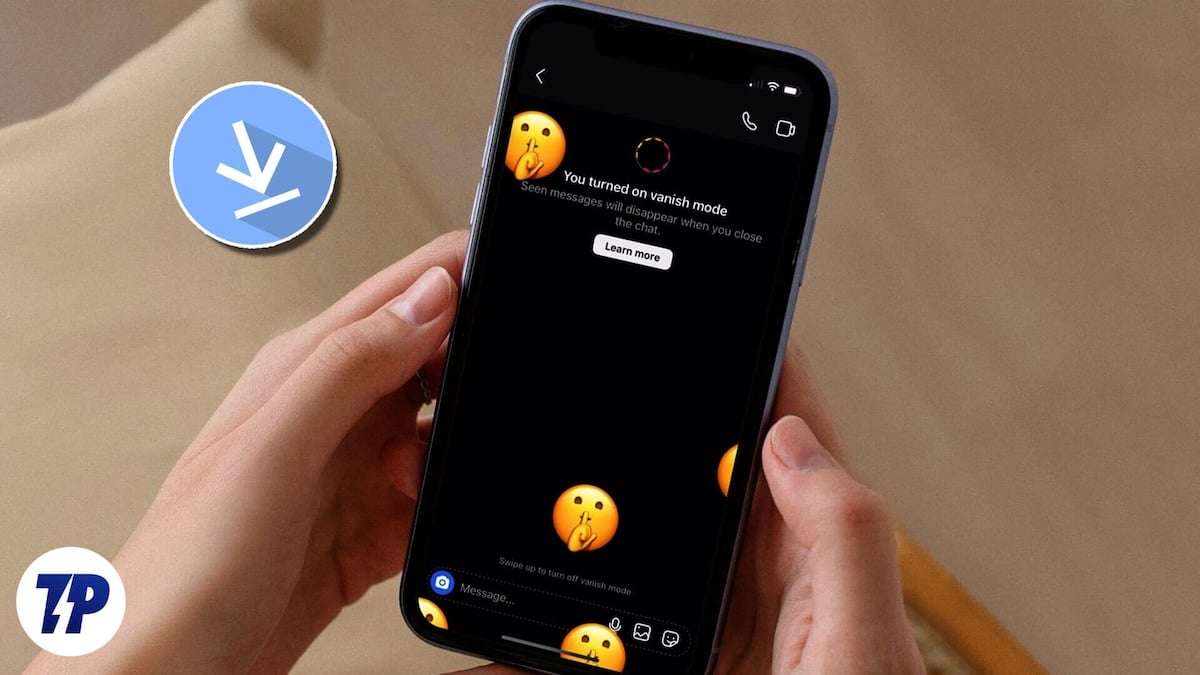
In the broader context of digital photography and sharing, this feature impacts how we perceive and interact with images. A stunning nature shot, an abstract composition, or a beautiful piece of photography shared as a disappearing message is intended for immediate appreciation, adding to the fleeting beauty of visual communication. However, if that image holds particular aesthetic or emotional value, its impermanence can be frustrating.
Why Images Disappear: Common Scenarios
Several factors can lead to WhatsApp images disappearing from your view or not being saved to your device’s gallery. Understanding these reasons is the first step toward effective preservation and recovery.
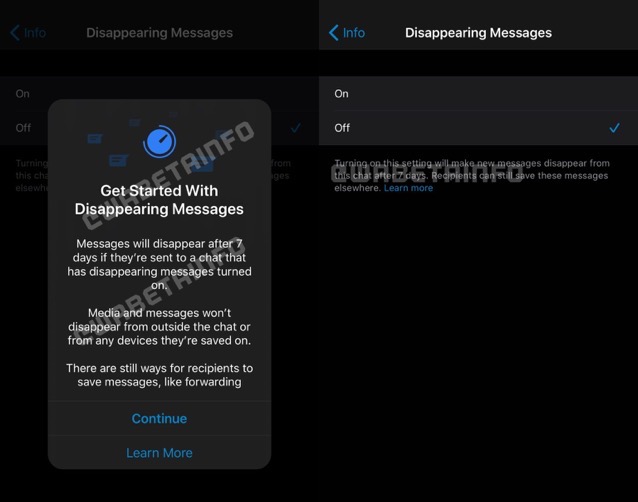
- Disappearing Messages Enabled: The most direct cause. If the chat has disappearing messages turned on, any photos or videos sent will automatically delete after the set duration.
- “View Once” Media: Photos and videos sent with the “View Once” icon (a “1” encircled) are designed to be opened only once by the recipient. After viewing, they vanish from the chat and are not saved to the recipient’s gallery. This offers maximum control over sensitive or temporary visual content.
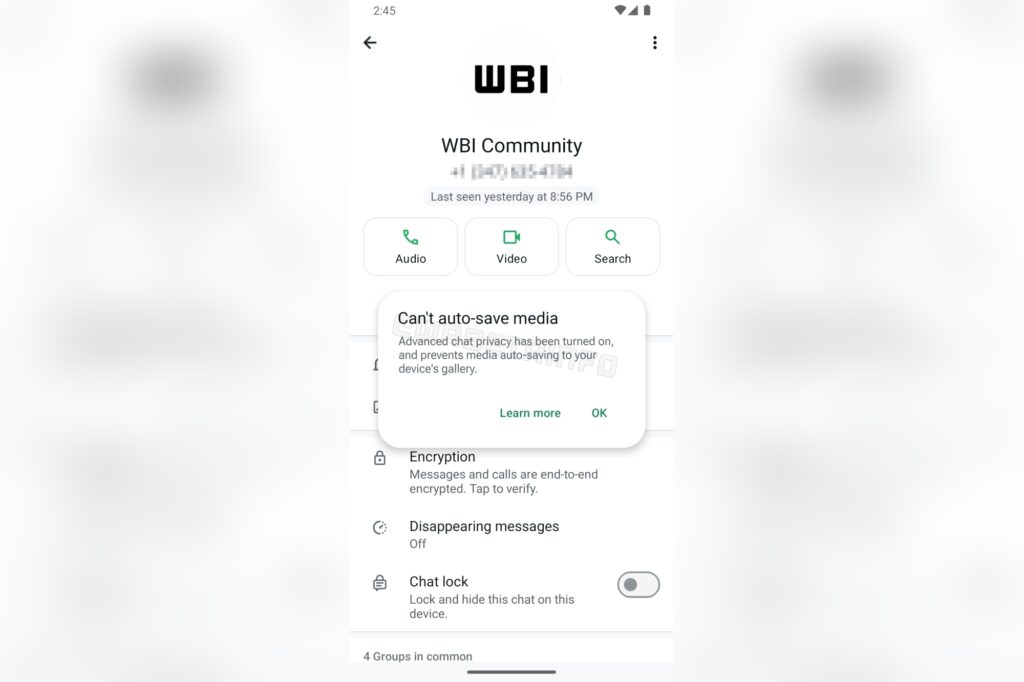
- Auto-Download Disabled: If WhatsApp’s media auto-download feature is turned off in your settings, images and videos won’t automatically save to your device’s camera roll or gallery. They might still be visible in the chat until they expire, but they won’t be locally stored.
- Accidental Deletion of WhatsApp Folder: On Android devices, if the WhatsApp media folder is accidentally deleted from your phone’s local storage, all stored images and videos associated with it will disappear.
- Insufficient Storage: Your device needs adequate storage space to save new photos and videos. If your smartphone is running low on memory, it may fail to download or save incoming media, leading to their apparent disappearance. Tophinhanhdep.com offers various image tools, including compressors and optimizers, that can help manage your device’s storage by reducing file sizes without significant quality loss, thereby preventing future storage-related issues.
- Poor Internet Connection: A weak or unstable internet connection can prevent images from fully downloading or displaying correctly. While not technically “disappeared,” they might be inaccessible until a stable connection is established.
- App Crash or Bugs: Occasionally, an app crash or a temporary software bug can cause images to not load or appear in your gallery, leading to the perception that they have vanished. Clearing the app cache or updating WhatsApp can often resolve such issues.
Tophinhanhdep.com recognizes that the loss of any visual content, whether a personal snap or a high-resolution stock photo, can be disheartening. Our platform is built on the principle of making images accessible, manageable, and inspiring, offering solutions that extend beyond the limitations of messaging apps.
Official Ways to “Keep” Disappearing WhatsApp Content
WhatsApp has introduced features that provide a degree of control over disappearing content, allowing users to save certain messages within the chat, albeit with specific conditions.
Introducing the “Keep in Chat” Feature
Recognizing the need for users to occasionally save important disappearing messages, WhatsApp rolled out the “Keep in Chat” feature. This allows you to “bookmark” or save a message, preventing it from vanishing after its set timer expires. However, there’s a significant “catch,” as highlighted by Tophinhanhdep.com’s analysis of tech trends: the sender retains the ultimate approval over whether their message can be kept. This mechanism is often referred to as the “sender superpower” by Meta (WhatsApp’s parent company), emphasizing the sender’s control over the ephemerality of their content.
Here’s how to use this feature:
- Open WhatsApp: Navigate to the chat where the disappearing message is located.
- Select the Message: Press and hold down on the specific message (text, photo, or video) you wish to save.
- Choose “Keep”: On iOS, you will see a “Keep” option appear in the context menu. On Android, look for a bookmark icon at the top of the screen and tap it.
- Sender Approval (if you’re the recipient): If you are the recipient attempting to save a sender’s disappearing message, the sender will receive a notification. They then have the option to approve or “unkeep” the message. If the sender decides to “unkeep” it, the message will revert to its disappearing status and eventually vanish. If you are the sender, your decision to “Keep” is final.
- Access Kept Messages: Once successfully kept, the message will have a small bookmark icon next to it, indicating its saved status. You can access all your kept messages for a particular chat by tapping on the contact or group name at the top of the chat, then selecting the “Kept Messages” folder.
This feature introduces an interesting dynamic between privacy and preservation. While it offers a direct way to save content, the sender’s ultimate control ensures that the spirit of ephemeral messaging is largely maintained. For visual designers or photographers, understanding this interplay is crucial when sharing initial concepts, digital art, or creative ideas that might be subject to client review or team feedback.
Auto-Download: A Proactive Approach for Media
For photos and videos specifically, activating WhatsApp’s auto-download feature is a proactive way to ensure they are saved to your device before their disappearing timer runs out, or even if they are sent as “View Once” (though “View Once” media will still disappear from the chat, a downloaded copy will remain in your gallery if downloaded prior to viewing).
When enabled, any incoming photos and videos will automatically download to your phone’s gallery or camera roll. This means that even if the message itself is set to disappear from the chat, the media file will persist on your device.
Here’s how to enable auto-download:
- Open WhatsApp: Launch the application on your smartphone.
- Go to Settings:
- On Android: Tap the three-dot menu icon in the top right corner, then select “Settings.”
- On iOS: Tap the “Settings” tab in the bottom right corner.
- Navigate to Storage and Data: In the Settings menu, find and tap on “Storage and Data.”
- Configure Media Auto-Download: Look for the “Media auto-download” section. You’ll typically see options for “When using mobile data,” “When connected on Wi-Fi,” and “When roaming.” Tap on each of these and select “Photos” and “Videos” to be auto-downloaded.
- Enable Save to Camera Roll/Media Visibility:
- On iPhone: Go back to “Settings” > “Chats” and ensure “Save to Camera Roll” is toggled on.
- On Android: Go to “Settings” > “Chats” and ensure “Media Visibility” is toggled on.
By enabling these settings, you ensure that high-resolution photography, stunning backgrounds, or aesthetic images shared by friends are seamlessly integrated into your device’s library. This allows you to later organize these images, perhaps creating new thematic collections or mood boards, directly benefiting from the inspirational content Tophinhanhdep.com champions.
Unofficial & Proactive Strategies to Preserve Ephemeral Visuals
While WhatsApp provides built-in options, there are also effective, albeit unofficial, methods to save disappearing content. These strategies are particularly useful if you want to save a message without the sender’s explicit permission or notification.
Capturing Moments: Screenshots and Screen Recordings
One of the most straightforward and immediate ways to save a visual disappearing message is to capture it as a screenshot or through screen recording. This method works for both “disappearing messages” and “View Once” media (though you must act before viewing the latter if you want to avoid it vanishing from the chat). Crucially, WhatsApp does not currently notify the sender when a recipient takes a screenshot or screen recording of a disappearing message or “View Once” media.
- Taking a Screenshot:
- On most smartphones: Open the disappearing message. Press and hold the Power button and the Volume Down button simultaneously. The image will be saved to your device’s photo gallery.
- On some iPhones (with Home button): Power button + Home button.
- On some Androids: Power button + Volume Up, or specific gesture controls.
- Screen Recording:
- Most modern smartphones (both iOS and Android) have built-in screen recording features.
- On iPhone: Access Control Center, tap the Screen Recording icon (a circle within a circle). Open the WhatsApp chat, navigate to the disappearing message, and the recording will capture it. Stop the recording from Control Center.
- On Android: Swipe down from the top of the screen to access Quick Settings, then tap the Screen Recorder icon. Follow the on-screen prompts.
- Screen recording is especially useful for capturing short videos or a sequence of messages.
These captured images or videos can be invaluable. A screenshot of a unique sad/emotional artwork shared briefly, a beautiful nature background, or an abstract pattern can instantly become a new addition to your personal collection of photo ideas or visual inspiration. Tophinhanhdep.com encourages users to explore and collect such moments, which can then be refined, edited, or transformed into stunning wallpapers or graphic design elements using our wide array of image tools.
Ethical Considerations: While technically possible, it’s important to be mindful of the sender’s intent when using these methods. Disappearing messages are often sent with an expectation of privacy and ephemerality. Respecting digital etiquette and privacy boundaries is paramount.
Manual Preservation: Copying Text and Forwarding Media
For text-based disappearing messages and media files, manual preservation offers reliable alternatives.
- Copying Message Text:
- Open the chat containing the disappearing text message.
- Press and hold the message to highlight it.
- From the options that appear, select “Copy.”
- You can then paste this text into any other application on your device – such as a notes app, an email draft, or a document. This ensures the text is saved permanently, independent of WhatsApp’s disappearing timer. This method is perfect for saving important instructions, contact details, or creative ideas communicated in text.
- Forwarding Media (Photos, Videos):
- Open the disappearing message containing the photo or video.
- Press and hold the media file.
- Select the “Forward” icon (usually an arrow pointing right).
- Choose a recipient – this can be yourself (if you have a chat with yourself or a group where you are the only participant), or a trusted contact or group where disappearing messages are not enabled.
- The forwarded media will then appear in the new chat and will no longer be subject to the disappearing message timer of the original chat. It will remain in the new chat indefinitely (unless that chat also has disappearing messages enabled).
This forwarding technique is particularly useful for curating personal visual collections. Imagine a friend sends a series of aesthetic photos of a recent trip as disappearing messages. By forwarding them to yourself, you can build a personal collection of high-resolution photography, categorized by themes like nature or travel, mirroring the diverse thematic collections found on Tophinhanhdep.com.
Exporting Chat History: A Comprehensive Record
For those who wish to keep a complete record of an entire conversation, including its disappearing messages, WhatsApp allows you to export the chat history. While this doesn’t save images directly into your gallery in their original format, it provides a text file record of all messages, and media can be included as attachments.
- Open WhatsApp: Go to the individual or group chat you wish to export.
- Access Chat Info/Options:
- On Android: Tap the three-dot menu icon in the top right corner, then select “More,” followed by “Export chat.”
- On iOS: Tap the contact or group name at the top of the chat, scroll down, and select “Export Chat.”
- Choose Media Inclusion: WhatsApp will ask if you want to “Include Media” or “Without Media.” Selecting “Include Media” will attach photos and videos as separate files within the exported archive, although their availability might depend on whether they were downloaded to your device at the time of export.
- Select Sharing Method: Choose how you want to share or save the exported chat file (e.g., email, cloud storage, another messaging app).
- Access the Exported File: The chat history will be compiled into a
.txtfile (and potentially media files in a folder if included). You can then open this file with a text editor or viewer to review the entire conversation, including the content of messages that would have otherwise disappeared.
This method offers a robust solution for archiving important conversations, especially for legal, professional, or sentimental reasons. If the exported chat contains textual descriptions of images, Tophinhanhdep.com’s “Image-to-Text” tools could be useful for extracting that information, streamlining your digital workflow and content management.
Enhancing Your Saved Images with Tophinhanhdep.com’s Tools
Once you’ve successfully saved disappearing images or extracted media from WhatsApp chats, the journey of your visual content doesn’t have to end there. Tophinhanhdep.com offers a comprehensive suite of tools and resources to help you elevate these images, ensuring they meet your aesthetic and practical needs.
Optimizing and Transforming Your Visual Assets
The images you save from WhatsApp, particularly screenshots or images shared over a messaging platform, might not always be in their optimal form. They could be compressed, of lower resolution, or in a format that isn’t ideal for your purposes. Tophinhanhdep.com provides solutions for these common challenges:
- Image Quality & AI Upscalers: Disappearing images, especially those quickly shared, may not be high-resolution. If you capture a beautiful landscape, a striking abstract design, or a unique piece of digital art via screenshot, Tophinhanhdep.com’s AI Upscalers can breathe new life into it. These tools leverage artificial intelligence to intelligently increase image resolution and detail, transforming a pixelated screenshot into a crisp, high-resolution photo suitable for a wallpaper, a print, or inclusion in a professional project. This is invaluable for preserving the integrity of any “beautiful photography” you encounter.
- File Management: Compressors and Optimizers: Saving many screenshots or forwarded media can quickly consume your device’s storage. Tophinhanhdep.com’s Compressors and Optimizers allow you to reduce file sizes without significantly compromising visual quality. This is perfect for managing your collection of aesthetic backgrounds, nature shots, or sad/emotional imagery, ensuring you can store more of what you love without worrying about running out of space. Efficient file management is key to maintaining a vibrant digital art collection.
- Creative Enhancement & Editing Styles: A saved image is often just the beginning. Tophinhanhdep.com provides insights into various Editing Styles, Digital Art techniques, and Photo Manipulation strategies. You can take a simple image saved from WhatsApp and transform it using creative filters, color corrections, or even incorporate it into a larger graphic design project. Whether you want to turn a candid snap into a dramatic piece of photography or refine an abstract image into a truly unique wallpaper, our resources guide you through the process of visual design and creative ideas.
- Image Converters: Sometimes, a screenshot might save in a
.pngformat when a.jpegis preferred for smaller file size, or vice versa. Tophinhanhdep.com’s Converters offer quick and easy ways to change image formats, ensuring compatibility with other applications or specific usage requirements. - Image-to-Text Tools: If you’ve taken screenshots of text-heavy WhatsApp messages, our Image-to-Text tools can automatically extract the textual content, making it searchable, editable, and easier to integrate into documents or notes, significantly improving productivity for research or content creation.
Maximizing Your Visual Journey with Tophinhanhdep.com
Beyond the practicalities of saving and optimizing images, Tophinhanhdep.com is a treasure trove for anyone passionate about visual content. It serves as an ultimate destination for image inspiration and collections, fostering creativity and aiding in the pursuit of visual excellence.
Discovering New Visual Inspirations
The images you encounter and save from WhatsApp can be stepping stones to broader visual exploration. Tophinhanhdep.com categorizes and presents vast collections of images tailored to diverse tastes and needs:
- Wallpapers & Backgrounds: Transform your devices with stunning Wallpapers and Backgrounds, from serene Nature scenes and bold Abstract designs to culturally rich Aesthetic compositions. The images you save from WhatsApp can even inspire you to search for similar themes or styles within our curated collections.
- Thematic Collections & Mood Boards: Whether you’re working on a Graphic Design project, curating a personal gallery, or simply seeking Photo Ideas, Tophinhanhdep.com offers Thematic Collections and guidance on creating Mood Boards. A fleeting image from a WhatsApp chat might spark an idea for a new mood board, prompting you to gather more images of a similar style, emotion (e.g., Sad/Emotional photography), or subject.
- Trending Styles: Stay abreast of the latest visual trends in photography and digital art. Tophinhanhdep.com highlights Trending Styles, helping you understand what’s current and how to apply these aesthetics to your own photography or design work, including any images you’ve salvaged from WhatsApp.
Photography & Digital Art Excellence
Tophinhanhdep.com is not just about static images; it’s about the art and science of visual creation:
- High-Resolution Stock Photos: For professional projects or simply for personal enjoyment, access a vast library of High-Resolution Stock Photos that meet the most demanding quality standards.
- Digital Photography & Editing: Dive deeper into the world of Digital Photography, learning about techniques, gear, and advanced Editing Styles. Your WhatsApp-saved images can serve as excellent practice material for experimenting with new editing software or techniques.
- Graphic Design & Creative Ideas: Explore resources on Graphic Design and find boundless Creative Ideas to fuel your projects, from simple social media posts to complex digital art pieces. The process of saving and enhancing an image from WhatsApp perfectly illustrates the iterative nature of visual design.
Conclusion
WhatsApp’s disappearing messages feature is a powerful tool for privacy and digital organization, reflecting a growing awareness of ephemeral content in our digital lives. However, its transient nature doesn’t mean that every piece of content shared within it is dispensable. From critical information to fleeting moments of beautiful photography or inspiring aesthetic visuals, there are many reasons why you might want to save a disappearing image or message.
By understanding WhatsApp’s “Keep in Chat” feature, proactively enabling auto-download for media, and employing strategic unofficial methods like screenshots, screen recordings, text copying, and chat exports, you can effectively preserve content that would otherwise vanish.
Once these precious images and messages are secured, Tophinhanhdep.com becomes your ultimate partner in their journey. Our extensive library of wallpapers, backgrounds, and diverse image collections offers endless inspiration, while our advanced image tools – including AI upscalers, compressors, optimizers, and converters – empower you to refine, enhance, and manage your visual assets with unparalleled ease and precision. Whether you’re a casual user wanting to save a memorable snap or a professional seeking to integrate a new visual element into your digital art or graphic design projects, Tophinhanhdep.com is dedicated to helping you maximize the potential of every image you encounter.
Don’t let valuable visual content disappear forever. Arm yourself with the knowledge to save it, and then unlock its full potential with the tools and inspiration available at Tophinhanhdep.com. Explore, create, and cherish your visual world.