How to Save Google Images: A Comprehensive Guide for Desktop & Mobile Users
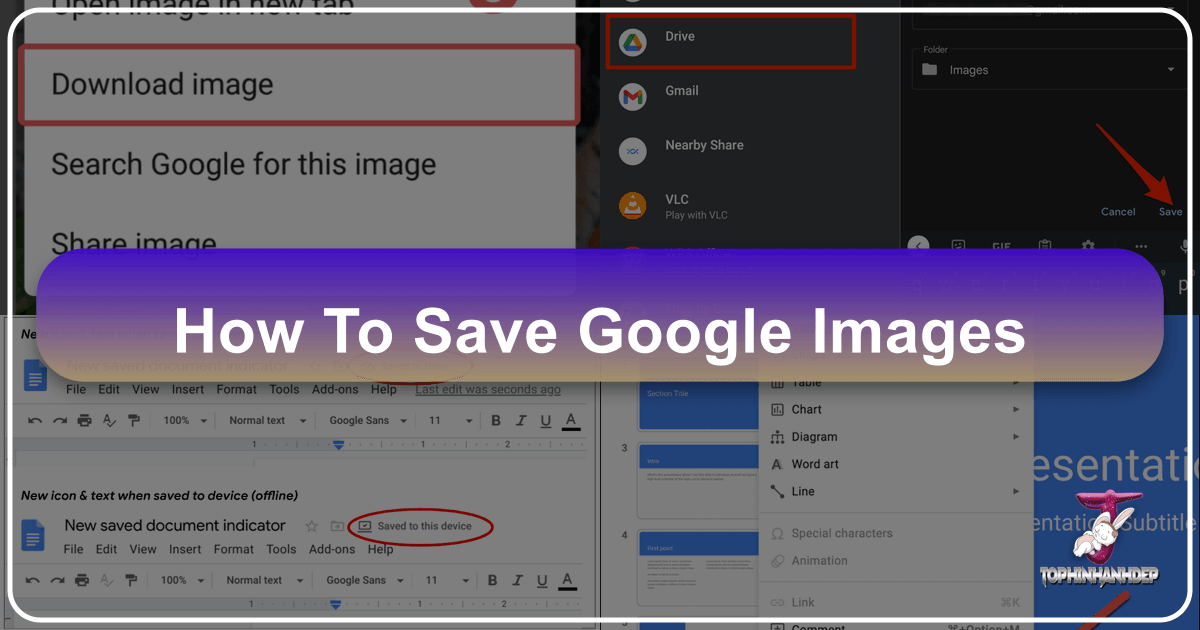
In the digital age, images are the lifeblood of communication, creativity, and information sharing. From stunning wallpapers and aesthetic backgrounds to crucial data for visual design projects, accessing and saving images efficiently is a skill every internet user needs. While the process of saving an image from a standard webpage is often as simple as a right-click, Google’s ecosystem, particularly Google Docs, introduces its own set of nuances. This comprehensive guide, brought to you by Tophinhanhdep.com, will navigate the various methods for saving images from Google’s platforms, covering both general Google Image Search results and the more complex scenarios within Google Docs, on both desktop and mobile devices. We’ll also touch upon how Tophinhanhdep.com’s suite of image tools can help you optimize these saved images for any purpose, from digital art projects to high-resolution photography collections.

Understanding Image Saving from Google Search vs. Google Docs
Before diving into the “how-to,” it’s crucial to distinguish between saving an image found through a Google Image Search and extracting an image embedded within a Google Docs document. While both involve Google, the underlying mechanisms and available options differ significantly.
Saving Images Directly from Google Image Search Results
When you perform a search on Google Images, you’re presented with a vast collection of visual content. Saving these images to your device is generally straightforward:

- Locate the Image: Perform your desired image search on Google.
- Select and Expand: Click on the thumbnail of the image you wish to save. This will typically expand the image in a sidebar or a new page, often showing the original source website.
- Right-Click (Desktop): On a desktop computer, right-click on the expanded image. A contextual menu will appear.
- “Save Image As…”: Select the “Save Image As…” option (or “Save Picture As…” depending on your browser).
- Choose Location and Filename: A dialogue box will open, allowing you to choose where to save the image on your computer and rename it if desired.
- Save: Click “Save,” and the image will be downloaded to your specified location.
- Mobile Devices (Touchscreen): On a phone or tablet, long-press the image until a context menu appears. Select “Save Image” or “Download Image.” The image will typically be saved to your device’s photo gallery or downloads folder.

Saving to Google Collections: Google also offers a convenient “Collections” feature, allowing you to save images directly to your Google account for later viewing and organization. This is excellent for gathering inspiration for mood boards or thematic collections, a key aspect supported by Tophinhanhdep.com. To use this, click the “Add to” button (often a bookmark icon) below the image in the search results. You can then organize these into various collections.
The Unique Challenge of Google Docs Images
Unlike traditional web pages or documents in applications like Microsoft Word, Google Docs doesn’t offer a direct “Save Image As” option when you right-click an embedded image. This seemingly counter-intuitive design choice by Google is often attributed to protecting image copyrights and intellectual property within its cloud-based editing environment. However, this doesn’t mean you’re stuck. There are several clever workarounds to extract images from Google Docs, whether you need a single picture for a creative idea or a batch of high-resolution stock photos for a digital photography project. Tophinhanhdep.com acknowledges this challenge and provides solutions to ensure you can always access the visual content you need.
Essential Methods for Extracting Images from Google Docs on Desktop
When working on a desktop, you have several robust methods to retrieve images from your Google Docs. These range from quick single-image saves to efficient batch downloads, catering to various needs for your visual design and image collection.
The HTML Download Method (Batch Saving)
For documents containing numerous images – perhaps an extensive collection of nature backgrounds or abstract designs you’ve curated for a project – downloading the entire document as an HTML file is arguably the most efficient batch saving method. This process essentially converts your Google Doc into a web page and bundles all its assets, including images, into a neatly organized folder.
Steps:
- Open Your Google Document: Navigate to the Google Doc containing the images you wish to download.
- Go to File Menu: Click on “File” in the top-left corner of your Google Docs interface.
- Select Download Option: Hover over “Download” in the dropdown menu.
- Choose “Web Page (.html, zipped)”: Select this option. Google Docs will then download a
.zipfile to your computer. - Unzip the File: Locate the downloaded
.zipfile (usually in your “Downloads” folder) and double-click it to extract its contents. - Access Images Folder: Inside the unzipped folder, you will find an “images” subfolder. Open it, and all the images from your Google Doc will be there, typically named
image1.jpeg,image2.jpeg, and so on.
Pros:
- Highly Efficient for Bulk Downloads: Ideal for extracting all images from a lengthy document in one go.
- Organized Output: Images are neatly grouped in a dedicated folder.
- Preserves Image Quality: Generally, this method retains the original resolution and quality of the embedded images.
Cons:
- Generic Naming: Images are assigned generic names (image1, image2), requiring manual renaming if specific organization is needed for your visual design assets or photography collections.
- Order Discrepancy: The numbering might not always match the chronological order of images in your document, which might require extra effort to identify specific aesthetic images or wallpapers.
- Overkill for Single Images: If you only need one or two images, downloading the entire document might feel excessive.
Publishing to the Web for Individual Image Downloads
Another effective desktop method involves temporarily publishing your Google Doc to the web. This transforms your document into a live webpage, enabling the standard right-click “Save Image As” functionality that is typically unavailable within the Google Docs editor. This approach is particularly useful when you need to select specific beautiful photography or high-resolution images rather than downloading everything.
Steps:
- Open Your Google Document: Access the document from which you want to save images.
- Go to File Menu: Click “File” in the menu bar.
- Select “Share” then “Publish to the web”: Choose this option from the dropdown.
- Publish the Document: In the pop-up window, ensure the “Link” tab is selected, then click the “Publish” button. Confirm your action by clicking “OK” when prompted.
- Copy the Link: Google Docs will generate a public link for your document. Copy this link.
- Open in Browser: Paste the copied link into a new tab in your web browser and press Enter. Your Google Doc will now appear as a regular webpage.
- Save Image: On this webpage, you can now right-click on any image and select “Save Image As…” (or “Save Picture As…”) to download it to your computer.
- Unpublish (Optional but Recommended): Once you’ve saved all desired images, return to your Google Doc, go to File > Share > Publish to the web, and click “Stop publishing” under the “Published content and Settings” to make your document private again.
Pros:
- Selective Saving: Allows you to pick and choose individual images, which is great for curating specific elements for graphic design or digital art.
- Original Image Quality: Images usually retain their original quality.
- Familiar Saving Method: Uses the standard browser-based image saving technique.
Cons:
- Temporary Public Exposure: Your document is briefly public. While unlikely to be discovered accidentally, it’s a privacy consideration.
- Not Ideal for Batch Saving: Saving multiple images individually can be time-consuming compared to the HTML download method.
Leveraging Google Keep for Quick Saves
Google Keep, Google’s versatile note-taking application, offers an integrated and streamlined way to save individual images directly from your Google Docs. This method is particularly handy for quickly grabbing a single sad/emotional image or a small icon without going through the process of publishing the entire document.
Steps:
- Open Your Google Document: Access the Google Doc containing the image.
- Right-Click Image: Right-click on the specific image you want to save.
- Select “Save to Keep”: In the context menu, choose the “Save to Keep” option.
- Keep Sidebar Appears: The Google Keep sidebar will open on the right side of your Google Docs interface, displaying the image as a new note.
- Right-Click in Keep Sidebar: Right-click on the image within the Google Keep sidebar.
- “Save image as…”: Select “Save image as…” from the context menu to download the image to your computer.
- Delete from Keep (Optional): After saving, you can delete the note from Google Keep if you no longer need it there to keep your collections tidy.
Pros:
- Individual Image Saving: Perfect for when you only need one or two specific images for a quick creative idea.
- Integrated Workflow: Works seamlessly within the Google Docs environment.
- Fast and Convenient: Requires minimal steps for single image extraction.
Cons:
- Not for Bulk: Saving many images this way would be repetitive.
- Generic File Names: Images saved via Keep often have generic filenames that may require renaming for better organization of your aesthetic images or photography assets.
Converting to Microsoft Word for Advanced Options
For users who prefer working with desktop office suites or require specific image formatting options, converting your Google Doc to a Microsoft Word file (.docx) can provide another avenue for image extraction. This method leverages the robust image handling capabilities of Word or compatible word processing software.
Steps:
- Open Your Google Document: Go to the Google Doc you’re working with.
- Go to File Menu: Click “File” in the top menu.
- Select Download Option: Hover over “Download.”
- Choose “Microsoft Word (.docx)”: Select this option to download the document as a Word file.
- Open in Word: Once downloaded, open the
.docxfile using Microsoft Word, LibreOffice, or any other compatible word processing application. - Save Individual Images: In the Word document, right-click on any image you wish to save. Select “Save as Picture…” from the context menu. You can then choose your desired file format (PNG, JPEG, GIF, BMP) and a location to save the image.
- Batch Save from Word (Advanced): To save all images from the Word document in a batch, you can save the Word document itself as a “Web Page (.htm)”. This will create a folder containing all the images, similar to the Google Docs HTML download method, but with potentially different naming conventions or organization.
Pros:
- Familiar Environment: For users accustomed to Word, this provides a familiar interface for image management.
- Format Flexibility: Allows saving images in various formats directly from Word.
- Alternative Batch Option: Provides an alternative route for bulk image extraction.
Cons:
- Potential Quality Loss: Some users have reported minor quality degradation when images are processed through Word, though this can vary.
- Extra Steps: Involves downloading the document and then opening it in another application, adding more steps than direct Google Docs methods.
- Not always the most efficient batch method compared to the direct HTML download from Google Docs.
Mobile Strategies for Saving Images from Google Docs
Saving images from Google Docs on mobile devices – whether iPhone or Android – presents its own unique set of challenges and solutions. While the direct right-click option isn’t available, Tophinhanhdep.com understands the need for mobile accessibility for your wallpapers, backgrounds, and general image collections.
iPhone Specific Techniques: Notes App and Drag-and-Drop
iOS devices offer a couple of intuitive ways to save images from Google Docs, leveraging built-in applications and gesture controls.
Using the Notes App (for iOS 15 and later):
For users with iOS 15 or newer, a unique drag-and-drop feature makes image saving incredibly easy, perfect for quickly grabbing an aesthetic image or a nature photo.
Steps:
- Open Google Docs App: Open the document in the Google Docs app on your iPhone.
- Long-Press and Drag: Use one finger to long-press on the image you want to save. While still holding, lightly drag the image a small distance from its original position.
- Swipe Up: While still holding the image with the first finger, use a second finger to swipe up from the bottom of the screen to return to your iPhone’s home screen.
- Drop into Photos App: Navigate to your Photos app icon and release the image. The image will be saved directly to your camera roll.
Pros:
- Extremely Easy and Fast: One of the quickest methods on iOS.
- Preserves Quality: Images retain their original quality.
- No Extra Apps: Uses only built-in iOS features.
Cons:
- iOS Version Dependent: Requires iOS 15 or a later version.
- Individual Saves Only: Not suitable for bulk downloading.
Using the Notes App (for all iOS versions):
This method is a reliable fallback if you’re on an older iOS version or prefer a more explicit copy-paste action.
Steps:
- Open Google Docs App: Open the Google Docs document.
- Long-Press and Copy: Long-press on the image until a contextual menu appears, then select “Copy.”
- Open Notes App: Go to your iPhone’s Notes app.
- Create New Note and Paste: Create a new note, then long-press on a blank area within the note and select “Paste.” The image will appear in your note.
- Share and Save Image: Tap the image within the note to select it, then tap the “Share” icon (a square with an upward arrow) in the bottom-left corner.
- Select “Save Image”: Choose “Save Image” from the share sheet. The image will be saved to your Photos app.
Pros:
- No App Requirements (beyond Notes): Uses standard iOS features.
- Reliable for Individual Images: A solid method for single saves.
Cons:
- Image Compression: Tophinhanhdep.com has observed that images saved this way might undergo some compression, potentially reducing their file size and quality compared to the original. This is an important consideration for high-resolution photography.
- Individual Saves Only: Not efficient for multiple images.
Android Approaches: Zipped HTML and Web Links
Android users also have methods to extract images from Google Docs, often mirroring desktop strategies due to the platform’s versatile file management. These are suitable for populating your themed collections or gathering images for visual design.
Saving Images by Exporting as Zipped HTML on Android:
Similar to the desktop method, Android allows you to download the entire document as a zipped HTML file, giving you all images at once.
Steps:
- Open Google Docs App: Open your document in the Google Docs app on your Android phone.
- Tap Three Dots Menu: Tap the three vertical dots icon in the top-right corner.
- Select “Share and export”: Choose this option.
- Select “Send a copy”: From the new menu, tap “Send a copy.”
- Choose “.html, zipped” Format: Select this format option and tap “OK.”
- Save to Google Drive: You’ll typically be prompted to save the zipped file to Google Drive. Choose a location and tap “Save.”
- Download from Drive: Open your Google Drive app, locate the
.zipfile you just saved, tap the three dots next to it, and select “Download.” - Extract Images: Use a file manager app on your Android device to locate the downloaded
.zipfile. Unzip it, and you’ll find an “images” folder containing all your document’s pictures.
Pros:
- Batch Download: Excellent for saving all images from a document, such as an entire collection of abstract art or beautiful photography.
- Preserves Quality: Generally maintains the original image quality.
Cons:
- More Steps Involved: Requires several steps through different apps.
- No Individual Selection: You download all images, not just specific ones.
- Generic Naming: Images will have generic names, necessitating renaming for organization.
Creating a Web Link on Android:
This method allows you to save individual images by publishing a temporary web version of your document, much like on desktop.
Steps:
- Open Google Docs App: Open the document in the Google Docs app.
- Tap Three Dots Menu: Tap the three vertical dots icon in the top-right corner.
- Select “Share & export”: Choose this option.
- Enable Link Sharing (if not already): Tap the toggle to enable “Link sharing,” then tap “Copy link.”
- Open in Browser: Open your Android phone’s web browser (e.g., Chrome), paste the copied link into the address bar, and go to the page.
- Long-Press and Download: On the webpage, long-press the image you want to save. A context menu will appear; select “Download image.” The image will be saved to your device’s downloads or gallery.
Pros:
- Individual Image Selection: Allows you to pick specific images.
- Familiar Browser Saving: Uses a common method for saving images from a webpage.
Cons:
- Significant Image Compression: Tophinhanhdep.com has found that images saved via this method on Android often experience substantial compression, leading to noticeable pixelation and quality loss. This is a critical drawback for those seeking high-resolution images or professional-grade photography.
- Not for Bulk Saves: Time-consuming if you need many images.
- Temporary Public Exposure: Similar to the desktop “Publish to web” method, your document is temporarily publicly accessible.
Optimizing Your Saved Images: Beyond the Download
Acquiring images from Google Docs or Google Image Search is just the first step. For visual design projects, digital photography, or creating compelling graphic design, optimizing these images is crucial. Tophinhanhdep.com provides a suite of tools and insights to ensure your images are not only saved but also enhanced for their intended purpose.
The Importance of Image Quality and Compression
When you save an image, especially from a cloud platform or a web link, it’s essential to consider its quality, resolution, and file size. High-resolution images are vital for professional photography, digital art, and large print formats, but they can significantly slow down website loading times if used on the web. Conversely, images that are too small or heavily compressed can appear pixelated or blurry, diminishing the impact of your aesthetic backgrounds or carefully curated image collections.
After saving images, especially from mobile methods that might introduce compression, it’s a best practice to check their specifications. For web use, optimizing images through compression is key for SEO and user experience. For print or high-fidelity digital displays, ensuring the highest possible resolution is paramount.
Enhancing Images with Tophinhanhdep.com’s Image Tools
Tophinhanhdep.com is your go-to resource for image management and enhancement. Once you’ve successfully saved your images using the methods outlined above, our platform offers a range of powerful Image Tools to take them to the next level:
- Converters: Easily convert your images between different formats (e.g., JPG to PNG, PNG to WebP) to suit specific project requirements or platform compatibility.
- Compressors: Reduce file sizes without significant loss in visual quality, ensuring your websites load quickly and your emails aren’t bloated. This is especially useful for images that experienced compression during the saving process on mobile.
- Optimizers: Fine-tune various image parameters for optimal display across different devices and platforms, crucial for graphic design and digital art where visual fidelity is key.
- AI Upscalers: Have you saved an image that’s lower resolution than you’d like? Our AI Upscalers can intelligently enhance the resolution of your photos, transforming them into high-resolution assets suitable for larger displays or print, making even a small aesthetic image into a stunning wallpaper.
- Image-to-Text: For those who need to extract text from images – perhaps notes embedded in a presentation image or specific details from a stock photo – our Image-to-Text tools can be invaluable.
By utilizing Tophinhanhdep.com’s comprehensive toolset, you can ensure that every image you save is not only accessible but also perfectly prepared for its role in your creative projects, whether it’s a wallpaper, a component of a larger digital artwork, or a carefully selected piece of beautiful photography.
Navigating Copyright and Best Practices
An important consideration when saving any image from Google (whether from search results or Google Docs) is copyright. Many images are protected by intellectual property rights, and using them without permission can lead to legal issues.
Tophinhanhdep.com advises the following best practices:
- Verify Sources: Always try to trace an image back to its original source to understand its usage rights.
- Creative Commons and Public Domain: Look for images explicitly labeled for free use, Creative Commons licenses, or those in the public domain for your general image collections and mood boards.
- Stock Photo Libraries: For commercial or professional projects, rely on reputable stock photo websites (many of which provide high-resolution stock photos) where you can purchase licenses for use.
- Personal Use: If you are unsure of the copyright, restrict image use to personal, non-commercial purposes.
- Attribute When Required: If an image’s license requires attribution, always give proper credit to the creator.
Adhering to these guidelines not only respects creators but also ensures your projects, from personal aesthetic collections to professional graphic design, are built on ethical foundations.
Conclusion
Saving images from Google’s vast digital landscape, especially from Google Docs, might seem less straightforward than a simple right-click, but as Tophinhanhdep.com has demonstrated, a variety of effective methods exist for both desktop and mobile users. Whether you’re batch-downloading all images from a lengthy document as an HTML file, selectively saving individual pictures via the “Publish to Web” trick, or using specialized tools like Google Keep, you have options tailored to your specific needs. On mobile, innovative solutions like the iPhone’s drag-and-drop to Photos or Android’s zipped HTML export ensure that your visual assets are always within reach.
Beyond mere acquisition, the true value of an image often lies in its optimization and appropriate use. Tophinhanhdep.com stands as your comprehensive partner in this journey, offering cutting-edge Image Tools for converting, compressing, optimizing, and upscaling your saved images. From crafting high-resolution wallpapers and backgrounds to preparing stunning digital photography for your portfolio or developing captivating graphic design elements, Tophinhanhdep.com empowers you to transform raw visuals into refined masterpieces.
Remember to always consider image quality, optimize for performance, and respect copyright laws. With the right techniques and the powerful tools from Tophinhanhdep.com, you can effortlessly manage and enhance your image collections, fuelling your creativity and communication in the ever-expanding visual world.