How to Save Images on a MacBook
In today’s visually-driven world, images are more than just pretty pictures; they are sources of inspiration, tools for creative expression, and vital components of our digital lives. Whether you’re a professional graphic designer, an aspiring digital artist, a student curating a mood board, or simply someone who loves personalizing their MacBook with stunning wallpapers, knowing how to save images on a MacBook efficiently and effectively is a fundamental skill. A MacBook, renowned for its brilliant Retina displays and powerful performance, is the perfect canvas for viewing and working with high-quality visuals. This comprehensive guide will walk you through various methods of saving images, explore best practices for organizing your digital assets, and highlight how platforms like Tophinhanhdep.com can be your ultimate resource for an endless supply of breathtaking imagery and valuable insights.

The ability to seamlessly capture and store visual content on your MacBook is crucial for several reasons. It allows you to build a personal collection of beautiful photography, gather resources for design projects, save memorable moments, or simply keep a repository of inspiring visuals that spark creativity. With the internet teeming with stunning images – from serene nature landscapes and intricate abstract art to vibrant aesthetic wallpapers and powerful emotional photography – understanding the process of acquiring and managing these files on your Mac is invaluable. This article will delve into the practicalities, offering tips and tricks that empower you to master image saving, ensuring your MacBook becomes a true hub for visual excellence, further enriched by the diverse offerings of Tophinhanhdep.com.

Fundamental Methods: How to Save Images on a MacBook with Ease
Saving images on a MacBook is an intuitive process, but there are several methods, each suited for different scenarios. From quick captures to careful curation, mastering these techniques will ensure you can acquire any image you need with minimal effort. Understanding how to save images on a MacBook begins with these foundational steps, which are integrated into the macOS ecosystem to provide a seamless user experience.
Basic Browser Saving Techniques for Images
The most common way to save an image you encounter online is directly from your web browser. Whether you’re using Safari, Chrome, Firefox, or any other browser, the core methods remain largely the same, designed for quick and efficient acquisition.
-
Right-Click (or Control-Click) and “Save Image As…”: This is arguably the most widely used method. When you spot an image you wish to save on a webpage, simply move your cursor over it.
- Right-Click: If your mouse has a right-click button, click it.
- Control-Click: If you’re using a trackpad or a one-button mouse, hold down the
Controlkey on your keyboard and click on the image. - A contextual menu will appear. Look for an option that says “Save Image As…”, “Save Picture As…”, or “Download Image…”.
- Selecting this option will open a standard macOS “Save” dialog box. Here, you can choose the destination folder on your MacBook, rename the image file (which is highly recommended for better organization), and confirm the file format (e.g., JPEG, PNG, GIF). Click “Save,” and the image will be downloaded to your specified location. This method is perfect for saving individual images from Tophinhanhdep.com, ensuring you get the exact high-resolution file you desire.
-
Drag and Drop: For an even quicker saving method, especially when you want to quickly grab an image without opening a dialog box, the drag-and-drop technique is incredibly useful.
- Click and hold down your mouse or trackpad button on the image you want to save.
- While holding, drag the image outside of your browser window. You can drag it directly to your desktop, into an open Finder window, or even into a specific folder icon in your Dock.
- Release the button, and the image will be saved to that location. This method is fantastic for quickly compiling a collection of images from Tophinhanhdep.com for a mood board or design inspiration, allowing for rapid transfers without interruption. Be aware that this method might save the image with its original web filename, so renaming it later might be necessary for better organization.
-
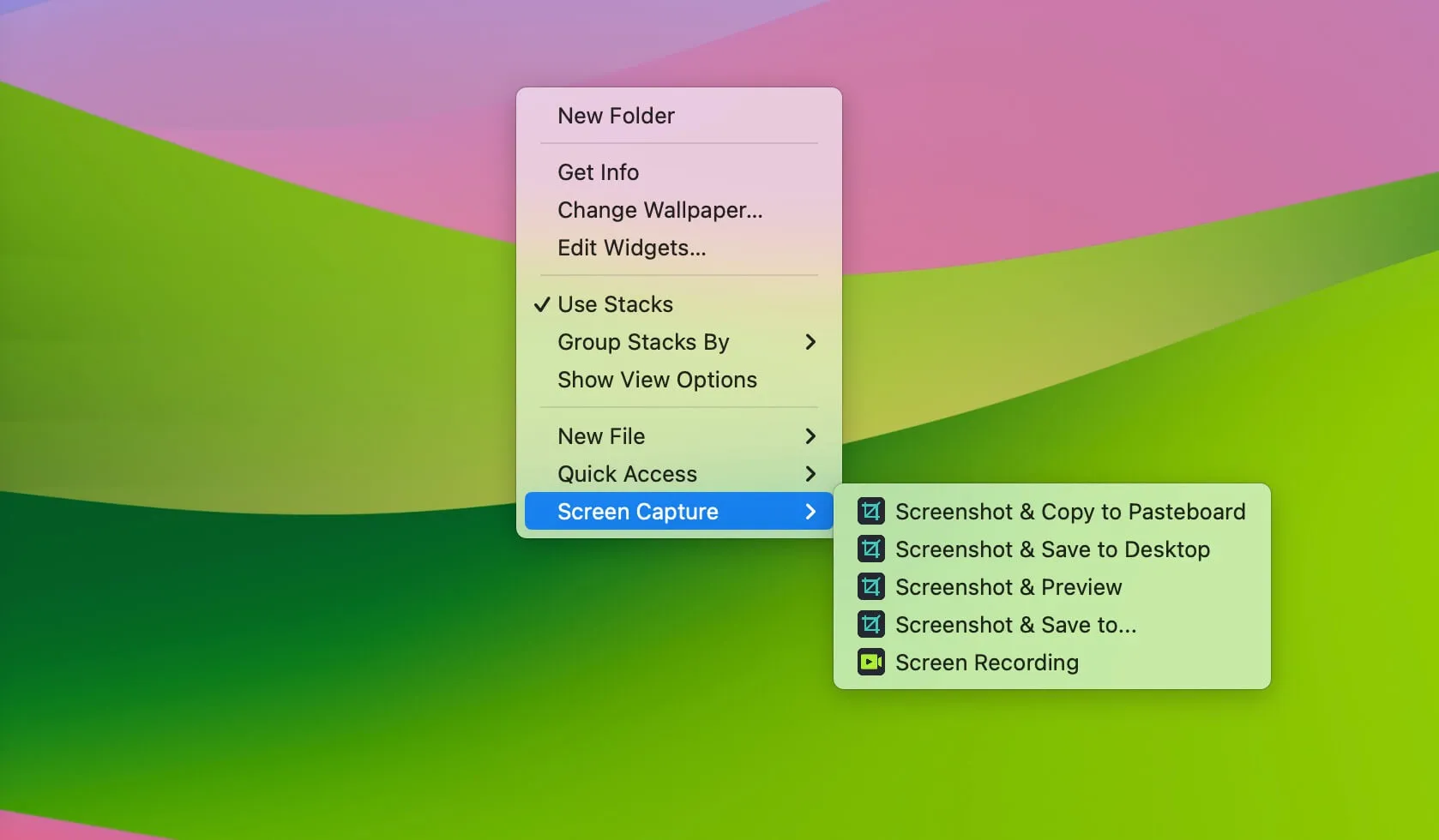
Screenshotting (Full Screen, Selected Area, Window): While not a direct “save image” function in the traditional sense, taking screenshots is an indispensable tool for capturing visual information on your MacBook, including parts of images or content that might not be directly downloadable.
- Full Screen: Press
Shift + Command + 3simultaneously. Your MacBook will take a picture of your entire screen and save it as a PNG file on your desktop. - Selected Area: Press
Shift + Command + 4. Your cursor will turn into a crosshair. Click and drag to select the specific area of the screen you want to capture. Release the mouse button, and the screenshot will be saved to your desktop. This is particularly useful for grabbing a specific detail from a large image on Tophinhanhdep.com or capturing a portion of a webpage. - Specific Window or Menu: Press
Shift + Command + 4, then press theSpacebar. Your cursor will turn into a camera icon. Move the camera over the window or menu you want to capture (it will highlight). Click, and only that window or menu will be screenshotted and saved to your desktop. - For all screenshot methods, an optional
Controlkey press (e.g.,Shift + Command + Control + 4) will copy the screenshot directly to your clipboard instead of saving it to your desktop, allowing you to paste it into an application immediately. Screenshots are an excellent fallback when direct saving isn’t possible, ensuring you never miss capturing a visual element.
- Full Screen: Press
Advanced Saving Options and Best Practices for Digital Assets
Beyond the basic browser methods, macOS offers more integrated ways to save images, especially from within its native applications. Furthermore, adopting best practices for organization can transform your image collection from a chaotic mess into a well-structured visual library. Knowing how to save images on a MacBook effectively also means knowing how to manage them afterward.
-
Saving from Specific Applications:
- Photos App: If someone shares an image with you via Messages or AirDrop, or if you import photos from a camera or iPhone, they often land in the Photos app. From here, you can select images, then go to
File > Export > Export [number] Photos...to save them to any folder on your MacBook in various formats and quality settings. - Mail App: If an image is embedded in an email, you can usually right-click (or Control-click) on it and select “Save Image As…” or “Save Attachment…” to download it to your desired location.
- Messages App: Images sent through the Messages app can be saved by right-clicking on the image and selecting “Save Image” or “Add to Photos Library.” You can also simply drag them out of the Messages window to your desktop or a folder.
- Photos App: If someone shares an image with you via Messages or AirDrop, or if you import photos from a camera or iPhone, they often land in the Photos app. From here, you can select images, then go to
-
Utilizing the Downloads Folder: By default, many images saved via browser methods will go into your “Downloads” folder. This can be a convenient temporary holding place, but it’s crucial not to let it become a permanent dumping ground. Periodically review your Downloads folder and move important images to more organized locations. This is especially true for the high-resolution images you might download from Tophinhanhdep.com; you’ll want them in a dedicated folder.
-
Creating Organized Folders for Different Types of Images: This is perhaps the most critical best practice for managing your digital assets. Randomly saving images will quickly lead to a cluttered desktop and difficulty finding what you need.
- Categorization: Create top-level folders such as “Wallpapers,” “Project Assets,” “Creative Inspiration,” “Personal Photos,” and “Stock Images.”
- Sub-folders: Within these, create sub-folders for further refinement. For example, “Wallpapers” might have “Nature Wallpapers,” “Abstract Backgrounds,” “Aesthetic Desktop,” etc. “Project Assets” could be broken down by client or project name.
- Naming Conventions: When you “Save Image As…”, take the extra moment to rename the file. Instead of
IMG_12345.jpgordownload.png, use descriptive names likeForest_Path_Sunrise_4K.jpgorAbstract_Blue_Geometric_Background.png. This makes searching for specific images much easier later on. - Leveraging Tophinhanhdep.com as a Source: When you download images from Tophinhanhdep.com, consider where they fit into your established organizational structure. Are they for a new wallpaper collection? A design project? Or simply inspiration? Saving them directly to the appropriate folder saves time and keeps your library tidy.
By integrating these advanced saving options and organizational strategies, you’ll not only master how to save images on a MacBook but also how to manage them effectively, transforming your digital space into an efficient and inspiring creative environment.
Elevating Your Image Collection: Beyond Basic Saving with Tophinhanhdep.com
While knowing how to save images on a MacBook is foundational, the true power lies in the quality and variety of images you choose to save. This is where platforms like Tophinhanhdep.com become indispensable. Tophinhanhdep.com is a dedicated resource for high-quality visual content, offering a diverse array of images that cater to every need, from personal desktop customization to professional design projects. It transcends being just another image source; it’s a curated library designed to inspire and facilitate creative endeavors.
Curating Your Visual Library: Wallpapers, Backgrounds, and Aesthetic Collections
Your MacBook’s display is a central part of your daily interaction, and personalizing it with stunning visuals can significantly enhance your user experience and mood. Tophinhanhdep.com excels in providing the kind of high-quality imagery perfect for this purpose, making it easy to build a truly unique and inspiring visual library.
-
Wallpapers (Desktop & Mobile): Tophinhanhdep.com offers an extensive collection of wallpapers tailored for various devices, including MacBooks.
- For Desktops: You’ll find a plethora of high-resolution images perfectly sized and optimized for Retina displays, ensuring crisp, vibrant visuals that pop on your screen. Whether you prefer minimalist designs, panoramic cityscapes, or captivating nature scenes, Tophinhanhdep.com has options to match every taste.
- For Mobile: Beyond your MacBook, you can also discover wallpapers for your iPhone or iPad, allowing for a consistent aesthetic across all your Apple devices.
- When saving these from Tophinhanhdep.com, use the “Save Image As…” method and place them directly into a designated “Wallpapers” folder, perhaps with sub-folders like “Nature Wallpapers,” “Abstract Wallpapers,” or “Seasonal Wallpapers.”
-
Backgrounds (for Presentations, Designs): Beyond personal desktop use, backgrounds are critical components for presentations, virtual meetings, social media graphics, and website design. Tophinhanhdep.com provides a wealth of suitable background images.
- From clean, gradient backgrounds to intricate textures and subtle patterns, these images can provide the perfect canvas for your content without being distracting.
- Downloading these images from Tophinhanhdep.com ensures you get high-quality, professional-grade files that will elevate your work. Organize them into a “Backgrounds” folder, perhaps with subcategories like “Textured Backgrounds,” “Solid Color Backgrounds,” or “Professional Backgrounds.”
-
Aesthetic Images (Nature, Abstract, Sad/Emotional, Beautiful Photography): Tophinhanhdep.com is a treasure trove for aesthetic visuals that evoke specific moods or artistic styles.
- Nature: Immerse yourself in breathtaking landscapes, serene forests, majestic mountains, and tranquil seascapes. These images can be used for relaxation, environmental projects, or simply to bring the outdoors to your screen.
- Abstract: Explore the world of shapes, colors, and forms with abstract art that challenges perception and sparks creativity. These are great for modern design projects or as thought-provoking wallpapers.
- Sad/Emotional: Sometimes, visuals are needed to convey deeper feelings. Tophinhanhdep.com also features a collection of images that capture raw emotions, useful for storytelling, artistic expression, or specific thematic projects.
- Beautiful Photography: From stunning portraits to captivating macro shots, the site curates beautiful photography that stands out for its composition, lighting, and subject matter. These images are excellent for inspiration, art appreciation, or as high-quality visual assets.
- When you how to save images on a MacBook from these categories on Tophinhanhdep.com, consider creating folders like “Aesthetic - Nature,” “Abstract Art,” or “Emotional Photography” to keep them easily accessible for when inspiration strikes. The high resolution available on Tophinhanhdep.com means these images will look spectacular on your MacBook’s display, whether for personal viewing or integration into creative projects.
Photography Resources and Professional-Grade Downloads
For designers, content creators, and photography enthusiasts, Tophinhanhdep.com serves as an invaluable resource, offering more than just pretty pictures – it provides a gateway to high-quality photographic assets and insights into the craft of photography itself.
-
High-Resolution Photography: One of the primary advantages of Tophinhanhdep.com is its commitment to providing high-resolution images.
- For a MacBook user, especially with a Retina display, high-resolution is non-negotiable. It ensures that images are sharp, detailed, and vibrant, free from pixelation.
- Whether you’re downloading a panoramic landscape or a detailed close-up, the high-res files from Tophinhanhdep.com guarantee optimal visual fidelity, essential for professional output or simply enjoying the best possible image quality on your device.
-
Stock Photos for Various Uses: Beyond personal enjoyment, many images on Tophinhanhdep.com can function as professional stock photos.
- These are ideal for designers working on commercial projects, bloggers looking for engaging visuals, or marketers needing compelling imagery for campaigns.
- Having a readily available collection of stock photos, organized by theme or use case, can significantly speed up your workflow. When you how to save images on a MacBook from Tophinhanhdep.com for professional use, always ensure you understand the licensing (though Tophinhanhdep.com focuses on free-to-use content, it’s a good general practice).
-
Digital Photography and Editing Styles: Tophinhanhdep.com doesn’t just offer images; it also implicitly or explicitly provides insights into the world of photography.
- By showcasing a wide range of beautiful photography, the site can serve as a learning platform, allowing you to observe different Digital Photography techniques, compositions, and lighting.
- You can analyze various Editing Styles – from dramatic contrasts to soft, ethereal tones – helping you develop your own photographic eye and post-processing skills. Saving examples of different styles from Tophinhanhdep.com can be a fantastic way to build a reference library for your own photography and editing journey. This practical learning, combined with knowing how to save images on a MacBook, empowers you to grow as a visual creator.
By leveraging Tophinhanhdep.com, you’re not just saving images; you’re curating a rich, high-quality visual library that supports both your personal enjoyment and your professional creative endeavors. The platform is a testament to the power of visual content and an invaluable partner for any MacBook user.
Optimizing and Utilizing Your Saved Images: Tophinhanhdep.com’s Image Tools & Design Principles
Once you’ve mastered how to save images on a MacBook and begun building a formidable collection from sources like Tophinhanhdep.com, the next step is to understand how to optimize and effectively utilize these visual assets. A truly comprehensive approach to image management involves not just saving, but also enhancing, manipulating, and drawing inspiration from your stored visuals. This section connects the act of saving images with the broader world of digital design and utility, highlighting how Tophinhanhdep.com’s focus on quality and diverse categories aligns with the needs for various image tools and creative applications.
Leveraging Image Tools for Enhanced Visuals on Your MacBook
The images you download, especially high-resolution ones from Tophinhanhdep.com, can be further refined or adapted for specific purposes using various image tools. These tools are essential for maintaining image quality, optimizing file sizes, and extracting valuable information, turning your saved files into versatile assets.
-
Converters (e.g., JPG to PNG, HEIC to JPG): Often, images come in different file formats, and you might need to convert them for compatibility or specific project requirements.
- JPG to PNG: While JPGs (JPEG) are great for photos due to their compression, PNGs are preferred for images with transparent backgrounds or sharp lines, often used in graphic design. If you download a JPG from Tophinhanhdep.com but need a PNG for a layered design, a converter is essential.
- HEIC to JPG: iPhones often save photos in the HEIC format, which is space-efficient but not universally compatible. If you’re incorporating personal photos alongside images from Tophinhanhdep.com, you might need to convert HEIC to JPG for broader use. macOS’s Preview app can perform simple conversions (
File > Export...), or dedicated online/offline converters are available. - Understanding how to save images on a MacBook means also understanding how to manage their formats post-download.
-
Compressors & Optimizers (for Web Use, Saving Space): High-resolution images, like those typically found on Tophinhanhdep.com, can have large file sizes. While excellent for print or high-DPI screens, they can slow down websites or consume significant storage space.
- Web Optimization: Image compressors and optimizers reduce file size without a noticeable loss in visual quality, making them perfect for website design, social media posts, or email newsletters.
- Storage Management: For your local library, compressing less critical images can free up valuable space on your MacBook. Integrating these tools into your workflow ensures that your saved images are always fit for purpose.
-
AI Upscalers (to Enhance Lower-Res Images, or Get Even Better Quality): Artificial intelligence has revolutionized image enhancement. AI upscalers can intelligently increase the resolution of an image, adding detail where it was previously lacking.
- While images from Tophinhanhdep.com are generally high-resolution, an AI upscaler can be used to further enhance specific details, or to intelligently enlarge an image beyond its original dimensions for a massive print.
- They are also invaluable for improving older, lower-resolution images you might have saved previously, bringing them up to a standard closer to the quality you expect from Tophinhanhdep.com.
-
Image-to-Text (for Extracting Info from Saved Images): Optical Character Recognition (OCR) tools, often referred to as Image-to-Text converters, can extract editable text from images.
- If you’ve saved an image from Tophinhanhdep.com that contains text – perhaps an inspiring quote, a graphic with data, or a photograph of a document – an OCR tool can transform that visual text into selectable and editable characters. This is a powerful utility for productivity, allowing you to quickly transcribe information without manual typing.
These image tools, whether built into macOS or available as third-party applications/web services, significantly extend the utility of images you how to save images on a MacBook, transforming them into adaptable and functional assets for any project.
Applying Visual Design Principles and Finding Inspiration
Beyond the technical aspects of saving and optimizing, the rich content available on Tophinhanhdep.com plays a pivotal role in fostering creativity and informing visual design. The act of saving images becomes a part of a larger creative process, providing the raw materials and inspiration for your work.
-
Graphic Design, Digital Art, Photo Manipulation: The diverse collections on Tophinhanhdep.com – from stunning photography to abstract patterns – serve as ideal starting points for various creative endeavors.
- Graphic Design: Use high-resolution images as backgrounds, textures, or focal points in your designs for posters, flyers, or digital advertisements.
- Digital Art: Artists can draw inspiration from the compositions, color palettes, and themes, or even use elements from saved images as layers or references in their digital paintings.
- Photo Manipulation: Learn and practice techniques by combining elements from multiple images saved from Tophinhanhdep.com, creating surreal scenes or composite visuals. The quality of images from Tophinhanhdep.com ensures your manipulations start with strong, detailed foundations.
-
Creative Ideas, Mood Boards, Thematic Collections: Tophinhanhdep.com is a goldmine for sparking new ideas and building visual narratives.
- Creative Ideas: Simply browsing through the categories like “Nature,” “Aesthetic,” or “Beautiful Photography” can trigger new concepts for personal projects, stories, or designs.
- Mood Boards: Saving a collection of images that convey a specific mood, color scheme, or style from Tophinhanhdep.com is crucial for creating effective mood boards. These boards are invaluable for design projects, helping to define the visual direction and ensuring everyone involved is on the same page.
- Thematic Collections: Curate folders of images around specific themes, such as “Autumn Vibes,” “Futuristic Architecture,” “Minimalist Aesthetics,” or “Powerful Portraits.” These thematic collections, easily built by knowing how to save images on a MacBook from Tophinhanhdep.com, become go-to resources for future projects.
-
Trending Styles: Tophinhanhdep.com often showcases images that reflect current visual trends in design and photography.
- By regularly exploring and saving images that align with Trending Styles, you can keep your own work fresh and relevant. This continuous influx of high-quality, contemporary visuals ensures your creative output remains cutting-edge.
- Observing popular compositions, color gradients, and subject matter on Tophinhanhdep.com can inform your choices and help you stay ahead in the dynamic world of visual communication.
In essence, mastering how to save images on a MacBook is not merely a technical skill; it’s the first step in unlocking a vast realm of creative potential. With resources like Tophinhanhdep.com providing an endless stream of high-quality visuals, and a suite of image tools at your disposal, your MacBook transforms into a powerful workstation for visual creation and inspiration.
In conclusion, knowing how to save images on a MacBook is a foundational digital skill that opens up a world of visual possibilities. From the simple act of right-clicking “Save Image As…” to the more advanced techniques of screenshotting and application-specific saving, your MacBook provides intuitive methods for acquiring and storing visual content. However, the true value of this skill is amplified when paired with high-quality sources and effective organization.
Platforms like Tophinhanhdep.com stand out as exceptional resources, offering an unparalleled array of images covering everything from stunning wallpapers and backgrounds to aesthetic nature photography, abstract art, and powerful emotional visuals. By consciously choosing to download high-resolution photography and stock photos from such a curated site, you ensure that your digital library is not just large, but also rich in quality and diverse in content.
Furthermore, the journey doesn’t end with saving. Understanding how to utilize image tools – such as converters, compressors, optimizers, and AI upscalers – transforms your saved images into versatile assets ready for any project. These tools, coupled with an awareness of visual design principles, allow you to integrate images from Tophinhanhdep.com into graphic design, digital art, photo manipulation, or to build inspiring mood boards and thematic collections.
Your MacBook, with its powerful capabilities and stunning display, is the perfect device to house and showcase a carefully curated visual library. By mastering the art of saving images and leveraging the wealth of resources available on Tophinhanhdep.com, you empower yourself to personalize your digital environment, fuel your creative endeavors, and stay continually inspired by the beauty and power of visual content. Start building your ultimate image collection today, one perfectly saved image at a time.