How to Search for Images on Google: A Comprehensive Guide for Visual Discovery
In today’s visually-driven world, finding the perfect image is often as crucial as finding the right words. Whether you’re a designer seeking inspiration, a researcher verifying facts, a student illustrating a presentation, or simply looking for a new desktop wallpaper, Google Images stands as an unparalleled gateway to a vast ocean of visual content. This guide will walk you through the intricacies of leveraging Google’s powerful image search capabilities, from basic keyword searches to advanced reverse image techniques, and how these skills can enhance your journey through Tophinhanhdep.com’s rich resources.
Google Images, born from an unexpected surge in demand for a single celebrity outfit (Jennifer Lopez’s iconic green Versace dress at the 2000 Grammys), has evolved far beyond a simple photo gallery. It’s now a sophisticated engine offering robust tools for discovery, verification, and creative exploration. At Tophinhanhdep.com, we understand the importance of quality visuals, and mastering Google Image Search is the first step towards curating your ideal visual library.
Unlocking the Power of Visual Search: Basic and Advanced Techniques
The journey to finding the perfect image on Google begins with understanding its core search mechanisms. While typing keywords is the most common approach, Google offers a spectrum of features that can refine your search and uncover hidden gems.
Navigating Basic Keyword Searches
The fundamental way to search for images on Google is through keywords. Simply navigate to images.google.com or select the “Images” tab on a standard Google search page. Here, you can enter descriptive terms to find relevant pictures.
For example, if you’re looking for stunning Nature Wallpapers for your device, you might start with “breathtaking mountain vistas HD” or “serene forest backgrounds 4K.” If your interest lies in Abstract Art, keywords like “geometric abstract patterns” or “minimalist digital art” will yield diverse results. The key is to be as specific as possible. Instead of just “flowers,” try “red rose close-up with dew drops” to get closer to your desired image. Google also intelligently suggests related keywords, helping you broaden or narrow your search on the fly.
Tophinhanhdep.com’s extensive collections, such as Wallpapers, Backgrounds, Aesthetic images, and specialized categories like Sad/Emotional or Beautiful Photography, often benefit from targeted keyword searches. Once you have a general idea, using Google’s filters can help you home in on images that match Tophinhanhdep.com’s curated quality and style.
Refining Your Search with Advanced Filters
Google Images provides a suite of filters that act as powerful lenses, allowing you to fine-tune your results based on various criteria. These filters are indispensable when you need specific types of images for projects related to Visual Design or Digital Photography.
- Size: This filter lets you specify image dimensions (Large, Medium, Icon) or even enter custom sizes. For High-Resolution Photography or large-scale Wallpapers, selecting “Large” or a specific resolution like “1920x1080” is crucial. This ensures the images you find are suitable for printing, desktop backgrounds, or professional Graphic Design work.
- Color: You can filter by specific colors (e.g., “red,” “blue,” “transparent”) or choose “Full color,” “Black and white,” or “Any color.” This is particularly useful when working on Mood Boards or design projects where a precise color palette is essential. If you’re designing a website with a calm blue theme, filtering for blue images can streamline your inspiration gathering.
- Type: This filter categorizes images by format, including “Face,” “Photo,” “Clip art,” “Line drawing,” and “GIF.” For creating Digital Art or Photo Manipulation, you might specifically look for “Photos.” If you’re adding dynamic elements to a presentation, “GIF” can provide engaging animations.
- Time: While less common for aesthetic searches, the “Time” filter is invaluable for journalistic verification or tracking recent trends. You can search for images published “Past 24 hours,” “Past week,” or define a custom range.
- Usage Rights: This is perhaps one of the most critical filters, especially for commercial use or any project that will be publicly distributed. Google allows you to filter by licenses such as “Creative Commons licenses” or “Commercial & other licenses.” Always verify the specific license of an image before using it, especially if you’re compiling Stock Photos for a project, to avoid copyright infringement. Tophinhanhdep.com always advises its users to respect copyright and intellectual property.
By combining specific keywords with these powerful filters, you transform Google Images from a broad ocean into a precise visual hunting ground, making it easier to discover content that aligns with your creative vision or informational needs.
The Art of Reverse Image Search: Uncovering Origins and Connections
Beyond searching with words, Google offers a groundbreaking feature: searching with an image itself. This “Reverse Image Search” capability is a game-changer for Photography enthusiasts, researchers, and anyone looking to delve deeper into a visual’s backstory. It allows you to upload an image or paste its URL, and Google will then search for where that image appears online, find visually similar images, and even identify the subject of the photo.
Why Reverse Image Search is Essential
The utility of reverse image search is multifaceted, serving various critical purposes:
- Finding the Original Source: If you encounter an image online and want to credit the photographer, find more information about it, or even purchase a higher-resolution version, reverse image search can lead you back to its origin. This is vital for respecting copyright, especially for Beautiful Photography or Stock Photos that may have specific licensing requirements.
- Discovering Similar Images: Need more like it? Reverse image search will present a gallery of visually similar images, which is perfect for generating Photo Ideas, exploring different Editing Styles, or building cohesive Thematic Collections. If you find a stunning piece of Abstract Art, you can instantly find other pieces in a similar style.
- Verifying Authenticity and Fact-Checking: In an age of misinformation, reverse image search is a powerful tool for verifying if an image is genuine, when it was first published, and where else it has appeared. This helps detect fake content or photos used out of context, crucial for journalistic integrity or critical research. For example, if you see an image claiming to be from a recent event, you can quickly check if it has appeared in older contexts.
- Identifying Unknown Objects or Locations: Google’s AI can often recognize objects, landmarks, plants, or animals within an image, providing instant information. This is like having a visual encyclopedia at your fingertips.
- Detecting Plagiarism: For content creators, designers, or anyone concerned about intellectual property, reverse image search can reveal if an image you created or are using has been copied or repurposed elsewhere without permission.
How to Perform a Reverse Image Search
There are several intuitive ways to conduct a reverse image search, catering to different devices and workflows:
On Desktop Computers
-
Via Google Images Website:
- Go to
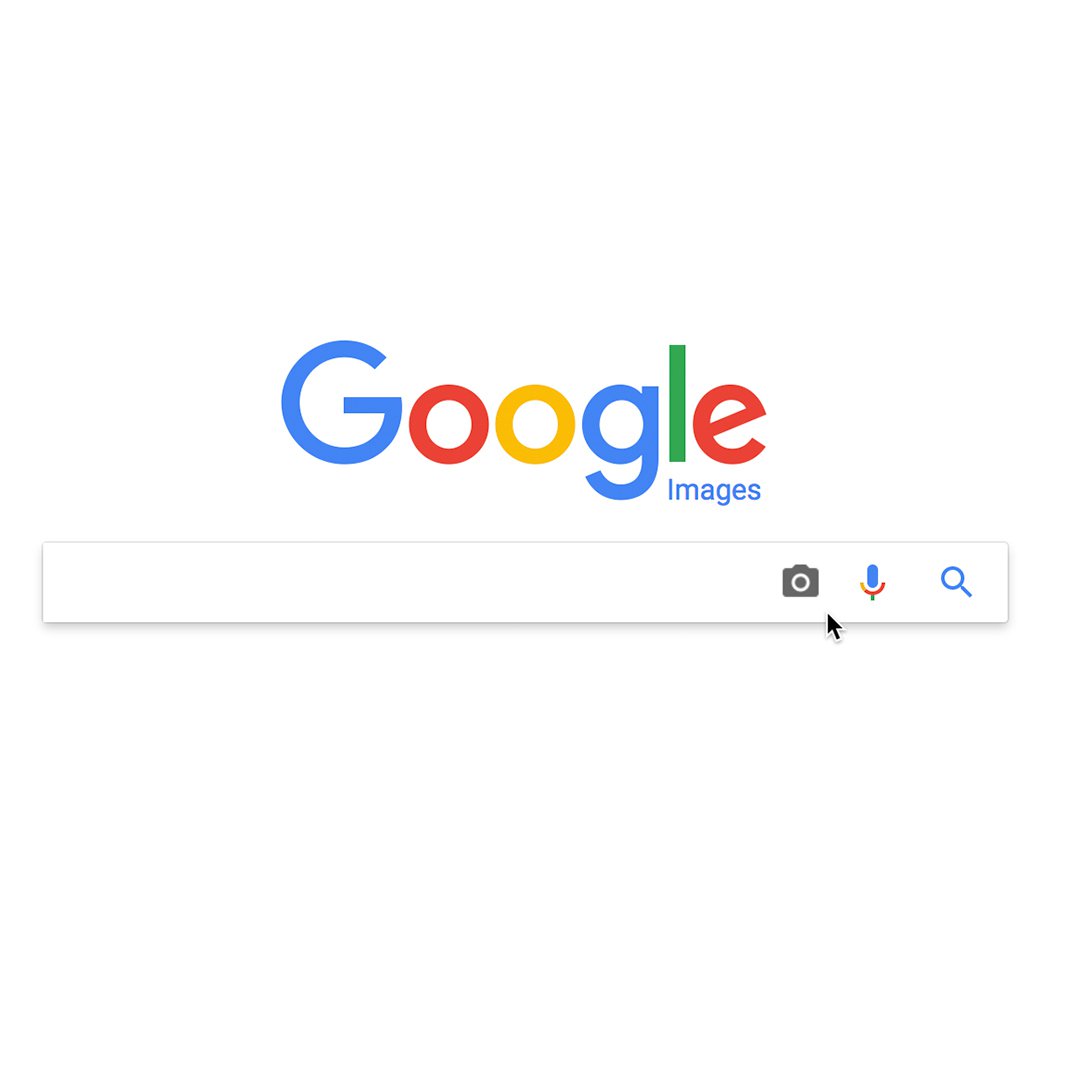
images.google.com. - Click the camera icon (Search by image button) located on the right side of the search bar.
- You’ll then have two options:
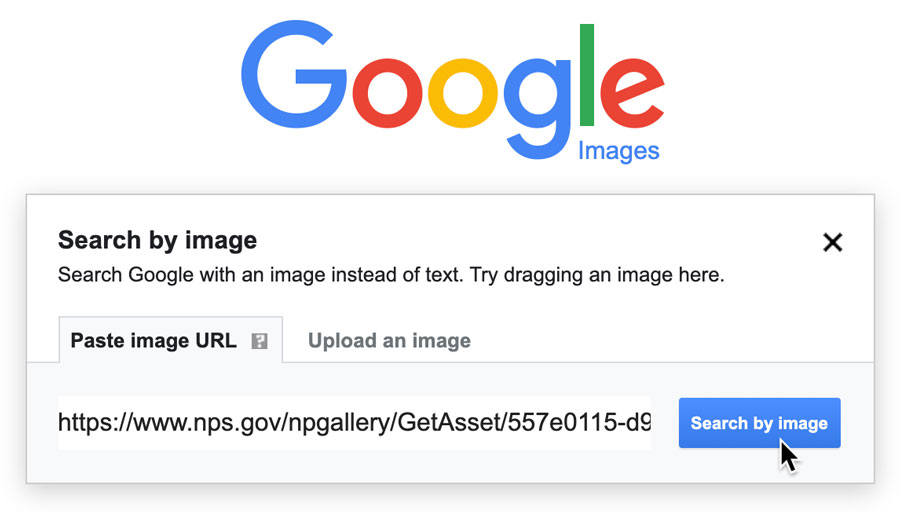
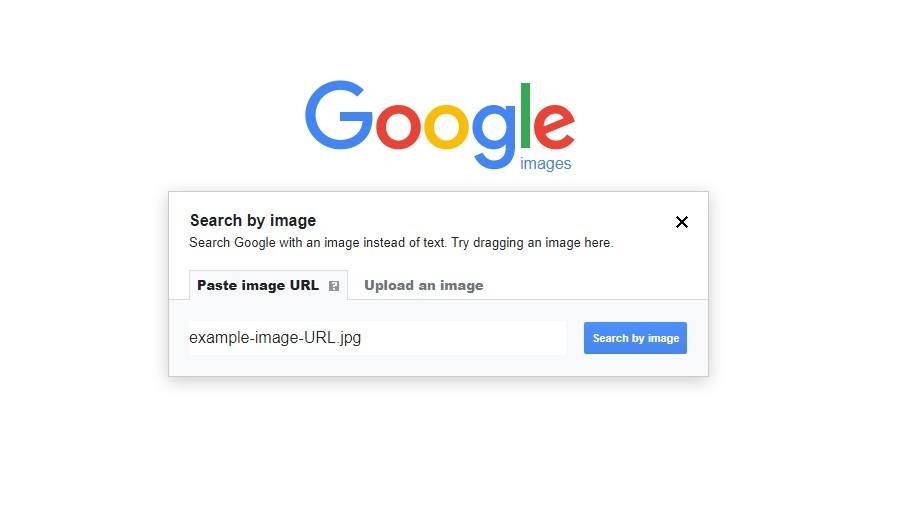
- Paste image URL: If the image is already online, right-click it, select “Copy Image Address” (wording may vary by browser), and paste it into the field, then click “Search by image.”
- Upload an image: Click “Upload an image,” then “Choose file” to browse your computer and select an image file to upload. The search will begin automatically.
- Go to
-
Using Google Chrome Shortcut:
- If you’re using Google Chrome, simply right-click on any image you see on a webpage.
- From the context menu, select “Search Google for this Image.” This instantly performs a reverse image search, saving you the steps of copying and pasting.
-
Firefox Extension:
- Firefox users can install the “Google Search by Image” extension to add a similar right-click functionality to their browser, providing the same convenience as Chrome.
On Mobile Devices (Smartphones and Tablets)
Performing a reverse image search on mobile has become increasingly seamless, thanks to the integration of Google Lens and improved browser capabilities.
-
Using the Google App (Recommended for Direct Image Search):
- Open the Google app on your Android or iOS device.
- Tap the Google Lens icon (a colorful camera icon) next to the search bar.
- If it’s your first time, you may need to grant camera access.
- You can then either:
- Take a photo: Point your camera at an object or scene you want to search for.
- Upload from gallery: Tap the gallery icon (usually a small photo thumbnail) on the bottom left to select an image from your device’s photo library.
- Google Lens will analyze the image and present search results, including visually similar items, product information, text recognition, and more. This is incredibly useful for instantly identifying unknown plants in nature or objects in your surroundings.
-
Using Chrome Browser on Mobile:
- Long-press an image on a webpage: If you’re browsing the web in Chrome, long-press on an image. A context menu will appear with the option “Search Google for this Image.”
- Accessing Desktop Site for URL/Upload: If the long-press option isn’t available or you want to upload an image from your device’s files, you can request the desktop version of Google Images.
- Go to
images.google.com. - Tap the three dots (menu icon) in the upper-right corner of Chrome (or Safari’s share sheet).
- Select “Request Desktop Site.” The page will refresh, displaying the desktop version, including the camera icon for URL pasting or file uploading.
- Go to
Leveraging Reverse Image Search for Tophinhanhdep.com
Think about how reverse image search complements your use of Tophinhanhdep.com. If you find an inspiring image online, you can use Google’s reverse search to:
- Find more images of that specific style to contribute to your Mood Boards.
- Discover the original artist to learn more about their Digital Art or Photo Manipulation techniques.
- Identify specific elements within an image, then search Tophinhanhdep.com for tutorials or resources related to those elements.
- Find higher-resolution versions of Trending Styles to use as Wallpapers or Backgrounds.
Advanced Strategies and Ethical Considerations
Beyond the mechanics, truly mastering Google Image Search involves strategic thinking and an awareness of image ethics.
Image Fact-Checking and Verification
For those in fields like journalism or research, verifying the authenticity and context of an image is paramount. Once you perform a reverse image search, Google often provides a “Time” filter under the “Tools” menu. This allows you to see when and where an image first appeared online, helping to debunk miscontextualized or old photos presented as new. This function is vital for maintaining integrity when working with any visual content.
Optimizing for Creative Projects and Visual Design
When pursuing Visual Design, Graphic Design, or generating Creative Ideas, Google Images can be your best brainstorming partner.
- Specific Keywords with Modifiers: Combine keywords with terms like “vector,” “PNG transparent background,” “high-quality,” “concept art,” or “illustration” to find exactly what you need.
- Google Lens for Inspiration: Use Google Lens to analyze existing designs or photographs. For instance, if you see a piece of furniture you like, Lens can identify it, find similar items, or even suggest complementary Aesthetic pieces for your home decor. For Image Inspiration & Collections, this can jumpstart your ideation process.
- Leveraging Tophinhanhdep.com Tools: Once you’ve found a visually appealing image, consider how Tophinhanhdep.com’s tools can enhance it. Perhaps you need to use an AI Upscaler to boost its resolution, or an Image Converter to change its format. If you’re looking to extract text from a design, an Image-to-Text tool could be invaluable.
Understanding and Respecting Usage Rights
A critical aspect of using Google Images effectively and ethically is understanding Usage Rights. Not all images are free for public or commercial use. Always check the “Usage Rights” filter and select “Creative Commons licenses” or “Commercial & other licenses” if you intend to use images for anything beyond personal viewing. Even then, read the specific license details, as some require attribution or prohibit commercial use. At Tophinhanhdep.com, we emphasize responsible image use and provide resources for understanding copyright in Digital Photography and Stock Photos. Ignoring these rights can lead to legal issues.
The Role of Google Images in Tophinhanhdep.com’s Core Topics
Let’s look at how Google Images directly supports the main topics explored on Tophinhanhdep.com:
- Images (Wallpapers, Backgrounds, Aesthetic, Nature, Abstract, Sad/Emotional, Beautiful Photography): Google Images is the primary discovery engine. Use it to find initial concepts, high-quality versions, or variations of these image types. Once found, Tophinhanhdep.com can offer further curation, download options, or specialized collections.
- Photography (High Resolution, Stock Photos, Digital Photography, Editing Styles): For photographers and enthusiasts, Google Images helps in researching visual trends, finding Stock Photos (with proper usage rights filters), analyzing Editing Styles of famous photographers, and sourcing reference images for their own Digital Photography projects.
- Image Tools (Converters, Compressors, Optimizers, AI Upscalers, Image-to-Text): Google Images helps you find the source image. Tophinhanhdep.com’s tools then help you process that image. For instance, you might find a low-resolution image of an Aesthetic Background using Google Images, and then use Tophinhanhdep.com’s AI Upscaler to improve its quality, or an Optimizer to prepare it for web use.
- Visual Design (Graphic Design, Digital Art, Photo Manipulation, Creative Ideas): Designers use Google Images for Image Inspiration & Collections, color palettes, typography ideas, and reference materials. Tophinhanhdep.com then provides the deeper resources, tutorials, and specific image elements needed to bring those Creative Ideas to life through Graphic Design and Photo Manipulation.
- Image Inspiration & Collections (Photo Ideas, Mood Boards, Thematic Collections, Trending Styles): This is where Google Images and Tophinhanhdep.com truly synergize. Google helps you discover what’s out there and identify Trending Styles. Tophinhanhdep.com then offers structured Photo Ideas, tools for building Mood Boards, and curated Thematic Collections to refine and organize that inspiration.
Conclusion
Google Images is far more than a simple search engine; it’s a dynamic and intelligent portal to the world’s visual content. By understanding its basic keyword search, mastering its advanced filtering options, and harnessing the investigative power of reverse image search, you unlock a new dimension of online discovery.
For users of Tophinhanhdep.com, these skills are invaluable. Whether you’re seeking the perfect Wallpaper, delving into Digital Photography, or looking for Creative Ideas for your next Graphic Design project, Google Images provides the initial spark and the refined tools to find exactly what you need. Remember to always apply filters, especially for “Usage Rights,” and consider how Tophinhanhdep.com’s specialized tools like AI Upscalers or Image Optimizers can further enhance the images you discover. Embrace the power of visual search, and let it transform the way you interact with the images that inspire, inform, and enrich your digital life.