Mastering Google Reverse Image Search: A Comprehensive Guide for Tophinhanhdep.com Enthusiasts

In today’s visually-driven digital landscape, images are more than just pretty pictures; they are sources of information, inspiration, and crucial elements of communication. From stunning wallpapers and aesthetic backgrounds to high-resolution photography and intricate digital art, the visual world is vast and ever-expanding. As a platform dedicated to all things visual, Tophinhanhdep.com understands the profound importance of managing, enhancing, and understanding images. One of the most powerful yet often underutilized tools in this pursuit is Google Reverse Image Search.
This remarkable feature allows you to search the internet using an image instead of text keywords. Imagine having a captivating photo and wanting to know its origin, find similar aesthetics, identify objects within it, or even verify its authenticity. Google Reverse Image Search makes all of this possible, and for enthusiasts of Tophinhanhdep.com, it unlocks a new dimension of visual discovery and utility. This guide will walk you through the intricacies of this indispensable tool, demonstrating how it can enrich your experience with images, photography, and visual design, perfectly complementing the diverse resources available on Tophinhanhdep.com.

Unveiling the Power of Reverse Image Search: Beyond Keywords
While traditional search engines like Google are synonymous with typing keywords to find information, the ability to search by image introduces a whole new paradigm. It transforms your approach to visual content, making it an active participant in your online explorations rather than just a passive display. For a site like Tophinhanhdep.com, which thrives on visual engagement, understanding and leveraging this capability is paramount.
What is Reverse Image Search?
At its core, reverse image search is a search engine feature that takes an image as its input query. Instead of describing what you’re looking for with words, you provide a picture, and the search engine – in this case, Google – analyzes its visual characteristics, such as shapes, colors, textures, and key features, to find related content across the web. The results typically include:
- Visually similar images: Photos that share aesthetic or thematic similarities.
- Websites containing the image: Pages where the exact image or its variations have been published.
- Different sizes of the image: Higher or lower resolution versions of the same picture.
- Information related to the image: Metadata, descriptions, or articles discussing the image content.
This technique was introduced by Google back in 2011 and has since become an invaluable resource for a multitude of applications. It shifts the focus from “what words describe this image?” to “what can this image tell me?”. For users of Tophinhanhdep.com, this means an enhanced ability to explore, categorize, and understand the vast array of images available, from abstract art to breathtaking nature photography.
Why Use Reverse Image Search? Practical Applications for Tophinhanhdep.com Users
The applications of Google Reverse Image Search are extensive and highly beneficial, especially for anyone passionate about visual content, as is the case for Tophinhanhdep.com’s audience. Let’s delve into some key practical uses that resonate with the website’s main topics:
-
Verifying Image Authenticity & Fact-Checking: In an age of digital manipulation and misinformation, knowing the origin and history of an image is crucial. Reverse image search is a powerful tool for fact-checking. If you encounter an image that seems too good to be true or suspicious, searching by image can reveal when and where it first appeared online, helping you determine if it’s been used out of context, manipulated, or is entirely fabricated. For instance, a stunning “nature” shot found on Tophinhanhdep.com could be verified to ensure it’s not an AI-generated fake or a mislabeled location. This aligns perfectly with the need for reliable sources for high-resolution photography.
-
Finding Image Sources & Copyright: For photographers, artists, and content creators contributing to or drawing from Tophinhanhdep.com, understanding image provenance is vital. If you find a beautiful photograph or a unique piece of digital art and want to know who created it, reverse image search can lead you to the original photographer’s portfolio, the artist’s website, or the stock photo platform where it was first published. This is invaluable for giving proper credit, respecting intellectual property, or even licensing an image for commercial use. Conversely, photographers can use this feature to track their copyrighted pictures across the internet, ensuring their work isn’t used without permission.
-
Discovering High-Resolution Versions: Have you ever stumbled upon a low-resolution image that you absolutely love – perhaps a striking abstract background or an aesthetic wallpaper – and wished you had a sharper version? Reverse image search is your go-to solution. It often uncovers higher-resolution iterations of the same image, perfect for upgrading your desktop wallpaper, printing, or incorporating into professional graphic design projects. Tophinhanhdep.com’s focus on high-resolution images makes this a particularly relevant application, helping users find the best quality visuals for their needs, perhaps even before running them through Tophinhanhdep.com’s AI upscalers.
-
Exploring Visually Similar Images: This is where the creative potential truly shines for Tophinhanhdep.com users. Whether you’re a graphic designer seeking inspiration, compiling a mood board, or simply looking for more images that fit a specific aesthetic (e.g., sad/emotional, nature, abstract), reverse image search can be incredibly fruitful. By inputting an image that captures your desired style, you can discover a wealth of visually similar pictures, helping you refine your creative ideas, expand your collections, or find alternative visuals that resonate with trending styles. This feature acts as a powerful discovery engine, complementing Tophinhanhdep.com’s thematic collections and photo ideas.
-
Identifying Objects and Products: Imagine you see a unique piece of furniture in a picture, a rare plant, or a trending fashion item. By using reverse image search, you can often identify the object, learn more about it, and even find where to purchase similar products. This goes beyond simple aesthetic appreciation, offering practical utility for everyday life and for those compiling visual references for digital photography or visual design projects.
-
Tracing Image History: Beyond just the immediate source, reverse image search can help you understand the journey of an image through time. By filtering results by date, you can see when and where an image has been published over its lifespan. This historical context can be crucial for understanding how narratives evolve around certain visuals or for assessing the longevity and impact of a piece of digital art or stock photo.
These diverse applications demonstrate that Google Reverse Image Search is not just a niche tool, but a versatile utility that enhances discovery, verification, and creative exploration within the visual realm. For the community nurtured by Tophinhanhdep.com, mastering this tool means unlocking an even richer and more informed visual experience.
Step-by-Step Guide: Performing a Google Reverse Image Search
Performing a reverse image search is remarkably straightforward, whether you’re on a desktop computer or a mobile device. The process has become increasingly intuitive, allowing users to leverage this powerful tool with minimal effort. Tophinhanhdep.com encourages its users to familiarize themselves with these methods to make the most of their visual explorations.
On Desktop Computers: Seamless Integration with Tophinhanhdep.com’s Visual Library
Searching by image on a desktop offers the most robust options, often with direct integration into your web browser.

Method 1: Using images.google.com (or via Tophinhanhdep.com’s Integrated Tools)
This is the classic approach and provides two primary ways to upload an image. While Google is the engine, Tophinhanhdep.com can serve as a portal or guide to these methods.
-
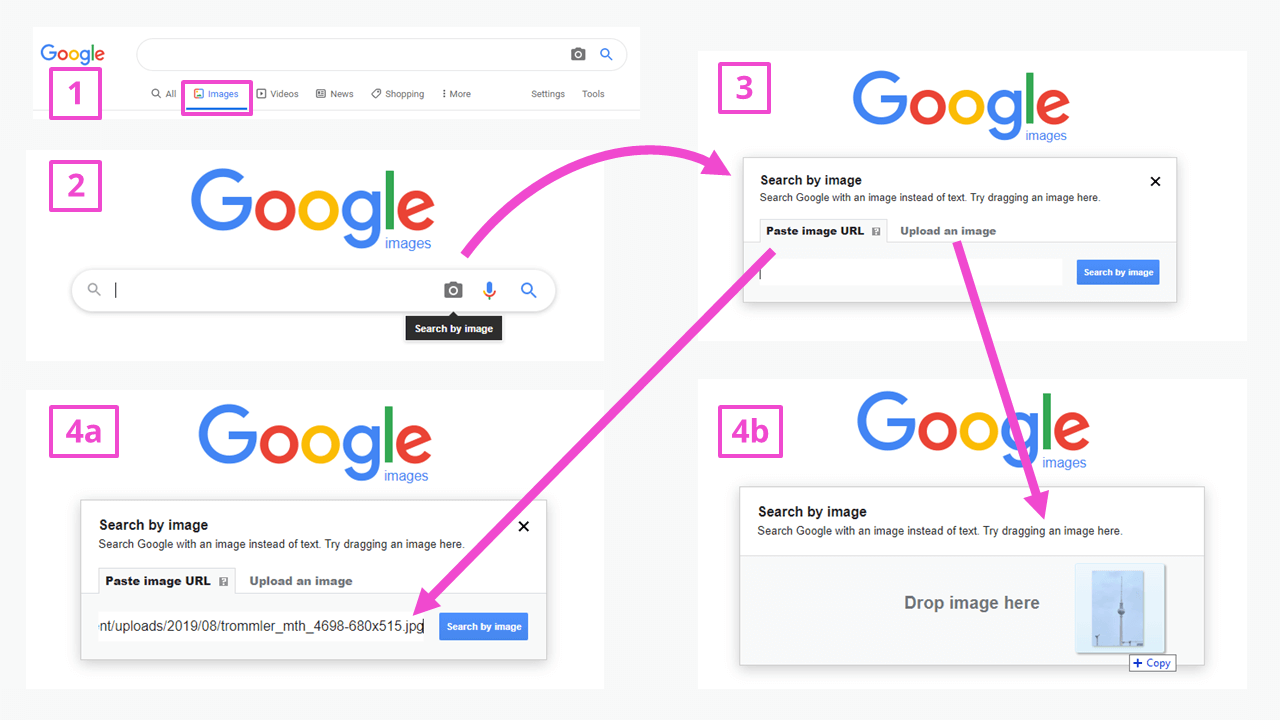
Navigate to Google Images: Open your preferred web browser (Chrome, Firefox, Safari) and go to
images.google.com. -
Locate the Camera Icon: In the search bar, you’ll see a camera icon (often labeled “Search by image”). Click on it.
-
Choose Your Upload Method: A box will appear, offering two options:
- By Uploading an Image (from your computer):
- Click the “Upload an image” tab.
- Click the “Choose file” button (or “Browse”) and navigate to the image file stored on your PC/laptop. Select it and click “Open.” The image will automatically upload.
- Alternatively, for a quicker method, you can drag and drop the image file directly from your computer folder into the “Drop your image here” section of the search box. Google recommends Chrome or Firefox for this feature.
- By Pasting the Image URL (from the web):
- If the image is already online, right-click on it on any webpage and select “Copy image address” (wording may vary slightly by browser, e.g., “Copy image link”).
- Go back to the
images.google.comsearch box, ensure the “Paste image URL” tab is selected, right-click in the text field, and select “Paste.” - Click the “Search by image” button to initiate the search.
- By Uploading an Image (from your computer):
Once uploaded or linked, Google will display the search results, including similar images, websites containing the image, and often, descriptive keywords.
Method 2: Right-Click Search (Google Chrome and Extensions)
This is often the most convenient method for images you encounter while browsing, and it’s particularly useful for quickly investigating visuals found on Tophinhanhdep.com or other sources.
- Using Google Chrome: If you are using Google Chrome, simply right-click on any image you see on a webpage. In the context menu that appears, select the option “Search image with Google Lens” (or “Search Google for this image” on older versions). The search results will typically appear in a side panel or a new tab, offering visual matches and related information.
- Using Firefox (with Extension): For Firefox users, while it doesn’t have a native right-click search by image feature like Chrome, you can install the “Google Search by Image” extension from the Firefox Add-ons store. Once installed, a similar right-click option will become available, allowing you to bypass the need to visit
images.google.comdirectly. - Other Browsers: While other browsers like Microsoft Edge and Safari might offer some integrated image search functionalities, the most seamless experience for Google reverse image search is typically found with Chrome or through dedicated extensions.
These desktop methods empower Tophinhanhdep.com users to quickly identify, verify, and explore images with efficiency, whether for digital photography analysis or graphic design inspiration.
On Mobile Devices: Searching on the Go for Tophinhanhdep.com Content
Reverse image search is equally accessible on smartphones and tablets, although the methods might differ slightly from desktop. Google has integrated this functionality into its mobile apps and browser versions, making it easy to search images on the go.
Method 1: Using the Google App or Chrome Mobile
Google has streamlined reverse image search for mobile users, primarily through Google Lens, which is integrated into the Google app and Chrome browser.
-
For Images on the Web (in Chrome for Android/iOS):
- Open the Chrome browser on your mobile device and navigate to the webpage containing the image you want to search.
- Tap and hold on the image. A context menu will appear.
- Select “Search image with Google Lens” (or “Search Google for this image” on older versions).
- Google Lens will analyze the image and display visual matches and related information at the bottom of the screen. You can swipe up to see all results.
-
For Images from Your Photo Gallery (via Google Lens in Google App/Chrome):
- Open the Google app or the Chrome browser on your Android or iOS device.
- Look for the camera icon (representing Google Lens) in the search bar (Google app) or next to the address bar (Chrome). Tap it.
- Google Lens will open, often activating your camera for a live search. To select an image from your device’s gallery, tap the gallery icon (usually a small photo icon) which is typically found in the top-right (Chrome) or top-left (Google app) corner.
- Grant access to your photos if prompted, then select the image from your gallery.
- Google Lens will process the image and show visual matches and related search results.
Method 2: Requesting Desktop Site on Mobile Browser
If you prefer the desktop experience or encounter a scenario where the direct mobile options aren’t yielding the desired results, you can force your mobile browser to display the desktop version of images.google.com.
- On Android (Chrome):
- Open Chrome, tap the three vertical dots (menu icon) in the top right corner.
- Select “Desktop site” from the dropdown menu to enable it.
- Type
images.google.cominto the address bar. You will now see the desktop version, complete with the camera icon for uploading images from your phone’s storage or pasting URLs.
- On iPhone (Safari):
- Open Safari and go to
images.google.com. - Tap the “aA” icon in the address bar (or the Share icon at the bottom of the screen on older iOS versions).
- Select “Request Desktop Website.”
- The page will refresh, showing the desktop layout. You can then tap the camera icon to upload an image from your iPhone’s photo library.
- Open Safari and go to
Method 3: Utilizing Tophinhanhdep.com’s Recommended Third-Party Tools/Apps
While Google’s native solutions are excellent, the digital ecosystem offers many specialized tools that can sometimes enhance the reverse image search experience or provide additional features. Tophinhanhdep.com curates and recommends such resources, ensuring its users have access to the best available options. For example, instead of searching for external tools like Reverse Image Search (Google) for Android or Reversee App for iOS, Tophinhanhdep.com can be your first stop, potentially offering its own integrated solution or guiding you to verified third-party apps that complement your visual tasks. These specialized apps often support multiple search engines, offer image editing features (like cropping and rotating for better results), and sometimes allow saving images directly from the web, aligning with Tophinhanhdep.com’s comprehensive image tools offerings.
No matter your device, performing a Google Reverse Image Search is an accessible and powerful way to delve deeper into the visual content you encounter, making your interaction with Tophinhanhdep.com’s diverse image collections even more dynamic and informative.
Maximizing Your Reverse Image Search Results with Tophinhanhdep.com Insights
Simply performing a reverse image search is just the first step. To truly unlock its full potential, especially for creative and analytical purposes, you need to know how to interpret and refine the results. Tophinhanhdep.com, as a hub for visual excellence, can help you contextualize these results and integrate them into your broader image-related workflows.
Refining Your Search for Precision
The initial results from a reverse image search can be broad. Here’s how to sharpen your focus:
- Combine with Keywords: Don’t hesitate to add text keywords to your image search. If you’ve uploaded a picture of a waterfall and want to find information about Yellowstone National Park specifically, you can add “Yellowstone” to the search bar once the image results appear. This narrows down the results significantly, helping you find precisely what you need.
- Filter by ‘Time’ for Historical Context: As highlighted by the Google News Initiative, verifying the publication history of an image is crucial, especially for fact-checking. After performing a reverse image search, look for a “Tools” or “Search tools” option (usually above the results). Clicking this will often reveal a “Time” filter. You can specify a custom range or select predefined options (e.g., “Past 24 hours,” “Past year”) to see when and where the image appeared, helping you uncover its journey online and verify its timeliness or original context.
- Focus on ‘Visually Similar Images’: If your goal is inspiration for a mood board or finding aesthetic alternatives, pay close attention to the “Visually similar images” section in the results. This is an excellent resource for discovering new wallpapers, backgrounds, or artistic styles that resonate with your initial input, seamlessly enriching your “Image Inspiration & Collections” on Tophinhanhdep.com.
Leveraging Tophinhanhdep.com’s Thematic Collections
Reverse image search becomes even more powerful when viewed through the lens of Tophinhanhdep.com’s specialized categories.
- For Wallpapers, Backgrounds, and Aesthetic Images: Found a breathtaking landscape or a mesmerizing abstract pattern elsewhere online? Use reverse image search to find higher-resolution versions or similar styles that can enhance your personal collection on Tophinhanhdep.com. Discover new artists or photographers whose work aligns with your aesthetic preferences, building richer “Aesthetic” and “Nature” categories.
- For Photography and Digital Art: If you’re a photographer looking for inspiration or an artist studying techniques, reverse image search can help you deconstruct images. Find out who took a “Beautiful Photography” shot, explore their other works, or discover how a particular “Digital Art” style is being used and manipulated. This feeds directly into “Photography” and “Visual Design” topics, offering practical insights and fostering creative growth.
- For Thematic Collections and Trending Styles: Want to build a “Sad/Emotional” collection or identify the latest “Trending Styles” in “Graphic Design”? Use a key image from that theme to reverse search. This can quickly surface a wealth of related visuals, helping you curate your own collections or stay abreast of contemporary visual trends, all within the ecosystem of Tophinhanhdep.com.
Integrating with Tophinhanhdep.com’s Image Tools
The journey doesn’t end with finding the image. Tophinhanhdep.com provides a suite of “Image Tools” that can further refine and utilize your reverse image search discoveries:
- Enhancing Quality with AI Upscalers: After using reverse image search to find a captivating but slightly low-resolution image, you can then bring it to Tophinhanhdep.com to employ its “AI Upscalers.” This allows you to dramatically improve image quality, transforming a good find into a stunning “High Resolution” asset, perfect for any application.
- Optimizing and Compressing: Once you’ve secured the ideal image, Tophinhanhdep.com’s “Compressors” and “Optimizers” can help you prepare it for web use, ensuring fast loading times without compromising visual integrity – a key consideration for “Digital Photography” and online “Image Collections.”
- Converting Formats and Extracting Text: Perhaps you found an image in an inconvenient format or one that contains text you wish to extract. Tophinhanhdep.com’s “Converters” and “Image-to-Text” tools offer seamless solutions, making your discovered images more versatile and functional for “Photo Manipulation” or data analysis.
- Applying Editing Styles: The “Editing Styles” resources on Tophinhanhdep.com can be applied to images found through reverse search, allowing you to experiment with new looks or match a specific visual design aesthetic across your projects.
By thoughtfully combining Google Reverse Image Search with the rich content and practical tools on Tophinhanhdep.com, users can create a powerful and efficient workflow for all their visual needs. This synergy enhances discovery, refines quality, and expands creative possibilities, positioning Tophinhanhdep.com as an indispensable resource for anyone serious about images.
Conclusion
Google Reverse Image Search is far more than a simple trick; it’s a sophisticated investigative and creative tool that empowers users to navigate the vast visual landscape of the internet with unprecedented insight. From verifying the authenticity of a “Beautiful Photography” piece to uncovering the origin of a mysterious “Abstract” image, and from finding high-resolution versions for stunning “Wallpapers” to gathering inspiration for “Graphic Design” projects, its applications are boundless.
For enthusiasts and professionals alike who frequent Tophinhanhdep.com, mastering this search technique is an essential skill. It perfectly complements the website’s mission to provide comprehensive resources for “Images,” “Photography,” “Image Tools,” “Visual Design,” and “Image Inspiration & Collections.” By seamlessly integrating reverse image search into your daily digital habits, you unlock new avenues for discovery, enhance your creative workflow, and gain a deeper understanding of the visual world around you.
Let Tophinhanhdep.com be your ultimate guide and resource as you explore the depths of visual information, leveraging Google Reverse Image Search to its fullest potential. Embrace the power of the image, and let your visual journey be more informed, inspired, and creatively fulfilling than ever before.