How to See Your Images on iCloud: A Comprehensive Guide to Seamless Photo Access
In today’s visually-driven world, our personal photo libraries are often vast, growing repositories of memories, inspirations, and creative endeavors. From capturing a fleeting moment with your iPhone to meticulously crafting digital art on your Mac, images form an integral part of our daily lives. Keeping these cherished visuals safe, organized, and readily accessible across all your devices is paramount. This is where Apple’s iCloud Photos service shines, providing a robust, cloud-based solution that automatically backs up and synchronizes your entire image and video collection.

At Tophinhanhdep.com, we understand the profound impact of stunning visuals, whether it’s a breathtaking nature shot, an aesthetic wallpaper, or a piece of high-resolution digital photography. We believe that accessing these images should be as effortless as admiring them. This guide will walk you through every method of viewing your iCloud Photos, ensuring that your beautiful photography, creative ideas, and thematic collections are always at your fingertips, regardless of the device you’re using. We’ll cover everything from your iPhone and Mac to Windows PCs and web browsers, empowering you to manage your visual assets with ease, and integrate them seamlessly with the tools and inspiration you find on Tophinhanhdep.com.
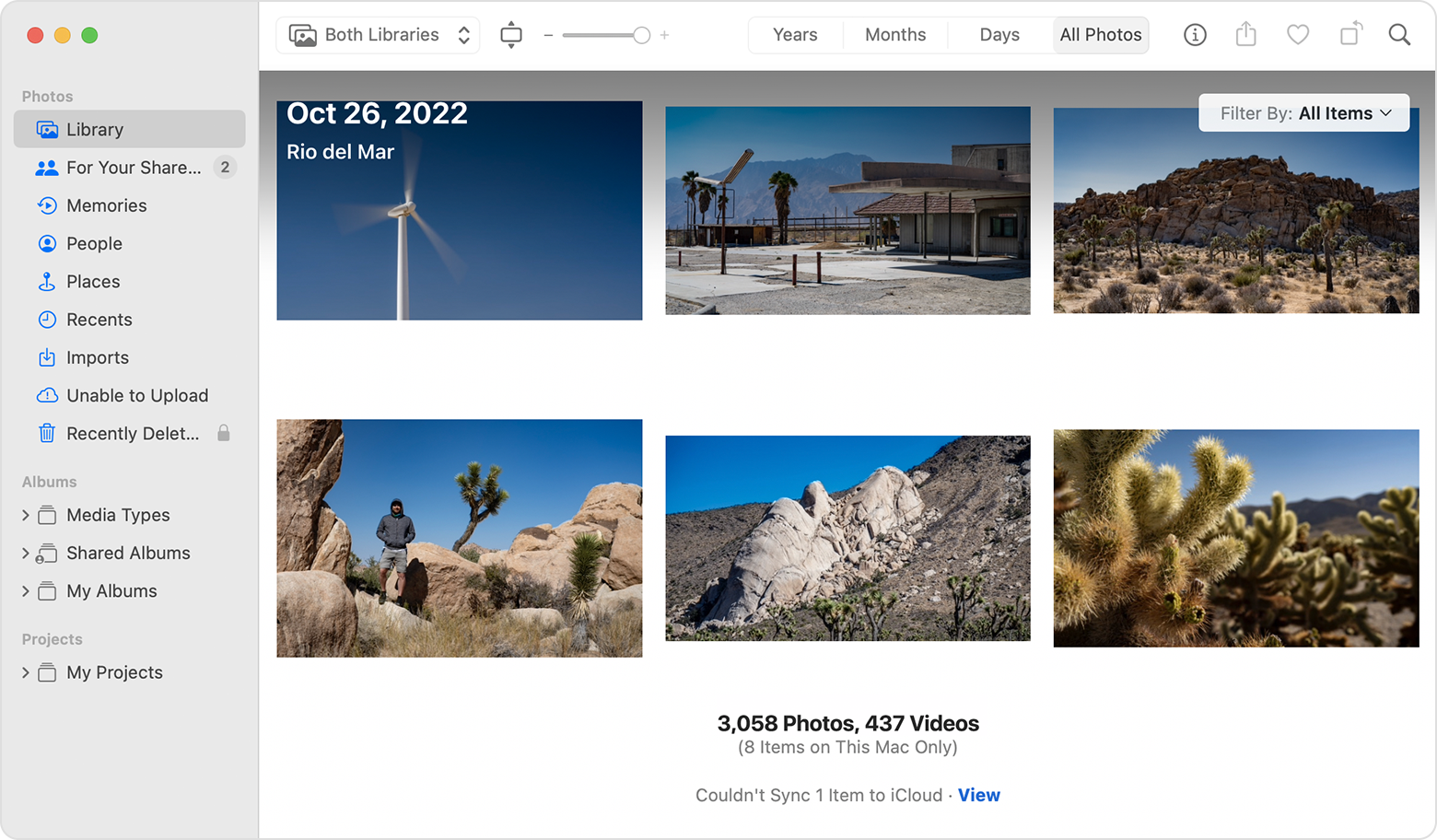
When enabled, iCloud Photos acts as a central hub, backing up your pictures and videos to the cloud and ensuring they remain secure and perfectly synced across your entire Apple ecosystem. This means a photo taken on your iPhone instantly appears on your iPad, Mac, and even accessible via a web browser, making it an indispensable tool for anyone with a significant digital photography collection.
Accessing iCloud Photos on Apple Devices: Your Personal Gallery, Anywhere
Apple devices are designed to work in harmony, and iCloud Photos is a prime example of this seamless integration. Whether you’re viewing casual snapshots or reviewing high-resolution photography for a visual design project, your iPhone, iPad, and Mac offer intuitive ways to display your entire iCloud library.
iPhone and iPad: Your Mobile Photo Hub
For many of us, our iPhone or iPad is the primary device for capturing and viewing images. The Photos app on these devices transforms into a dynamic window to your entire iCloud library, allowing you to browse wallpapers, aesthetic backgrounds, and personal memories with unparalleled convenience.
To ensure your iPhone or iPad is syncing with iCloud Photos:
- Open the Settings app: Look for the grey gear icon on your home screen.
- Tap [Your Name] > iCloud > Photos: This navigates you to the iCloud Photos settings.
- Turn on iCloud Photos (if it isn’t already enabled): This is the crucial step that initiates the synchronization process.
- Choose your storage preference: You’ll typically see two options:
- Download and Keep Originals: If you have ample free space on your device, this option downloads full-resolution versions of all your photos and videos. This is ideal for those who frequently access high-resolution photography or engage in on-device photo manipulation.
- Optimize iPhone Storage: This is the recommended option for most users. It stores full-resolution originals in iCloud and keeps smaller, device-friendly versions on your iPhone or iPad. When you open an image, the full-resolution version downloads automatically. This is perfect for balancing device storage with access to your entire library, including those stunning nature shots or abstract art pieces you might use as wallpapers.
Once iCloud Photos is enabled, simply open the Photos app and tap on Recents (or Library in older iOS versions). After a brief syncing period, you should see all your pictures and videos from iCloud populate here. This means the beautiful photography you captured last year, the inspiring photo ideas you saved, and even thematic collections from Tophinhanhdep.com are all available on your mobile device.
An Important Note on Storage: While iCloud Photos offers immense convenience, it’s vital to be mindful of your iCloud storage. Apple provides a free 5 GB tier, which can fill up quickly, especially with high-resolution digital photography and videos. If you don’t want to exhaust your free storage but still wish to access specific old photos from iCloud, using a web browser (as explained later) might be a better option for selective downloads. However, for a complete, synced library, considering an iCloud+ paid plan is often necessary for dedicated photographers and visual designers.
Mac: Seamless Desktop Integration for Creative Work
Your Mac serves as a powerful workstation for digital photography, graphic design, and photo manipulation. Having your iCloud Photo Library seamlessly integrated into your Mac’s Photos app ensures that all your visual assets, from raw photo ideas to finished digital art, are instantly available for review, editing, and creative projects.
To enable and access iCloud Photos on your Mac:
- Open the Photos app: You can find it in your Applications folder or Dock.
- Click Photos > Settings (or Preferences in older macOS versions) from the top menu bar.
- Go to the iCloud tab.
- Enable iCloud Photos: Tick the checkbox next to “iCloud Photos.” You’ll also have the option to “Download Originals to this Mac” or “Optimize Mac Storage,” similar to the iPhone/iPad settings. Choosing to download originals is often preferred by those working with high-resolution photography or complex photo manipulation projects.
Depending on your internet speed and the size of your photo library, it may take some time for all your images and videos to appear in the Mac’s Photos app. Once synced, you’ll find your entire collection, including any aesthetic backgrounds or stock photos you’ve saved, organized and ready for use. The Mac’s larger screen is ideal for appreciating the detail in beautiful photography and for planning creative ideas, perhaps inspired by thematic collections on Tophinhanhdep.com. This integration makes it easy to drag and drop images into other applications for graphic design or further editing, ensuring your visual design workflow remains fluid and efficient.
Accessing iCloud Photos from Any Web Browser: Universal Reach
Not everyone lives exclusively within the Apple ecosystem, and sometimes you need to access your photos from a non-Apple device, a public computer, or simply prefer a web interface. The good news is that iCloud.com provides a robust and convenient way to view, download, and manage your iCloud Photos using virtually any modern web browser. This method is particularly useful for downloading specific high-resolution images or stock photos you might have stored, even if you’re on a Windows PC, an Android phone, or a Chromebook.
iCloud.com: Universal Access for All Devices
The web interface for iCloud Photos is a lifeline for cross-platform users or anyone needing quick access without full device integration. It’s perfect for checking your mood boards, sharing photo ideas, or retrieving a specific image for a visual design project when you’re away from your primary Apple devices.
Here’s how to access your photos via a web browser:
- Visit iCloud.com: Open your preferred web browser (Safari, Chrome, Firefox, Edge, etc.) and navigate to www.icloud.com.
- Sign in using your Apple ID: Enter your Apple ID and password. You may also need to complete a two-factor authentication step if you have it enabled.
- Click the “Photos” icon: Once logged in, you’ll see a dashboard of iCloud services. Click on the “Photos” icon to enter your photo library.
You will now be able to view all your old and recent photos and videos stored in iCloud. The web interface provides a clean, organized view of your entire collection.
Downloading Photos from iCloud.com: If you want to download photos, select one or more images. Then:
- On a computer: Look for the download icon (often a cloud with a downward arrow) in the toolbar at the top.
- On a phone or tablet (mobile browser): Tap the three dots menu icon to reveal additional options, including the download option.
If you select multiple photos, they will typically download as a ZIP file. This is a common and efficient way to transfer several images at once. Most modern operating systems (iPhone, iPad, Mac, Windows) can easily unzip these files to access the individual images. This feature is especially useful if you’re pulling a batch of high-resolution photography for a graphic design project or aesthetic wallpapers you found on Tophinhanhdep.com.
Restoring Deleted Photos: iCloud.com also offers a “Recently Deleted” album. If you accidentally delete photos, you can often retrieve them from this folder within 30 days, providing a safety net for your valuable digital photography.
The flexibility of iCloud.com extends to users on various devices, including Android phones. Simply open a mobile browser on your Android device, go to icloud.com, sign in, and access your photos just as you would on a desktop. This broad compatibility ensures that your creative ideas and thematic collections are truly universally accessible.
Accessing iCloud Photos on Windows PCs: Bridging the Ecosystem
For those who rely on Windows PCs for work or personal use, Apple provides a dedicated solution to integrate iCloud Photos directly into the operating system. While the web browser method (iCloud.com) offers universal access, the iCloud for Windows application provides a more streamlined and integrated experience, making it easier to manage large collections of high-resolution photography and incorporate them into your workflow.
iCloud for Windows: Desktop Integration for Enhanced Workflow
The iCloud for Windows application allows your PC to sync with your iCloud Photo Library, much like a Mac would. This means your personal photos, beautiful photography, and any thematic collections you’re curating become readily available in File Explorer or the Microsoft Photos app, without needing to open a web browser every time. This can be particularly beneficial for users who download stock photos or images from Tophinhanhdep.com and wish to easily transfer them to their Apple devices via iCloud.
Here’s how to set up and access iCloud Photos on your Windows 10 or 11 device:
- Download and Install iCloud for Windows: If you don’t already have it, download the iCloud for Windows application from Apple’s website or the Microsoft Store. Follow the on-screen instructions to complete the installation.
- Open iCloud for Windows: Launch the application after installation.
- Sign in with your Apple ID: Enter the same Apple ID and password you use for your iCloud account.
- Configure Photos Options: In the iCloud for Windows application, locate the “Photos” section and click on “Options” next to it.
- Enable iCloud Photos:
- Tick the checkbox for “iCloud Photos.”
- You can also choose to “Download new photos and videos to my PC” and specify a download location. This ensures that new captures from your Apple devices automatically appear on your Windows machine, perfect for reviewing beautiful photography or editing high-resolution images.
- Consider enabling “Upload new photos and videos from my PC” if you want to easily transfer images from your Windows PC to iCloud, making them accessible across all your Apple devices. This is great for uploading graphic design assets or digital art created on your PC.
- Click “Done” and then “Apply” to save your settings.
Once configured, your iCloud Photo Library will begin to sync with your Windows PC.
Accessing Your Photos:
- Via File Explorer: Open File Explorer (Windows key + E) and you will see “iCloud Photos” listed in the sidebar under “Quick Access” or “This PC.” Click on it. Inside, you’ll typically find folders like:
- Downloads: Contains the photos and videos synced from your iCloud Photo Library to your PC. These are often optimized for space but can be downloaded in full resolution if configured.
- Uploads: A folder where you can drag and drop images from your PC that you wish to upload to iCloud.
- Shared: Provides access to any shared photo albums you’re part of in iCloud.
- Via Microsoft Photos App (Windows 11): In Windows 11, you can also open the Microsoft Photos app and click on “iCloud Photos” directly to view your synced library.
This integration makes your iCloud Photo Library feel like a native part of your Windows PC, allowing you to easily browse aesthetic backgrounds, transfer images for photo manipulation, or use various image tools (like converters, compressors, or AI upscalers) on your PC that you might discover on Tophinhanhdep.com. It streamlines the workflow for visual designers and digital photographers who operate in a mixed-device environment, ensuring that creative ideas are never bottlenecked by device compatibility.
Troubleshooting Common iCloud Photo Issues: Ensuring Uninterrupted Access
While iCloud Photos is designed for reliability, occasional glitches can prevent your images from syncing or appearing as expected. For anyone who cherishes their beautiful photography, relies on high-resolution images for visual design, or curates thematic collections, uninterrupted access is crucial. Understanding how to diagnose and resolve these common issues can save you time and frustration, ensuring your photo ideas and digital art are always within reach.
What to Do When Photos Don’t Appear
If you’ve enabled iCloud Photos on your devices but find that some images are missing or not syncing, here are several troubleshooting steps to help you restore full access to your library:
-
Check Your Internet Connection:
- Wi-Fi Connection: iCloud Photos primarily uploads and downloads when your device is connected to Wi-Fi. Ensure your device is connected to a stable and strong Wi-Fi network.
- Cellular Data: If you have an unlimited or sufficiently large cellular data plan, you can enable iCloud Photos to sync over mobile data. Go to Settings > Photos > Cellular Data (on iPhone/iPad) or check similar settings on Mac. Enable “Cellular Data” and, if available, activate “Unlimited Updates.” This allows photos to sync even when you’re not on Wi-Fi, crucial for timely updates of your digital photography.
-
Verify Device Modes:
- Low Data Mode: iCloud Photos won’t update if your iPhone or iPad is in Low Data Mode. Check your cellular data settings or Wi-Fi network settings to ensure this is not enabled.
- Low Power Mode: iCloud Photo syncing is temporarily paused when your device is in Low Power Mode (indicated by a yellow battery icon). Connect your device to power or disable Low Power Mode to allow syncing to resume.
-
Confirm Your Apple ID:
- Ensure that all your devices are signed in with the correct Apple ID. iCloud Photos syncs across devices linked to the same Apple ID. On iPhone/iPad, go to Settings > [Your Name] at the top. On Mac, go to System Settings/Preferences > Apple ID.
-
Check iCloud Storage Space:
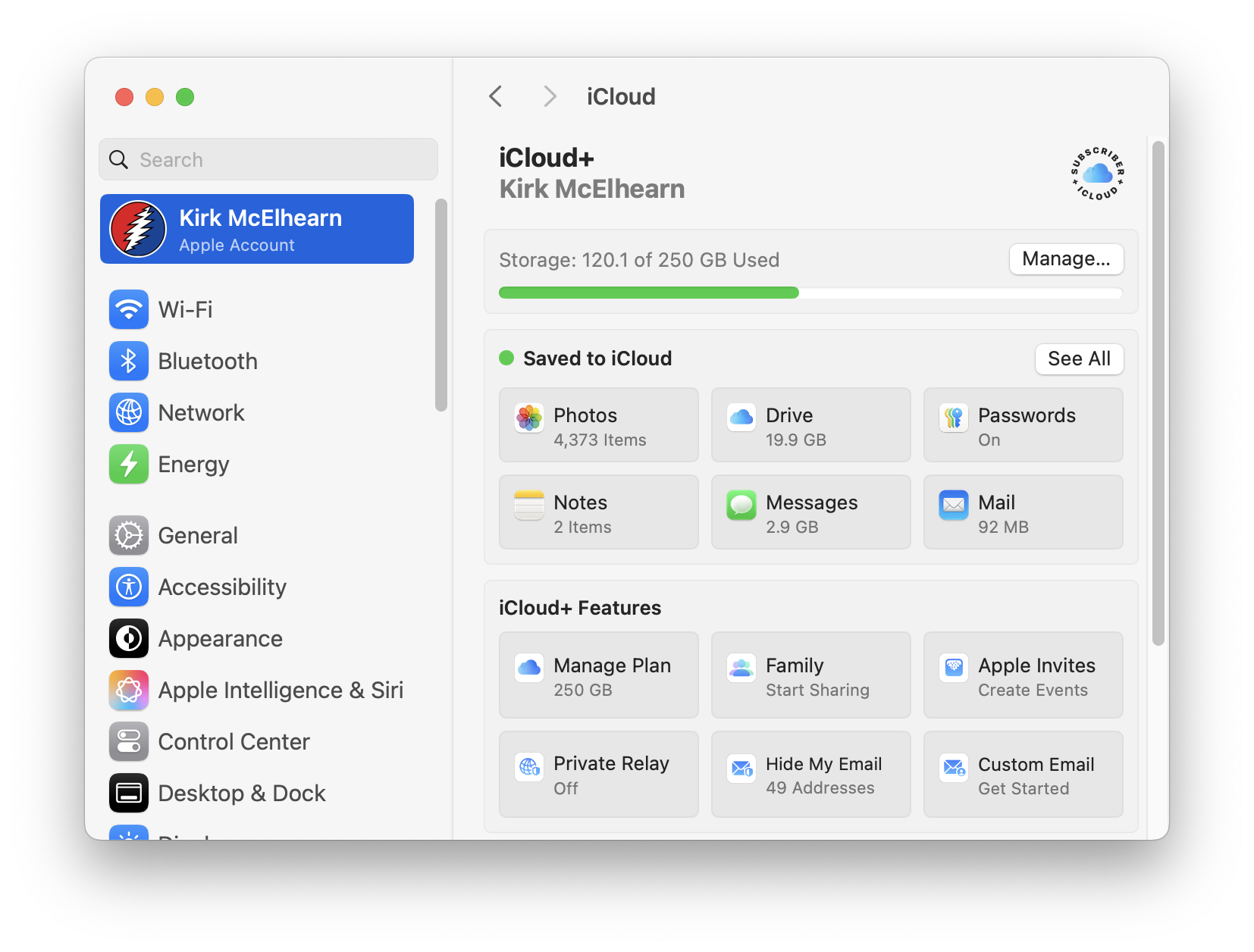
- iCloud Photos requires sufficient storage space in your iCloud account. If your 5 GB free tier is full, or your paid iCloud+ plan is maxed out, photos will stop syncing.
- Check your iCloud storage: Go to Settings > [Your Name] > iCloud (on iPhone/iPad) or System Settings/Preferences > Apple ID > iCloud (on Mac). If your storage is full, you may need to upgrade your iCloud+ plan, or free up space by deleting unnecessary files or optimizing older photos. Tophinhanhdep.com often discusses the importance of efficient image management, and freeing up iCloud space ensures your high-resolution photography can continue to be backed up.
-
Look in Specific Folders:
- If some photos are missing after enabling iCloud Photos, they might not be permanently gone. Check your “Recently Deleted” and “Hidden” albums within the Photos app on your device. Items in “Recently Deleted” can be recovered for up to 30 days.
-
Restart and Update Your Devices:
- Sometimes, a simple restart can resolve minor software glitches that affect syncing.
- Ensure your devices are running the latest version of iOS, iPadOS, or macOS. Software updates often include bug fixes and performance improvements that can address syncing issues.
By systematically going through these troubleshooting steps, you can typically resolve most issues related to accessing your iCloud Photos. This ensures that your valuable visual assets – from everyday wallpapers to professional digital photography and inspiration for visual design found on Tophinhanhdep.com – remain accessible, secure, and ready for your creative endeavors. Having a reliable system for managing your image collections is key to leveraging resources like Tophinhanhdep.com for photo ideas, mood boards, and thematic collections, ensuring your artistic journey remains unhindered.
Conclusion: Unleashing the Full Potential of Your Visual World with iCloud
In an era where every moment is a potential photograph and every screen an opportunity for visual delight, having a robust and accessible photo library is more important than ever. iCloud Photos provides this essential infrastructure, offering a seamless, secure, and universally accessible solution for managing your entire collection of images and videos. From the spontaneous snapshots taken on your iPhone to the carefully curated high-resolution photography destined for a visual design project, iCloud ensures your digital assets are always synchronized and within reach.
As we’ve explored, accessing your images on iCloud is straightforward, whether you’re working within Apple’s integrated ecosystem on an iPhone, iPad, or Mac, leveraging the flexibility of iCloud.com on any web browser (including Android devices), or integrating your library directly into a Windows PC via the dedicated iCloud for Windows application. Each method offers a tailored experience, empowering you to view, download, and manage your beautiful photography with ease, adapting to your specific device and workflow needs.
At Tophinhanhdep.com, we are passionate about the power of images, from inspiring wallpapers and aesthetic backgrounds to the intricate details of digital art and the practical application of image tools. The ability to effortlessly access your iCloud Photos greatly enhances your capacity to engage with these diverse visual aspects. Imagine finding creative ideas or thematic collections on Tophinhanhdep.com, saving them to your device, and having them instantly appear across all your synced devices, ready for use as a mood board or as inspiration for your next photo manipulation project. Or perhaps you download a high-resolution stock photo, upload it to iCloud, and it’s instantly available for editing on your Mac. The synergy between iCloud Photos and resources like Tophinhanhdep.com creates an unparalleled environment for visual exploration and creation.
While occasional hiccups may occur, the troubleshooting steps outlined in this guide provide a clear path to ensuring uninterrupted access to your visual world. By understanding the nuances of iCloud storage, connectivity, and device settings, you can maintain a healthy, active, and accessible photo library.
In essence, iCloud Photos transcends mere storage; it’s a dynamic platform that transforms how we interact with our images. It ensures that your memories are preserved, your inspirations are ever-present, and your creative ideas can flow unimpeded across all your devices. Paired with the rich resources and tools available on Tophinhanhdep.com, you are equipped to explore, create, and share the full spectrum of your visual world, making every image experience a truly enriching one.