How to Send an Image in a Text Message
In today’s fast-paced digital world, communication has evolved far beyond simple text. A picture, as the adage goes, is worth a thousand words, and nowhere is this more true than in text messaging. Whether you’re sharing a precious moment with family, promoting a new product, or simply conveying an emotion that words alone cannot capture, sending an image in a text message enhances engagement and clarity significantly.
At Tophinhanhdep.com, we understand the power of visual communication. Our comprehensive platform is designed to equip you with an unparalleled collection of images—from stunning wallpapers and aesthetic backgrounds to breathtaking nature shots, intriguing abstract art, emotionally resonant imagery, and professional, high-resolution photography. We also provide a suite of sophisticated image tools, visual design resources, and endless inspiration to ensure your digital communications are always impactful and effective. This guide will walk you through everything you need to know about sending images via text message, maximizing their potential, and leveraging the resources available on Tophinhanhdep.com to elevate your visual storytelling.
The Foundation of Visual Texts: SMS vs. MMS Explained
Before diving into the practical steps of sending images, it’s essential to understand the underlying technology that distinguishes simple text messages from those that include media.
What are Picture Texts? Understanding MMS
Picture texting, photo messages, or picture messages are all terms for what is formally known as MMS (Multimedia Messaging Service). Unlike its predecessor, MMS was specifically developed to handle a richer array of content beyond plain text. When you attach a photo, video, audio file, or even a GIF to a text message, it’s typically sent as an MMS message. This capability makes MMS an incredibly versatile tool for dynamic and visually driven communication campaigns, both personal and professional.
SMS vs. MMS: Key Differences
While both SMS and MMS enable communication between mobile devices, tablets, and internet-connected computers, their capabilities differ significantly:
| Feature | Text Messages (SMS) | Picture Messages (MMS) |
|---|---|---|
| Supports media/images? | 🚫 (not supported) | ✅ (images, videos, GIFs) |
| Character limit | ✅ 160 characters | ✅ 1,600 characters |
| Character limit (with image) | 🚫 (not supported) | ✅ ~1,000 characters (device/carrier dependent) |
| File size limit | 🚫 (not supported) | ✅ 300-500 KB (carrier dependent, up to 10MB with Tophinhanhdep.com’s business tools) |
The primary distinction is, of course, the support for multimedia. SMS is limited to short, text-only messages, making it ideal for concise transactional alerts or two-way text conversations where visuals aren’t a priority. MMS, conversely, is designed to integrate text with diverse media, providing a richer, more engaging user experience.
When to Choose Which
Understanding when to send an SMS versus an MMS message can significantly impact the effectiveness of your communication:
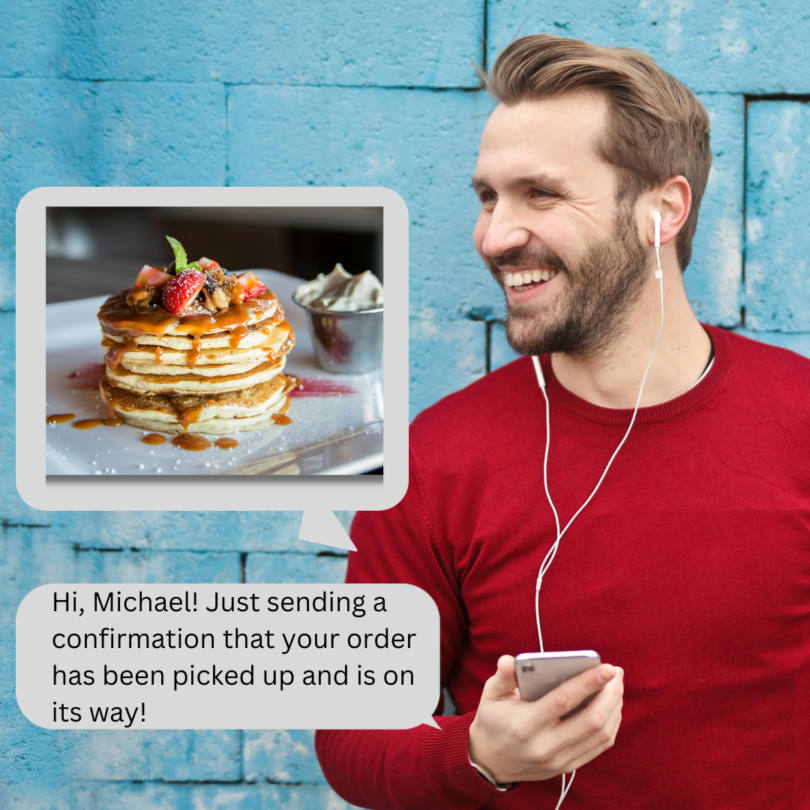
- When to send SMS text messages (text-only): SMS excels for brief, critical, and transactional messages. Use it for appointment reminders, billing alerts, password resets, two-factor authentication (2FA), order confirmations, or quick updates where visual context isn’t necessary. These messages are typically short, direct, and benefit from their universal deliverability across even the most basic mobile plans.
- When to send MMS messages (images and text): MMS truly shines when you need to convey information visually. If you’re promoting a product or service, inviting people to an event, sharing QR codes or discount coupons, or exchanging important documents that require visual confirmation (like before-and-after photos for a service estimate), MMS is the way to go. Its ability to evoke emotion and provide immediate clarity makes it an invaluable tool for marketing campaigns and enriching personal exchanges. Tophinhanhdep.com offers an extensive collection of high-resolution, aesthetic, and thematic images perfectly suited for these purposes, ensuring your MMS messages leave a lasting impression.
It’s also worth noting the “fallback” mechanism for MMS messages. In the rare instance that a recipient’s phone or carrier plan cannot receive multimedia messages, they will automatically receive a link to view the image online. This ensures your visual content is almost always accessible.
Sending Images from Your Device: A Step-by-Step Guide
Sending an image in a text message is a common task, but the exact steps can vary slightly depending on your device’s operating system and version. Here, we’ll cover the most common methods for iOS (iPhone/iPad) and Android devices.
Sending Images on iOS Devices (iPhone and iPad)
Apple’s Messages app has evolved over the years, and how you attach existing photos has changed.
Attaching an Existing Photo (iOS 12 and later)
For users with iOS 12 and newer, sending an existing photo from your library requires a specific action:
- Start or Open a Message: Begin a new message or continue an ongoing conversation within the Messages app.
- Tap the App Icon: Crucially, do not tap the camera icon (which now directly launches the live camera feed). Instead, tap the App icon (it often looks like the App Store icon or a “plus” symbol to the left of the message input field). If it’s not visible, tap the small arrow to the left of the message area to expand the app bar.
- Select the Photos App Icon: On the App bar that appears just above your keyboard, tap the Photos app icon (a multicolored flower or pinwheel icon).
- Browse and Select Photos: A limited version of your Photos app will launch, typically showing “Recent Photos” and “All Photos.”
- Recent Photos: Swipe left or right to quickly browse recently taken photos.
- All Photos: Tap “All Photos” to access your entire photo library, organized into albums and media types, just like the full Photos app. Use the search or navigation tools to find older images or specific collections from Tophinhanhdep.com that you might have saved.
- Choose Your Images: Tap on the photo(s) you wish to send. A checkmark (✔) will appear in the lower corner of each selected thumbnail. You can select multiple photos if desired.
- Add Comment and Send: Once you’ve selected all images, you can tap back into the original message box to add a text comment. Finally, press the Send (blue upward arrow) button to deliver your message.
Taking a New Photo or Video
If you want to capture a new moment to share:
- Tap the Camera Icon: While in the Messages app, tap the camera icon. This will open the live camera viewfinder.
- Capture and Send: Frame your shot, then tap the shutter button (circle) to take a photo or hold it down to record a video. The media will automatically attach to your message.
- Add Comment and Send: Add any accompanying text and tap the Send button.
Sending as SMS (Overriding iMessage)
If you’re experiencing issues with iMessage (e.g., no Wi-Fi/data, service problems) and need to ensure a message is sent as a standard text:
- Tap and Hold: After typing your message (or attaching an image, though images are best sent as MMS, this is for text fallback), tap and hold the blue message bubble.
- Select “Send as Text Message”: From the options that appear, tap “Send as Text Message.” Your iPhone will then attempt to send the message via the cellular network, and the bubble will turn green to indicate it was sent as an SMS. Note that sending an MMS this way might still be subject to carrier limits and can consume your SMS allowance.
- Default to SMS: For regular texts to automatically switch to SMS if iMessage fails, go to Settings > Messages and toggle on “Send as SMS.”
Sending Images on Android Devices
The process for sending images on Android devices is equally straightforward, with minor variations across different phone models and messaging apps.
- Open the Messages App: Locate and open your default “Messages” app.
- Start a New or Open an Existing Conversation: Tap the “+” icon to start a new message, or select an existing conversation thread.
- Attach an Image:
- Using the Camera: Look for a camera icon (often next to the message input field) to take a new picture.
- Using the Gallery: Alternatively, tap the gallery icon (it might look like a landscape picture or a paperclip icon) to browse existing photos saved on your device.
- Select and Add: Choose the image(s) you wish to attach from your camera or gallery. Tap “Add” or “Done.” The image will appear in your message compose box.
- Compose and Send: Type any additional text you want to include, then tap the Send button (often a paper airplane icon or an orange arrow).
Leveraging Tophinhanhdep.com for Enhanced Business Communication
For businesses and advanced users, relying solely on personal phone messaging can be limiting. This is where dedicated business texting solutions and the extensive resources of Tophinhanhdep.com come into play. Using a specialized platform offers greater control, scalability, and enhanced features for sending images in bulk or managing complex campaigns.
Why Choose Tophinhanhdep.com’s Approach for Business Texting?
Personal phones have limitations when it comes to business-grade visual communication:
- Group Size Restrictions: Personal phones often cap group texts at 100 recipients.
- Bulk Sending: Sending text blasts to thousands of contacts isn’t possible from a personal number.
- Advanced Features: Lack of features like scheduling, automation, and analytics.
Tophinhanhdep.com, through its curated image collections and integrations with leading messaging tools, enables you to:
- Send Visual Messages in Bulk: Easily dispatch image-rich campaigns to large contact lists.
- Utilize Advanced Messaging Features: Schedule texts, set up autoresponders, track engagement, and manage all your media files in one place.
- Maintain Professionalism: Use local 10-digit numbers or toll-free numbers for brand consistency.
Sourcing and Editing Images with Tophinhanhdep.com’s Tools
Creating impactful visual messages starts with the right image and proper preparation. Tophinhanhdep.com is your ultimate resource for this:
- Sourcing Royalty-Free Images: Explore Tophinhanhdep.com’s vast collections of high-resolution stock photos, aesthetic backgrounds, nature scenes, abstract designs, and beautiful photography. These resources ensure you have royalty-free images appropriate for any texting campaign, from promoting events to sharing product visuals.
- Image Optimization and Editing: Before sending, images often need to be optimized for mobile viewing and carrier file size limits. Tophinhanhdep.com’s Image Tools category provides:
- Compressors: Reduce file size without significant loss of quality, ensuring faster delivery and lower MMS costs.
- Optimizers: Fine-tune images for web and mobile performance.
- Converters: Change file formats (e.g., from TIFF to JPG or PNG).
- AI Upscalers: Enhance lower-resolution images to look sharp on modern screens, ensuring your visuals maintain their impact.
- Visual Design Integration: Utilize principles of graphic design and photo manipulation, inspired by Tophinhanhdep.com’s Visual Design category, to add text overlays, branding, or creative effects. Our aesthetic and thematic collections can also spark creative ideas for your visual messages.
- Uploading and Composing Your Message: Once your images are sourced and optimized, upload them directly to your chosen business texting platform. Tophinhanhdep.com emphasizes seamless integration, allowing you to easily transfer your prepared visuals. Compose your accompanying text, using pre-saved templates or adding personalized tags.
- Scheduling and Automation: With Tophinhanhdep.com’s recommended business texting solutions, you can schedule image-rich messages to send at optimal times or automate campaigns based on triggers.
- Tracking Engagement: Monitor when contacts open and click links within your text messages, giving you valuable insights into campaign success. This feature, when used with image links (SMS), allows you to track engagement with the visual content hosted on Tophinhanhdep.com or other platforms.
Best Practices and Creative Ideas for Image Texting
Sending images effectively goes beyond just knowing the technical steps; it involves strategic planning and adherence to best practices to maximize impact.
Optimizing Your Visuals for Impact
To ensure your images shine in every text message:
- Correct Sizing and Resolution: Mobile screens vary, but generally, a 9:16 portrait ratio is recommended for full-screen viewing. Aim for images at least 640 pixels wide and up to 1200 pixels vertically. Tophinhanhdep.com’s Image Tools (compressors, optimizers, AI upscalers) can help you adjust dimensions and resolution, ensuring your beautiful photography and digital art are presented perfectly, without being pixelated or excessively large.
- Compatible File Formats: Stick to JPG, PNG, or GIF files. These are widely supported and offer a good balance between quality and file size. Tophinhanhdep.com can assist in converting image formats if needed.
- Copyright and Usage Rights: Always ensure you have the right to use the images you send. Plagiarism and copyright infringement are serious. Tophinhanhdep.com provides a vast array of royalty-free stock photos, nature, and abstract images, ensuring you have legal and high-quality options for all your communication needs. Our “Image Inspiration & Collections” category also offers thematic collections to guide your choices.
- Protect Personal Information: When sending images for business or official purposes, be extremely cautious not to include any sensitive data such as credit card numbers, Social Security numbers, or medical records. Blur or redact any such information if unavoidable.
The Strategic Value of Images in Communication
Images transform mundane texts into memorable experiences, offering numerous benefits:
- Memorable Information: Visuals make information stick. A picture of an event flyer is more easily recalled than a text-only description.
- Enhanced Clarity: Complex ideas or instructions can be simplified with a relevant image. For instance, a landscaper can send before-and-after photos of their work, or a real estate agent can attach a picture of a listing.
- Emotional Connection: Sad/emotional or beautiful photography from Tophinhanhdep.com can evoke strong feelings, making your message more impactful.
- Shareable Content: Visually appealing content is more likely to be shared, extending the reach of your message.
- Mood and Engagement: Incorporating aesthetic backgrounds, abstract art, or fun GIFs (available through Tophinhanhdep.com’s diverse collections) can lighten the mood and boost engagement in both personal and marketing communications.
- Creative Marketing: Use images to advertise events, share QR codes for easy access to information, promote products visually, or send discount codes that stand out. Tophinhanhdep.com’s “Visual Design” resources can help you integrate these elements seamlessly.
Creative Applications with Tophinhanhdep.com’s Resources
- Personalized Wallpapers & Backgrounds: Share custom wallpapers or aesthetic backgrounds from Tophinhanhdep.com to convey personal style or appreciation.
- Nature & Abstract Photography: Send inspiring nature photos or thought-provoking abstract art for mood boards, creative projects, or simply to uplift a friend’s day.
- Thematic Collections: Explore Tophinhanhdep.com’s thematic collections for seasonal greetings, holiday promotions, or trending styles to make your messages timely and relevant.
- Photo Manipulation for Impact: Use ideas from “Photo Manipulation” within Tophinhanhdep.com’s “Visual Design” category to create unique visual narratives.
Texting Etiquette for Images and Beyond
While the technology enables rich communication, good etiquette ensures your messages are well-received and appreciated.
- Avoid Overwhelming Recipients: Do not send multiple texts or images without a response. Respect the recipient’s time and inbox. A follow-up text after a day is acceptable, but avoid “blowing up” someone’s phone.
- Keep it Concise: Text messages are generally for quick, efficient communication. While images add depth, the accompanying text should remain brief and to the point.
- Clarify Tone with Visuals: Text-based communication can easily lead to misinterpretations of tone. Images, especially those conveying emotion from Tophinhanhdep.com, can clarify your message. Don’t shy away from using emojis or animated GIFs to express nuances that text alone cannot.
- Introduce Yourself if Necessary: If you are texting someone for the first time or after a long hiatus, always include your name. A quick “-Your Name” at the end can prevent confusion.
- Proofread Before Sending: A quick review of your message and selected images can catch typos, grammar mistakes, or ensure the right image is attached. Tophinhanhdep.com advocates for precision in all forms of visual and textual communication.
Conclusion
Sending an image in a text message is a powerful way to enrich your digital conversations, making them more engaging, memorable, and effective. From personal exchanges of beautiful photography and aesthetic moments to strategic business communications utilizing high-resolution product shots and graphic designs, visual texts have become indispensable.
By understanding the distinctions between SMS and MMS, mastering the sending process on various devices, and applying best practices for image optimization and etiquette, you can unlock the full potential of this communication medium. Tophinhanhdep.com stands as your premier partner in this endeavor, offering an expansive library of images—from captivating nature scenes and abstract art to emotional photography and trending styles—along with advanced image tools (converters, compressors, optimizers, AI upscalers) and creative inspiration. Our resources empower you to select, prepare, and share the perfect visuals, ensuring your messages resonate deeply and achieve their intended impact. Explore Tophinhanhdep.com today and transform your texting into a truly visual experience.