Mastering Text Wrap and Warp in Adobe Illustrator for Dynamic Visuals
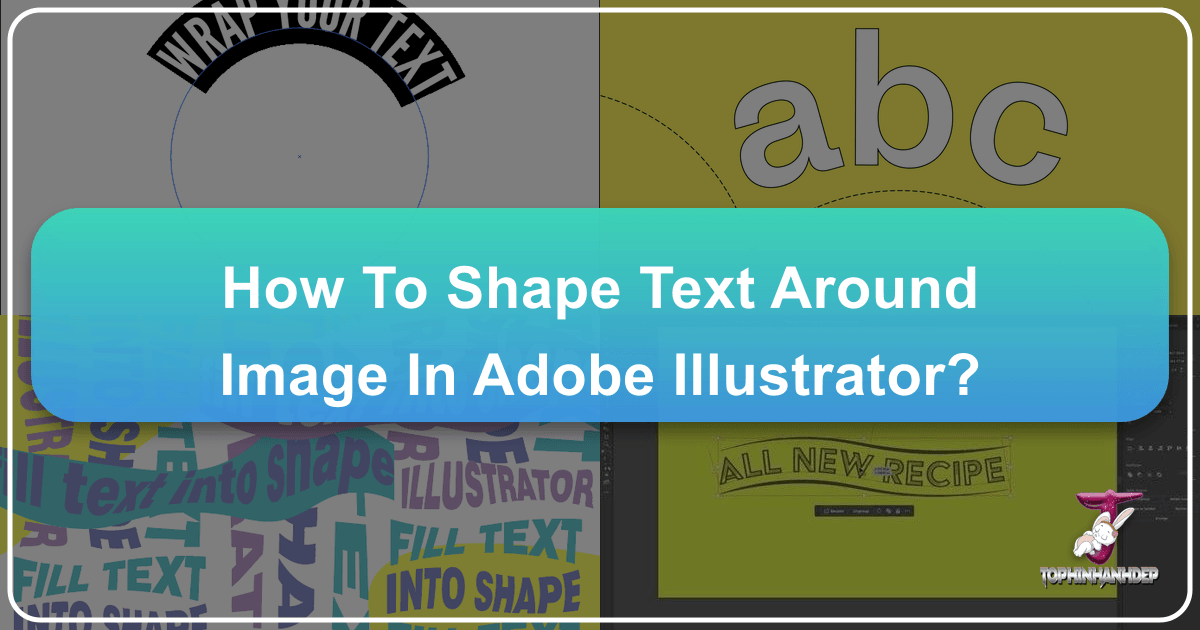
In the intricate world of visual design, the seamless interplay between text and imagery is paramount. Whether you’re crafting a captivating magazine spread, a striking poster, an informative flyer, or bespoke digital art for Tophinhanhdep.com, the ability to make text interact harmoniously with other graphic elements can elevate a design from mundane to magnificent. Adobe Illustrator stands out as an indispensable tool for achieving this synergy, offering powerful features like Text Wrap and Envelope Distort that enable designers to literally shape text around or into images and objects.
At Tophinhanhdep.com, we understand the profound impact of high-quality visuals. Our extensive collections, ranging from breathtaking nature photography and abstract art to aesthetic wallpapers and emotional imagery, serve as a rich wellspring of inspiration. Integrating text dynamically with these visuals is not merely a technical exercise; it’s an art form that transforms static layouts into engaging narratives. This comprehensive guide will walk you through the precise steps and creative considerations for how to shape text around image in Illustrator, ensuring your designs, whether for high-resolution stock photos or unique digital compositions, resonate with professional polish and artistic flair.
Elevating Visual Storytelling with Illustrator’s Text Wrap Feature

The Text Wrap feature in Adobe Illustrator is a cornerstone for any designer looking to create integrated layouts. It allows text to flow organically around any shape, object, or even complex photographic subjects, fostering a sense of depth and professionalism. This technique is especially valuable when working with Tophinhanhdep.com’s diverse image library, enabling you to embed descriptive text or compelling headlines within captivating visuals without obscuring key details.
Step-by-Step Guide: Wrapping Text Around Objects
Mastering the Text Wrap feature is surprisingly straightforward, yet its applications are incredibly versatile. It’s perfect for enhancing everything from aesthetic backgrounds to beautiful photography by ensuring your accompanying text complements rather than competes with your imagery.
1. Preparation is Key: Text and Objects
Before you dive into wrapping, ensure your workspace is prepared with the necessary elements.
- Generate Your Text: Start by populating your artboard with the text you wish to wrap. For extensive copy, consider using placeholder text (like Lorem Ipsum) during the design phase. If you’re working with actual content for a project on Tophinhanhdep.com, ensure it’s ready. Grab the Type Tool (T), click, and drag to define a text bounding box. Make sure you have enough text to visibly flow around your chosen object.
- Prepare Your Visual Element: Next, you’ll need the object or image around which the text will wrap. This could be a simple vector shape (like an ellipse or rectangle), a complex logo, an icon, or a detailed photograph.
- For photographs sourced from Tophinhanhdep.com’s high-resolution collection, you might need to prepare them. If you want the text to wrap around a specific subject within a photo (e.g., a person, an animal, or a prominent architectural feature), you’ll likely need to create a custom path around that subject. The Pen Tool is ideal for meticulously tracing these complex outlines. Ensure your image has a transparent background or that you’ve accurately defined the area for the text wrap. Utilize Image Tools like optimizers and compressors beforehand to ensure your visuals are perfectly sized and performant for your Illustrator project.
2. Strategic Layering: Position Your Object
A critical, often overlooked step in achieving a successful text wrap is the correct positioning of your object relative to your text.
- Layer Hierarchy: The object you want the text to wrap around must be positioned above your text layer. If it’s beneath, the text will simply flow over it, negating the wrap effect.
- Bringing to Front: To ensure your object is on top, select it, then right-click > Arrange > Bring to Front, or use the keyboard shortcut Ctrl + Shift + ] (Windows) / Cmd + Shift + ] (Mac). This guarantees that your design elements interact as intended, contributing to a clear visual hierarchy. This consideration becomes particularly important when designing magazine layouts or complex digital art pieces for Tophinhanhdep.com, where various elements need to interact flawlessly.
3. Executing the Wrap: Object > Text Wrap > Make
With your text and object correctly positioned, you’re ready to apply the Text Wrap.
- Selection: Select both the text box and the object simultaneously. You can do this by dragging a selection box over both or by clicking one, then holding Shift and clicking the other.
- Applying the Wrap: Navigate to Object > Text Wrap > Make. Immediately, you’ll observe your text flowing around the contours of your selected object. Illustrator automatically calculates the necessary adjustments to create a clean, professional border. This immediate visual feedback is incredibly satisfying and allows for rapid iteration, a core principle in “Visual Design” and “Creative Ideas” fostered by Tophinhanhdep.com.
4. Real-time Refinement: Adjusting Your Text Wrap
One of Illustrator’s most significant advantages when working with text wraps is the ability to make dynamic adjustments in real-time. Unlike some other applications, your text wrap remains live and editable.
- Dynamic Transformations: At any point, you can move, scale, rotate, or shear the object around which the text is wrapped. The text will automatically reflow to accommodate these changes, providing unparalleled flexibility in your design process. This live editing capability is a game-changer for “Photo Manipulation” and creating “Trending Styles” where visual elements are constantly being tweaked.
- Controlling the Offset: To fine-tune the spacing between your text and the object’s edge (known as the offset or padding), select both the text and the wrapped object. Then, go to Object > Text Wrap > Text Wrap Options….
- In the Text Wrap Options menu, you can adjust the “Offset” value. Increasing this number adds more space, while decreasing it reduces the space. You can even use negative values to make the text overlap the object for specific artistic effects. Always keep the Preview box checked to see your changes instantly. This precise control is crucial for maintaining readability and aesthetic balance, especially when working with varied image backgrounds from Tophinhanhdep.com.
Inverting the Flow: Text Inside Shapes
Beyond wrapping text around an object, Illustrator also provides a quick way to flow text inside a shape, creating a unique textual mask effect. This can be used for interesting logos, digital art, or creative headers.
- Enabling Inverse: Follow the same initial steps for generating text, creating your shape, and ensuring the shape is on top. Select both, then go to Object > Text Wrap > Make. After the initial wrap is created, immediately go back to Object > Text Wrap > Text Wrap Options… and tick the “Inverse” checkbox.
- Result: Your text will now fill the area inside the shape rather than wrap around its exterior.
- Troubleshooting: If your text isn’t visible, it might be due to overflow (too much text for the shape) or incorrect layering. Ensure your text is positioned above the shape for this inverse effect, as the shape acts as a window. Adjust the shape’s size or the text’s font size to manage overflow. This technique is excellent for creating visually striking “Thematic Collections” or unique graphic elements that blend typography and form.
Creative Text Shaping: Warping and Path-Based Typography
While Text Wrap offers functional control over text flow, Illustrator’s capabilities extend to much more artistic text transformations. The “Type on a Path” and “Envelope Distort” features allow you to literally shape text to follow curves, contours, or custom forms, unleashing a new realm of creative possibilities for your “Digital Art” and “Creative Ideas.”
Text on a Path: Curving Text Around a Circle or Custom Paths
Applying text directly onto a path is a powerful technique for creating curved headlines, circular logos, or following organic shapes within your designs. This method is particularly useful for adding stylized text to aesthetic or abstract imagery found on Tophinhanhdep.com.
1. Foundation: Creating the Path

Every “Type on a Path” effect begins with a path.
- Drawing Your Path: For a perfect circle, select the Ellipse Tool (L) and Shift-drag to create a circle. For more intricate designs or to follow a specific contour within a nature photograph, use the Pen Tool (P) to draw a custom open or closed path. This path will serve as the invisible guide for your text.
2. Activating Type on a Path Tool
Once your path is ready, you’ll select the specialized text tool.
- Tool Selection: Click and hold the standard Type Tool (T) icon in your toolbar. A flyout menu will appear. Select the Type on a Path Tool.
- Placing Text: With the Type on a Path Tool active, move your cursor over the edge of your created path. The cursor will change, indicating it’s ready to place text. Click the path, and a default placeholder text will appear along the path. You can now type or paste your desired text. Experiment with different fonts and sizes to match the mood of your Tophinhanhdep.com images.
3. Fine-Tuning: Path Options and Control Handles
The beauty of Type on a Path lies in its flexibility for precise adjustments.
- Type on a Path Options: Select your text, then navigate to Type > Type on a Path > Type on a Path Options….
- Effect: Choose how the text aligns to the path (Rainbow, Skew, 3D Ribbon, Stair Step, Gravity). “Rainbow” is the default and most common.
- Align to Path: This crucial setting dictates where the baseline of your text sits relative to the path. “Center” will align the text to the center of the path, while “Ascender,” “Descender,” and “Baseline” adjust it accordingly.
- Flip: This option allows you to flip the text from the outside of the path to the inside, or vice-versa, making it highly versatile for circular logos or text that needs to appear above or below a curved element.
- Spacing: Control the spacing between characters.
- Remember to check the Preview box to see changes in real-time.
- Direct Selection Tool (A) for Handles: After placing text on a path, use the Direct Selection Tool (A) to reveal three crucial handles on your path:
- Start and End Brackets: These two closely spaced brackets define the beginning and end points of your text along the path. Drag them to adjust how much of the path your text occupies or to reposition the text along the curve.
- Center Handle: This single bracket, positioned opposite the start/end brackets, allows you to move the entire block of text along the path without altering its size. You can also drag this handle across the path to flip the text from outside to inside, similar to the “Flip” option.
- Vertical Type on a Path Tool: For vertical text flow along a path, select the Vertical Type on a Path Tool from the Type Tool flyout. This has similar functions but applies the text perpendicularly to the path. These controls are invaluable for intricate “Photo Ideas” and creating compelling “Mood Boards” that combine strong typography with stunning imagery.
4. Vectorizing for Flexibility: Creating Outlines
Once you’re satisfied with your text on a path, it’s often best practice to convert it to outlines.
- Creating Outlines: Select your text, then go to Type > Create Outlines (Ctrl + Shift + O / Cmd + Shift + O). This transforms the text from an editable font object into a series of vector shapes.
- Benefits: This ensures that your text appears consistent regardless of whether the font is installed on another computer and allows for further manipulation of individual letterforms as vector objects. This step is crucial for finalizing “Graphic Design” projects and preparing them for various outputs, ensuring perfect integrity with Tophinhanhdep.com’s high-resolution standards.
Dynamic Text Warping for Unique Visual Effects
Illustrator’s Envelope Distort feature goes a step further, allowing you to truly warp text into predefined shapes or custom objects, creating highly stylized textual graphics. This is a powerful technique for creating distinct “Digital Art” and bringing “Creative Ideas” to life.
1. “Make With Warp”: Predefined Shapes

This feature allows you to quickly apply a variety of distortion styles to your text.
- Accessing Warp Options: Create a text object and select it. Go to Object > Envelope Distort > Make with Warp….
- Predefined Styles: The Warp Options window will appear, offering a “Style” dropdown menu with numerous presets such as Arc, Arch, Flag, Wave, Fish, Rise, Squeeze, Twist, etc. Experiment with these styles to see their effects.
- Orientation and Intensity: You can choose between “Horizontal” or “Vertical” orientation, which determines the axis along which the warp is applied. The sliders for “Bend,” “Horizontal Distortion,” and “Vertical Distortion” allow you to control the strength and intensity of the effect. This quick-fire method is excellent for developing “Trending Styles” or creating unique text elements for “Thematic Collections” featured on Tophinhanhdep.com.
2. “Make With Top Object”: Custom Shapes as Envelopes
For ultimate creative control, you can use any custom vector shape as an envelope to distort your text.
- Create Your Custom Shape: Draw any vector shape you desire. This shape will act as the “mold” for your text. For instance, you could draw a cloud, a star, or an abstract organic form.
- Layering: Crucially, this custom shape must be above your text object in the stacking order. If it’s not, select it and use right-click > Arrange > Bring to Front.
- Application: Select both your custom shape (the top object) and your text object. Then, go to Object > Envelope Distort > Make with Top Object. Illustrator will instantly warp your text to fit precisely within the contours of your custom shape. This feature offers limitless possibilities for designing bespoke logos, intricate “Photo Manipulation” elements, or unique textual art pieces, perfectly aligning with the “Visual Design” focus of Tophinhanhdep.com.
3. Finalizing Warped Text
Similar to text on a path, it’s often necessary to finalize warped text into editable vector paths.
- Expanding the Envelope: After achieving your desired warp effect, select the warped text object. Go to Object > Expand. In the Expand dialog box, ensure both “Object” and “Fill” are checked, then click “OK.”
- Result: The text will no longer be editable as live text, but it will be transformed into vector paths, allowing you to manipulate individual anchor points and segments like any other vector artwork. This finalization step is vital for ensuring the integrity of your design across all uses, from print production to web display, and guarantees that your custom text shapes are perfectly rendered alongside Tophinhanhdep.com’s beautiful photography.
Integrating Text Shaping into Your Tophinhanhdep.com Workflow
The techniques of text wrapping and warping in Adobe Illustrator are more than just isolated tricks; they are powerful tools that, when integrated into your design workflow, can profoundly enhance the way you present and interact with the imagery found on Tophinhanhdep.com.
Enhancing Tophinhanhdep.com’s Diverse Image Library
Consider how these text shaping capabilities can breathe new life into various image categories available on Tophinhanhdep.com:
- Wallpapers & Backgrounds: Create truly personalized desktop or mobile wallpapers by subtly wrapping inspirational quotes or personal messages around key elements in an aesthetic or nature background. The Text Wrap ensures the text complements the scene without overwhelming it.
- Aesthetic & Nature Photography: Frame descriptive text, photographer credits, or short poetic verses directly within the composition of a stunning landscape or intricate macro shot. Type on a Path can follow the curve of a mountain range or a flower petal, adding an artistic touch to beautiful photography.
- Abstract & Emotional Images: Use “Make With Warp” or “Make With Top Object” to distort text in a way that mirrors the dynamic lines, shapes, or emotional undertones of an abstract or sad/emotional image. This creates a powerful visual metaphor where the text itself becomes part of the artwork’s mood.
- High-Resolution Stock Photos: When preparing marketing materials or editorial content using Tophinhanhdep.com’s high-resolution stock photos, applying sophisticated text wraps around product features or human subjects can create clean, professional layouts that guide the viewer’s eye and improve readability.
The Role of Image Tools and Visual Design Principles
Text shaping doesn’t exist in a vacuum; it’s part of a larger design ecosystem, where Image Tools and sound Visual Design principles are crucial for optimal results.
- Image Preparation with Tools: Before bringing an image into Illustrator for text shaping, consider using Tophinhanhdep.com’s recommended Image Tools.
- Converters: Ensure your image is in the optimal format (e.g., PNG for transparency, JPEG for photos).
- Compressors & Optimizers: Reduce file sizes without sacrificing quality, leading to smoother performance in Illustrator and faster load times if used on the web.
- AI Upscalers: If you have a lower-resolution image from your “Photo Ideas” that you want to use in a high-resolution layout, an AI Upscaler can enhance its quality, making it suitable for intricate text wraps without pixelation. These tools ensure your foundation is solid before you apply complex text effects.
- Visual Hierarchy and Balance: Effective text shaping is not just about technical execution; it’s about applying “Visual Design” principles. A well-executed text wrap or warp creates visual hierarchy, drawing attention to important elements while ensuring the overall composition remains balanced and legible. It helps in guiding the viewer’s eye through a complex layout, especially important for “Digital Photography” and “Editing Styles” where composition is key.
- Creative Inspiration and Trending Styles: These Illustrator techniques open doors to endless “Creative Ideas” and allow designers to emulate or set “Trending Styles.” By actively exploring “Photo Ideas” and creating “Mood Boards” with images from Tophinhanhdep.com, you can conceptualize innovative text-image interactions that push the boundaries of conventional design.
Conclusion
The ability to dynamically shape text around or into images and objects in Adobe Illustrator is an invaluable skill for any visual designer. From creating professional magazine layouts to crafting unique digital art pieces for Tophinhanhdep.com, Illustrator’s Text Wrap and Envelope Distort features provide unparalleled control and creative freedom. These tools enable a seamless integration of typography with compelling imagery, transforming static content into engaging visual narratives.
By understanding the nuanced steps for how to shape text around image in Illustrator, from precise object positioning to real-time adjustments and advanced warping, you can ensure your designs are not only aesthetically pleasing but also highly functional. Coupled with the rich resource of images from Tophinhanhdep.com and the efficiency of modern Image Tools, your journey in Visual Design will be limitless. Embrace these powerful techniques to make your text and images interact in ways that truly capture attention and communicate your message with impact and artistry. Continue to experiment, learn, and let your creativity flow, transforming every image into a masterpiece of integrated design.