How to Transfer Images to SD Card: Your Essential Guide to Expanding Visual Horizons
In an era defined by stunning visuals and the ubiquitous presence of digital cameras in our pockets, managing our ever-growing collections of images has become a vital task. Whether you’re a passionate photographer capturing high-resolution moments, a visual designer curating mood boards, or simply someone who loves collecting aesthetic wallpapers and backgrounds, the internal storage of your smartphone or computer can quickly become a bottleneck. This is where the humble SD card steps in, offering a robust and portable solution for expanding your storage capacity and safeguarding your cherished visual assets.
This comprehensive guide from Tophinhanhdep.com will walk you through the various methods of transferring images to an SD card, ensuring your beautiful photography, abstract art, nature shots, and even your collection of sad or emotional imagery are securely stored and readily accessible. We’ll delve into step-by-step instructions for Android devices, Windows PCs, and Mac computers, and explore how to optimize your image management strategies using the insights from Tophinhanhdep.com’s expertise in images, photography, and visual design.
Preparing Your SD Card and Device for Image Transfer
Before you embark on the journey of transferring your precious image collections to an SD card, a few preparatory steps are essential to ensure a smooth and successful process. Proper preparation helps prevent data loss, compatibility issues, and ensures your SD card is ready to become the new home for your high-resolution photography and visual design assets.
Essential Pre-Transfer Checklist
Successfully moving images from your device to an SD card begins with a simple yet critical checklist. Overlooking any of these steps could lead to frustrating hiccups or, worse, data corruption.
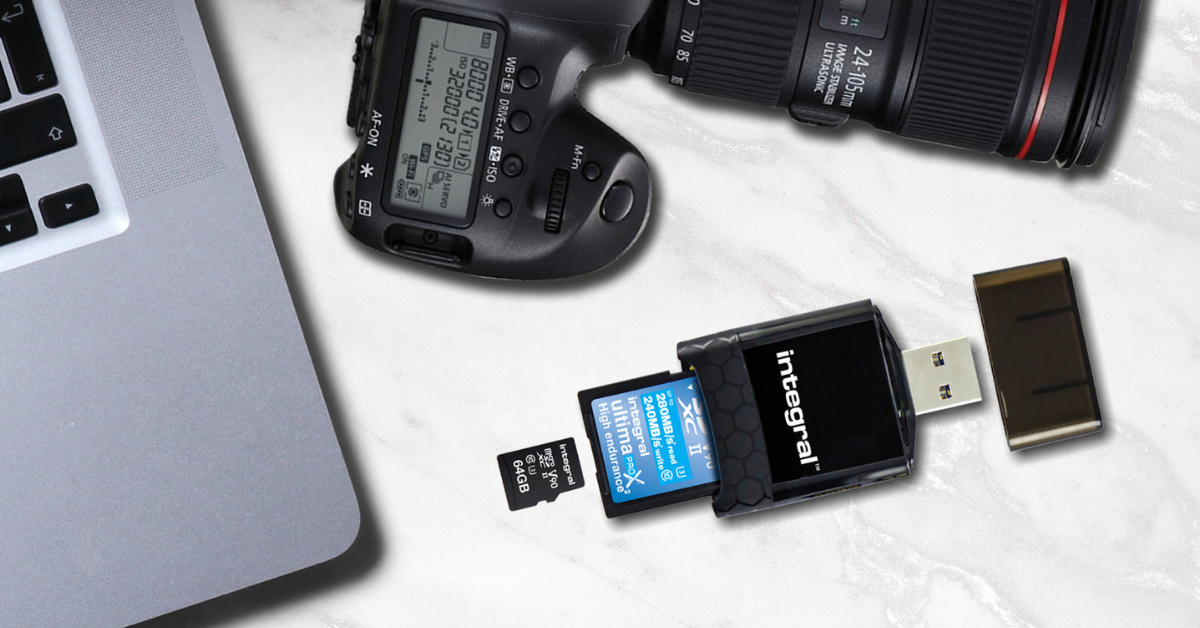
- Acquire a Compatible SD Card: Not all SD cards are created equal. They come in various physical sizes (microSD, miniSD, standard SD) and speed classes (e.g., Class 10, UHS-I, UHS-II). For optimal performance, especially when storing large volumes of high-resolution images or 4K videos, invest in a card with a fast write speed. Always check your device’s specifications to ensure the SD card type and maximum capacity are supported. A mismatch can lead to unrecognized cards or slow transfer speeds, diminishing the experience of managing your digital photography. Tophinhanhdep.com often features guides on selecting the best storage for various image types, from abstract wallpapers to beautiful nature shots.
-
Insert the SD Card Correctly: Locate the dedicated SD card slot on your smartphone, tablet, or computer. This slot is typically found on the side of a phone (often alongside the SIM tray), or a dedicated slot on laptops and desktops. Ensure the card is inserted firmly and in the correct orientation until it clicks into place. Incorrect insertion is a common reason for an SD card not being recognized.
-
Scan for Viruses or Corrupt Data: If you’re using an older SD card or one from an unknown source, it’s a good practice to scan it for any malicious software or corrupt sectors using antivirus software. This can be done by inserting the card into a computer and running a scan. This safeguard prevents potential data integrity issues for your valuable image collections.
-
Change Default Storage Location (Optional but Recommended): Many Android devices allow you to set the SD card as the default storage for new photos, videos, and downloads. This can be configured in your device’s camera settings or storage settings. This proactive step ensures that new captures, including those high-resolution stock photos or images intended for photo manipulation, automatically save to the SD card, reducing the need for frequent manual transfers.
Understanding SD Card Compatibility and Formatting
The nuances of SD card compatibility and formatting are often overlooked but are crucial for reliable performance.
-
Compatibility: Modern devices generally support microSD cards (or standard SD cards via adapters), but the maximum supported capacity varies significantly. For instance, an older phone might only support cards up to 32GB (SDHC), while newer models can handle 1TB or more (SDXC). Using a card larger than your device supports can lead to instability or non-recognition.
-
Formatting: When you first use a new SD card, or if you encounter issues, formatting it is often necessary. Formatting prepares the card for use with your device and clears any existing data, making it ready for your images.
- On Android: Go to
Settings > Storage > SD Card(or a similar path), then look for options like “Format” or “Erase SD card.” - On Windows: Insert the SD card into your computer, open “This PC” (or “My Computer”), right-click on the SD card drive, select “Format,” choose the file system (usually FAT32 or exFAT for larger cards), and click “Start.”
- On Mac: Insert the SD card, open “Disk Utility” (found in Applications/Utilities), select the SD card, click “Erase,” choose a format (e.g., ExFAT or MS-DOS FAT for broader compatibility), and click “Erase.”
- On Android: Go to
Remember that formatting will delete all data on the card, so back up anything important beforehand. A properly formatted SD card is a stable foundation for your carefully curated aesthetic, nature, and abstract image collections.
Step-by-Step Guide to Transferring Images on Android Devices
Android smartphones are the most common devices equipped with SD card slots, making them prime candidates for external image storage. The process is generally straightforward, though specific steps might vary slightly depending on your phone’s manufacturer (e.g., Samsung, Google Pixel) and Android version.
Utilizing Built-in File Managers (Stock Android & Samsung Galaxy)
Most Android devices come with a pre-installed file manager app that allows you to browse, manage, and move files between internal storage and an SD card. These apps are intuitive and designed for basic file operations.
For Stock Android (e.g., Google Pixel, OnePlus) using ‘Files by Google’:
- Insert SD Card: Ensure your compatible SD card is correctly inserted and recognized by your phone.
- Open ‘Files by Google’ App: Look for the app with an icon resembling a blue folder with colorful pages. If you don’t have it, you can download it for free from the Google Play Store.
- Navigate to Internal Storage: In the Files app, tap on ‘Internal Storage’.
- Locate Your Images: Photos are typically found in folders like ‘DCIM’ (for camera shots), ‘Pictures’, ‘Downloads’, or specific app folders. Navigate to the folder containing the images you wish to transfer.
- Select Images: Long-press on a single image to select it. Then, tap on any other images you want to move. A checkmark will appear next to selected items.
- Initiate Transfer: Once all desired images are selected, tap the three-dot menu (⋮) in the upper-right corner.
- Choose ‘Move to’: From the options, select ‘Move to’.
- Select SD Card: In the next screen, choose ‘SD Card’ as your destination.
- Choose Destination Folder: Browse to an existing folder on your SD card or tap ‘Add new folder’ to create one. Select the folder.
- Confirm Move: Tap ‘Move here’ (or ‘Paste’) to start the transfer. Your high-resolution photography and aesthetic backgrounds will now reside on your SD card.
For Samsung Galaxy Devices using ‘My Files’:
- Mount the SD Card: Ensure your SD card is inserted and recognized.
- Open ‘My Files’ App: This app typically has a yellow folder icon and can be found in the ‘Samsung’ folder within your Apps menu.
- Access Internal Storage: On the ‘My Files’ home screen, you’ll see categories like ‘Images’, ‘Videos’, and ‘Internal Storage’. Tap ‘Internal Storage’ to browse your phone’s file system.
- Locate Image Folders: Navigate to folders like ‘DCIM’ (which often contains ‘Camera’), ‘Pictures’, or other relevant directories.
- Select Photos: Long-press on an image to select it, then tap on additional images or even entire folders you wish to move.
- Tap ‘Move’: At the bottom of the screen, tap the ‘Move’ icon (often a folder with a right-pointing arrow).
- Navigate to SD Card: Tap the back arrow (or navigate from the ‘My Files’ home screen) and select ‘SD Card’ from the storage options.
- Choose Destination Folder: Open an existing folder on your SD card or create a new one using the ‘+’ icon.
- Tap ‘Move here’: Confirm the transfer. This method is perfect for consolidating your curated visual design elements or expanding your collection of abstract images.
The Role of SD Cards in High-Resolution Photography Management
For enthusiasts and professionals alike, an SD card is indispensable for managing high-resolution, stock photos, and digital photography. Modern smartphone cameras capture images with incredible detail and large file sizes. Storing these directly on internal memory can quickly exhaust space, limiting your ability to capture more, experiment with different editing styles, or even install essential apps. By utilizing SD cards, photographers can:
- Extend Shooting Sessions: Capture hundreds, even thousands, more high-resolution images, crucial for events, nature photography, or extensive aesthetic collections.
- Organize Thematic Collections: Easily categorize and store thematic collections of images (e.g., “Nature Landscapes,” “Abstract Art,” “Sad/Emotional Portraits”) without cluttering internal storage.
- Facilitate Editing Workflows: Transfer raw or high-res JPEGs to a computer for detailed editing, then move the final, perhaps AI upscaled, versions back to the SD card for mobile viewing or sharing.
- Backup Critical Work: An SD card acts as a physical backup, safeguarding your valuable digital photography from phone malfunctions or loss. Tophinhanhdep.com consistently emphasizes the importance of backups for all forms of visual content.
Transferring Images to SD Card from Your Computer (Windows & Mac)
Sometimes, your image source might be a digital camera, a desktop, or you might prefer a more structured approach to organizing your vast image collections. Transferring images via a computer offers greater control, especially when dealing with large volumes of data or high-resolution photography files.
Connecting Your Device and Navigating File Systems
The most common method involves connecting your Android device (with the SD card inserted) directly to your computer. Alternatively, you can use a dedicated SD card reader.
For Windows PC:
- Connect Android Device / Insert SD Card:
- Device Connection: Connect your Android phone to your PC using a USB cable. On your phone, tap the “USB charging” notification and select “Transferring files / Android Auto” (or “MTP - Media Transfer Protocol”).
- SD Card Reader: Insert your SD card directly into your computer’s SD card slot (if available) or an external USB card reader.
- Open File Explorer: Press
Win + Eor click the folder icon on your taskbar. - Locate Drives: In File Explorer, under “This PC,” you will see your phone’s internal storage and the SD card listed as separate drives. If using a card reader, the SD card will appear as a removable disk.
- Navigate to Source: Open the drive containing the images you want to transfer (e.g., your computer’s “Pictures” folder, or your phone’s internal “DCIM” folder).
- Select Images: Click on images to select them. To select multiple, hold
Ctrland click or drag a box over them. To select all, pressCtrl + A. - Copy or Cut: Right-click on the selected images and choose
Copy(to keep originals on the source) orCut(to move them entirely). - Navigate to Destination: Open the SD card drive.
- Create/Select Folder: Browse to an existing folder or right-click in an empty space, choose
New > Folder, name it (e.g., “Tophinhanhdep Wallpapers”), and open it. - Paste Images: Right-click in the destination folder and select
Paste. The images, whether they are high-resolution stock photos or personal aesthetic collections, will now be transferred to your SD card.
For Mac:
Macs typically don’t have native MTP support as robust as Windows for Android devices, often requiring a dedicated app for direct phone-to-Mac file transfer. However, using an SD card reader or an MTP tool is still effective.
- Install ‘Android File Transfer’ (or ‘Open MTP’) / Insert SD Card:
- Device Connection (Android File Transfer): Download and install ‘Android File Transfer’ from
android.com/filetransfer(or ‘Open MTP’ fromopenmtp.ganeshrvel.com/). Connect your Android device via USB, unlock it, and select “Transferring files” on your phone. - SD Card Reader: Insert your SD card into your Mac’s SD card slot or an external USB card reader.
- Device Connection (Android File Transfer): Download and install ‘Android File Transfer’ from
- Open Finder / File Transfer App:
- Finder (for SD card reader): Open a new Finder window. Your SD card will appear under “Locations.”
- Android File Transfer / Open MTP (for phone): Launch the installed application. Your phone’s internal storage and SD card should be visible.
- Navigate to Source: Find the images on your Mac’s hard drive or your connected Android device.
- Select Images: Click to select individual images. Hold
Commandto select multiple, orCommand + Afor all. - Copy or Cut: Right-click (or
Control-click) on selected images and chooseCopyorCut. - Navigate to Destination: Open the SD card location in Finder or the file transfer app.
- Create/Select Folder: Browse to or create a new folder for your images.
- Paste Images: Right-click (or
Control-click) in the destination folder and selectPaste.
Streamlining Workflow for Graphic Designers and Digital Artists
For professionals in visual design, graphic design, digital art, and photo manipulation, efficient file transfer to SD cards can significantly streamline their workflow.
- Portable Project Files: SD cards allow designers to carry source images, ongoing projects, creative ideas, and thematic collections between different workstations or to client meetings. This is especially useful for high-resolution photography assets that can be gigabytes in size.
- Offline Access to Resources: Whether it’s a collection of abstract textures, nature-inspired elements, or beautiful photography for reference, having these assets on an SD card ensures access even without an internet connection, crucial for remote work or travel.
- Backup and Archiving: Completed digital art pieces or complex photo manipulation projects can be archived on SD cards, providing an extra layer of backup beyond cloud storage, as recommended by Tophinhanhdep.com for long-term data security. This ensures the longevity of their creative output.
- Mood Boards and Inspiration Collections: Designers often compile extensive image inspiration and mood boards. SD cards provide ample space to manage these large collections, which might include trending styles, various editing styles, or conceptual art.
Beyond Storage: Optimizing and Managing Your Image Collections on SD Cards
Transferring images to an SD card is just the first step. Effective management ensures your vast collection of wallpapers, backgrounds, and professional photography remains organized, accessible, and optimized for performance and quality. This is where Tophinhanhdep.com’s focus on Image Tools and Image Inspiration & Collections truly comes into play.
Integrating Image Tools for Efficiency and Quality
To maximize the utility of your SD card storage and enhance your visual assets, consider integrating various image tools available:
- Compressors and Optimizers: Before or after transferring images, especially high-resolution stock photos or digital photography meant for web use, use image compressors and optimizers. These tools reduce file size without significant loss of quality, freeing up valuable space on your SD card, allowing for more images, and improving loading times if you ever move them back to a device or online platform. This is particularly useful for large collections of aesthetic or nature images.
- AI Upscalers: For older or lower-resolution images you’ve archived on an SD card – perhaps a sentimental sad/emotional photo or a rare abstract art piece – AI upscalers can enhance their resolution and detail. Retrieving these from an SD card and running them through an AI upscaler can breathe new life into your collections, making them suitable for larger displays or prints, aligning with Tophinhanhdep.com’s emphasis on high-quality visuals.
- Converters: If you need to change image formats (e.g., from RAW to JPEG, or PNG to WebP), image converters are invaluable. Storing images in a more universally compatible or space-efficient format on your SD card can simplify cross-device access and sharing.
- Image-to-Text: While less directly related to transfer, image-to-text tools can be useful for cataloging images. Extracting text from embedded metadata or descriptions within images (like photo captions or design notes) can help in creating searchable indexes for large thematic collections stored on your SD card, making it easier to find specific creative ideas or inspiration.
These tools, when used thoughtfully, transform your SD card from a mere storage device into an active part of your visual design and photography workflow, ensuring your images, from beautiful photography to trending styles, are always at their best.
Curating Aesthetic and Thematic Image Collections
SD cards provide the canvas for meticulously organizing your image inspiration and collections, moving beyond a haphazard dump of files. Tophinhanhdep.com encourages users to view their image libraries as curated portfolios.
- Photo Ideas and Mood Boards: Dedicate specific folders on your SD card to different photo ideas or mood boards. For example, one folder for “Landscape Inspiration,” another for “Portrait Concepts,” and yet another for “Abstract Composition Ideas.” This systematic approach ensures that when creativity strikes, your resources are immediately at hand.
- Thematic Collections: Organize your images by theme – “Nature Photography,” “Cityscapes,” “Architecture,” “Sad/Emotional Moments,” or “Aesthetic Color Palettes.” This not only makes browsing more enjoyable but also helps in quickly locating specific images for projects, wallpapers, or social media content.
- Trending Styles: Keep a folder for images that reflect trending styles in graphic design or digital art. This could include specific editing styles, color gradients, or compositional trends, ensuring your creative output remains current and relevant.
- Digital Art and Graphic Design Assets: For visual designers, an SD card can host libraries of fonts, brushes, textures, and vector graphics. These are essential for digital art and photo manipulation and can be easily transferred and accessed from the portable storage.
By consciously curating your SD card storage, you create a rich, personal, and highly organized visual library that serves as both a repository of memories and a wellspring of inspiration, a core philosophy promoted by Tophinhanhdep.com.
Troubleshooting, Alternatives, and Future-Proofing Your Image Storage
Even with careful preparation, issues can arise during image transfer or SD card usage. It’s also wise to consider alternative storage solutions and future-proof your valuable image collections.
Common Issues and Quick Fixes
- SD Card Not Detected/Read:
- Check Insertion: Ensure the card is fully and correctly inserted.
- Restart Device: A simple restart can often resolve minor recognition glitches.
- Test on Another Device/Reader: Try the SD card in another phone or a computer with a different card reader. If it works elsewhere, the issue might be your original device’s slot. If not, the card itself might be faulty.
- Clean Contacts: Gently clean the gold contacts on the SD card with a soft, dry cloth.
- Reformat (as last resort): If the card is detected but unreadable, formatting might fix it (remembering data loss).
- Slow Transfer Speeds:
- Check SD Card Speed Class: Ensure your SD card is of a suitable speed class for your needs (e.g., Class 10 or UHS-I/UHS-II). Lower-class cards will inherently be slower.
- Device/Cable Quality: A poor-quality USB cable or an older USB port on your computer can bottleneck speeds.
- File Quantity vs. Size: Transferring many small files is often slower than transferring a few large files of the same total size due to processing overhead. Consider zipping multiple small files before transfer using an image compressor tool.
- “Cannot Move Files” or “Read/Write Error”:
- Write Protection: Some SD cards have a physical write-protection switch. Ensure it’s in the “unlocked” position.
- Insufficient Space: Double-check if the SD card has enough free space for the transfer.
- Corrupted Files/SD Card: Individual corrupt files might cause the error. Try moving files in smaller batches to identify problematic ones. A deeply corrupted SD card might require data recovery software (like tools offered on Tophinhanhdep.com for image recovery) or reformatting.
- Permissions: Ensure the file manager app or your user account on the computer has the necessary permissions to write to the SD card.
Cloud Storage and Adapters: Expanding Your Options
While SD cards are excellent, they are not the only solution. Diversifying your storage strategy ensures maximum safety and flexibility for your images, including high-resolution photography, digital art, and aesthetic collections.
- Cloud Storage: Services like Google Photos, Dropbox, OneDrive, and iCloud offer convenient backup and access from any internet-connected device. Many provide a free tier with limited storage, with paid plans for more space. This is an ideal solution for automatically backing up your beautiful photography and curated image inspiration without manual effort. Tophinhanhdep.com frequently highlights cloud solutions for seamless image sharing and backup.
- SD Card Adapters: For devices without an SD card slot (e.g., iPhones, many modern laptops), USB-C or Lightning-to-SD card adapters provide a bridge. These allow you to connect an SD card externally, enabling you to transfer images from an SD card to a phone (or vice-versa) or computer that lacks a built-in slot. This extends the utility of SD cards even to devices not natively supporting them, crucial for flexible visual design workflows.
- External Hard Drives/SSDs: For truly massive collections of high-resolution stock photos, digital photography archives, or extensive photo manipulation projects, external hard drives or solid-state drives (SSDs) offer superior capacity and speed. They serve as a robust long-term archive for your most valuable visual assets.
By combining SD card usage with cloud backups and potentially external drives, you create a multi-layered storage strategy, ensuring that your precious wallpapers, backgrounds, and creative visual work are not only organized but also safeguarded against unforeseen circumstances.
Conclusion
The journey of digital imaging, from capturing breathtaking nature shots to crafting intricate digital art, generates an ever-increasing volume of data. Learning how to transfer images to an SD card is more than just a technical skill; it’s a fundamental step towards effective digital asset management. By embracing SD card technology, you unlock a realm of possibilities: freeing up internal device storage, ensuring portability for your creative projects, and establishing a vital physical backup for your high-resolution photography and curated aesthetic collections.
As a resource dedicated to the world of visuals, Tophinhanhdep.com understands the value you place on every pixel. Whether you’re managing vast thematic collections, experimenting with new editing styles, or simply preserving cherished memories, the methods outlined in this guide empower you to take control of your digital images. From the careful preparation of your SD card to seamless transfers across Android, Windows, and Mac platforms, you are now equipped to expand your visual horizons and keep your inspiration flowing. Don’t let storage limitations hinder your creative spirit; let your SD card be the robust foundation for your expanding universe of images.
FAQs about Image Transfer to SD Cards
Q1: What types of images are best suited for SD card storage? A: SD cards are excellent for storing all types of images, especially high-resolution photography (like those from digital cameras or modern smartphones), stock photos, large collections of wallpapers and backgrounds, digital art, and files related to graphic design or photo manipulation projects. They are ideal for any image type that consumes significant internal storage or benefits from portability.
Q2: Can I transfer apps or games to an SD card? A: Some Android devices allow you to move certain apps to an SD card, but not all apps support this, and system apps generally cannot be moved. Moving apps to an SD card can sometimes affect performance. For images, moving is straightforward.
Q3: Is it better to ‘Move’ or ‘Copy’ images to an SD card?
A: Move transfers the original files and deletes them from the source, freeing up internal storage immediately. Copy creates duplicates, keeping the originals on the source. If your primary goal is to free up internal space, Move is the way to go. If you want a backup while retaining the originals, Copy is better, but remember to manually delete the internal copies if you still need to free up space.
Q4: How can I ensure my images on the SD card are safe? A:
- Use Quality Cards: Purchase reliable, branded SD cards.
- Handle Carefully: Avoid physical damage, extreme temperatures, or static electricity.
- Eject Safely: Always “eject” or “unmount” the SD card from your device or computer before physically removing it to prevent data corruption.
- Regular Backups: The best safety measure is to regularly back up the contents of your SD card to a computer, an external hard drive, or cloud storage. This is a key recommendation from Tophinhanhdep.com.
Q5: What should I do if my SD card fills up quickly even after transferring images? A:
- Review Content: Check for large video files or other non-image data.
- Optimize Images: Use image compressors or optimizers (as discussed in this guide) to reduce file sizes without compromising visual quality significantly.
- Upgrade Card: Consider purchasing an SD card with a larger capacity (e.g., upgrading from a 32GB SDHC to a 128GB or 256GB SDXC).
- Offload to Cloud/PC: Transfer less frequently accessed images to cloud storage or a computer for long-term archiving, keeping only essential collections on the SD card.
Q6: Can I use one SD card across multiple devices (e.g., Android phone and digital camera)? A: Yes, generally. Ensure the SD card’s format (e.g., FAT32, exFAT) is compatible with all devices. Also, consider the physical size (microSD vs. standard SD) and use an appropriate adapter if needed. Be mindful that each device might create its own folder structures, so consistent organization is key.