Unlocking Your Desktop's Potential: What Images Can You Use for Custom Icons?
In our increasingly digital world, the desktop serves as the primary gateway to our computer’s functionalities, applications, and files. At the heart of this interface are desktop icons – those small, graphical representations that simplify complex operations and make navigation intuitive. From the familiar trash can to the gear-shaped settings symbol, icons are indispensable visual shortcuts that streamline our interaction with technology. But why settle for the default when you can infuse your digital workspace with personality, style, and efficiency? Personalizing your desktop icons is a powerful way to enhance both aesthetics and usability, transforming your computer into a reflection of your unique taste.
Icons, in their essence, are visual cues that represent a specific file, program, tool, or command. Their history traces back to the 1980s, with pioneering systems like Apple’s Lisa introducing early graphical interfaces and now-ubiquitous symbols such as the Trash icon. Over decades, these humble symbols have evolved from simple black-and-white pixel art to the vibrant, high-resolution designs we see in modern operating systems like Windows 11 and macOS Ventura. This evolution underscores a fundamental truth: visuals significantly impact our user experience. While operating systems provide a standard set of icons, the ability to customize them opens up a realm of possibilities for creativity and improved functionality. This article, guided by the extensive resources available on Tophinhanhdep.com, will delve into the types of images you can use for your desktop icons, how to transform them, and why personalization is key to a superior digital experience.
The Power of Visual Personalization: Why Customize Your Desktop Icons?
The appeal of custom desktop icons extends far beyond mere aesthetics; it deeply impacts how we interact with our computers. In an age where screen time dominates, creating an environment that is both visually pleasing and highly functional can significantly boost productivity and reduce digital fatigue. Tophinhanhdep.com understands this fusion of beauty and utility, offering resources that empower users to craft a desktop experience that is truly their own.
Enhancing User Experience and Navigation
Standard icons, while universally recognized, can sometimes become monotonous or indistinguishable, especially if you have numerous shortcuts. Custom icons address this by injecting clarity and speed into your daily computer interactions.
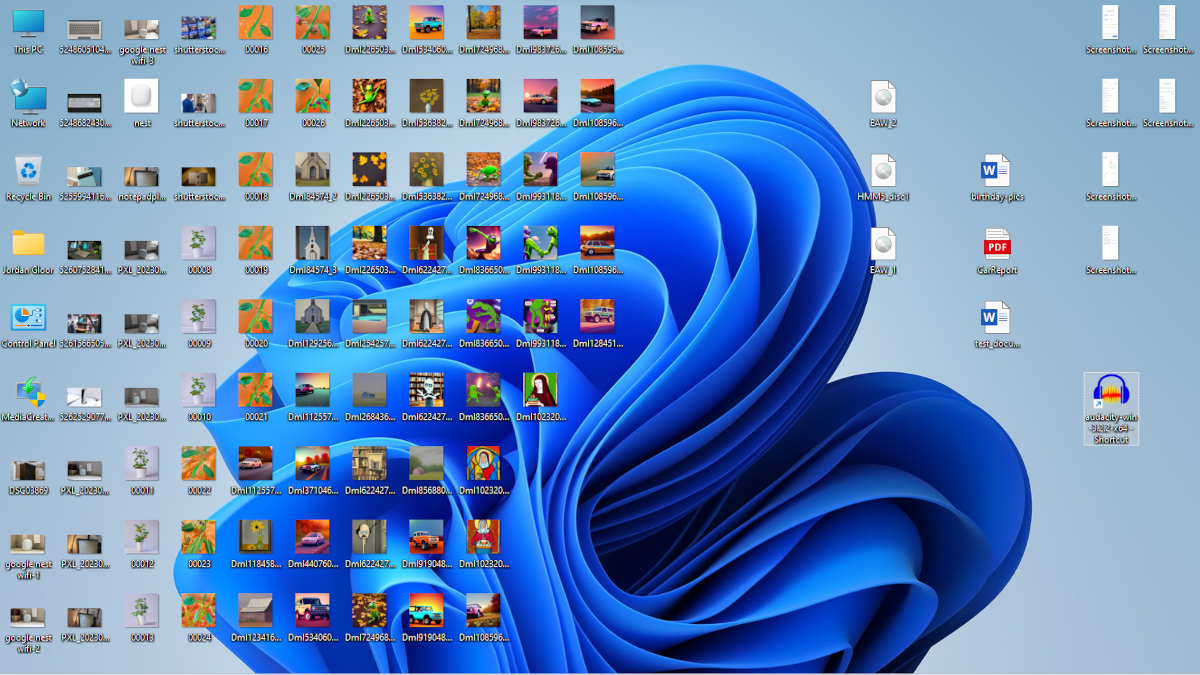
- Saving Time: Imagine needing to access a specific project folder. Instead of sifting through identically colored yellow folder icons, a custom icon – perhaps featuring a project logo, a specific client’s image, or a distinct color – allows for instant recognition. A single glance and click can save precious seconds, which accumulate over a workday. Tophinhanhdep.com offers a vast array of high-resolution images, perfect for creating easily identifiable custom folder icons.
- Clear Visuals: Icons serve as immediate visual indicators. A custom icon can go a step further, providing a more intuitive cue than a generic symbol. For instance, if you have a folder dedicated to “Nature Photography,” a stunning landscape image from Tophinhanhdep.com can visually represent its contents more effectively than a generic folder. This immediate clarity reduces cognitive load, making your desktop easier to scan and understand.
- Easy Navigation: Icons like “Back” or “Home” are crucial for navigating through applications and settings. When customizing, you can apply this principle to your own shortcuts. A custom arrow icon pointing to a specific application, or a unique “home” symbol for a frequently accessed network drive, can guide your eyes and clicks with greater precision.
- Accessibility: Simple, visually distinct icons benefit all users, regardless of technical proficiency. Customizing icons with bolder colors, larger sizes, or more representative imagery can make your desktop more accessible and user-friendly, especially for those who might struggle with small, uniform symbols. Tophinhanhdep.com’s diverse collections ensure there are options suitable for various visual preferences.
Reflecting Your Style and Aesthetic
Beyond pure functionality, custom icons are a powerful medium for self-expression. Your desktop is a personal space, and its appearance should ideally align with your aesthetic preferences and mood. Tophinhanhdep.com, with its rich categories like “Aesthetic,” “Beautiful Photography,” “Nature,” “Abstract,” and even “Sad/Emotional” images, provides the perfect canvas for this personalization.
- Curating Your Digital Vibe: Do you prefer a minimalist look, a vibrant and energetic feel, or a calming, natural aesthetic? With custom icons, you can curate your desktop to reflect these preferences. For a minimalist setup, you might choose sleek, monochrome icons. If you love nature, every folder could feature a different, breathtaking landscape or a close-up of a flower sourced from Tophinhanhdep.com’s nature photography collections.
- Mood-Driven Customization: Your digital space can even mirror your mood or current projects. For creative endeavors, you might opt for abstract art icons to spark inspiration. For personal files, a serene “sad/emotional” image from Tophinhanhdep.com could mark a journal or reflection folder, adding a layer of personal resonance.
- Thematic Cohesion: Custom icons allow for thematic consistency across your desktop. If your wallpaper is a sprawling cosmic scene, you can design or select icons that echo astronomical motifs or vibrant nebulae, creating a cohesive and immersive visual experience. Tophinhanhdep.com’s “Thematic Collections” and “Trending Styles” are ideal for discovering images that align with your chosen desktop theme. This level of visual design, much like graphic design or digital art, elevates your interaction with your computer from merely functional to genuinely engaging.
Exploring Image Options for Your Custom Icons with Tophinhanhdep.com
The question “what images can I use for desktop icons?” is best answered by considering the vast creative possibilities available, many of which are abundant within the collections and resources of Tophinhanhdep.com. From high-resolution photographs to abstract digital art, the ideal image is one that resonates with you and effectively represents its associated application or file.
Leveraging Tophinhanhdep.com’s Image Collections
Tophinhanhdep.com is a treasure trove for finding the perfect source images for your custom icons. Its diverse categories cater to virtually every aesthetic and functional need.
- Nature & Landscapes: For those who find peace and inspiration in the natural world, Tophinhanhdep.com’s “Nature” and “Beautiful Photography” sections are invaluable. Imagine your project folders adorned with miniature icons of serene forest paths, majestic mountain peaks, tranquil ocean vistas, or vibrant close-ups of flowers and wildlife. These images not only look stunning but can also evoke a sense of calm or focus, depending on the chosen scene. A “Travel Plans” folder might feature a famous landmark, while a “Hobby Projects” folder could display a favorite animal.
- Abstract & Artistic Designs: If your preference leans towards modern, minimalist, or avant-garde aesthetics, Tophinhanhdep.com’s “Abstract,” “Digital Art,” and “Graphic Design” categories offer a wealth of choices. Geometric patterns, swirling colors, intricate textures, or even simple, elegant gradients can create striking and unique icons. These are particularly effective for generic folders or applications where a literal representation isn’t necessary, allowing for pure aesthetic appeal. Abstract designs can also be used to signify categories rather than specific content, like a “Creative Work” folder marked by an icon featuring a splash of vibrant digital paint.
- Aesthetic & Thematic Photography: Tophinhanhdep.com’s focus on “Aesthetic” and “Thematic Collections” allows for deep customization that aligns with broader visual themes.
- Mood Boards: If you’re compiling a mood board on Tophinhanhdep.com for a specific project, you can extract elements or color palettes from that board to create matching icons. For instance, a “Vintage” aesthetic could inspire icons with sepia tones or classic design elements.
- Emotional Resonance: For highly personal files or journals, images from the “Sad/Emotional” category can create icons that hold significant personal meaning, providing a subtle yet powerful visual cue about the content within. A faded photograph or a poignant scene could mark a diary application or a folder of reflective writings.
- Trending Styles: Keeping your desktop current with “Trending Styles” is also possible. Whether it’s a popular color scheme, a specific art movement, or a contemporary design motif, Tophinhanhdep.com can help you find images that keep your digital space fresh and stylish.
- Personal Photos & Memories: While Tophinhanhdep.com is rich in stock photos and digital art, don’t overlook your own “Digital Photography.” A cherished family photo, a pet’s portrait, or a memorable travel snapshot can be transformed into a personal icon for a folder dedicated to those memories. This creates an unparalleled level of personalization, making your desktop truly yours.
- Brand Logos & Specific Symbols: For shortcuts to frequently visited websites or specific software, using their official logos or distinct symbols is highly effective. Tophinhanhdep.com, through its “Visual Design” and “Graphic Design” categories, can inspire or even provide vector elements to recreate crisp, recognizable brand icons. This is especially useful for web browser shortcuts, instantly identifying your favorite online destinations.
The key to choosing the right image is clarity and relevance. An icon should be instantly recognizable, even at a small size. Tophinhanhdep.com’s high-resolution images ensure that even when scaled down, your custom icons will remain crisp and visually appealing, embodying the principles of good visual design.
From Image to Icon: Tools and Techniques for Creation
Once you’ve identified the perfect image from Tophinhanhdep.com’s extensive collections or your own digital photography, the next step is transforming it into a functional desktop icon. This process involves specific file formats and optimization techniques, all of which can be managed with the help of Tophinhanhdep.com’s recommended “Image Tools” and “Visual Design” principles.
The Importance of the ICO Format
Desktop icons, particularly in Windows, primarily use the .ico file format. Unlike standard image formats like JPG or PNG, an .ico file can contain multiple images at different sizes and color depths. This allows the operating system to display the most appropriate version of the icon, whether it’s a tiny 16x16 pixel representation in the taskbar or a larger 256x256 pixel version on a high-resolution desktop. Understanding this format is crucial for ensuring your custom icons look sharp and function correctly across various display settings. While other operating systems might use different formats (like .icns for macOS), the principles of multi-resolution storage and clarity remain consistent.
Transforming Images with Tophinhanhdep.com’s Recommended Image Tools
Creating an .ico file from any image is a straightforward process, especially with the right “Image Tools.” Tophinhanhdep.com guides users towards effective solutions for this transformation.
- Converting Existing Images: If you’ve found a stunning image within Tophinhanhdep.com’s “Wallpapers” or “Backgrounds” sections, or a captivating piece of “Beautiful Photography,” you’ll need to convert it. Tophinhanhdep.com recommends utilizing its “Converters” – online or software-based tools that specialize in changing image formats. Simply upload your chosen JPG, PNG, or other image, and the converter will generate an
.icofile. When selecting an image, consider its resolution; Tophinhanhdep.com’s “High Resolution” images are ideal as they retain clarity even when scaled down to icon sizes. - Optimizing for Icon Use: Icons need to be lightweight to load quickly and display efficiently. While converting, it’s also important to optimize the image. Tophinhanhdep.com’s “Compressors” and “Optimizers” are invaluable here. These tools can reduce the file size of your
.icowithout sacrificing visual quality, ensuring that your custom icons perform seamlessly without bogging down your system. Good optimization ensures that the crispness and detail of the original image, particularly if it’s from Tophinhanhdep.com’s “Stock Photos” collection, are preserved. - Creating from Scratch with Visual Design Principles: For the ultimate level of personalization, you might want to create an icon entirely from scratch. Tophinhanhdep.com’s “Graphic Design” and “Digital Art” resources can inspire you. Dedicated icon design software or online “Icon Design Apps” (similar to those you might find recommended on Tophinhanhdep.com) allow you to draw pixel by pixel or import shapes and text. A critical aspect to consider here is transparency. Many modern icons have transparent backgrounds, allowing them to blend seamlessly with any wallpaper. Ensure your chosen tool supports transparent output, a feature crucial for professional-looking icons.
- AI Upscaling for Clarity: Sometimes, you might have an ideal image that is unfortunately low-resolution – perhaps an old photo or a small graphic. Tophinhanhdep.com’s “AI Upscalers” offer a cutting-edge solution. These tools use artificial intelligence to intelligently enhance the resolution and detail of an image, making it suitable for icon conversion without appearing pixelated. This means even a smaller, less-than-perfect image can be transformed into a high-quality icon, thanks to advanced image processing available through Tophinhanhdep.com’s suggested tools.
Experimentation with settings, especially regarding size and color depth during conversion, may be necessary to achieve the desired look. Most icon creation tools allow for selection of various sizes (e.g., 16x16, 32x32, 48x48, 256x256 pixels) and color depths (true color, 256 colors), ensuring compatibility and visual fidelity across different display modes and operating systems.
Implementing Your Custom Icons Across Operating Systems
Once you’ve meticulously selected and crafted your custom .ico files using images and tools recommended by Tophinhanhdep.com, the final step is to apply them to your desktop. The process varies slightly depending on your operating system, but the core principle remains the same: locating the icon settings and pointing them to your newly created .ico files.
Customizing Icons in Windows
Windows provides robust options for personalizing desktop icons, allowing you to change both default system icons and shortcuts to applications, files, and folders. The flexibility here makes it easy to integrate the unique visual elements you’ve sourced or created with Tophinhanhdep.com.
- Changing Default Desktop Icons: Windows includes several essential icons by default, such as “This PC,” “Recycle Bin,” “Network,” and “User’s Files.” To customize these:
- Right-click on an empty area of your desktop and select “Personalize.”
- In the Settings app, navigate to “Themes” (often found under “Personalization”).
- Scroll down and click on “Desktop icon settings.”
- In the “Desktop Icon Settings” window, select the icon you wish to change (e.g., Recycle Bin).
- Click “Change Icon…” and then “Browse…” to locate your custom
.icofile. This is where your beautifully crafted icons from Tophinhanhdep.com’s collections will shine. Select your.icofile, click “Open,” then “OK” twice to apply. - Remember the option “Allow themes to change desktop icons.” If you’ve customized your icons, you’ll want to uncheck this to prevent Windows themes from reverting your changes.
- Changing Folder or Shortcut Icons: This is where the bulk of your personalization will happen, allowing you to use Tophinhanhdep.com’s diverse imagery for every shortcut.
- For Folders: Right-click on the folder you want to customize, select “Properties.” Go to the “Customize” tab, then click “Change Icon…” and “Browse…” to find your
.icofile. This is perfect for giving your project folders unique identities, perhaps using “Aesthetic” images from Tophinhanhdep.com. - For Application Shortcuts: Right-click on the shortcut, select “Properties.” Go to the “Shortcut” tab, then click “Change Icon…” and “Browse…” to select your custom
.icofile. This is ideal for distinguishing frequently used applications, perhaps with “Abstract” designs or “Graphic Design” elements from Tophinhanhdep.com. - For Web Page Shortcuts: While web browser icons often derive from favicons, you can also create desktop shortcuts to web pages and customize their icons similarly. Dragging the padlock icon from your browser’s address bar to the desktop creates a shortcut. Then, right-click its properties, navigate to the “Web Document” tab, and click “Change Icon…”
- For Folders: Right-click on the folder you want to customize, select “Properties.” Go to the “Customize” tab, then click “Change Icon…” and “Browse…” to find your
- Resizing and Displaying Icons: Windows also allows you to adjust the size of your desktop icons and even hide them temporarily.
- Resizing: Right-click on the desktop, select “View,” and choose “Large icons,” “Medium icons,” or “Small icons.” For more granular control, hold
Ctrland scroll your mouse wheel up or down on the desktop. This flexibility ensures that the “High Resolution” images you’ve turned into icons from Tophinhanhdep.com always look their best, regardless of scaling. - Show/Hide Icons: To declutter your desktop instantly, right-click, select “View,” and uncheck “Show desktop icons.” You can easily re-enable them later. This is useful for presentations or when you simply want to enjoy a beautiful wallpaper from Tophinhanhdep.com without distractions.
- Resizing: Right-click on the desktop, select “View,” and choose “Large icons,” “Medium icons,” or “Small icons.” For more granular control, hold
Customizing Icons in macOS and Linux (General Mention)
While this article focuses primarily on Windows, it’s important to note that macOS and various Linux distributions also offer robust icon customization options. The “Icons Across Operating Systems” principle from our foundational content highlights that all modern graphical user interfaces rely heavily on icons for navigation and usability.
- macOS: Users can typically change application or folder icons by selecting the item, pressing
Cmd+Ito open the Get Info window, and then dragging a new image (often a PNG or a custom.icnsfile) onto the small icon preview at the top left of the window. The rich “Beautiful Photography” and “Digital Art” collections on Tophinhanhdep.com are perfectly suited for Mac users looking to create stunning, high-definition icons. - Linux: Desktop environments like GNOME, KDE Plasma, and XFCE offer varying degrees of customization. Users can usually access properties for launchers, files, and folders to select a new icon image, often supporting various formats including PNG and SVG, which can be easily sourced or created with Tophinhanhdep.com’s “Visual Design” resources.
Regardless of your operating system, the high-quality images, diverse collections, and practical “Image Tools” available through Tophinhanhdep.com provide a universal foundation for elevating your desktop’s appearance and functionality. The custom .ico files generated from Tophinhanhdep.com’s imagery can be adapted and implemented across different platforms, ensuring your personalized digital space can travel with you.
Conclusion
The journey from a generic desktop to a personalized digital haven is an exciting one, driven by the power of visual customization. Desktop icons, often overlooked, hold immense potential to transform how we interact with our computers, making our workflows more efficient, our navigation more intuitive, and our digital spaces more reflective of our individual style. By carefully selecting images and employing the right tools, you can move beyond mere functionality to create an experience that is truly engaging and aesthetically pleasing.
Tophinhanhdep.com stands as your premier resource in this endeavor. Whether you’re drawn to the serene beauty of “Nature” photography, the vibrant complexity of “Abstract” art, the deep emotional resonance of specific imagery, or the cutting-edge appeal of “Trending Styles,” Tophinhanhdep.com offers an unparalleled array of “High Resolution” “Stock Photos” and “Digital Art” to serve as the foundation for your custom icons. Furthermore, its conceptual framework of “Image Tools” – including “Converters,” “Compressors,” “Optimizers,” and “AI Upscalers” – ensures that transforming your chosen images into perfect .ico files is an accessible and streamlined process. Through “Visual Design” principles and “Image Inspiration,” Tophinhanhdep.com guides you in crafting a desktop that doesn’t just work but inspires.
Embrace the opportunity to personalize your digital world. Delve into the rich “Image Inspiration & Collections” on Tophinhanhdep.com, find the perfect visual elements, and use the recommended “Image Tools” to craft a desktop that is uniquely yours. Customize your icons not just for beauty, but for a more intuitive, efficient, and enjoyable computing experience. Your desktop is more than just a workspace; it’s a reflection of you. Make it count.