Understanding Image Formats: Your Essential Guide to Digital Visuals on Tophinhanhdep.com
Every visual you encounter online, from captivating wallpapers to intricate graphic designs, and almost everything printed – be it a high-resolution photograph or a brand logo – originates from an image file. These files are not one-size-fits-all; they come in a myriad of formats, each meticulously optimized for specific applications. On Tophinhanhdep.com, we understand that leveraging the correct image format for the right job is paramount to ensuring your designs, photographs, and digital art appear precisely as intended. Misusing formats can lead to pixelated web images, poor print quality, excessively slow loading times, or even graphics failing to display in an email.
Welcome to Tophinhanhdep.com’s comprehensive guide to image file formats. Here, we delve into the fundamental distinctions and practical applications of each file type, empowering you to make informed decisions for all your visual content needs. Whether you’re a professional photographer curating high-resolution portfolios, a graphic designer crafting intricate logos, or simply seeking the perfect aesthetic wallpaper for your device, understanding these formats is your key to visual excellence.
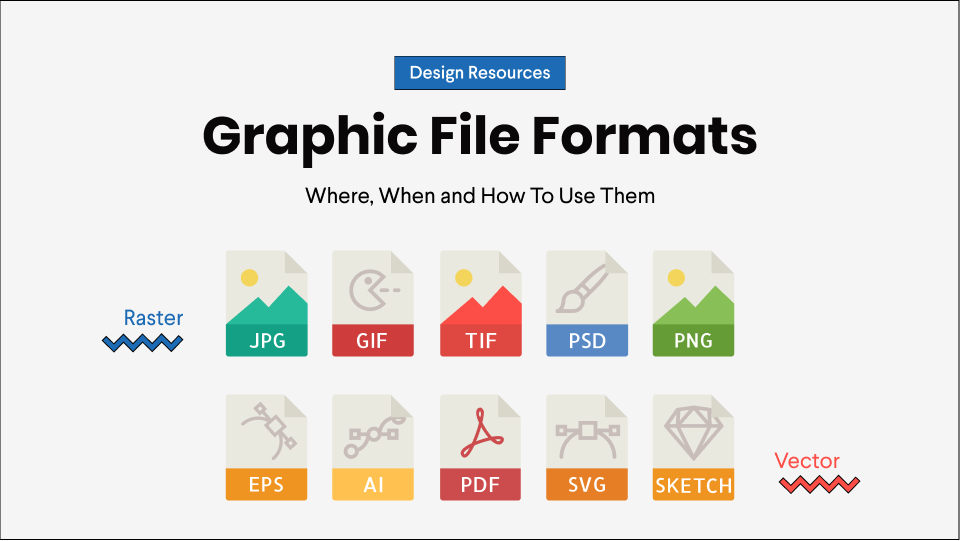
At its core, most image files can be categorized into one of two fundamental types: raster files and vector files. While some advanced formats might ingeniously blend elements of both, this primary distinction serves as an excellent starting point for navigating the diverse world of digital images. Tophinhanhdep.com is your ultimate resource for everything related to images, from inspiring collections to powerful editing tools, and mastering these file types is central to maximizing your creative potential.
The Core Distinction: Raster vs. Vector Graphics for Your Visual Content
Before diving into individual file types, it’s crucial to grasp the fundamental difference between raster and vector graphics. This foundational knowledge will guide every decision you make regarding image creation, editing, and deployment, especially when working with Tophinhanhdep.com’s diverse range of image tools and collections.
Delving into Raster Images: Pixels and Photographic Detail
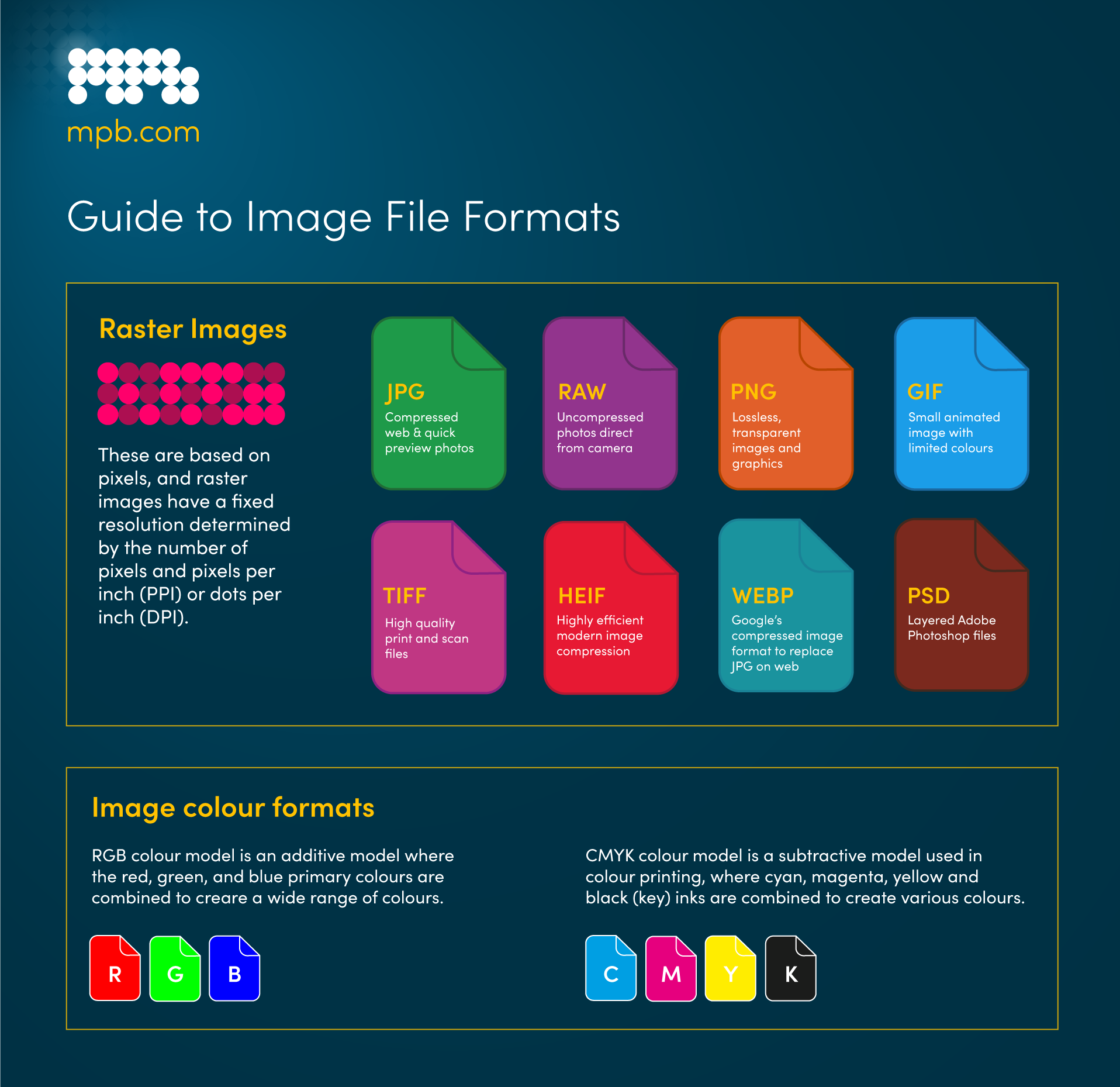
Raster images are the digital equivalent of a mosaic. They are constructed from a fixed grid of tiny colored squares known as pixels. Each pixel is assigned a specific color, and together, these millions of pixels form a complete image. This inherent structure makes raster images “resolution-dependent,” meaning they exist at a specific size and resolution.
The primary implication of this resolution dependency is that when you enlarge a raster image, you are essentially stretching these individual pixels. This stretching causes the pixels to become visible, resulting in a “pixelated” or blurry appearance, often referred to as “jagged edges.” Your image editing software might attempt to guess missing pixel data to smooth the image, but the results are rarely satisfactory. This is a critical consideration for photographers displaying their high-resolution work or designers creating large-format prints.

Raster images are the go-to choice for:
- Photography: Capturing the intricate detail, subtle color gradations, and realistic textures of real-world scenes. This includes the beautiful photography, nature, and aesthetic images found on Tophinhanhdep.com.
- Digital Artwork: Illustrations and paintings created digitally, especially those with complex shading and textures.
- Web Graphics: Banner ads, social media content, email graphics, and the backgrounds and wallpapers offered on Tophinhanhdep.com, where file size and download speed are crucial.
Leading photo editing applications, often highlighted and recommended on Tophinhanhdep.com, are specifically designed to create, edit, and manipulate raster images, allowing for detailed retouching, color correction, and the addition of various effects.
CMYK vs. RGB Color Models for Raster Images: All raster images can be saved using one of two primary color models, a distinction particularly important for Tophinhanhdep.com users dealing with both digital display and physical prints:
- CMYK (Cyan, Magenta, Yellow, Key/Black): This is a four-color subtractive printing process. Files saved in CMYK are optimized for physical printing, as these colors represent the four inks that combine on paper. If you’re preparing any of Tophinhanhdep.com’s beautiful photography or graphic designs for print, CMYK is your standard.
- RGB (Red, Green, Blue): This is a light-based additive color model. RGB files are optimized for screens – the web, mobile phones, film, and video. Most of the wallpapers, backgrounds, and images you view on Tophinhanhdep.com are in RGB.
Lossy vs. Lossless Compression in Raster Files: The way raster image data is handled during saving leads to another critical distinction:
- Lossless Formats: These formats capture and retain all data from your original file. While the file may still be compressed to reduce size, a lossless format can always reconstruct the image to its original state without any loss of quality. They are ideal for archival purposes and for images that will undergo multiple edits.
- Lossy Formats: These formats approximate the original image. They achieve smaller file sizes by intelligently discarding “unnecessary” image data, such as reducing the number of colors or analyzing pixels for redundancy. While this significantly shrinks file size, it can result in a reduction of image quality, especially with repeated saving and editing. Lossy files are generally much smaller, making them perfect for online use where download speed is paramount, a key consideration for Tophinhanhdep.com’s vast collection of web-optimized images.
Exploring Vector Images: Scalable Precision for Design
In stark contrast to raster images, vector images are not composed of pixels. Instead, they are digital artwork where points, lines, and curves are defined by mathematical equations. These “equations” describe the shapes, paths, colors, and thicknesses, turning abstract mathematical constructs into visual art.
The most significant advantage of vector images, and why they are essential for graphic designers on Tophinhanhdep.com, is their “resolution independence.” When you scale a vector image – whether shrinking it down for a small icon or blowing it up for a massive billboard – the mathematical equations are simply recalculated. This means the image will always render identically, with perfectly crisp lines and shapes, no matter the size, without any loss of detail or pixelation. Because of this inherent scalability, the concept of “lossy” or “lossless” does not apply to pure vector image types in the same way it does to raster images.
Vector images are typically used for:
- Logos and Icons: Ensuring brand consistency across all sizes, from a favicon to a vehicle wrap.
- Typesetting: Text that needs to remain sharp and editable at any scale.
- Digital Illustrations and Graphic Design: Clean, precise artwork, often featuring solid colors or smooth gradients, ideal for Tophinhanhdep.com’s graphic design inspiration.
- Photo Manipulation & Creative Ideas: While primary images might be raster, vector elements are often integrated for effects, text overlays, and stylized graphics.
Specialized vector design applications, often recommended by Tophinhanhdep.com, are the industry standard for creating and editing these scalable graphics. These tools allow designers to build intricate compositions that retain their quality across an infinite range of sizes.
Navigating Raster Image Formats: From Web to Print Photography on Tophinhanhdep.com
Tophinhanhdep.com showcases a vast array of raster images, from stunning nature photography to abstract backgrounds. Understanding the nuances of each raster format is key to selecting the best one for your specific project, ensuring optimal quality and performance.
JPEG: The Universal Standard for Web Photography
JPEG (Joint Photographic Experts Group) is arguably the most ubiquitous image format online. It’s a lossy raster format renowned for its ability to drastically reduce file size, making it ideal for web-based applications, email graphics, and large web images like banner ads. JPEGs employ a sliding scale of compression; the more you compress, the smaller the file, but the greater the potential for visible compression artifacts or pixelation.
Use a JPEG when:
- You’re working with online photos and complex artwork. JPEGs offer excellent flexibility for raster editing and compression, making them perfect for web images that need to load quickly – essential for Tophinhanhdep.com’s fast browsing experience. This includes most of the aesthetic, nature, and beautiful photography featured on our site.
- You intend to print photos or artwork. At high resolutions and with minimal compression, JPEGs are suitable for professional printing after initial editing.
- You need to send quick preview images. JPEGs can be reduced to very small sizes, making them efficient for emailing clients or sharing drafts.
- You’re creating wallpapers and backgrounds where photographic realism is desired and transparency is not a requirement.
Don’t use a JPEG when:
- You need a web graphic with transparency. JPEGs do not support transparency and will always have a solid color background. For transparent web graphics, consider GIF or PNG, as highlighted by Tophinhanhdep.com’s visual design guides.
- You require a layered, editable image. JPEGs are flat formats; all edits are saved into a single image layer and cannot be easily undone. For fully editable, multi-layered images, explore formats like PSD.
GIF: Animation, Simplicity, and Web Transparency
GIF (Graphics Interchange Format) is a lossless raster format, widely recognized for its use in animated web graphics, banner ads, email images, and social media memes. While technically lossless, GIFs can be exported with customizable settings that reduce the color palette and image information, thereby significantly shrinking file size. However, GIFs have a significant limitation: they are typically limited to 256 colors.
Use a GIF when:
- You want to create web animation. GIFs store all animation frames and timing information in a single file, perfect for dynamic content on Tophinhanhdep.com.
- You need simple transparency. GIFs offer an “alpha channel” that can be either fully transparent or opaque, allowing you to place the image on any colored background without a white box.
- You need a very small file for simple icons, web graphics, or illustrations with a limited color palette.
Don’t use a GIF when:
- You need a photographic-quality image. The 256-color limit means photos will appear flat, less vibrant, and may suffer from “color banding.” For realistic photography, look to JPEG, PNG, or TIFF.
- You need to print an image. Due to color limitations, printed GIF images will lack depth and detail.
- You need a layered, editable image. Like JPEGs, GIFs are flattened formats; for editable layers, consider PSD.
PNG: The Modern Choice for Transparent Web Graphics
PNG (Portable Network Graphics) is a lossless raster format, often considered the “next-generation GIF.” It supports built-in transparency and can display much higher color depths, encompassing millions of colors. PNGs are a web standard and are rapidly becoming one of the most common image formats online, especially favored by Tophinhanhdep.com for crisp, high-quality web visuals.
Use a PNG when:
- You need high-quality transparent web graphics. PNGs feature a variable “alpha channel” that allows for any degree of transparency, providing superior results compared to GIF’s on/off transparency. With greater color depth, your transparent images will be more vibrant and detailed.
- You have illustrations with limited colors or graphics containing sharp lines and text. PNG excels at preserving crisp edges that can blur in JPEGs.
- You need a small file for simple graphics. PNG files can compress incredibly well for images with large areas of uniform color, simple shapes, or text, making them ideal for web icons and UI elements.
Don’t use a PNG when:
- You’re primarily working with high-resolution photos or complex artwork for the web. While PNGs can handle high color depths and photos, their lossless compression often results in significantly larger file sizes compared to JPEGs for photographic content. For web-based photos, Tophinhanhdep.com generally recommends JPEG for better performance.
- You’re dealing with a print project. PNG graphics are optimized for screen display. While you can print a PNG, TIFF or high-quality JPEG files are generally better suited for professional print output.
TIFF: Uncompromised Quality for Professional Printing
TIFF (Tagged Image File Format) is a lossless raster format renowned for its extremely high quality. Primarily used in professional photography, high-quality scanning, and desktop publishing, TIFF files are often encountered when working with professional digital cameras or scanning physical documents. It’s an excellent choice for preserving detail and color integrity, making it a favorite for archiving and print-ready images. TIFF can also act as a “container” for JPEG images, creating smaller files, but traditional TIFFs are typically very large.
Use a TIFF when:
- You need high-quality print graphics. Alongside RAW, TIFF files offer some of the highest quality graphic formats available. If you’re printing photos, especially at large sizes for exhibitions or promotional materials, Tophinhanhdep.com recommends this format.
- You are making a high-quality scan. Scanning documents, photos, or artwork as TIFFs ensures you capture the best possible original file to work from, preserving every detail for potential editing.
- You need to store an image that will be edited multiple times without quality degradation.
Don’t use a TIFF when:
- You’re primarily working with web graphics. While many web browsers support it, TIFF files are optimized for print and typically have very large file sizes, which negatively impact web page load times. For high-quality images online, Tophinhanhdep.com suggests JPEG or PNG.
RAW: The Untouched Canvas for Photographers
A RAW image format isn’t precisely a raster or vector in the traditional sense, but rather a digital negative. It contains the unprocessed, unfiltered data directly captured by a digital camera or scanner’s sensor. Unlike other formats where images are processed (adjusted for color, white balance, exposure, etc.) and then compressed into a single file (like JPEG), RAW images store both unprocessed and processed data in separate components. This leaves you with the highest quality image possible, allowing for non-destructive editing using advanced photo editing applications recommended by Tophinhanhdep.com for high-resolution photography. There are numerous RAW formats, often proprietary to camera manufacturers (e.g., CRW for Canon, NEF for Nikon), though DNG (Adobe Digital Negative) is a more universal standard.
Use RAW when:
- You are shooting and editing photos professionally. Setting your camera to RAW ensures you capture the most versatile image data, providing maximum flexibility for post-processing adjustments without compromising quality. This is invaluable for serious photographers featured on Tophinhanhdep.com.
Don’t use RAW when:
- You’re working with web graphics. RAW is designed for editing; it’s not a display format. Once you’re ready to share your photos online, convert them to JPEG or PNG.
- You’re ready to print your photos. Most printers do not accept RAW formats directly, so you’ll need to convert them to JPEG or TIFF first for professional printing.
PSD: Tophinhanhdep.com’s Tool for Layered Raster Editing
PSD (Photoshop Document) is a proprietary layered image format associated with popular image editing software. These are the original design files, fully editable with multiple layers, masks, smart objects, and image adjustments. While primarily used for creating and editing raster images, PSDs are incredibly flexible and can also contain vector layers, making them a powerful choice for many different projects. A PSD can be exported into virtually any other image file format, including all the raster formats listed above, as well as some vector formats.
Use a PSD when:
- It’s time to retouch or manipulate photos. Need to color correct, remove elements, or add text overlays to a beautiful piece of photography? PSD files are ideal.
- You need to edit artwork for digital or print. Whether it’s a photo, painting, or drawing, PSD allows precise control over every element. This is fundamental for the digital art and photo manipulation aspects promoted by Tophinhanhdep.com.
- You are creating digital images for the web like social media graphics, banner ads, or video thumbnails. Creating these in a layered PSD ensures they are the right size and optimized for web use after export.
- You’re developing a website or app mockup. Layers make it easy to organize and rearrange UI elements.
- You want to get creative with animation and video, as many tools can integrate with PSD files for advanced effects.
Don’t use a PSD when:
- You need to post a photo online or send a preview to a client. PSD files are typically very large and require specific software to open. Convert to JPEG or PNG for web display or easy sharing.
- You’re ready to print your photos. Many commercial printers do not accept PSD format directly. Convert to JPEG or TIFF for printing.
Mastering Vector Image Formats: Scalability for Brands and Design on Tophinhanhdep.com
Tophinhanhdep.com emphasizes the importance of visual design and creative ideas, where vector formats shine. These formats are the backbone of branding, graphic design, and illustrations that demand infinite scalability without loss of quality.
PDF: The Versatile Document and Print Standard
PDF (Portable Document Format) is a highly versatile image and document format designed to display documents and graphics consistently across any device, application, operating system, or web browser. While rooted in powerful vector graphics, PDFs can also embed raster images, form fields, and even spreadsheets. Because of its near-universal compatibility, PDF is often the requested format by printers for final designs ready for production. Both raster and vector design applications, frequently showcased on Tophinhanhdep.com, can easily export to PDF.
Use a PDF when:
- You’re preparing for print. Many printers prefer PDF as their primary delivery format due to its ubiquity and reliability in preserving design integrity. Always check with your printer for specific file preparation guidelines.
- You want to display multi-page documents on the web. While not ideal for a single icon, PDFs are excellent for sharing posters, flyers, magazines, or booklets, keeping your entire design package intact for easy viewing, downloading, or printing.
- You need to share vector graphics with clients who may not have specialized design software, but can open PDFs universally.
Don’t use a PDF when:
- You need to edit the core design elements. PDFs are superb containers, but for comprehensive editing of raster images, use a photo editor, and for vector graphics, use a vector design tool. Once edits are complete, you can combine them into a PDF.
EPS: Legacy Vector for Large-Scale Graphics
EPS (Encapsulated PostScript) is an image format primarily used as a vector format, though it can also contain both vector and raster image data. Historically, EPS files were a staple for including single design elements (like a logo) within larger designs. It’s highly valued for its ability to scale without quality loss, a characteristic vital for graphic design and branding.
Use an EPS when:
- You need to send a vector logo to a client, designer, or printer. With an EPS file, you ensure the logo will always appear at the correct resolution, regardless of how much it’s scaled for different applications (e.g., from a business card to a billboard). This ensures brand consistency across all visual design elements.
Don’t use an EPS when:
- You’re predominantly dealing with photographs or complex raster artwork. While EPS can technically handle raster images, it’s primarily designed for vectors. For photo projects, Tophinhanhdep.com recommends PSD, TIFF, or JPEG.
- You need to display an image online. Convert to JPEG, PNG, or GIF first for web optimization.
SVG: Web-Optimized Scalable Graphics
SVG (Scalable Vector Graphics) is an XML-based vector image format specifically designed for two-dimensional graphics. It’s a modern, open-standard format that can be searched, indexed, scaled, and compressed, often resulting in smaller file sizes than other vector formats when used for web applications. This makes SVG ideal for web use, as highlighted by Tophinhanhdep.com’s focus on responsive and efficient web visuals. SVG files can be edited in both graphic editing programs and even text editors, offering significant flexibility.
Use SVG when:
- You want to create computer-generated graphs, diagrams, icons, or interactive animations for publishing on the web. Its XML foundation allows for dynamic manipulation with JavaScript.
- You need crisp, scalable logos and graphics on websites that look perfect on any screen resolution, from mobile phones to 4K monitors.
Don’t use SVG when:
- You need a file format for a print workflow. While printable, other formats like PDF or AI are generally preferred by print professionals.
- You’re dealing with complex photographic images. SVG is not designed for raster content, which would significantly increase its file size and complexity.
AI: Tophinhanhdep.com’s Go-To for Vector Creation
AI (Adobe Illustrator) is a proprietary vector image format from a leading design software. It’s based on both EPS and PDF standards, primarily serving as a vector-based format but capable of including embedded or linked raster images. AI files are the native working files for vector graphic creation and are fully editable. They can be exported to PDF and EPS for easy reviewing and printing, as well as to JPEG, PNG, GIF, TIFF, and PSD for web use and further editing. Tophinhanhdep.com highly recommends this format for professional graphic design.
Use an AI when:
- You need to create or edit a vector design. AI files allow you to precisely manipulate every single element (points, lines, curves) in your design with ease.
- You need to create a logo, icon, or brand mascot. Every vector shape and line created in an AI file can be scaled infinitely, making it ideal for images that need to be used across diverse applications. This aligns perfectly with Tophinhanhdep.com’s resources for visual design and branding.
- You’re designing a one-page print piece like a poster, business card, flyer, or notecard, which can integrate raster images while maintaining vector elements.
- You need to set sophisticated type for a logo or graphic. Vector design tools offer incredibly powerful typesetting features, allowing text to be transformed in virtually any imaginable way.
Don’t use an AI when:
- You need to edit raster images extensively. While AI can incorporate raster images, its tools for direct photo manipulation are limited compared to dedicated photo editing software. For comprehensive adjustments to photos (color, contrast, brightness), a PSD file would be more appropriate.
Optimizing Your Visuals: Lossy vs. Lossless Compression & Color Models on Tophinhanhdep.com
Understanding how images are compressed and how colors are defined is crucial for anyone engaging with digital visuals, from uploading aesthetic backgrounds to preparing high-resolution stock photos. Tophinhanhdep.com offers image tools that directly interact with these concepts.
Lossy vs. Lossless: Balancing Quality and File Size
As previously touched upon, the choice between lossy and lossless compression significantly impacts both image quality and file size.
- Lossless Compression (e.g., PNG, GIF, TIFF, RAW, some PDF/EPS): These formats capture all original image data. When compressed, no information is lost, and the image can be perfectly reconstructed to its original state. They are ideal for archival purposes, images that require multiple rounds of editing, or graphics with sharp lines and text where fidelity is paramount. The trade-off is larger file sizes.
- Lossy Compression (e.g., JPEG): These formats achieve smaller file sizes by intelligently discarding “unnecessary” image data. While this can significantly reduce file size, especially for photographs, it leads to a permanent loss of some image quality, which can become noticeable with aggressive compression or repeated saving. Lossy formats are excellent for web distribution where file size and download speed are critical.
Tophinhanhdep.com’s image compressors and optimizers are designed to help you navigate this balance. For instance, our tools can help you compress JPEGs for faster web loading while minimizing perceived quality loss, or optimize PNGs for transparent web graphics.
CMYK vs. RGB: Colors for Screens and Prints
The distinction between CMYK and RGB color models is fundamental for ensuring color accuracy across different media, a key concern for any visual content creator.
- RGB (Red, Green, Blue): This is an additive color model, where red, green, and blue light are combined in various proportions to produce a wide spectrum of colors. It’s designed for digital displays – monitors, TVs, mobile screens. When you view any image on Tophinhanhdep.com, it’s rendered in RGB. This model boasts a larger color gamut (range of colors) than CMYK, meaning it can display brighter, more vibrant colors that simply can’t be reproduced with standard printing inks.
- CMYK (Cyan, Magenta, Yellow, Key/Black): This is a subtractive color model, used in four-color printing. These four ink colors are layered onto paper to create images. When converting an RGB image to CMYK, colors might appear less vibrant or shift slightly because the CMYK gamut is smaller.
For projects destined for both web display (like aesthetic wallpapers on Tophinhanhdep.com) and physical printing (like a high-resolution print of nature photography), it’s crucial to understand these differences. Often, designers work in RGB for initial digital creation, then convert to CMYK (preferably with a soft proof) for print production to anticipate and manage any color shifts.
Choosing the Right Format for Your Tophinhanhdep.com Needs
The ultimate goal of understanding image formats is to make informed choices that benefit your specific projects, whether you’re uploading to Tophinhanhdep.com or using its image tools.
Best Formats for Tophinhanhdep.com’s Image Collections (Wallpapers, Backgrounds, Aesthetic, Nature, Abstract, Sad/Emotional, Beautiful Photography)
For displaying stunning visual content like wallpapers, backgrounds, and collections of aesthetic, nature, abstract, emotional, or beautiful photography on Tophinhanhdep.com, JPEG is often the preferred format. It offers an excellent balance of visual quality and small file size, ensuring fast loading times for users browsing our extensive galleries. When transparency is needed for elements within a background, or for crisp digital art, PNG becomes the format of choice due to its lossless nature and alpha channel support.
File Types for High-Resolution Photography & Stock Photos on Tophinhanhdep.com
Photographers contributing high-resolution images or stock photos to Tophinhanhdep.com should typically work with RAW files during capture and editing to preserve maximum data. For final, non-editable delivery of high-quality images for print, TIFF is highly recommended. For web display, a high-quality JPEG is usually sufficient, as it significantly reduces file size while retaining excellent visual fidelity, making it ideal for Tophinhanhdep.com’s curated stock photo collections.
Leveraging Formats with Tophinhanhdep.com’s Image Tools (Converters, Compressors, Optimizers, AI Upscalers, Image-to-Text)
Tophinhanhdep.com’s suite of image tools is built to work seamlessly with various formats.
- Converters: Easily transform images between formats (e.g., a TIFF to a JPEG for web use, or a PNG to a JPEG for smaller social media posts).
- Compressors & Optimizers: Fine-tune the compression of JPEGs and PNGs to achieve the smallest file sizes without compromising visual integrity, vital for website performance and email attachments.
- AI Upscalers: While AI upscaling works on raster images, the output format choice (e.g., high-quality PNG or JPEG) depends on the intended use, allowing you to enhance smaller images for various applications on Tophinhanhdep.com.
- Image-to-Text: Converts images containing text into editable text, regardless of the original image format.
These tools empower you to adapt your images for any platform or purpose, ensuring that your visuals always look their best and perform optimally.
Formats for Visual Design, Graphic Design, and Digital Art Inspiration from Tophinhanhdep.com
For graphic designers and digital artists seeking inspiration or preparing their creations for display on Tophinhanhdep.com, AI and EPS are the native working files for vector-based projects like logos, icons, and illustrations. These allow for infinite scalability, a cornerstone of effective branding. When presenting vector work online, SVG is the modern, web-optimized choice, providing crispness on any screen. For layered raster artwork and photo manipulation, PSD is indispensable, offering complete editability. Finally, PDF serves as the universal format for sharing final designs for review or print production, ensuring consistent display across all platforms.
By internalizing these distinctions and knowing when to use each format, you’re not just organizing files; you’re unlocking the full potential of your visual content. Tophinhanhdep.com is committed to providing you with the knowledge, inspiration, and tools to navigate the dynamic world of digital images, ensuring your creative vision is always realized with precision and impact.